How to Check if a PDF Has Layers on Windows: Acrobat, Edge, and Print-Safe Checks
To check if a PDF has layers on Windows, open the saved file in Acrobat or another full PDF editor and look for a Layers or Optional Content panel; if you can hide and show specific content, the PDF has layers.
If you only view the file in Microsoft Edge, treat that as a quick visual check, not final proof, because browser viewers often show the rendered result without exposing real layer controls.
That is the short answer. The useful part is knowing how to confirm it without guessing, how to tell layers apart from comments or form fields, and when to flatten a copy before sending the file to a printer, client, portal, or teammate. On Windows, layered PDFs often look perfectly normal until one viewer ignores a hidden element, one portal flattens the file unexpectedly, or one print workflow reveals content you did not mean to show.
Fastest path: save one clear Windows copy, check for a real Layers panel in Acrobat, then flatten a separate delivery copy only if the PDF needs to behave consistently everywhere.
In a hurry? Jump to Quick start: confirm PDF layers on Windows in a few minutes.
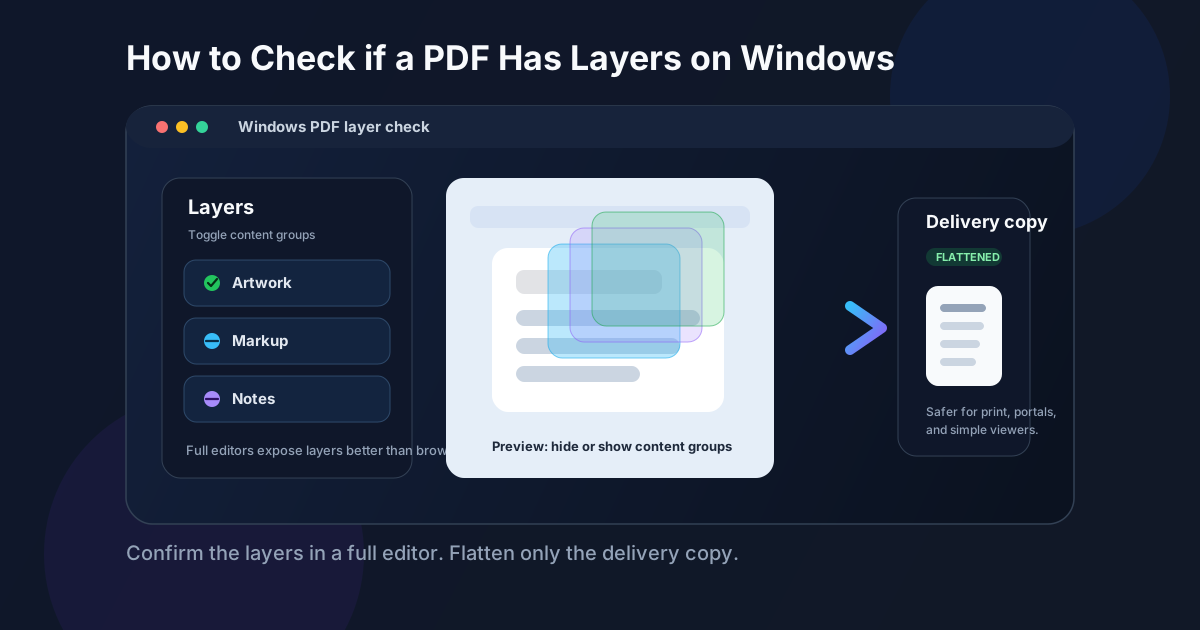
Table of contents
- Quick start: confirm PDF layers on Windows in a few minutes
- What counts as a layered PDF on Windows
- Step-by-step: how to check a PDF for layers on Windows
- What Microsoft Edge can and cannot tell you
- Fast signs the PDF really has layers
- When to flatten a copy after checking layers
- Common Windows mistakes that create false confidence
- Related LifetimePDF tools and articles
- FAQ (People Also Ask)
Quick start: confirm PDF layers on Windows in a few minutes
If you already have the PDF on your PC and you only need a reliable yes-or-no answer before sharing it, this is the workflow that saves the most time:
- Save the exact file from Outlook, Teams, Downloads, or OneDrive into one obvious folder in File Explorer.
- Open it in Acrobat or another full PDF editor, not just a browser tab.
- Look for a Layers, Navigation, or Optional Content panel.
- Toggle one layer off and back on. If specific content disappears and returns, the PDF contains layers.
- If the file must behave consistently in simple viewers, print workflows, or rigid upload portals, create a flattened copy for delivery and keep the layered original separate.
What counts as a layered PDF on Windows
In PDF language, layers usually mean optional content groups. That is content that can be shown or hidden without rebuilding the entire document. Architectural drawings, product diagrams, multilingual handouts, markup-heavy proofs, and map-style PDFs commonly use layers because different viewers or recipients may need to see different content states.
This matters because Windows users often call several different PDF features “layers” when they are not the same thing. A comment can be hidden. A bookmark can expand or collapse. A form field can appear interactive. None of that proves the file has real PDF layers. A layered PDF is specifically about content groups that can be toggled independently.
| PDF feature | What it does | Is it the same as layers? |
|---|---|---|
| Optional content groups | Lets content appear or disappear independently | Yes — this is what people usually mean by PDF layers |
| Comments or annotations | Adds notes, highlights, or markups above the page | No |
| Bookmarks | Helps navigation through the document | No |
| Form fields | Creates areas for typing, clicking, or signing | No |
That distinction is useful because it changes what you check. If your question is really about whether a proof has toggleable art layers or whether a plan set contains hidden markup, you need layer controls. If your question is about comments or form behavior, you need a different test entirely.
Step-by-step: how to check a PDF for layers on Windows
Here is the most practical Windows workflow for a real file you may need to print, review, upload, or hand off.
1) Start with the exact saved copy
Do not inspect one version in an Outlook preview and send another version from Downloads. Save one clear copy in File Explorer first so your test matches the file you actually plan to use.
2) Open it in a full PDF editor
Acrobat is the familiar choice on Windows because it can expose a real Layers or Optional Content view. A browser viewer is helpful, but it is rarely enough by itself.
3) Look for a Layers or Navigation panel
If the PDF contains layers, you should usually see a panel where named items can be expanded, hidden, or shown. No panel does not always mean no layers, but a populated panel is a strong confirmation.
4) Toggle visibility deliberately
Hide one layer at a time and see what changes. Real layer behavior means a subset of content disappears while the rest of the page stays intact.
5) Compare what happens in simpler viewers
After you confirm the layer structure in Acrobat, you can open the same file in Microsoft Edge to see how a simpler Windows viewer renders it. This is useful when the PDF is headed for colleagues, clients, or portals that may never open it in a full editor. If Edge shows a stable final appearance but does not expose layer controls, that is normal. The point is not to make Edge prove the layers exist; the point is to learn whether the delivery copy will still behave acceptably there.
6) Decide whether you need a flattened delivery copy
If the layered PDF is only for your own editing workflow, keep it layered. If it is headed into a print queue, a government portal, a bidding system, a job application portal, or a client who just needs a dependable final view, a flattened copy is often safer. That preserves the visible state and reduces surprises from viewers that treat optional content differently.
Practical Windows sequence: confirm the layers in Acrobat, open the same file once in Edge for a viewer sanity check, then flatten only the delivery copy if consistency matters more than editability.
What Microsoft Edge can and cannot tell you
Edge is useful on Windows because it is fast, built in, and common. It is also the reason many people misjudge layered PDFs. A browser viewer can display the final rendered page beautifully while hiding the fact that there are optional content groups underneath. It may not expose a layer list, and it may not make it obvious which hidden content states are preserved.
What Edge is good for
- opening the exact delivery copy quickly,
- spotting obvious rendering problems,
- checking whether the visible state looks stable enough for everyday viewing.
What Edge is not good for
- proving that optional content groups exist,
- telling layers apart from annotations or form features,
- showing every hidden-content state the way a full editor can.
So if someone asks, “The PDF opens fine in Edge — does that mean it has no layers?” the honest answer is no. It only means Edge rendered one visible state of the document. That can still be useful, but it is not the same as a layer inspection.
Fast signs the PDF really has layers
You do not always need a long forensic session. A few signals usually tell you quite quickly whether the file on Windows is truly layered:
- the PDF editor shows a named Layers or Optional Content list,
- turning one item off hides only certain artwork, text, markups, or language variants,
- the page layout stays intact while one content group changes,
- the file behaves differently when you compare the layered original against a flattened copy,
- the document type naturally fits layered workflows, such as plans, proofs, packaging art, maps, or multilingual designs.
If none of those clues appear, the PDF may simply be a normal flat PDF that happens to contain complex objects. That is not bad. It just means your next step should match the real problem. For example, if the issue is print reliability rather than layers, you may need to review output intent, page geometry, or color setup instead.
When to flatten a copy after checking layers
Flattening is not a punishment for bad PDFs. It is a delivery choice. Once you confirm that a Windows PDF contains layers, the next question is whether the next recipient needs those layers to remain live. If the answer is no, flattening a copy often makes the file simpler and more dependable.
Keep the original layered when:
- you still need to edit, review, or toggle content later,
- the file is part of an internal production workflow,
- different recipients need different visible states from the same source.
Flatten a delivery copy when:
- the PDF is headed to a print shop or office printer with unpredictable handling,
- the file must upload to a strict portal that dislikes advanced PDF features,
- you want a client or teammate to see one stable final appearance instead of a live layered document.
The healthy habit is simple: keep one master, send one delivery copy. That gives you the safety of editability without making every downstream viewer solve your production choices for you.
Common Windows mistakes that create false confidence
Most layer-check failures on Windows are not technical failures. They are workflow failures. Someone checks the wrong copy, confuses comments with layers, or decides the file is safe because Edge showed it without errors.
- Testing an Outlook preview instead of the saved PDF you will actually send.
- Assuming a polished on-screen result means no hidden optional content exists.
- Flattening the only copy, then discovering you needed the editable layered original later.
- Calling comments, bookmarks, or form controls “layers” and chasing the wrong fix.
- Ignoring downstream reality — especially print drivers, upload portals, and simple viewers.
If you avoid those five mistakes, you already do a better Windows layer check than most people. The rest is just matching the PDF to its destination.
Related LifetimePDF tools and articles
If you are checking layers because something feels unstable, these are the next most useful LifetimePDF resources to keep close:
Best next move: if the file needs to survive everyday Windows viewing, portal uploads, and printing without surprises, keep the layered master and send a flattened copy.
FAQ (People Also Ask)
How do I check if a PDF has layers on Windows?
Save the PDF to your Windows PC, open it in Acrobat or another full PDF editor, and look for a Layers or Optional Content panel. If you can turn specific content on and off without changing the entire page, the PDF has layers.
Can Microsoft Edge show PDF layers?
Not reliably for confirmation. Edge is good for opening the file and spotting visible rendering issues, but it usually does not expose true layer controls the way a full PDF editor can.
Are PDF layers the same as comments, bookmarks, or form fields?
No. Layers usually mean optional content groups that can be hidden or shown independently. Comments, bookmarks, links, and form fields are separate PDF features.
Why does a layered PDF sometimes print differently from what I saw on screen?
Some Windows print drivers and viewers interpret optional content differently or simplify the PDF during processing. That is why flattening a separate delivery copy is often safer for final print handoff.
Should I flatten the original PDF after checking layers?
Usually no. Keep the original layered master if you might need to edit or toggle content later, and create a separate flattened copy only for the final destination that needs consistent behavior.