How to Check if a PDF Has Bookmarks: Spot the Outline Before You Share, Archive, or Fix the File
To check if a PDF has bookmarks, open the exact file in a viewer or workflow that exposes the bookmark, contents, or outline panel and look for section entries such as chapters, appendices, exhibits, or signature pages.
If your current browser, email, or mobile preview does not show an outline, compare in a fuller PDF app before you assume the file has no bookmarks at all.
That is the short answer. The useful answer is that people often ask the wrong question. They look at the first page, do not see an obvious sidebar, and conclude the PDF has no navigation. But many simplified viewers hide the bookmark layer even when the document already contains one. The dependable check is not about whether the preview feels clean. It is about whether the actual PDF exposes a real outline and whether that outline still helps a reader move through the file.
Fastest practical path: save the real PDF, open the bookmark or contents panel, confirm whether the outline exists, then test the entries people will actually use before you trust the file.
In a hurry? Jump to quick start: check whether a PDF has bookmarks in about 5 minutes.
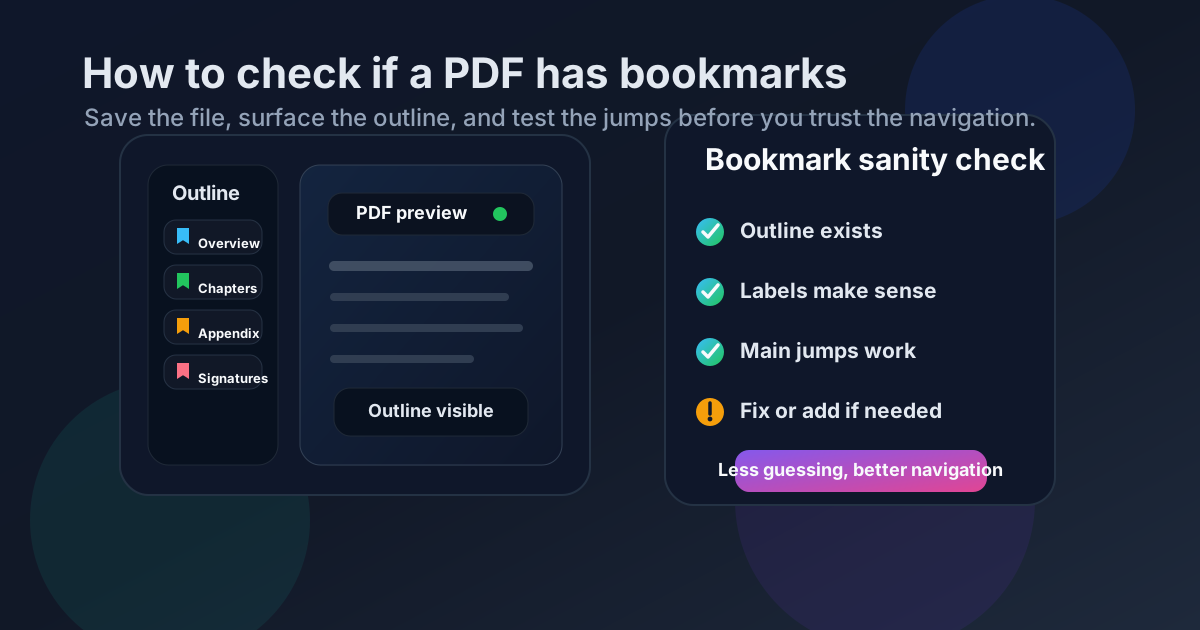
Table of contents
- Quick start: check whether a PDF has bookmarks in about 5 minutes
- What counts as PDF bookmarks
- Step-by-step: how to check if a PDF has bookmarks
- Why previews and simplified viewers mislead people
- Signs the bookmark layer is present but weak
- What to do if the PDF has no bookmarks or bad bookmarks
- Platform-specific help
- Related LifetimePDF tools and guides
- FAQ
Quick start: check whether a PDF has bookmarks in about 5 minutes
If your real goal is simply tell me whether this PDF has an outline I can trust, use this order:
- Save the exact PDF you plan to send, review, upload, archive, or fix.
- Open that file in a viewer or workflow that clearly exposes bookmarks, contents, or the outline panel.
- If you see entries for chapters, appendices, exhibits, or other sections, the PDF has bookmarks.
- Do not stop there. Tap the high-value entries and make sure the labels and jump targets still match the real document.
- If you do not see an outline, compare in a fuller PDF app before deciding the file truly has none.
- If the document is long and the outline is missing, vague, or stale, fix it before the PDF reaches readers.
What counts as PDF bookmarks
PDF bookmarks are the navigation entries that let a reader jump to major sections without scrolling page by page. They might point to an executive summary, chapter openers, appendix tabs, exhibits, schedules, terms, or a signature page. In practical terms, they are the PDF's built-in outline.
Bookmarks are not page thumbnails
Thumbnails show the visual pages. Bookmarks are labeled navigation entries that help readers jump by meaning, not just by page position.
Bookmarks are not a visible TOC
A table of contents lives on the page itself. Bookmarks live in the document navigation layer. A polished PDF may use both.
Presence and quality are different
A PDF can have bookmarks and still have weak labels or broken jumps. First confirm the outline exists, then decide whether it is good enough.
This distinction matters because people often confuse any kind of navigation with a usable bookmark outline. A PDF may look structured, have visible headings, or even include page labels while still lacking bookmark entries altogether. The reverse is also true: the outline can exist, but the current preview may hide it.
Step-by-step: how to check if a PDF has bookmarks
This workflow works well across desktop and mobile because the logic stays the same even when the menus differ.
| Step | What to do | What you are really checking |
|---|---|---|
| 1. Save the real file | Move the PDF out of a message preview, portal preview, or browser wrapper if needed. | That you are inspecting the same copy you plan to share or clean up. |
| 2. Open a bookmark-aware view | Look for a bookmarks, contents, or outline panel instead of stopping at the page canvas. | Whether the navigation layer is actually present. |
| 3. Confirm the outline exists | If labeled section entries appear, the PDF has bookmarks. | Whether the file offers reader-facing navigation rather than only page scrolling. |
| 4. Test the important entries | Tap the main sections readers will revisit most often. | Whether the outline still points to the right pages and uses clear labels. |
| 5. Decide what to do next | Keep the outline if it is healthy, repair it if it is stale, or add one if the file clearly needs it. | Whether the PDF is actually ready for readers, not just technically openable. |
Reliable sequence: save the exact PDF → expose the bookmark panel → confirm the outline exists → test the important jumps → fix or add bookmarks before sharing if needed.
Why previews and simplified viewers mislead people
Many PDF opening paths are built for speed, not deep document QA. They tell you that the pages render. They do not always tell you whether the bookmark layer exists or whether the outline is strong enough to trust.
| Where you open the PDF | What it is good for | What it cannot safely prove |
|---|---|---|
| Email or chat preview | Quickly confirming you have the expected file and the pages look familiar. | That the PDF definitely has no bookmarks just because you do not see an outline immediately. |
| Browser tab | Fast reading, downloading, or a quick visual page check. | That the bookmark layer is missing rather than merely hidden or simplified. |
| Cloud-storage preview | Spot-checking the file inside Drive, Dropbox, Box, or a portal workflow. | That the PDF's internal navigation is complete and visible enough for a real reader. |
| Bookmark-aware PDF app or workflow | Seeing the outline directly and testing the important jumps. | It still does not guarantee the outline is high quality unless you test it. |
Common false conclusion
“I do not see bookmarks here, so the PDF has none.” That conclusion is often wrong. A better conclusion is “this viewing path is not enough evidence yet.”
This matters most on phones, tablets, browser-first workflows, and shared documents that move through mail or cloud previews. Those are exactly the moments when readers need navigation help but are least likely to see the full outline clearly.
Signs the bookmark layer is present but weak
Once you confirm that a PDF has bookmarks, the next question becomes whether the outline is any good. A file can technically have bookmarks and still frustrate the reader.
| What you notice | What it usually means | Best next move |
|---|---|---|
| The bookmark list exists, but the labels are vague | The outline was preserved mechanically or never cleaned for the final reader. | Rename the main entries so they match the visible headings or section names. |
| The first bookmark works, but later ones drift | Pages were inserted, removed, or merged after the outline was built. | Retarget the important jumps before sharing the PDF. |
| The visible TOC and bookmark panel disagree | One navigation layer was updated and the other was not. | Repair both so the document tells the same story everywhere. |
| The outline is a dense wall of tiny entries | The hierarchy exists, but it is not helping normal readers scan the file. | Simplify the top layer and keep deeper detail only where it genuinely helps. |
| The PDF is long and has no bookmarks at all | The file relies entirely on scrolling, search, or luck. | Add bookmarks before the document goes to a client, teammate, reviewer, or archive. |
Merged packet
Assume the outline needs rechecking. Combined files often keep old labels or shifted destinations.
Scanned or OCR-cleaned file
The text may improve while the navigation still remains thin, vague, or inherited from an older export.
Proposal or report
Readers usually revisit summary, pricing, appendix, and signature sections, so those bookmarks matter most.
Board book or manual
If the file is long enough to feel heavy, it is usually long enough to deserve a trustworthy outline.
What to do if the PDF has no bookmarks or bad bookmarks
The answer depends on what you found. The good news is that presence checks lead naturally to the right next move.
- If the PDF has no bookmarks but is short, you may not need to do anything. Not every two-page file needs a navigation tree.
- If the PDF has no bookmarks and is long, add them before the file reaches people who need to move around quickly.
- If the PDF has bookmarks but the labels feel stale, clean the names so the outline matches the final visible document.
- If the bookmarks exist but land on the wrong pages, retarget the important entries after the page order is final.
- If the outline is overloaded, trim it. A smaller clear tree often serves readers better than a giant noisy one.
Best next step after the check: improve the outline before the PDF leaves your hands if the document is long, reused often, or likely to be reviewed under time pressure.
Platform-specific help
If you want device-specific steps instead of a general cross-platform workflow, these guides cover the same bookmark-presence question on common platforms.
Windows
Best if your PDFs live in File Explorer, Outlook, or desktop folders and you want a practical Windows path.
Open Windows GuideMac
Useful if your workflow starts in Finder, Preview, or a Mac-first document library and you want the cleanest Mac-specific check.
Open Mac GuideiPhone
Helpful when the PDF is moving through Files, Mail, or a mobile share flow and you want a fast phone-first check.
Open iPhone GuideAndroid
Best when you need a practical bookmark check from downloads, messaging apps, or Android file storage.
Open Android GuideFAQ
How do I check if a PDF has bookmarks?
Open the exact PDF in a viewer or workflow that exposes bookmarks, contents, or the outline panel. If entries appear for chapters, appendices, exhibits, or other sections, the PDF has bookmarks.
Can a PDF have bookmarks even if I do not see them in my browser or email preview?
Yes. Many previews render the pages cleanly while hiding or simplifying the bookmark layer, so a missing outline in one preview is not always the final answer.
Are PDF bookmarks the same as a visible table of contents?
No. A visible table of contents is part of the page design, while bookmarks live in the PDF navigation layer. Good documents often use both.
What if the PDF has bookmarks but they look wrong?
Treat that as a cleanup problem, not as proof the document is finished. Weak labels, stale entries, or broken jumps usually mean the outline needs work before sharing.
Should I add bookmarks if the PDF is long and has none?
Usually yes. Long reports, manuals, exhibit packets, proposals, and board books are much easier to use when readers can jump to the right section instead of scrolling page by page.
Make the outline prove itself before you trust the file.
A calm preview is not enough. Save the real PDF, surface the bookmark layer, test the important jumps, and clean the navigation before the document reaches someone who actually has to use it.
Published by LifetimePDF — Pay once. Use forever.