How to Add Bookmarks to PDF: Build a Clickable Outline That Makes Long Documents Easy to Navigate
To add bookmarks to a PDF, the cleanest workflow is to use a document with real section structure, export it as PDF, and then verify the outline so readers can jump straight to the right chapter, appendix, or form section.
If you only have a finished PDF, convert it to an editable format first, rebuild the headings, and then export a cleaner, more navigable PDF instead of fighting the fixed layout.
That is the short answer. The useful part is knowing which route fits the file in front of you. A Word document, a saved HTML file, a scanned packet, and a mystery PDF from somebody else's inbox do not all want the same fix. Good bookmarks are not decoration. They are the difference between a long PDF that feels usable and one that feels like endless scrolling with better branding.
Fastest reliable path: if the original source still exists, clean the heading hierarchy there and export again. If the PDF is all you have, convert it to Word first, repair the structure, and then publish the navigable version.
In a hurry? Jump to Quick start: add bookmarks to a PDF without making the file messier.
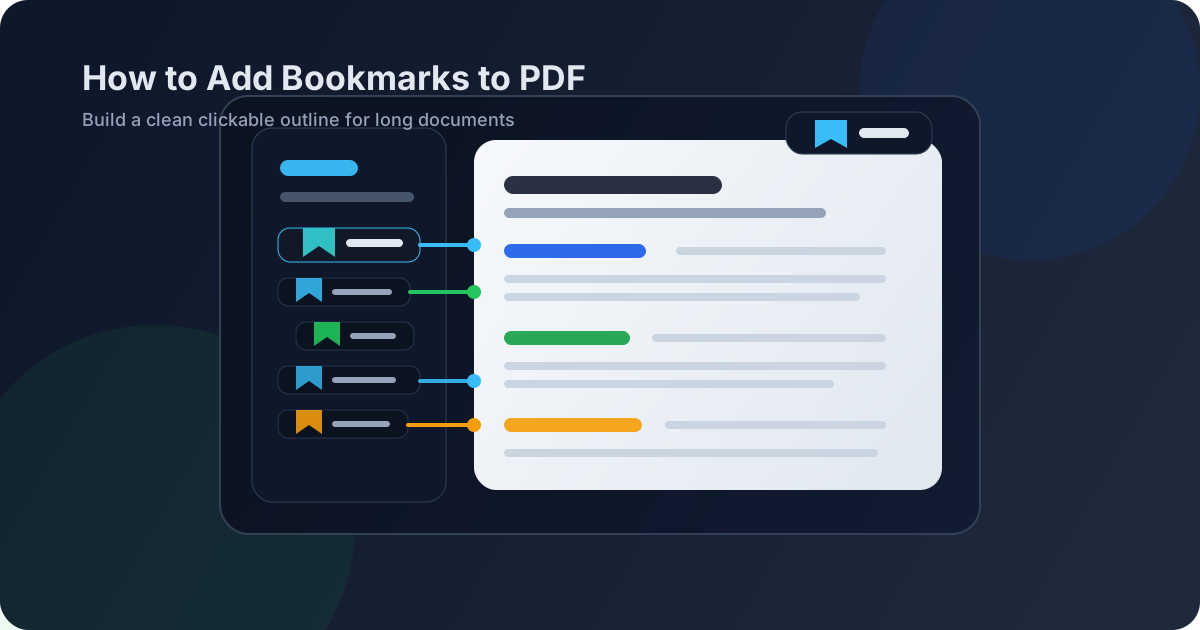
Table of contents
- Quick start: add bookmarks to a PDF without making the file messier
- What PDF bookmarks actually do
- Choose the right workflow for the file you have
- Step-by-step: create a PDF people can navigate easily
- The structure rules that make bookmarks worth using
- How to handle an existing PDF when the source file is gone
- Scanned PDFs: OCR first or you waste time
- Common bookmark mistakes that make long PDFs worse
- Final QA before you share the PDF
- Related LifetimePDF tools and guides
- FAQ (People Also Ask)
Quick start: add bookmarks to a PDF without making the file messier
If you want the shortest route that still produces a clean result, use this sequence:
- If the document still exists in Word or HTML, use that source instead of editing the final PDF blindly.
- Make sure major sections have real heading levels, not just bigger bold text.
- If you only have the PDF, run it through PDF to Word so you can rebuild the structure properly.
- If the file is scanned, run OCR PDF before you do anything else.
- Export the repaired document back to PDF and test the outline in a PDF viewer.
What PDF bookmarks actually do
PDF bookmarks are the clickable outline entries that appear in the sidebar or navigation panel of a PDF reader. They let someone jump straight to Chapter 3, Pricing Terms, Appendix B, or Signature Pages without dragging through dozens of pages first.
They matter most when the document is long enough that scrolling stops being reasonable. Reports, manuals, ebooks, policies, onboarding guides, legal packets, class notes, investor decks, and proposal bundles all get easier to use when the navigation is obvious.
| Document type | Why bookmarks help | What usually goes wrong without them |
|---|---|---|
| Reports and proposals | Readers can jump straight to summary, pricing, or appendix sections | Decision-makers skim badly or miss key sections entirely |
| Manuals and documentation | Navigation mirrors chapters and troubleshooting sections | Users keep searching or scrolling for one repeated task |
| Legal and policy packets | Specific clauses and exhibits become easier to review | Important references are slower to locate under time pressure |
| Course guides and study packs | Students can reach units, readings, or appendices quickly | The PDF becomes one long file with no clear entry points |
The practical point is this: bookmarks are not just for polished publishing workflows. They are a plain usability upgrade for any PDF someone will open more than once.
Choose the right workflow for the file you have
The best bookmark workflow depends less on the keyword and more on the file you actually have in your hands. Be honest about that starting point. It saves time.
If you still have the source file
This is the easiest scenario. If the document still exists in Word, Google Docs export, HTML, or another editable format, fix the heading hierarchy there and export again. That is usually cleaner than trying to bolt navigation onto a finished PDF after the fact.
If you only have the finished PDF
Use PDF to Word first. Once the content is editable, apply proper section headings, repair any broken layout, and then convert it back with Word to PDF. It sounds indirect, but it is often the most realistic route when the original source is gone.
If your content lives on a web page or in HTML
Use semantic structure before export. Clean H1, H2, and H3 organization makes the final document easier to navigate and easier to maintain. When you are ready, convert it with HTML to PDF.
If the PDF is scanned
Start with OCR PDF. A scan is often just a stack of images pretending to be a document. Until the text becomes searchable and editable, any bookmark workflow will be slower and clumsier than it needs to be.
Best workflow choice: use the source file when possible, rebuild structure when necessary, and only treat the finished PDF as the place to verify navigation, not the place to invent it from scratch.
Step-by-step: create a PDF people can navigate easily
Here is the most dependable workflow when the goal is not just to have bookmarks, but to have bookmarks another human can use without guessing.
1) Decide whether the job is structure repair or final polish
If the original source still exists, you are doing structure polish. If you only have a frozen PDF, you are doing structure repair. Those are different jobs, and the second one usually starts with conversion.
2) Mark the true top-level sections first
Find the sections someone would actually want to jump to: executive summary, chapter 1, pricing, appendix, signatures, FAQs, references, and so on. These become the anchors of the outline. If the document has no clear top-level structure, fix that before thinking about sub-sections.
3) Add a sensible second level only where it helps
Not every paragraph needs a bookmark. The best outlines are selective. Add subsections where they save real time, not where they show off that you can create more rows in a sidebar.
4) Export the document back to PDF once the hierarchy is clean
Use Word to PDF or HTML to PDF so the document becomes a finished shareable file again. If the packet is overgrown or includes sections that should live separately, trim it with Extract Pages or Split PDF before the final handoff.
5) Test the outline in a PDF reader before sharing
Open the sidebar or outline panel and click through the major entries. Ask simple questions:
- Do the bookmark names make sense on their own?
- Do they jump to the expected page?
- Is the nesting shallow enough to scan quickly?
- Would someone new to the file understand the structure in ten seconds?
That tiny review step catches most real-world problems before the PDF lands in a client inbox or team archive.
The structure rules that make bookmarks worth using
Most bad bookmark panels are not technical failures. They are structure failures.
Use real headings, not fake headings
Bigger bold text is not a real heading hierarchy. If the document source treats section titles like ordinary paragraphs with styling tricks, the exported PDF usually inherits that mess.
Keep the outline shallow
Two or three levels is enough for most documents. A deeply nested outline full of tiny subpoints looks impressive for five seconds and then becomes a chore to read.
Name entries the way a rushed reader would search
"Billing Terms and Renewal Rules" is better than "Financial Info." "API Authentication Setup" is better than "Configuration." Bookmark labels should reduce guesswork, not add to it.
Do not bookmark everything
If every minor subheading becomes a bookmark, the navigation panel turns into noise. Keep the entries that help people jump meaningfully. Leave the rest inside the normal page flow.
How to handle an existing PDF when the source file is gone
This is the common real-life situation. The PDF already exists, the editable source has vanished, and somebody still expects a cleaner document by this afternoon.
In that case, the practical route is not wishful thinking. It is a recovery workflow:
- Convert the file with PDF to Word.
- Repair the section headings so they reflect the real document structure.
- Rename vague chapters, clauses, or appendix sections.
- Fix any layout damage from the conversion if it affects readability.
- Export the improved version with Word to PDF.
If the packet is huge, break it into manageable chunks first. Rebuilding structure in a 25-page section is often calmer than trying to repair a 240-page monster in one pass. That is where Split PDF or Extract Pages can help.
Scanned PDFs: OCR first or you waste time
If your PDF came from a scanner, copier, or camera app, the visible text may not be usable text at all. It may just be an image of each page. That matters because a real bookmark workflow depends on structure, and structure depends on readable text.
Signs the file needs OCR
- You cannot highlight individual words.
- Search does not find words that are clearly visible.
- The PDF feels like a pile of page photos.
- The content came from scans, faxes, or phone captures.
The right order for scanned files
- Run OCR PDF.
- Check whether the recognized text is accurate enough to work with.
- Convert to Word if you need to repair headings or rebuild sections.
- Export back to PDF once the hierarchy is usable.
- Test the outline before distribution.
OCR is not an optional bonus here. It is what turns an image packet into something you can organize like a document.
Scanned packet? Make the text searchable before you try to make the navigation clever.
Common bookmark mistakes that make long PDFs worse
Turning every tiny heading into a bookmark
More entries do not automatically mean better navigation. When the sidebar becomes crowded with micro-sections, people stop trusting it.
Leaving generic titles in place
Labels like "Overview," "Notes," or "Section 4" are rarely helpful without context. Rename bookmarks so they work when viewed alone.
Ignoring page order problems
A bookmark can jump perfectly to the wrong place if the document itself is still out of order. When the packet was assembled from multiple sources, split out the sections that do not belong together and rebuild the final version in the right sequence before you worry about navigation.
Skipping the final click-through
This is the most common failure. A technically successful export is not the same thing as a pleasant reader experience. Click the first, middle, and last important bookmarks before you call the job done.
Trying to fix a scan as if it were a native document
If the PDF is image-only, structure work will keep feeling broken until OCR happens. Start there instead of wrestling with symptoms.
Final QA before you share the PDF
Before the file goes to a client, coworker, teacher, reviewer, or portal, run this quick check:
- Do the top-level bookmarks match the main parts of the document?
- Are the names specific and easy to scan?
- Do the bookmarks jump to the correct section, not just roughly nearby?
- Is the outline useful on both long desktop reviews and quick mobile lookups?
- Does the PDF still need page cleanup, compression, or password protection before it leaves your machine?
Once the navigation is right, finish the rest of the delivery workflow. Compress if the file is heavy, protect it if the content is sensitive, and add page numbers if reviewers will be discussing exact sections out loud.
Related LifetimePDF tools and guides
Adding bookmarks usually sits inside a wider PDF cleanup workflow. These are the most useful next steps:
- PDF to Word for recovering an editable source when the PDF is all you have
- Word to PDF for exporting the repaired document back into a shareable PDF
- HTML to PDF for structure-first document creation from web content
- OCR PDF for turning scanned pages into workable text
- Split PDF for breaking oversized packets into sections before the final export
- PDF Page Numbers for review-heavy documents where people cite page references constantly
- PDF Protect for locking sensitive files before sharing
- How to Add Bookmarks to PDF Online for the browser-first companion angle
- How to Add Bookmarks to PDF Without Monthly Fees for the pay-once workflow angle
Want the calmest workflow? Repair the structure first, export once, then do a fast click-through instead of repeatedly patching the same messy PDF.
FAQ (People Also Ask)
How do I add bookmarks to a PDF?
Start from the best source file you have, apply a real heading hierarchy, export the document back to PDF, and then test the outline. If you only have a finished PDF, convert it to Word first so you can rebuild structure cleanly.
Can I add bookmarks to an existing PDF without Adobe Acrobat?
Yes. A practical route is to convert the PDF to Word, fix the headings and sections, then export it back to PDF. That structure-first workflow is often easier than forcing deep navigation changes into a fixed-layout file.
What if my PDF is scanned?
Run OCR first. Until the text becomes searchable and editable, a scanned PDF is mostly just page images, which makes meaningful bookmark work much harder.
Do PDF bookmarks work in browser viewers and standard PDF readers?
Usually yes. Most desktop PDF readers and many browser-based viewers support bookmarks or an outline panel, even though the exact look and controls vary by app and device.
What is the difference between bookmarks and a table of contents page?
A table of contents is a visible page inside the document. Bookmarks are the clickable navigation entries shown in the PDF sidebar. Long PDFs are usually easiest to use when they include both.
Published by LifetimePDF — Pay once. Use forever.