How to Check if a PDF Has Annotations on Android: Files, Drive, Gmail, and Share-Safe Review
To check if a PDF has annotations on Android, save the file to Files and open it in a PDF app that shows the comments or annotation list instead of trusting the preview alone.
If Google Drive, Gmail, Chrome, or a chat preview makes the PDF look clean, compare that view with a markup-aware app before you share, flatten, print, or archive the file.
That is the short answer. The useful answer is that Android is full of quick PDF views that are convenient for reading but weak for final review decisions. A contract, proof, drawing set, handout, or client packet can look finished on a phone or tablet while still carrying highlights, sticky notes, approval stamps, or internal comments that only become obvious when you open the annotation list in the right app.
Fastest practical path: save one clear Android copy in Files, check it in a PDF app that exposes comments, decide whether the file is still for review or already final, then flatten or remove the markup on purpose.
In a hurry? Jump to quick start: check PDF annotations on Android in about 5 minutes.
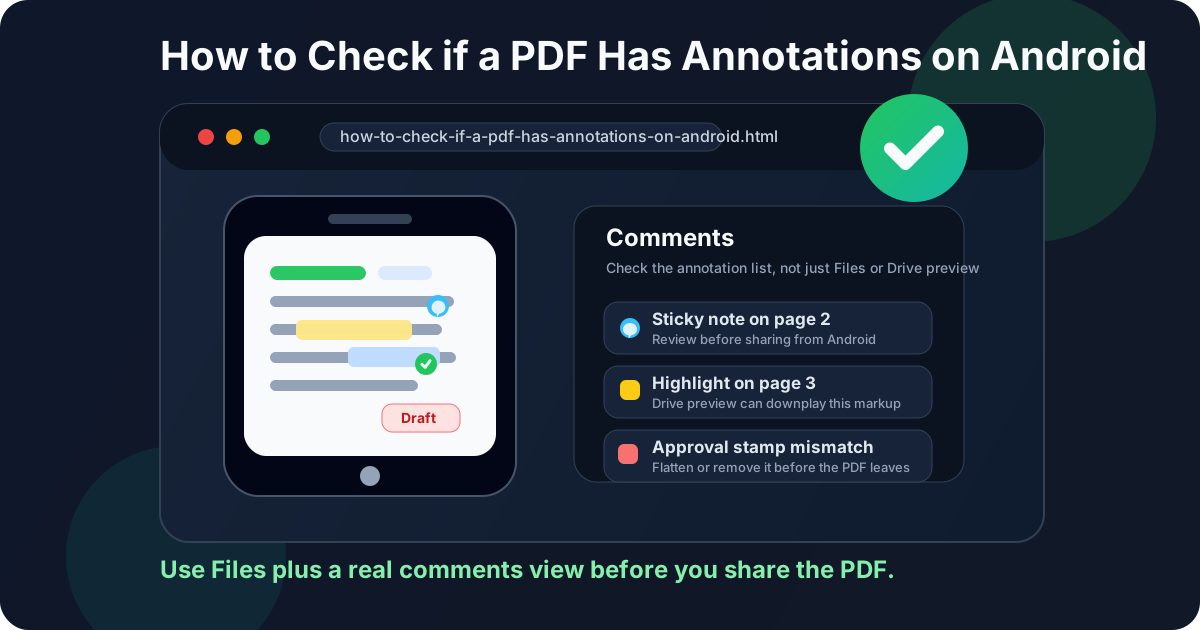
Table of contents
- Quick start: check PDF annotations on Android in about 5 minutes
- What counts as a PDF annotation on Android
- Step-by-step: how to review annotations on Android
- Where Android users get misled
- Common signs the PDF still has markup attached
- When to keep annotations live, flatten them, remove them, or redact them
- Related LifetimePDF tools and guides
- FAQ
Quick start: check PDF annotations on Android in about 5 minutes
If your real goal is simply make sure the wrong comments or markup do not leave with the PDF, use this order:
- Save the exact PDF you plan to send, print, upload, archive, or flatten into Files.
- Open it in an Android PDF app that exposes the comments or annotation list, not just the page preview.
- Tap through highlights, sticky notes, stamps, shapes, callouts, and markup items one time.
- Decide whether the file is still a review copy or already a final copy.
- If the markup should remain visible but fixed, use Flatten PDF. If it should not travel at all, remove it first.
- Open the saved final copy again on Android and confirm it now looks and behaves the way the recipient should see it.
What counts as a PDF annotation on Android
PDF annotations are markup items layered onto the document without permanently rewriting the original page content. Some are useful collaboration tools. Some are exactly the sort of leftovers that should not survive into a client copy, school submission, final archive, or sign-off packet.
| Annotation type | What it usually does | Why it matters before sharing |
|---|---|---|
| Comments or sticky notes | Add reviewer feedback without changing the main text directly | Easy to miss when you only glance at the page in a quick Android preview |
| Highlights, underlines, and strikeouts | Mark text for review, approval, revision, or objection | Can make a final file look unfinished or expose internal editing history |
| Text boxes, arrows, and shapes | Overlay instructions, callouts, and directional markup on the page | Often linger after the underlying issue was already fixed |
| Stamps | Show states like Draft, Approved, Rejected, Reviewed, or Signed | An outdated stamp can instantly give the wrong impression |
| Drawing markups | Circle, box, or point at areas during review | Can confuse the next reader if they no longer represent live feedback |
On Android, the trap is not that these items are unusual. The trap is that one app may surface them clearly while another reduces the file to a quiet-looking page view unless you open a stronger comments interface.
Step-by-step: how to review annotations on Android
This workflow gives you a dependable answer without turning a simple check into a technical side quest.
Step 1: Save the real outgoing Android copy to Files
If the PDF is still sitting inside Gmail, Drive, Chrome, WhatsApp, Slack, Teams, or a portal preview, save it to Files first. Annotation status can change across exports and versions. If you inspect one copy and send another, the check did not really happen.
Step 2: Open the file in a PDF app that exposes comments
Do not stop at the page view. The page only shows what happens to be obvious at the current zoom and viewer settings. A fuller PDF app is where you catch note icons, stale review threads, hidden feedback, and markup items sitting off to the side of the page.
Step 3: Tap through the marked pages once
You want to answer one blunt question for every item: should this markup still exist in the copy another person will receive? If the answer is no, remove it. If the answer is yes but it no longer needs to stay editable, plan to flatten it.
- Check small note icons tucked into margins.
- Check highlights that may only stand out at certain zoom levels.
- Check old approval or draft stamps that no longer match the file's status.
- Check arrows, boxes, and callouts that were only meant to guide editing.
- Check whether multiple reviewers left overlapping markup on the same page.
Step 4: Compare the annotation list with what Drive, Gmail, or Chrome showed
Android previews are good at answering does this page open and look readable? They are not always good at answering what review baggage still travels with this file? If the comment list shows more than the visible page made obvious, trust the fuller review view.
Step 5: Decide whether this is still a review file or already a final file
A review file can keep live comments because the next person still needs to reply. A final file usually needs one of two outcomes: the markup is removed completely, or the intentional visible markup is flattened into the page so it stops behaving like live review material.
Step 6: Verify the final copy one last time
Open the saved output again on Android. Make sure the comments you meant to remove are gone, the highlights you meant to keep still show correctly, and the file now matches what the recipient should actually see.
Reliable sequence: save the exact Android copy → open the comments list → decide review copy or final copy → flatten or remove deliberately → verify once more.
Where Android users get misled
Most annotation mistakes happen because people trust the wrong Android view for the job.
Files quick preview
Useful for confirming you opened the right document, but not always strong enough for a final markup decision.
Drive or Gmail preview
Convenient for a fast look, but easy to mistake for a full annotation review when it is really just a lightweight preview.
Chrome or portal previews
You may be seeing a browser wrapper or cached view rather than the clearest possible view of the actual markup layer.
Print-ready assumptions
A document can look final enough to send from Android while still carrying notes, review markup, or status stamps you forgot to clean.
The right takeaway is not that Android is bad at PDFs. It is that different Android views answer different questions. A quick preview answers is this the right file? A real annotation review answers what hidden review baggage still travels with it?
Common signs the PDF still has markup attached
These patterns show up again and again when an Android PDF is not as final as it seems.
| What you notice | What it usually means | Best next move |
|---|---|---|
| The page looks finished but the comments list still has items | Review notes were never cleared after edits were made | Open each item and decide keep, flatten, or remove |
| A draft or approval stamp feels outdated | The PDF inherited status markup from an earlier stage | Replace or remove the stamp before the file leaves the workflow |
| Highlights appear subtle on the phone screen | The markup is real, but your current Android view is downplaying it | Use a clearer annotation view before making a final decision |
| Different people report different things about the same PDF | One app is surfacing markup more clearly than another | Check the file in a comments-aware environment and settle it there |
| The file is headed to a client, archive, school portal, court, or compliance workflow | Even harmless leftover markup can become embarrassing or misleading | Do a deliberate markup review instead of relying on a quick preview |
When to keep annotations live, flatten them, remove them, or redact them
Not every annotation deserves the same treatment. The smart move depends on what the next person is supposed to do with the file.
Keep annotations live when the PDF is still under review
If editors, clients, teammates, or reviewers still need to reply to the comments, live annotations are useful. In that case, the markup is part of the workflow, not a mistake.
Flatten annotations when the markup should stay visible but no longer be editable
Flattening is the right move when highlights, callouts, or stamps should remain on the page for the final reader, but should stop behaving like interactive review elements. That is common for approved packets, print handoff, and final visual copies shared from a phone or tablet.
Remove annotations when they were only temporary review clutter
Delete note icons, stale highlights, old arrows, and internal comments when they have already served their purpose. A final PDF should not carry yesterday's editing scaffolding into tomorrow's workflow.
Use redaction when the issue is sensitive content
If a comment, visible note, or page text contains private or regulated information, use a proper redaction workflow. Redact PDF is the right category of action when the goal is to make information disappear safely. Flattening preserves visible content. It does not magically make sensitive content safe.
Easy mistake to avoid
Do not use flattening as a substitute for judgment. Flattening is for keeping intended visible markup while making it non-interactive. It is not the same thing as removing the wrong comment or securely eliminating sensitive information.
Bottom line: if the next person should only see the final result, do not let hidden review leftovers make that decision for you.
FAQ
How do I check if a PDF has annotations on Android?
Save the PDF to Files on your Android device, open it in a PDF app that shows the comments or annotation list, then review every highlight, sticky note, stamp, and markup item. Do not assume a clean-looking preview means the file has no annotations.
Can Android Files or Google Drive hide PDF annotations?
Yes. Files, Drive, Gmail, Chrome, and chat previews can make comments and markup easy to miss, especially when the app shows only a simplified page view instead of the full annotation list clearly.
What counts as a PDF annotation on Android?
Typical annotations include comments, sticky notes, highlights, underlines, strikeouts, text boxes, arrows, shapes, stamps, and other review markup layered on the page.
Should I flatten annotations before sending a PDF from Android?
Flatten annotations when the markup should remain visible but no longer be editable. If the comments or highlights should not travel at all, remove them before you send the file.
Does flattening remove sensitive comments from a PDF?
Not safely in the way people often mean. Flattening keeps visible markup as page content. If a note or visible text contains sensitive information, remove it or use proper redaction instead.
Published by LifetimePDF — Pay once. Use forever.