Table of contents
- Quick start: add page numbers to a PDF in Firefox in 3 minutes
- What Firefox is good at in a page-numbering workflow
- Step-by-step: number a PDF from downloads, email attachments, or portal tabs
- How to start on page 2, skip covers, or use different numbering styles
- How to save the numbered PDF without version confusion in Firefox
- Common Firefox problems and quick fixes
- Related LifetimePDF tools and Firefox guides
- FAQ
Quick start: add page numbers to a PDF in Firefox in 3 minutes
If the PDF is already final and you mainly want the shortest workable path, use this:
- Open PDF Page Numbers in Firefox.
- Choose the exact PDF from Downloads, a saved email attachment, a downloaded portal export, or another real source location.
- Pick the number position that fits the page layout, such as bottom center or bottom right.
- Set the numbering style and the start-page logic.
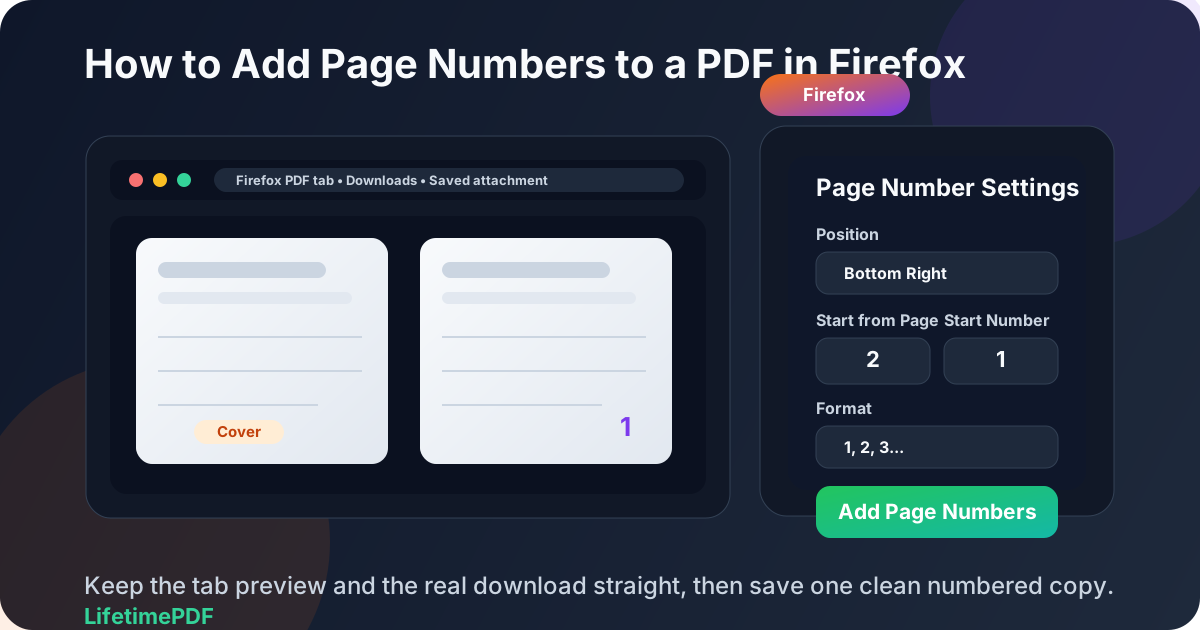
- If the cover page should stay blank, use Start from Page = 2 and Start Number = 1.
- Download the finished PDF with a clear name and open it once in Firefox to confirm the numbering looks right.
What Firefox is good at in a page-numbering workflow
Firefox is a very good place to review a PDF before you touch it. A file opens in a tab, the built-in viewer makes the pages easy to inspect, and you can quickly spot whether the footer is already crowded, whether the cover page should stay blank, and whether the page order is actually final.
Where people get tripped up is assuming the tab preview is the finished workflow. For a clean export, you usually want an actual page-numbering tool that produces a fresh saved file with the rules you chose. Firefox helps you inspect. The tool helps you finish.
| Situation | Best Firefox-friendly option | Why it works better |
|---|---|---|
| You want to inspect the PDF first | Open it in Firefox | Fastest way to spot cover pages, crowded footers, blank pages, and page-order issues before you change anything. |
| You need a numbered copy you can save and send | Use PDF Page Numbers in Firefox | Gives you clean controls for placement, numbering style, start page, and export. |
| The PDF still needs cleanup first | Merge, delete pages, rotate, or crop before numbering | Page numbering belongs near the end so you do not repeat the work after other edits. |
| You need to verify the result | Reopen the numbered file in Firefox once | Catches off-by-one numbering, footer collisions, and wrong-file mistakes before the PDF goes anywhere important. |
In plain English: Firefox is excellent for checking and reviewing. A dedicated page-numbering workflow inside Firefox is better for producing the final numbered copy.
Step-by-step: number a PDF from downloads, email attachments, or portal tabs
1) Start from the real source file
This matters more in Firefox than people expect. A PDF may be open in one tab, saved in Downloads, and also attached to an email or portal record somewhere else. Before you add page numbers, decide which file is the real source. If the document matters, do not rely on vague browser memory.
2) Check whether the PDF is actually final
If the document still needs merging, page deletion, rotation, or signatures, do that first. Page numbering is usually one of the last cleanup steps because it depends on the final page order. If you number too early, one small edit can force you to redo the whole job.
3) Open PDF Page Numbers in Firefox
Go to LifetimePDF PDF Page Numbers. This is the clean browser route when you want the numbering rules to stick to an exported file rather than a temporary preview.
4) Choose the PDF from the right location
Most Firefox page-numbering jobs come from one of these places:
- Downloads after you saved a PDF from the web
- Email attachments that were previewed first and then downloaded
- Portals or dashboards that open the PDF in a browser tab before you save it
- Cloud storage files that need a corrected, numbered output
Pick the file you actually intend to keep. A lot of Firefox PDF frustration is really source-file confusion wearing a different outfit.
5) Choose a number position that matches the page layout
The right placement depends on the document. Reports and proposals often look best with bottom numbering. Legal packets, school PDFs, or forms with heavy footer content may need the numbers in a top corner instead.
- Bottom center: classic for reports, manuals, and handbooks
- Bottom right: common for proposals, packets, and business PDFs
- Top right: useful when the footer already contains dates, notes, or signature areas
6) Set the numbering rules
Standard digits are right for most PDFs, but the real value is the start-page logic. If the second physical sheet should display as page 1, set Start from Page = 2 and Start Number = 1. That one setting solves a huge share of real-world page-numbering requests.
7) Export the PDF, then review the first, middle, and last numbered pages
After downloading the numbered PDF, open the saved output in Firefox and check three places: the first numbered page, one page in the middle, and the final page. That quick review catches most real mistakes, including off-by-one numbering, overlap with the footer, or numbering an older copy by accident.
Clean sequence: find the right source file → finish edits → add page numbers in Firefox → save the output with a clear name → review once before sharing.
How to start on page 2, skip covers, or use different numbering styles
Most people searching for this topic do not just want numbers somewhere on the page. They want the numbering logic to match the document.
Start numbering on page 2
This is the classic cover-page workflow. It works well for proposals, school packets, manuals, onboarding PDFs, and client deliverables where page 1 is a title page that should stay visually clean.
Start numbering on page 3
Use this when page 1 is a cover and page 2 is a table of contents, instructions page, or title spread that should also stay unnumbered. The same logic applies: choose the physical page where numbering begins, then set the visible number you want to appear there.
Keep visible numbers aligned with physical pages
Some compliance, internal filing, or legal review workflows do not want page 2 to display as 1. In that case, keep the numbering tied to the actual sheet count so the visible number matches the physical page number.
Use roman numerals for front matter
If the front section should read i, ii, iii and the main document should switch to standard digits, the cleanest path is usually to split the PDF, number the sections separately, then merge them back together. That is usually easier than forcing one numbering pass to do too much at once.
Skip blank pages before you number the file
If the PDF contains accidental blanks, scanner junk, or appendix pages that do not belong in the final count, remove them first with Delete Pages. It is easier to number a clean document than to repair numbering logic afterward.
How to save the numbered PDF without version confusion in Firefox
Firefox makes it easy to keep the original preview tab open while the finished numbered file lands in Downloads. That is convenient, but it also creates the exact kind of look-alike version confusion that causes mistakes later.
Use a filename that tells the truth
Names like final.pdf or document-new.pdf do not help when there are already several copies around. Better names are things like proposal-numbered.pdf, packet-paged.pdf, or report-cover-skipped.pdf.
Reopen the numbered file once
Before you upload or email anything, reopen the actual numbered output in Firefox. That catches the classic mistake where someone successfully creates the new file but then shares the original because it was still sitting in the first tab.
Keep the original only if you need it
For important documents, keeping the original can be sensible. Just make the numbered version unmistakable so you never have to guess which file is safe to share.
Common Firefox problems and quick fixes
The page numbers overlap my footer
Move the numbers to another position, reduce the size slightly, or clean the margins first with Crop PDF. The goal is not just to add numbers. The goal is to make them look like they belong there.
I started numbering on the wrong page
Recheck the difference between the physical page and the visible number. Most numbering mistakes are setup mistakes, not tool failures.
I numbered the wrong tab preview or older download
Go back to the real source file, run the numbering again, and save the corrected output with a clearer name. This is frustrating, but it is common enough in Firefox that it is worth planning around.
The PDF is still messy before numbering
Fix the structure first. Use Rotate PDF for sideways sheets, Delete Pages for blanks, and Merge PDF if the packet still lives as separate files.
The PDF is locked
If you are authorized to edit it, unlock the file first with PDF Unlock, add the page numbers, then protect the finished copy again with PDF Protect if needed.
The file is too large after numbering
Once the content is correct, shrink the file with Compress PDF. It is usually faster to optimize the finished PDF than to rebuild the whole workflow from scratch.
Related LifetimePDF tools and Firefox guides
Adding page numbers in Firefox usually sits inside a bigger PDF workflow. These tools and guides pair especially well with it:
- PDF Page Numbers — add numbering with controls for position, style, start page, and visible start number.
- Merge PDF — combine separate files before you number a final packet.
- Delete Pages — remove blank pages or junk pages before numbering.
- Split PDF — separate front matter and main content when you need different numbering styles.
- Crop PDF — clean oversized margins so footer numbering fits better.
- PDF Protect — lock the final numbered PDF before sending it onward.
Related Firefox-specific reading on LifetimePDF: how to edit a PDF in Firefox, how to OCR a PDF in Firefox, how to split a PDF in Firefox, how to password protect a PDF in Firefox, and how to unlock a PDF in Firefox.
Simple order for most Firefox users: clean the PDF, add page numbers once, review the output, then protect or share the final file.
FAQ: How to add page numbers to a PDF in Firefox
Can I add page numbers to a PDF directly in Firefox?
Firefox is very useful for opening and reviewing the PDF, but the cleanest way to save a numbered copy is usually a browser-based PDF Page Numbers tool opened in Firefox.
How do I start page numbers on page 2 in Firefox?
Set the physical start page to 2 and the visible starting number to 1 so the cover page stays blank while the second sheet displays as page 1.
What if Firefox opens the PDF in a browser tab instead of downloading it?
Identify or save the real source file first, then number that copy and export a clearly named output. The biggest risk is usually working from the wrong preview or older download, not the numbering step itself.
What should I do if the page numbers overlap the footer?
Move the numbers to another position, reduce the size, or clean the PDF first by deleting blank pages, rotating pages, or cropping oversized margins.
Should I add page numbers before merging, deleting pages, or signing the PDF?
Usually no. Finish those edits first, then add page numbers near the end so you only have to do the numbering step once.
Published by LifetimePDF — Pay once. Use forever.