How to Split PDF in Firefox: Separate Pages from Downloads, Email Attachments, and Cloud Files Without Mixing Up Versions
To split a PDF in Firefox, open a browser-based Split PDF tool in Firefox, choose the file from Downloads, a saved email attachment, cloud storage, or a local folder, set the page ranges or sections you need, and download the smaller PDFs.
Firefox can preview PDFs well, but it does not split them into separate files by itself, so the clean workflow is to use Firefox as the workspace and a dedicated split tool for the actual export.
That is the short answer. The part that actually saves time in Firefox is avoiding old preview tabs, duplicate downloads, stale cloud copies, and vague output names that become harder to manage than the original document.
Fastest path: confirm the exact source PDF first, open LifetimePDF's Split PDF tool in Firefox, create only the sections you really need, then rename the outputs before you upload, email, or archive them.
In a hurry? Jump to Quick start: split PDF in Firefox in a few minutes.
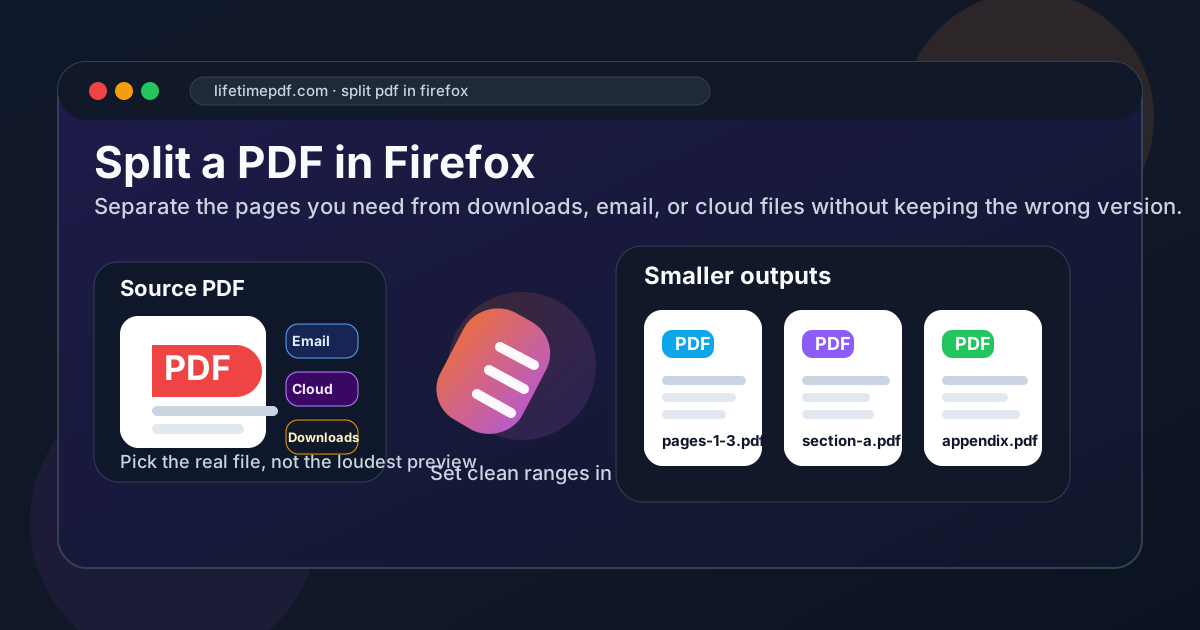
Table of contents
- Quick start: split PDF in Firefox in a few minutes
- Why Firefox is a good PDF workspace but not the split tool itself
- Step-by-step: split a PDF in Firefox without confusion
- Split PDF vs Extract Pages vs Delete Pages in Firefox
- Working with PDFs from Downloads, email attachments, cloud storage, and local folders
- Common Firefox mistakes and how to avoid them
- How to keep the new smaller PDFs clean and easy to share
- Related LifetimePDF tools and guides
- FAQ
Quick start: split PDF in Firefox in a few minutes
If you already know roughly how the PDF should be divided, this is the cleanest Firefox workflow for most people:
- Open Split PDF in Firefox.
- Choose the source file from Downloads, a saved email attachment, cloud storage, or another local folder.
- Decide whether the document should become a few meaningful sections, several single-page files, or one extracted range instead of a full split.
- Create the smaller PDFs and save them with names that describe the contents, not just the page numbers.
- Open each output once in Firefox before you email, upload, print, or archive it.
Why Firefox is a good PDF workspace but not the split tool itself
Firefox is where a lot of PDF work already begins. A form opens from email. A policy packet lives in cloud storage. A report downloads from a portal. A contract lands in Downloads. In practice, Firefox becomes the place where all those files meet.
The limit is simple: opening a PDF is not the same thing as splitting it into separate files. Firefox's built-in viewer is great for checking the document, confirming the page count, and making sure you grabbed the right file. It does not create several smaller PDFs on its own.
The cleaner workflow is usually this:
- Use Firefox to review the file and confirm the real source.
- Use Split PDF when one document needs to become several separate files.
- Use Extract Pages when you only need one selected section as one new PDF.
- Use Delete Pages when you want one cleaned-up copy instead of several outputs.
- Use Organize PDF first if the page order is messy or you need to inspect sections before splitting.
| Method | Best for | Where it struggles |
|---|---|---|
| Firefox PDF viewer only | Opening the file, checking page count, and confirming you have the right source | Creating several smaller PDF files from one larger document |
| Email or cloud previews | Fast visual checks before deciding which file you actually need | Easy to confuse with an older copy or duplicate download |
| Firefox + Split PDF | Turning one large PDF into several clear smaller outputs | You still need to name and review the outputs sensibly |
| Firefox + Extract Pages | Keeping one selected section as one new file | Not ideal if you need several separate outputs from the same document |
In other words, Firefox is the workspace. The actual split should still happen in a tool built for producing clean smaller PDFs.
Step-by-step: split a PDF in Firefox without confusion
If you want a repeatable browser workflow that works for contracts, school forms, approval packets, application bundles, reports, appendices, invoices, or long document sets, use this routine:
- Start from the exact PDF you intend to break apart. Do not assume the open browser tab is the right file. Confirm whether the real source is the email attachment, the cloud copy, the downloaded version, or a local folder export from a portal.
- Open the split workflow. Launch Split PDF in Firefox.
- Decide what the outputs should mean. Think in terms of sections another person would understand, such as signatures, appendices, exhibits, receipts, onboarding forms, invoices, or review chapters.
- Create only the outputs you need. If one section is all you need, use Extract Pages instead of turning one PDF into a pile of parts.
- Rename the results immediately. Names like contract-signature-pages.pdf or report-appendix.pdf are much easier to trust later than part-1.pdf and part-2.pdf.
- Review each new file once. Open the beginning and end of every output before you share it anywhere.
Useful rule: label outputs based on purpose, not just page numbers. A file called client-exhibits.pdf is safer than pages-14-22.pdf when you come back to it later.
If the page order is already confusing, use Organize PDF first. It is usually easier to preview and fix the flow before you split than to repair several wrong outputs afterward.
Split PDF vs Extract Pages vs Delete Pages in Firefox
These tasks sound similar, but they solve different problems.
Split PDF is for when one large document should become several new files. Maybe you have one project packet and want the summary, appendix, and signatures as separate PDFs. Maybe you have one application bundle and want one file for forms and another for supporting documents. That is a split workflow.
Extract Pages is cleaner when you only want one result. If the only thing you need is pages 8 through 12 from a longer report, use Extract Pages. It gives you one smaller PDF without creating several files you did not ask for.
Delete Pages is best when the final document should still mostly look like the original, just without certain pages. That is useful when a packet includes duplicate covers, notes, blank pages, or confidential sections that should not stay in the version you plan to share.
- Need several outputs? Use Split PDF.
- Need one smaller output? Use Extract Pages.
- Need one edited version of the original? Use Delete Pages.
Making that choice first keeps Firefox workflows tidy and saves you from cleaning up a folder full of unnecessary exports.
Working with PDFs from Downloads, email attachments, cloud storage, and local folders
The split step itself is usually easy. Source confusion is the real browser problem. One file is open in an email preview tab. Another sits in cloud storage. A third version is already in Downloads. Firefox might even be showing a duplicate with a number added to the filename. If you split the wrong source, the outputs will be wrong no matter how neat the tool is.
The safest habit is simple: confirm one real source file first, then split from that copy. That gives you a clear starting point and makes the outputs easier to name, store, and compare later.
- Downloads: check whether you are opening document.pdf, document (1).pdf, or an older copy with a similar name.
- Email attachments: save the attachment first if you are unsure whether the preview is the exact file you plan to send onward.
- Cloud storage: confirm you have the right version before splitting, especially if other people also edit or replace the file.
- Portal exports: if a dashboard generated the PDF, keep the export in one obvious folder before you start making smaller files.
- Local folders: put the source and the new smaller outputs in a location that makes sense, especially for work, school, legal, or deadline-driven documents.
Clear filenames are not just a nice habit here. They are what stop you from uploading the full confidential packet when you only meant to share one smaller section.
Common Firefox mistakes and how to avoid them
Most problems with splitting PDFs in Firefox come from browser habits, not from the split itself.
1. Splitting the wrong copy
Firefox makes it easy to juggle an email preview, a cloud tab, a portal export, and a downloaded copy at the same time. Confirm the real source file before you split anything.
2. Creating too many output files
If you only need one smaller section, do not split the whole PDF into ten parts. Use Extract Pages instead.
3. Naming outputs too vaguely
Files called part-1, part-2, and part-3 are easy to mis-send later. Name them based on their purpose or content.
4. Forgetting to review the outputs
It only takes a few seconds to open the first and last page of each new PDF. That quick check catches reversed sections, missing pages, and wrong ranges before somebody else sees the mistake.
How to keep the new smaller PDFs clean and easy to share
Once the split is finished, a few small habits make the outputs much easier to trust:
- Check the first and last page of each output so you know the right range landed in the right file.
- Rename the files immediately before Downloads fills with another round of copies.
- Compress only if needed after the page ranges are already correct.
- Protect a sensitive output if one smaller file still contains private information that should not travel unprotected.
- Keep the original until you are done so you can recover quickly if you realize a section was missing.
| If this happens | What to do next |
|---|---|
| The new smaller PDFs are still too large for email or an upload portal | Use Compress PDF after splitting |
| You only needed one selected range after all | Use Extract Pages instead of keeping several extra outputs |
| The page order looked messy before splitting | Go back and use Organize PDF first |
| The source was a scan and you need the final files searchable | Use OCR PDF after the split so the new files are easier to search |
Resist the urge to keep splitting the same file over and over unless something is actually wrong. One clean set of clearly named outputs is easier to trust than five almost-identical attempts scattered through Firefox Downloads.
Related LifetimePDF tools and guides
Splitting often overlaps with one or two other PDF tasks. These are the most useful companions in Firefox workflows:
- Split PDF — turn one large file into several smaller PDFs.
- Extract Pages — keep one selected range as one new PDF.
- Delete Pages — remove unwanted pages while keeping one cleaned-up copy.
- Organize PDF — preview, reorder, and prepare the file before splitting.
- Compress PDF — shrink the final smaller files if upload limits still complain.
Related reading on LifetimePDF: How to Split PDF on Windows, How to Split PDF on Chromebook, How to Merge PDFs in Firefox, How to Sign a PDF in Firefox, and How to Add Text to a PDF in Firefox.
Firefox shortcut: confirm the real source file, split only what you actually need, name the outputs clearly, and review them once before they leave your browser or your downloads folder.
FAQ: How to split PDF in Firefox
Can Firefox split PDF files by itself?
Firefox can preview PDFs very well, but its built-in viewer does not create separate PDF files by itself. Use a browser-based Split PDF tool inside Firefox for the actual split.
What is the best way to split a PDF from email or cloud storage in Firefox?
Confirm which file is the real source first, then split that copy in Firefox. That prevents you from creating outputs from an older preview, the wrong cloud version, or a duplicate download.
When should I use Extract Pages instead of Split PDF in Firefox?
Use Extract Pages when you only want one smaller output from a larger PDF. Use Split PDF when one document needs to become several separate files.
Will splitting a PDF in Firefox reduce quality?
Usually no. Splitting normally keeps the original text, layout, and page quality because you are reorganizing pages into smaller PDFs rather than turning them into screenshots.
What if the file is a scan or the split outputs are still too large?
If the source is a scan, splitting will still work, but it will not make the text searchable by itself. OCR the PDF if you need searchable text, and compress the final outputs after the page ranges are already correct.
Published by LifetimePDF — Pay once. Use forever.