How to Unlock a PDF in Firefox: Open, Edit, Print, or Sign Files from Downloads, Gmail, and Drive Without Opening the Wrong Copy
To unlock a PDF in Firefox, open LifetimePDF's PDF Unlock tool in Firefox, upload the right file from Downloads, a saved Gmail attachment, Google Drive, or another folder, enter the current password if needed, then download the unlocked working copy and test the blocked action right away.
If Firefox can preview the file but will not let you print, copy, sign, or edit it, you are usually dealing with PDF permissions rather than a browser bug, so the fix is to unlock the authorized working copy and then finish the real task.
That is the short answer. The part that usually wastes time in Firefox is not the unlock button itself. It is deciding which copy is real when the same PDF exists as a Gmail preview, a Google Drive tab, a download in your browser list, and an older Firefox tab that reopens after session restore with nearly the same filename.
Fastest path: confirm you are allowed to use the file, open PDF Unlock in Firefox, choose the exact PDF from Downloads, Gmail, or Google Drive, enter the current password if required, unlock it, and immediately try the blocked job that sent you here.
In a hurry? Jump to Quick start: unlock a PDF in Firefox in a few minutes.
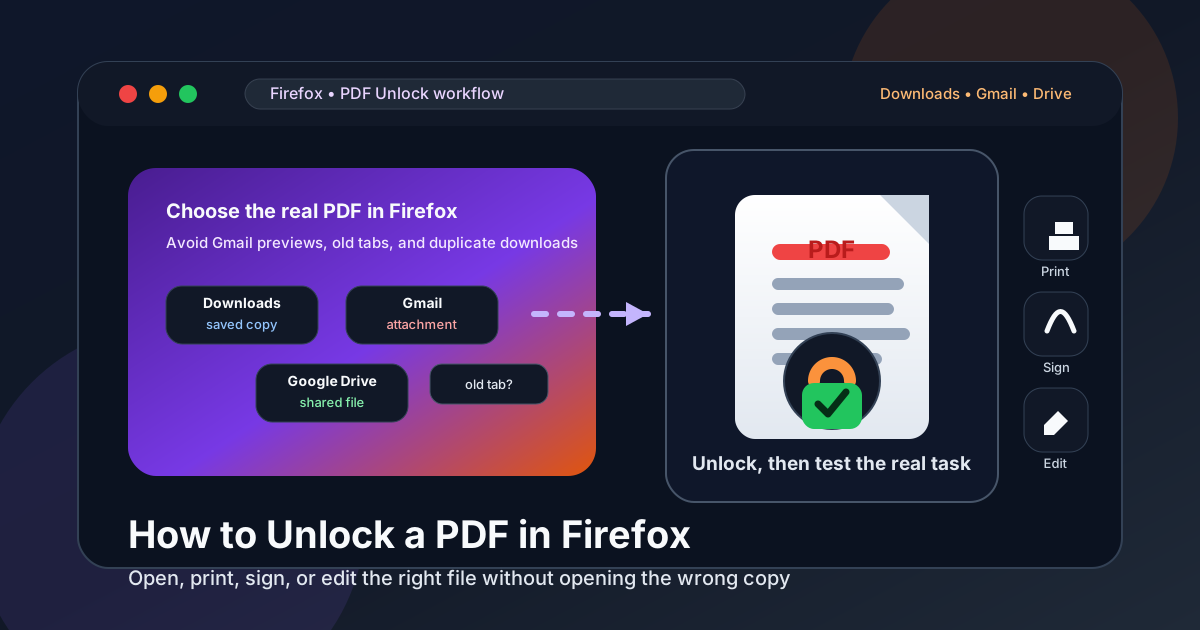
Table of contents
- Quick start: unlock a PDF in Firefox in a few minutes
- When unlocking a PDF in Firefox is the right move
- Open password vs permission restrictions in Firefox
- Step-by-step: how to unlock a PDF in Firefox
- Firefox viewer, Gmail, Drive, Downloads, and restored tabs
- What to do after the PDF is unlocked
- Common Firefox problems and quick fixes
- Related LifetimePDF tools and guides
- FAQ
Quick start: unlock a PDF in Firefox in a few minutes
If you already know you are allowed to work with the file, this is the shortest useful Firefox workflow:
- Open PDF Unlock in Firefox.
- Choose the exact PDF from Downloads, a saved Gmail attachment, Google Drive, or another folder.
- Enter the current password if the document requires it.
- Download the unlocked working copy.
- Open it in Firefox and immediately try the action that used to be blocked: print, copy text, sign, edit, or fill the form.
- If the finished version still needs controlled access, add fresh protection after the real work is done.
When unlocking a PDF in Firefox is the right move
Most people searching this do not want a theory lesson about PDF security. They are stuck in a very normal browser-first workflow. The file opens in Firefox, but printing is blocked. Or it asks for a password. Or the contract still needs a signature, the form still needs answers, or the report only needs a few sections copied before it moves on.
Firefox is a common starting point because everyday PDFs already show up there. A statement opens from Gmail. A shared packet launches from Google Drive. A portal preview lands in a tab before you ever save a local copy. That makes Firefox a practical staging area. The actual unlock step matters when protection is the only thing blocking work you are authorized to do.
| Situation | Best move | Why it helps |
|---|---|---|
| You can view the PDF in Firefox but cannot print, copy, sign, or edit it | Use an authorized unlock workflow | It removes the friction blocking the real task you need to finish |
| The file asks for a password and you know it | Open it with the password, unlock the working copy, and continue | You stop re-entering protection and move into the actual job faster |
| You only need a signature, form fill, or one quick edit after access is restored | Unlock first, then move straight into the next tool | You avoid workarounds and keep the final copy cleaner |
| You do not know the password and the file is not yours | Ask the sender or owner for access | That is the correct fix when authorization, not Firefox, is the real issue |
Firefox is the window where the problem becomes obvious. Unlocking is the step that makes the next useful step possible again.
Open password vs permission restrictions in Firefox
A lot of confusion comes from mixing up two different kinds of protection.
Open password
This is the password that appears before you can view page one. If Firefox stops you before the document opens, you are dealing with access protection. If you do not know that password, the right fix is usually to get it from the owner or ask for a clean working copy.
Permission restrictions
In this case, the PDF opens in Firefox, but the useful part is blocked. You may not be able to print, copy text, sign, fill, or edit it. That is why a PDF can feel locked even though it is already visible in Firefox's built-in viewer.
| Protection type | What it blocks | What usually fixes it |
|---|---|---|
| Open password | Viewing the PDF at all | Enter the correct password or request access from the sender |
| Permission restriction | Printing, copying, editing, signing, filling forms, or extracting pages | Use an authorized unlock workflow to remove the restriction |
| Wrong-copy confusion | You unlock one file but keep working on another | Confirm the exact source file before you start and name the unlocked copy clearly |
Step-by-step: how to unlock a PDF in Firefox
Here is the cleanest order for most browser-first workflows:
1) Confirm you are allowed to remove the protection
If the file belongs to a client, employer, school, bank, or legal sender, make sure you are supposed to unlock it. Sometimes the fastest fix is simply getting the right password or asking for a usable copy rather than forcing a messy browser workaround.
2) Identify the real source file before you touch anything
The same PDF can exist as a Gmail preview, a Google Drive view, a browser download, and a restored Firefox tab from yesterday's session. Decide which copy is the real source first. That one habit prevents a surprising number of mistakes.
3) Open PDF Unlock in Firefox
Go to LifetimePDF PDF Unlock. A browser-based workflow is often the fastest route when the document is already living inside Firefox and you just want the restriction removed so you can continue working.
4) Choose the file from Downloads, Gmail, Google Drive, or your working folder
Use the file picker to select the exact PDF you mean to work on. If it arrived in Gmail, save the attachment first if that makes version control clearer. If it came from Drive, stay deliberate about which copy is still restricted and which copy becomes the working file.
5) Enter the current password if required
If the document uses an open password or password-linked restrictions, enter it carefully. Most failures here are ordinary: a wrong character, an outdated password from an older revision, or a different file than the one you thought you selected.
6) Unlock the PDF and download the working copy
Download the unlocked version and give it a clearer name if needed. Something like contract-working.pdf, packet-unlocked.pdf, or statement-ready-to-sign.pdf is much safer than relying on Firefox to keep several similar filenames straight.
7) Test the blocked action immediately
Do not stop after the download. Open the unlocked file in Firefox and try the actual task that sent you here. Print a page. Copy text. Add the signature. Fill the form. Move into editing. That quick check tells you whether the workflow is truly finished.
8) Finish the real task and re-protect only if the final copy still needs it
Once the document is usable, finish the actual work. If the final version still needs controlled access before you share it, add fresh protection afterward with PDF Protect.
Clean Firefox sequence: identify the right file → unlock it → test the blocked action → finish the real job → protect the final share copy again if needed.
Firefox viewer, Gmail, Drive, Downloads, and restored tabs
Firefox's built-in PDF viewer is useful for opening and reading documents quickly. Gmail and Google Drive make it easy to jump into a file without saving it first. Downloads keep local copies close by. Session restore is handy when you come back to unfinished work. That convenience is exactly why wrong-copy confusion shows up so often.
One version may be open in a Gmail tab, another may be sitting in Drive, a third may already be in Downloads, and Firefox may reopen an older restricted tab you forgot was still there. If you move between regular windows and private windows, the same PDF can feel even more scattered.
| Where the PDF appears | What Firefox makes easy | Where confusion starts |
|---|---|---|
| Built-in viewer | Fast reading and quick checks | You can mistake a preview for the file you actually plan to unlock and send |
| Gmail | Immediate attachment previews | You may later resend the original attachment instead of the unlocked working copy |
| Google Drive | Easy sharing and cloud access | Preview, download, and final upload can blur together if filenames stay vague |
| Downloads folder | Fast local access after the unlock step | Duplicate filenames and numbered copies make it easy to keep working on the wrong file |
| Restored tabs | Quick return to an unfinished session | Firefox can reopen the older restricted copy while the new unlocked file sits in Downloads unused |
What to do after the PDF is unlocked
Unlocking is usually the middle of the workflow, not the end.
Unlock and sign
If the real goal is approval, move straight into Sign PDF while the file is finally usable. This is common with contracts, onboarding packets, and internal approvals.
Unlock and fill the form
If the PDF still needs answers after access is restored, use PDF Form Filler. That is often cleaner than bouncing between Firefox previews and manual workarounds.
Unlock and extract or trim pages
If you only need part of the document, move into Extract Pages instead of carrying the entire restricted packet through every next step.
Unlock, edit, then protect the final copy again
This is a strong sequence for sensitive work. Unlock the file you are allowed to use, finish the editing, signing, or page work, and only then add fresh protection back with PDF Protect before you share it onward.
Common Firefox problems and quick fixes
I unlocked the PDF, but I still cannot do what I need
Make sure you opened the unlocked copy, not the original restricted file. In Firefox, this mistake usually happens because the download finished but the preview tab you were already on still points to the older version.
The PDF came from Gmail and now I have too many copies
Save the attachment clearly, unlock that saved copy, rename the working version, and only then attach or upload the final file. Gmail previews are convenient, but they are not a version-management system.
Google Drive is showing one thing and Downloads is showing another
Pause long enough to choose one source of truth. Confirm whether Drive holds the original, the unlocked working copy, or the final version you actually plan to share. Do not assume the newest-looking tab is the right file.
Firefox restored the old tab and I reopened the restricted file
This is more common than people expect. Close the stale tab, open the newly unlocked file from Downloads, and rename it clearly so you do not bounce back into yesterday's restricted copy during session restore.
I do not know the password
If the file is protected before it opens and you do not know the password, the correct move is to ask the owner or sender for access or for a less restricted copy. Firefox cannot replace that authorization.
The final copy still needs privacy protection
That is normal. Finish the real task first, then use PDF Protect on the final share copy if it still needs controlled access.
Related LifetimePDF tools and guides
Unlocking a PDF in Firefox usually sits inside a bigger document workflow. These tools and guides fit naturally around the same job:
- PDF Unlock — remove protection or restrictions from a file you are allowed to use.
- Sign PDF — add the signature after the file becomes usable again.
- PDF Form Filler — complete forms once access friction is gone.
- Extract Pages — keep only the pages you actually need.
- PDF Protect — add fresh protection to the finished copy before you share it.
Related reading on LifetimePDF: How to Password Protect a PDF in Firefox, How to Sign a PDF in Firefox, How to Fill Out a PDF Form in Firefox, and How to Edit a PDF in Firefox.
Firefox shortcut: unlock the authorized working copy, test the blocked task immediately, then keep the final version clearly named before you upload, send, or store it.
FAQ: How to unlock a PDF in Firefox
Can I unlock a PDF directly in Firefox?
Firefox is a practical place to open and review a PDF, but the easiest full workflow is usually an authorized browser-based PDF unlock tool running inside Firefox. That keeps the job in one browser session and gets you back to printing, signing, editing, or copying faster.
What if I do not know the PDF password in Firefox?
If the PDF requires an open password and you do not know it, the correct fix is usually to get the password from the sender or ask for an unrestricted copy. Firefox itself cannot replace that authorization.
What is the difference between a PDF open password and a restriction in Firefox?
An open password blocks the file before you can view it. A restriction lets you open the PDF in Firefox but may still block printing, copying, editing, signing, or filling forms until the protection is removed with authorization.
How do I unlock a PDF from Gmail or Google Drive in Firefox?
Save or identify the exact PDF from Gmail or Google Drive, upload that file into the unlock workflow in Firefox, enter the current password if needed, download the working copy, and test the blocked action before you re-upload or resend it.
Should I password protect the PDF again after unlocking it in Firefox?
Often yes. If the finished version still needs controlled access, unlock the working copy first, complete the real task, and then add fresh protection to the final share copy before you send it onward.
Published by LifetimePDF — Pay once. Use forever.