Table of contents
- Quick start: OCR a PDF in Firefox in a few minutes
- Why Firefox is a practical OCR starting point
- Firefox's built-in viewer or a real OCR tool?
- Step-by-step: how to OCR the right PDF in Firefox
- How to improve OCR accuracy before you click run
- What to do after OCR in Firefox
- Common Firefox OCR problems and quick fixes
- Related LifetimePDF tools and guides
- FAQ
Quick start: OCR a PDF in Firefox in a few minutes
If the PDF came from a scanner, copier, phone photo, portal download, or emailed attachment and you simply need it to behave like normal searchable text again, this is the fastest dependable workflow:
- Open the PDF in Firefox and try selecting a line or searching for a visible word.
- If Firefox treats the page like one flat image, open OCR PDF.
- Save the right source file first if you have both a browser preview and a downloaded copy floating around.
- Fix obvious rotation, skew, or dark copier-edge problems before OCR if the scan is messy.
- Run OCR, download the result, reopen it in Firefox, and search one obvious word to confirm it worked.
Why Firefox is a practical OCR starting point
Firefox is where a lot of PDFs already land. Someone emails a scanned form. A portal downloads a statement. A customer uploads a document and you save it locally. A school, lender, insurer, or HR team sends a packet that looks readable but behaves like a photograph. Because Firefox is already in the middle of that flow, it makes sense to use it for the first check instead of turning OCR into a separate software project.
Firefox is especially useful for three things before OCR:
- Confirm whether the file truly needs OCR. If text selection and search already work, the PDF may already be searchable.
- Confirm you are using the right copy. A preview tab, an older download, and a newly saved file can look almost identical while still being different versions.
- Keep the workflow browser-first. You can move from viewing the file to a browser-based OCR tool without switching devices or installing desktop software.
That matters because OCR is not the goal by itself. The goal is to turn a dead scan into a document you can search, quote from, review, archive, and share with less friction.
Firefox's built-in viewer or a real OCR tool?
Both matter, but they do different jobs.
| Method | Best when | Where it struggles |
|---|---|---|
| Firefox built-in PDF viewer | You want to open the file, test search, verify the page count, and make sure you are working with the right PDF. | It is great for checking the file, but the OCR step itself usually happens in a dedicated tool. |
| OCR PDF | You need a scanned or image-only PDF to become searchable, selectable, and easier to reuse. | Messy scans still need cleanup first if they are skewed, shadowed, blurry, or cluttered. |
| Rotate or crop first, then OCR | The scan is sideways, surrounded by dark copier borders, or padded with pages that add noise. | It adds one small step, but often produces cleaner results and avoids rerunning OCR later. |
In plain English: Firefox is a good place to inspect and verify the file. A dedicated OCR pass is what makes the document genuinely searchable.
Step-by-step: how to OCR the right PDF in Firefox
1. Open the PDF once in Firefox
Start by opening the exact file you expect to keep. If the document came from email, cloud storage, or a portal preview, save it somewhere obvious first so you are not relying on a temporary browser tab that may not match the file you want later.
Then do two quick checks:
- Try highlighting a short line of text.
- Use search to look for a visible word on the page.
If both checks fail, the PDF probably needs OCR. If they work, you may be done already.
2. Save the right source file before you process anything
This is where people lose time. Firefox can have a preview tab open, your Downloads folder can already contain an older copy, and a cloud folder can still hold another version with nearly the same name. Give the real source file a clear name before OCR if needed. That one step prevents a surprising amount of avoidable confusion.
3. Open OCR PDF in Firefox
Go to OCR PDF in Firefox and upload the saved scan. This is usually the cleanest browser-only route when the real job is simply to add a searchable text layer without turning the task into a software installation project.
4. Clean up obvious scan problems first
OCR accuracy depends heavily on the source image. If the page is sideways, use Rotate PDF first. If heavy shadows or giant copier borders are distracting the page, use Crop PDF before OCR instead of hoping the recognition step will magically fix everything.
5. Run OCR and verify the finished PDF in Firefox
Once the file is uploaded and reasonably clean, run OCR and save the processed copy with a name that still makes sense tomorrow, such as contract-searchable.pdf or invoice-ocr.pdf. Then reopen that new file in Firefox and test search again before you assume the job is done.
If the document matters, double-check names, totals, dates, addresses, headings, and any clauses that could cause trouble if recognized incorrectly.
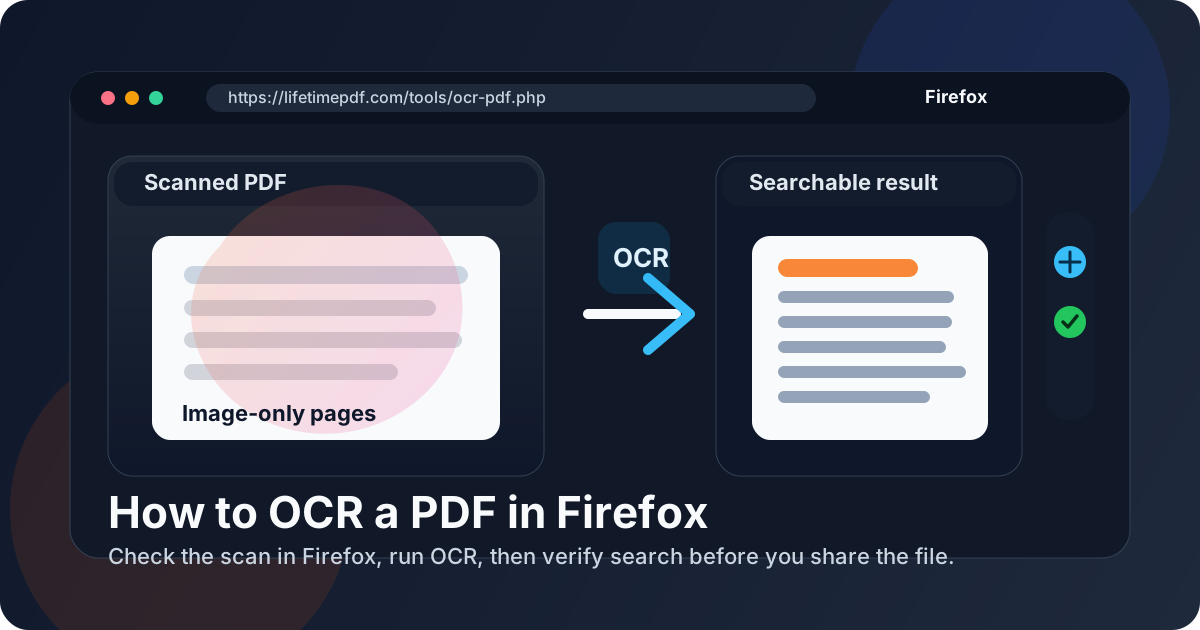
Clean sequence: inspect the file in Firefox → save the correct copy → rotate or crop if needed → run OCR → reopen the finished PDF and test search once.
How to improve OCR accuracy before you click run
Better OCR usually comes from better input, not from rerunning the same messy file repeatedly. If you want cleaner results in Firefox-based workflows, focus on the scan quality first.
Straighten the page
Slightly skewed pages make text harder to recognize. Even when the page feels close enough to read, OCR works better when the lines are level.
Remove heavy borders and visual noise
Dark copier shadows, giant white margins, desk backgrounds from phone photos, or multi-page junk scans all dilute the actual text. Cropping often helps more than people expect because it gives OCR a cleaner target.
Use sensible scan quality
For most text-heavy documents, around 300 DPI is a comfortable middle ground. Extremely low-resolution scans blur letters together, while oversized scans can make the file heavier without improving recognition enough to justify the extra weight.
Trim the job when only part of the PDF matters
If you only need a few pages from a large packet, use Extract Pages first. Smaller OCR jobs are easier to review, easier to rerun, and less likely to bury one messy page inside a much bigger file.
Always recheck high-risk details
OCR is extremely useful, but it is still worth rechecking names, addresses, invoice totals, IDs, dates, and legal wording. The more sensitive the document, the more that quick human verification matters.
What to do after OCR in Firefox
Once the PDF is searchable, Firefox becomes a convenient handoff point rather than a bottleneck. Common next steps include:
- Extract the recognized text with PDF to Text when you need quotes, notes, or copy-ready content.
- Compress the file with Compress PDF before uploading it back to a portal or sending it by email.
- Protect the final copy with PDF Protect if the searchable file contains private information.
- Archive the working version clearly so the OCRed copy is easy to find later without mixing it up with the raw scan.
This is why OCR is more than a one-off fix. It unlocks the rest of the workflow: searching, extracting, quoting, storing, sharing, and finding the exact line you need later without staring at an image.
Common Firefox OCR problems and quick fixes
I cannot tell which PDF version I am looking at
Save the correct file first. A preview tab, a cloud copy, and an older local download often look similar enough to waste your time if you skip that step.
The PDF still is not searchable after OCR
Reopen the processed file in Firefox and search for a visible word. If search still fails, the source scan was probably too weak or cluttered. Clean it up and rerun OCR instead of trusting a bad first pass.
The text is searchable, but accuracy is uneven
That usually points back to the source image. Faint print, angled pages, unusual fonts, dark borders, or camera distortion make recognition harder than it needs to be.
The file is too large after OCR
Long or image-heavy scans can stay bulky. If you need the whole thing, compress it after OCR. If you only need part of it, trim the page range before OCR so you do not carry extra weight through the entire workflow.
I only need a few pages to become searchable
Do not process a huge packet if pages 6 through 10 are the only pages that matter. Extract that range first, OCR the smaller file, and keep the job easier to verify.
Related LifetimePDF tools and guides
OCR usually sits in the middle of the job. These are the most useful companions before or after the recognition step:
- OCR PDF — turn image-only PDFs into searchable working files.
- PDF to Text — extract reusable text after OCR.
- Rotate PDF — fix sideways scans before recognition.
- Crop PDF — remove scanner borders and wasted page edges.
- Compress PDF — shrink bulky OCRed files before you share them.
- How to Check if a PDF Is Searchable — useful if you want to decide whether OCR is needed at all.
- How to OCR a PDF in Chrome — useful if the workflow is browser-first but not tied to Firefox.
- How to OCR a PDF on Windows — useful if your real workflow is desktop-first rather than browser-first.
- How to edit a PDF in Firefox — useful when the document needs another browser-based fix after OCR.
Practical sequence: verify the file in Firefox, OCR it only if the text is not searchable, then extract, compress, or protect the finished PDF based on what happens next.
FAQ: How to OCR a PDF in Firefox
How do I OCR a PDF in Firefox?
Open the PDF in Firefox to confirm it is not searchable, upload it to a browser-based OCR tool, run OCR, then reopen the result in Firefox and test search once before you rely on the file.
Can Firefox OCR a scanned PDF by itself?
Firefox is excellent for opening and checking PDFs, but the OCR step usually happens through a dedicated browser-based OCR tool rather than through the built-in viewer alone.
How can I tell whether a PDF in Firefox needs OCR?
If you cannot highlight text naturally, search does not find visible words, or the page behaves like a flat image, the PDF probably needs OCR.
What should I fix before OCR in Firefox?
Rotate sideways pages, crop dark copier borders, and trim irrelevant pages first. Better source pages usually lead to cleaner OCR results.
What should I do after OCR in Firefox?
Reopen the processed file in Firefox, test search once, then extract text, compress it, protect it, or archive it depending on the next step in your workflow.
Published by LifetimePDF — Pay once. Use forever.