How to Check If a PDF Is Searchable: Fast Tests Before You Run OCR
To check if a PDF is searchable, try selecting a visible word, run Ctrl+F or Cmd+F, and copy one short line into a text editor.
If those tests fail, the file is probably image-only and should go through OCR before you keep reviewing, extracting, or sharing it.
This matters more than people expect. A PDF that only looks readable can waste time everywhere else: search fails, copy-paste breaks, AI tools miss context, accessibility checks stall, and simple tasks like finding one invoice number turn into manual scrolling. The good news is that you can usually tell what kind of PDF you have in under a minute if you test it in the right order.
Fastest path: test the PDF first, then run OCR only if the file fails basic search and text-selection checks.
In a hurry? Jump to Quick start: tell if a PDF is searchable in under 2 minutes.
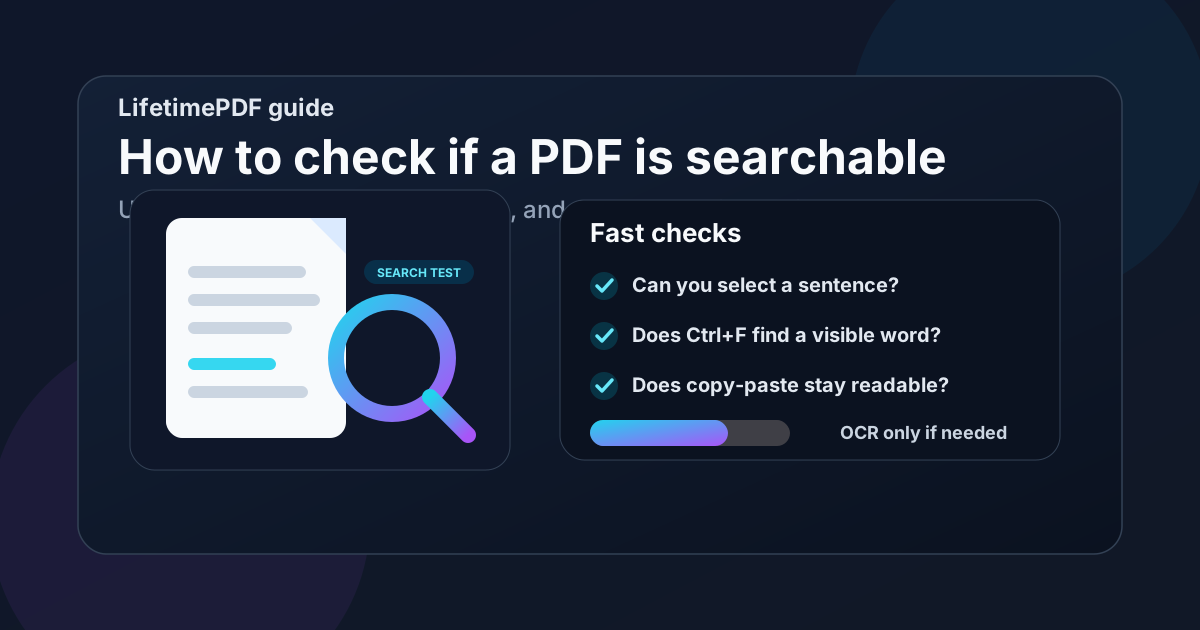
Table of contents
- Quick start: tell if a PDF is searchable in under 2 minutes
- What a searchable PDF actually means
- The fastest tests to run first
- How to read the results correctly
- When a PDF is only partly searchable
- When OCR is the right next step
- How to improve OCR results before you start
- Related LifetimePDF tools and guides
- FAQ (People Also Ask)
Quick start: tell if a PDF is searchable in under 2 minutes
If you just want the shortest useful workflow, use this order:
- Open the PDF and try to highlight one visible sentence.
- Press Ctrl+F or Cmd+F and search for a word you can clearly see on the page.
- Copy one short line and paste it into a plain text editor.
- If you want a stronger check, run the file through PDF to Text and look at the output.
- If those tests fail or return garbage, run OCR PDF and test the result again.
What a searchable PDF actually means
A searchable PDF contains a usable text layer behind the page image or page layout. That text layer is what makes search, highlighting, copying, extraction, indexing, and AI analysis work properly.
Many files fall into one of three buckets:
- Native PDF: exported from Word, Google Docs, Excel, or another app with real text already built in.
- Scanned PDF: a picture of paper pages, usually with no usable text layer yet.
- Hybrid PDF: part native, part scanned, or OCR applied unevenly so some pages work and others do not.
The tricky part is that all three can look similar on screen. That is why quick testing beats guesswork.
The fastest tests to run first
These checks are fast, practical, and close to real-world use. They tell you not only whether the PDF is searchable, but whether it is searchable well enough for actual work.
1) Text selection test
Try dragging your cursor across one visible line. If the text highlights cleanly as text rather than as a whole page image, that is a good sign the file already contains a text layer.
2) Search test
Use the built-in search shortcut and look for a visible word on the page. Choose something distinctive like a date, invoice number, or section heading rather than a tiny common word.
3) Copy-paste test
Copy one short line into a plain text editor. If the result stays readable and in the right order, the text layer is probably usable. If it pastes as nonsense, broken spacing, or empty content, the PDF may still need work.
4) Extraction test
If you want a stronger verification step, send the file through PDF to Text. This is especially helpful when the PDF technically allows selection, but you suspect the reading order is messy or the OCR quality is weak.
Best workflow order: test first, fix orientation or borders if needed, run OCR second, then test again before you keep going.
How to read the results correctly
One pass/fail test is helpful. A combination of tests is better. This table shows what the outcomes usually mean:
| Test | Good result | Warning sign | Likely next step |
|---|---|---|---|
| Text selection | You can highlight words cleanly | The whole page behaves like one image | Run OCR |
| Search | Visible words are found instantly | Search returns nothing on clearly visible text | Run OCR or inspect mixed pages |
| Copy-paste | Text pastes in readable order | Text pastes as gibberish, broken spacing, or blanks | Use OCR or verify the source PDF |
| Text extraction | Output is mostly readable and complete | Missing lines, random symbols, bad ordering | Improve scan quality and OCR again |
When a PDF is only partly searchable
A lot of real files are mixed. One section was exported normally, another section was scanned in later, and a third section came from screenshots or photos. In those cases, search may work on some pages and completely fail on others.
Common situations that confuse people
- Merged packets: one clean PDF merged with scanned exhibits or signed pages.
- Flattened forms: visible text exists, but form responses were turned into awkward page content.
- Low-quality OCR: search works on obvious words but names, numbers, or totals come out wrong.
- Bad reading order: copied text jumps across columns, headers, or footers in the wrong sequence.
- Image-heavy reports: some pages are charts or screenshots that still need OCR or manual review.
That is why a copy-paste or extraction check is worth doing even after a search hit. If you need the PDF for compliance, review, data capture, accessibility, or AI analysis, you care about more than a single successful keyword search.
When OCR is the right next step
OCR is the right move when the file behaves like a picture instead of text. It is also useful when the text layer is so weak that searching and extraction are unreliable.
Run OCR when
- you cannot highlight visible words,
- search fails on obvious text,
- copy-paste produces nonsense,
- the PDF came from a scanner, phone camera, or photocopier, or
- you plan to reuse the text in search, summaries, translations, or compliance workflows.
Once OCR is done, test the file again immediately. Do not assume the first OCR pass solved everything. A quick retest catches sideways pages, poor contrast, bad page edges, or language issues before they create bigger problems later.
How to improve OCR results before you start
Better input usually beats repeated OCR attempts. A few quick cleanup steps can noticeably improve the text layer you get back.
- Rotate sideways pages first. Use Rotate PDF if the scan is not upright.
- Crop dark borders and scanner noise. Heavy edges, shadows, and skewed margins make recognition harder. Crop PDF helps clean that up.
- Use the clearest source you have. A clean original scan usually beats a screenshot of a screenshot.
- Check key pages after OCR. Verify names, totals, dates, legal citations, or IDs instead of trusting everything blindly.
Related LifetimePDF tools and guides
Checking searchability is usually the first step in a larger PDF workflow. These tools fit naturally around it:
- OCR PDF - add a searchable text layer to scanned or image-only PDFs
- PDF to Text - test whether extraction is clean enough for real work
- Rotate PDF - fix sideways scans before OCR
- Crop PDF - remove dark borders and wasted scan edges
- How to Create Searchable PDFs - full OCR workflow for scans and archives
- Check PDF Accessibility Online Free - why searchability helps but is not the same as accessibility
FAQ (People Also Ask)
How do I check if a PDF is searchable?
Try selecting text, searching for a visible word, and copying one short line into a text editor. If those checks fail, the PDF is usually image-only and needs OCR before search, copy-paste, and extraction will work reliably.
Can a PDF look readable but still not be searchable?
Yes. Many scanned PDFs look perfectly clear to a human reader but still behave like pictures to software. Without a text layer, search and extraction remain weak or impossible.
Why does search work on some pages but not others?
Mixed PDFs often combine native pages with scanned inserts, signed pages, or screenshots. Search may work on the pages that already contain text while failing on the pages that still need OCR.
Does OCR change how the PDF looks?
Usually the visible page changes very little. In most workflows, OCR adds a hidden text layer behind the page so you can search, highlight, and copy without redesigning the document.
Is a searchable PDF the same as an accessible PDF?
No. Searchability is a strong first step, but accessibility also depends on structure, reading order, headings, tags, alt text, forms, and assistive-technology behavior.
Ready to test and fix the file?
Good default workflow: test the PDF → OCR only if needed → retest the result → keep working with the cleaned file