PDF Summarizer: Get the Main Idea, Key Points & Next Steps From Long Documents Faster
A PDF summarizer helps you turn a long PDF into a short brief with the main idea, the key points, and the next steps in a few minutes. It works best on readable text PDFs, and scanned files usually need OCR first.
That matters because most people do not search for a PDF summarizer because they love summaries. They search because a report, contract, policy, proposal, manual, or research PDF is too long for the time they have. The real goal is to get oriented quickly, decide what matters, and know when to keep reading versus when a summary is enough.
Fastest path: upload the document to LifetimePDF PDF Summarizer, read the overview, then switch to PDF Q&A only if you need exact follow-up answers.
In a hurry? Jump to Quick start: summarize a PDF in under 4 minutes.
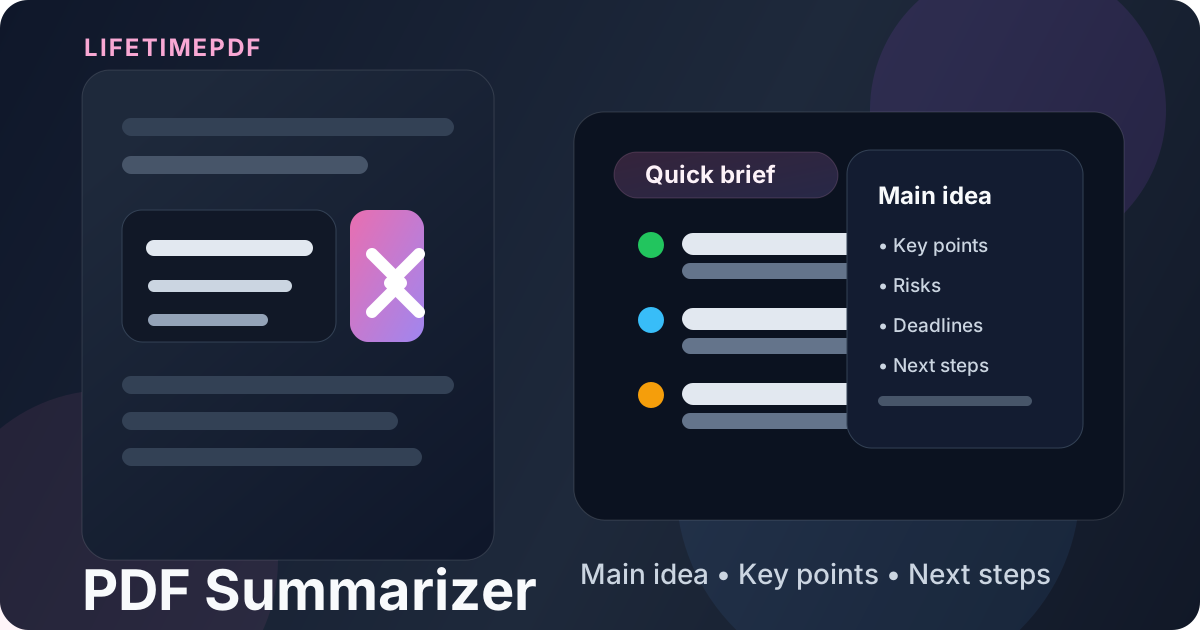
Table of contents
- Quick start: summarize a PDF in under 4 minutes
- What a PDF summarizer actually does
- When a summary helps most
- PDF summarizer vs PDF Q&A
- Step-by-step: how to use LifetimePDF PDF Summarizer
- How to get better summaries from messy files
- Scanned PDFs: OCR first, summary second
- Privacy and safer document handling
- What to do after the summary
- Related LifetimePDF tools and guides
- FAQ (People Also Ask)
Quick start: summarize a PDF in under 4 minutes
If your PDF already contains selectable text, the fast workflow is simple:
- Open PDF Summarizer.
- Upload the PDF you want to understand faster.
- Generate the summary and read it once for the main idea, decisions, deadlines, and open questions.
- If something important still needs precision, open PDF Q&A and ask the narrow follow-up question there.
What a PDF summarizer actually does
A PDF summarizer is most useful when it acts like a strong first-pass reader. It gives you the shape of the document quickly: what it is about, what the major sections seem to be doing, and which parts deserve deeper attention.
What it does well
- Reduces reading time: good for long reports, proposals, handbooks, policies, research papers, and manuals.
- Surfaces the signal: helps you spot the main idea, the critical points, and the likely risks or action items.
- Improves triage: useful when you need to decide whether a document needs full review right now or just a later read.
- Creates better follow-up questions: after the summary, you usually know exactly what to ask next.
What it does not replace
- Legal or compliance review: a summary is not a substitute for reading exact clauses when the stakes are real.
- Quoted wording: if you need the exact sentence, use a Q&A workflow or open the PDF itself.
- Messy scans: image-only files often need OCR before the summary becomes trustworthy.
- Document judgment: some files deserve full reading even after a good summary.
When a summary helps most
The value of summarization goes up when the document is long enough to be annoying but structured enough to contain a real point. These are the situations where it saves the most time.
Reports and proposals
If a report is 20, 40, or 80 pages long, you often need the headline before you need every paragraph. A good summary helps you see the goal, the findings, the recommendations, and anything that still feels uncertain.
Contracts and policies
Summaries help you orient yourself before you read the fine print. They are especially useful for spotting the sections that deserve careful review: deadlines, payment terms, obligations, restrictions, renewal logic, and anything that sounds like risk.
Manuals and handbooks
Many documentation PDFs are full of useful material buried in a lot of setup. A summary can quickly tell you whether the document contains troubleshooting, procedures, safety warnings, or only background context.
Research papers and long PDFs you need to triage
Sometimes the question is not “Can I understand this whole paper right now?” It is “Is this worth deeper reading at all?” A short brief gives you a practical answer faster.
| Document type | Why summarization helps | What to do next |
|---|---|---|
| Report or proposal | Find the headline, recommendation, and action items quickly | Open the relevant section if numbers or assumptions matter |
| Contract or policy | Spot the areas that need careful reading | Use PDF Q&A for exact clauses, dates, and obligations |
| Manual or handbook | See whether the file contains the instructions you actually need | Jump to the precise section afterward |
| Research or technical PDF | Decide whether the document is relevant before spending more time | Extract pages or notes for deeper review |
PDF summarizer vs PDF Q&A
These workflows are related, but they are not the same job. Confusing them is one reason people get disappointing results.
Use a PDF summarizer when you need the big picture
- You want the main idea before reading the full file.
- You need a short brief for a meeting, review, or quick decision.
- You want to know whether the document is worth deeper attention.
Use PDF Q&A when you need exact answers
- You need the exact clause, date, amount, or deadline.
- You want to ask follow-up questions about one specific section.
- You need wording precise enough to cite back to someone else.
Simple rule: start with the summary, then move to Q&A only when precision matters.
Step-by-step: how to use LifetimePDF PDF Summarizer
LifetimePDF works best when you treat summarization as the start of understanding, not the finish line. Here is the most practical workflow.
Step 1: Start with the best version of the file
If you have both a clean export and a rough scan, use the clean export. Better input usually means a better summary.
Step 2: Upload the whole PDF or only the pages that matter
If the document is huge and you only care about one section, it is often smarter to extract those pages first using Extract Pages. Smaller, more relevant input usually gives you a tighter summary.
Step 3: Read the summary for structure, not just length
Do not judge the output only by how short it is. Ask whether it tells you the document's purpose, the important sections, the high-level conclusion, and the practical next move.
Step 4: Mark what still needs verification
If the summary mentions fees, dates, obligations, deadlines, compliance issues, or technical claims, treat those as follow-up items. This is where PDF Q&A becomes useful.
Step 5: Save or secure the file if it is part of a real workflow
If the document contains sensitive information, use PDF Protect before you pass it onward. If it is an internal working copy, keep the original and the summary-driven notes together.
How to get better summaries from messy files
Summary quality depends heavily on the quality of the source PDF. The good news is that a few small choices improve the result a lot.
Use the right pages
If a 100-page PDF contains only 12 pages you actually care about, isolate them first. Huge irrelevant appendices dilute the result.
Prefer text PDFs over screenshots of PDFs
A native PDF with selectable text gives the summarizer cleaner input. When possible, avoid working from camera photos or screenshot-heavy versions of the file.
Do one OCR pass when the file is scanned
People often skip this and then blame the summarizer. If the tool cannot read real text, the output will be weaker from the start.
Know what you want out of the summary
Some people want a fast overview. Others want the main idea plus decisions, deadlines, or risks. The clearer your goal, the easier it is to judge whether the summary is enough or whether you need deeper review.
Scanned PDFs: OCR first, summary second
Scanned PDFs are where people lose the most time. The pages look readable to a human, but the text is often trapped inside images. That means the summarizer is not really reading the words the way you think it is.
How to tell a PDF is scan-heavy
- You cannot select text with your cursor.
- Search does not find words that are clearly on the page.
- The PDF came from a camera, copier, or image scan rather than a digital export.
The better workflow
- Run the file through OCR PDF.
- Check that the text is searchable.
- Then send the improved file to PDF Summarizer.
This extra step is usually worth it because it turns a fuzzy image-based workflow into a text-based one. Better text in means better summary out.
Privacy and safer document handling
A summary tool is helpful precisely because people use it on meaningful documents. That also means privacy matters.
Practical habits that reduce risk
- Upload only what you need: if one section matters, extract that section first.
- Redact true secrets first: if certain information should never be visible, remove it before summarizing.
- Protect files before sharing onward: use PDF Protect if the output needs controlled access.
- Keep originals organized: summaries are useful, but the source file is still the source of truth.
What to do after the summary
The summary usually creates the next action rather than replacing it. What comes next depends on why you opened the PDF in the first place.
If you need exact answers
Move to PDF Q&A and ask targeted questions about dates, clauses, figures, obligations, or required actions.
If you need a smaller working packet
Use Extract Pages to keep only the section you actually plan to review or share.
If you need searchable text from a scan
Go back and run OCR PDF if you skipped it the first time.
If you need to send the file securely
Add a password with PDF Protect before the document leaves your hands.
Most practical sequence: summarize → verify what matters → extract or protect if needed → share only the final version.
Related LifetimePDF tools and guides
PDF summarization works best as part of a broader document workflow. These are the most useful companion tools and pages.
- PDF Summarizer – turn long PDFs into a quick brief with the main idea and key points
- PDF Q&A – ask exact follow-up questions after the summary
- OCR PDF – make scanned files searchable before summarizing
- Extract Pages – isolate only the pages you actually care about
- PDF Protect – add a password before sharing sensitive files
Suggested internal blog links
- PDF Summarizer Online Free
- AI PDF Summarizer
- Chat with PDF
- OCR PDF
- Extract Pages From PDF
- Browse all LifetimePDF articles
FAQ (People Also Ask)
1) What is a PDF summarizer?
A PDF summarizer is a tool that turns a long PDF into a shorter brief with the main idea, the key points, and the likely next steps. It is best for getting oriented quickly before deeper review.
2) How do I summarize a PDF quickly?
Open a summarizer, upload the file, generate the summary, and read it for the main idea, key points, deadlines, risks, and anything that still needs verification. If the PDF is scanned, run OCR PDF first.
3) Can a PDF summarizer handle scanned PDFs?
Yes, but scanned PDFs usually work much better after OCR because the text is trapped inside page images. Once the file becomes searchable, summary quality usually improves a lot.
4) What is the difference between a PDF summarizer and PDF Q&A?
A PDF summarizer is better for a quick overview of the whole document, while PDF Q&A is better when you need a specific answer, exact clause, date, amount, or follow-up detail.
5) Is it safe to upload confidential PDFs to a summarizer?
Use normal privacy caution with confidential files. Upload only what you need, redact unnecessary sensitive details first, and protect the file before onward sharing if appropriate.
Ready to turn a long PDF into a quick brief?
Best practical workflow: summarize first → verify what matters → extract or protect the file if needed → share the final result.
Published by LifetimePDF — Pay once. Use forever.