Fill and Sign PDF Online: Complete Forms and Add Signatures in Your Browser
To fill and sign a PDF online, open the file in a browser-based form filler, complete every field first, add the signature second, then review the final copy once before you send it back.
If the PDF is scanned or flattened, place text, checkmarks, initials, and the signature manually instead of expecting clickable form fields to appear.
Most people looking for this do not want a long document theory lesson. They want the contract, onboarding form, application packet, or approval sheet to come back complete and clean without printing, signing by hand, scanning again, and hoping the file still looks professional. That is exactly where an online workflow helps. You can finish the form in the browser, sign it in the same session, and return a PDF that still feels intentional instead of improvised.
Fastest path: fill the PDF first with LifetimePDF's form tools, sign it second, then flatten or protect the final copy only if the real workflow needs that extra step.
Need the short version? Jump to Quick start: fill and sign a PDF online in a few minutes.
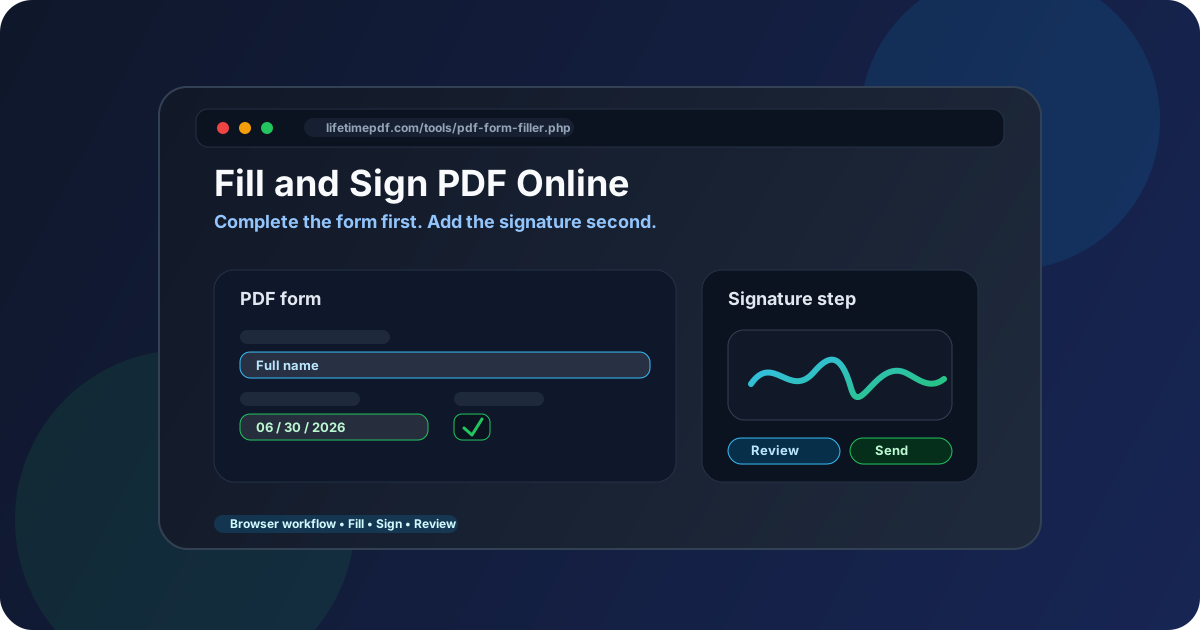
Table of contents
- Quick start: fill and sign a PDF online in a few minutes
- Why people choose an online fill-and-sign workflow
- Fillable vs scanned PDFs
- Step-by-step: how to fill and sign a PDF online
- Draw, type, or upload: which signature style should you use?
- Common mistakes that make the final file look rushed
- When to flatten, protect, or compress the final copy
- Related LifetimePDF tools and guides
- FAQ (People Also Ask)
Quick start: fill and sign a PDF online in a few minutes
If you only need the dependable browser workflow, use this order:
- Open PDF Form Filler.
- Upload the final PDF you actually need to return.
- Complete every typed field, checkbox, date, or note before you touch the signature.
- If the PDF is scanned, place the text manually where the paper form expects it.
- Open Sign PDF and add the signature after the rest of the document is done.
- Review the final PDF once at normal zoom.
- If needed, use Flatten PDF Form Data or PDF Protect before sharing it.
Why people choose an online fill-and-sign workflow
The online version of this job is usually about convenience, but not convenience alone. It is about keeping the document clean while removing the old print-sign-scan loop. A browser-based workflow helps when the sender expects a finished PDF back quickly and you do not want the final result to look like a photocopy of a photocopy.
| Situation | Why online works well |
|---|---|
| Employment or onboarding forms | You can complete names, dates, and signatures quickly without breaking the document into separate steps. |
| Client contracts and approvals | The final PDF stays neater than a printed-and-rescanned version and is easier to send back immediately. |
| School, HR, or vendor paperwork | You can finish and return the file from a laptop, phone, or tablet without extra software installation. |
| Scanned paper forms | You can place text and signatures directly over the page instead of handwriting everything and rescanning it. |
In other words, fill and sign PDF online is really a finishing workflow. The goal is not just to add a signature. The goal is to return a document that reads like a final copy.
Fillable vs scanned PDFs
This is where most confusion starts. Two PDFs can look almost identical on screen but behave very differently once you try to complete them.
Fillable PDFs
These contain real interactive fields. You click a box, a cursor appears, and the file behaves like a form. These are the easiest PDFs to fill and sign online because the structure already exists and the field placement is usually stable.
Scanned or flattened PDFs
These often look like forms but act more like page images. You may not be able to click into the fields at all. In that case, you place text, checkmarks, initials, and the signature manually on top of the page so the final file still looks complete.
How to tell which type you have
- Click test: if the field accepts a cursor, it is probably fillable.
- Selection test: if you cannot select any text, the file may be a scan.
- Search test: if search cannot find obvious words, the PDF may be image-based or flattened.
Step-by-step: how to fill and sign a PDF online
1) Start with the correct file
Check the filename, version, and page count before you begin. People often receive several drafts of the same contract or packet, and filling the wrong one is one of the easiest ways to create unnecessary rework.
2) Complete the form before you add the signature
Open PDF Form Filler and finish the document first. Add names, dates, initials, checkboxes, addresses, notes, or any other required information. If the PDF is not interactive, place the content manually so it lines up with the printed boxes or blanks.
This is the stage where accuracy matters most. A signature never looks clean if the surrounding form is still incomplete or still moving.
3) Add the signature only after the content is final
Once the form is complete, move to Sign PDF. Draw, type, or upload the signature, then place it carefully on the correct page. Keep it clear of labels, date lines, and nearby text so the final result feels deliberate rather than crowded.
4) Review the finished PDF once
Reopen the completed file and look at it like the recipient will. Check the obvious things: the correct page is signed, no required field is blank, nothing is clipped at the edge, and the signature is not covering important text.
5) Return the final copy in the form the workflow expects
Some documents are ready to send as soon as the signing step is finished. Others are better flattened, protected, or compressed first. The right final step depends on whether the recipient needs an editable form, a stable read-only copy, or a smaller file for email or portal upload.
Clean browser sequence: fill the PDF, sign it, review it once, then only apply the extra finishing steps the file actually needs.
Draw, type, or upload: which signature style should you use?
The right signature style depends on the document, the device you are using, and how polished you want the final copy to look.
Draw a signature when:
- you want a handwritten look,
- you are signing on a phone or tablet,
- speed matters more than perfect visual consistency.
Type a signature when:
- you want cleaner readability,
- the document is administrative or internal,
- you need something quick and repeatable.
Upload a signature when:
- you already have a good signature image,
- you want the same appearance across many documents,
- presentation matters more than speed.
The method matters less than the placement. Even a good signature looks messy when it is oversized, misaligned, or dropped onto the page before the rest of the form is complete.
Common mistakes that make the final file look rushed
Most problems in an online fill-and-sign workflow are not technical failures. They are order-of-operations mistakes.
- Signing too early and then having to shift the signature after more fields are added
- Assuming a scanned PDF is broken instead of treating it like a manual placement job
- Skipping the final review and missing one blank date line or wrong page
- Using a giant signature that covers labels, lines, or nearby answers
- Flattening or protecting too soon before the document is truly finished
When to flatten, protect, or compress the final copy
Once the PDF is filled and signed, there are three common finishing moves.
Flatten the PDF when you want the appearance preserved
Flattening is useful when you want the completed file to look the same in other viewers and you do not want overlays or form elements to shift. If that is your goal, use Flatten PDF Form Data after every edit is complete.
Protect the PDF when it contains sensitive information
Contracts, HR packets, medical forms, and financial documents often deserve one more layer of care. Use PDF Protect if the final file contains information you do not want left casually exposed.
Compress the PDF when upload or email limits get in the way
Some completed files become larger than expected, especially if they began as scans. If the final attachment is too big, run it through Compress PDF before you send it.
Good finishing order: review first, then flatten, protect, or compress only if the recipient or delivery method actually requires it.
Related LifetimePDF tools and guides
Filling and signing online is often one step inside a wider document workflow. These tools and companion guides fit naturally next:
- PDF Form Filler - complete fillable or scanned PDFs in the browser.
- Sign PDF - draw, type, or upload a signature.
- Flatten PDF Form Data - preserve the appearance of the completed file.
- PDF Protect - add protection to sensitive final copies.
- Fill and Sign PDF - the broader guide to the same workflow.
- Fill and Sign PDF Online Free - a related article for the free-intent version of the query.
- Fill and Sign PDF Online Without Monthly Fees - a related article for the subscription-avoidance angle.
- Type on PDF - useful when you only need to place text.
- Draw Signature on PDF Online Free - useful when the signature itself is the main task.
If you often complete forms on mobile devices, these platform guides also help: sign a PDF on iPhone, sign a PDF on Android, and sign a PDF on iPad.
Bottom line: the calmest online workflow is still the simplest one - complete the form, add the signature, review the file, then send the final copy in the format the recipient actually needs.
FAQ (People Also Ask)
1) How do I fill and sign a PDF online?
Open the document in a browser-based form filler, complete all the fields first, add the signature second, then review the finished file once before you upload, email, or return it.
2) Can I fill and sign a scanned PDF online?
Yes. If the PDF is scanned or flattened, you can still place text, checkmarks, initials, and a signature manually on top of the page even when there are no interactive fields.
3) Should I sign the PDF before or after filling the form?
Usually after. Finishing the form first keeps the signature as the final visible approval and reduces the chance that another edit will force you to reposition it.
4) Can I fill and sign a PDF online from my phone?
Yes. A browser-based workflow works well on phones and tablets for contracts, approval forms, school paperwork, and other documents that need a quick return without printing.
5) How do I send a filled and signed PDF safely?
Review the file first, then flatten it if you want the appearance preserved and protect it if the PDF contains sensitive information. Compress the final file if upload or email limits become a problem.
Ready to finish the document cleanly?
Best workflow: Open the right file - Fill every field - Add the signature - Review once - Then flatten, protect, or compress only if needed.
Published by LifetimePDF - Pay once. Use forever.