Extract Tables from PDF to Excel: Pull Rows, Headers, and Totals Faster
To extract tables from PDF to Excel, isolate the pages that contain the table, upload them to LifetimePDF's PDF to Excel tool, and review the exported spreadsheet for headers, column breaks, totals, and wrapped rows before you use it.
If the PDF is a scan or image-only report, run OCR first so the table structure and numeric values land more cleanly in Excel.
That is the short answer. The part that saves time is knowing what to fix before conversion and what to check after conversion so you do not trade manual retyping for spreadsheet cleanup chaos. Most people searching this phrase have a real work problem: a pricing table, statement, KPI report, invoice appendix, shipping list, or research table that needs to become editable data quickly.
Fastest path: extract only the table pages, OCR scans when needed, convert once, then verify headers, totals, and split rows before you share or import the workbook.
Want the short version? Jump to Quick start: extract a PDF table in about 5 minutes.
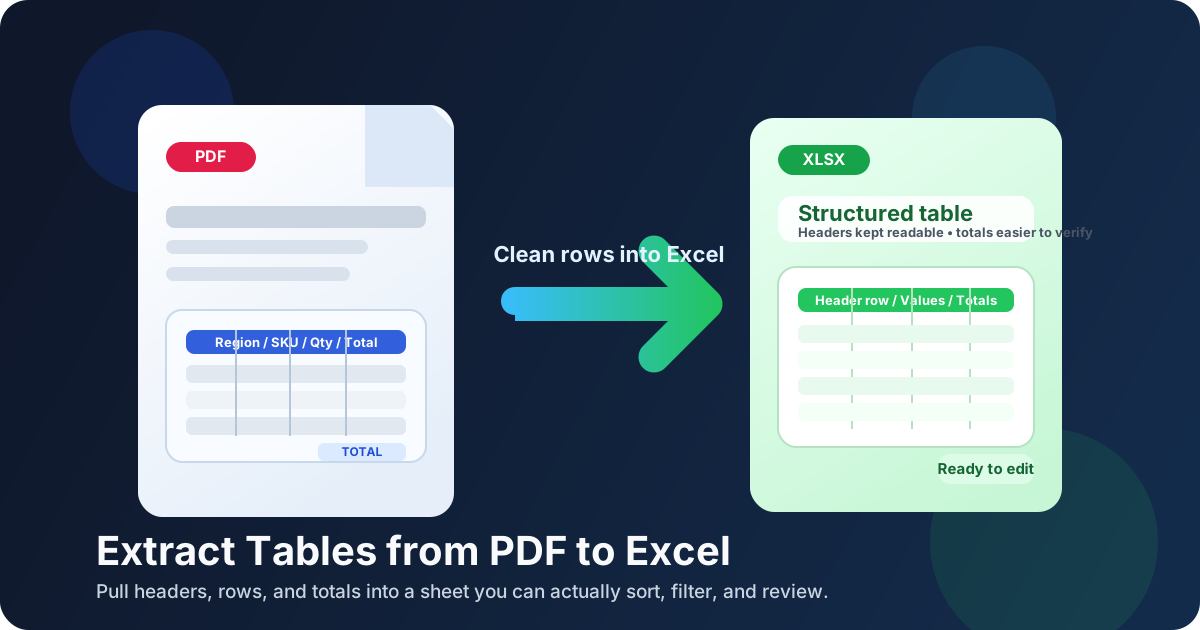
Table of contents
- Quick start: extract a PDF table in about 5 minutes
- Why this keyword matters in real workflows
- What usually converts cleanly and what usually breaks
- Step-by-step: extract tables from PDF to Excel
- Best prep steps before conversion
- Scanned PDFs, OCR, and messy multi-page reports
- Excel cleanup checklist after export
- When Excel is better than CSV
- Related LifetimePDF tools and guides
- FAQ
Quick start: extract a PDF table in about 5 minutes
If the PDF already contains selectable text and the table is reasonably clean, the fast workflow is simple:
- Open PDF to Excel.
- If the table sits inside a longer report, isolate only those pages with Extract Pages.
- Upload the table pages and export the XLSX file.
- Check the spreadsheet for repeated headers, broken columns, wrapped rows, and totals stored as text.
- If the table came from a scan, rerun the workflow with OCR PDF before conversion.
Why this keyword matters in real workflows
“Extract tables from PDF to Excel” is more specific than a generic PDF-to-Excel conversion. The person searching it usually does not want every paragraph, note, or decorative element from the document. They want the tabular part that becomes useful once it is sortable, filterable, and editable.
Common examples look like this:
- Finance: line items, subtotals, and tax columns from invoices, statements, or reconciliation packs.
- Operations: shipping manifests, inventory lists, schedules, and vendor price sheets.
- Analytics: KPI tables exported from dashboards and monthly performance reports.
- Research: appendix tables, test results, or data summaries that need charting or comparison.
- Admin work: rosters, attendance sheets, structured lists, and recurring reports that are painful to retype manually.
That is why this is a clean topic gap for LifetimePDF. The site already covers broader workflows such as PDF to Excel Data Extraction and document-specific use cases like Convert Invoice PDF to Excel, but table extraction has its own intent. People searching it care less about full-document conversion and more about preserving structure.
What usually converts cleanly and what usually breaks
Some PDF tables export cleanly on the first try. Others are visually obvious to a human but structurally awkward for software. Knowing the difference helps you fix the right problem first.
| Situation | What usually happens | Best move |
|---|---|---|
| Digitally generated report with clear columns | Often converts well on the first pass | Convert directly |
| Long PDF with one useful table buried inside | Extra pages create junk rows and noisy output | Extract only the table pages first |
| Scanned statement or photographed report | Rows and numbers may be misread or merged | OCR before conversion |
| Landscape or sideways table | Columns can shift or collapse badly | Rotate the pages first |
| Table with repeated headers, footers, or notes on each page | The spreadsheet may include duplicate rows | Plan for a quick cleanup pass |
The main pattern is simple: clean structure in, cleaner structure out. When a PDF is packed with non-table clutter, skewed scans, tiny print, or shifting layouts, the spreadsheet is forced to guess. The less guessing you ask of the file, the less repair work you do afterward.
Step-by-step: extract tables from PDF to Excel
This is the practical workflow that usually balances speed, accuracy, and cleanup effort.
1) Start with the real table pages
If the table lives on pages 11 to 13 of a larger report, do not feed the full report to the converter unless you need to. Use Extract Pages or Split PDF so the input is focused on the data you actually want.
2) OCR the file if you cannot highlight text
Try selecting a word in the table. If you cannot highlight text, the PDF is probably image-only. In that case, run OCR PDF before converting. OCR usually improves detection of dates, labels, decimal values, and row boundaries enough to make the spreadsheet worth reviewing.
3) Convert with PDF to Excel
Open LifetimePDF PDF to Excel, upload the cleaned PDF, and export the spreadsheet. For clean text-based tables, this may already produce a strong first result.
4) Review the failure points first
Do not start by admiring whether the sheet “opened.” Start by checking the fields that break most often:
- Header names that shifted into the wrong cells
- Rows split in two because of wrapped descriptions
- Repeated page headers inserted as data rows
- Totals or balances stored as text instead of numbers
- Dates that changed format or landed in the wrong column
5) Clean only what matters to the next step
If the spreadsheet is for a quick human review, perfect formatting may not matter. If it will be imported into another system, your cleanup standards should be stricter. Match your effort to the downstream use instead of polishing every cell out of habit.
Need the tool stack in one pass?
Best prep steps before conversion
When the first spreadsheet comes out messy, the PDF itself is often the real problem. These are the highest-value prep moves before you rerun anything.
Remove pages that are not part of the table
Cover sheets, summaries, signature pages, email threads, and appendix notes all create noise. Use Delete Pages or extract only the useful range.
Rotate landscape or sideways pages
Sideways tables frequently produce collapsed columns or bizarre row breaks. Fix orientation first with Rotate PDF.
Crop out wasted margins and clutter
A big border, footer, stamp, or letterhead can confuse extraction more than you might expect. Use Crop PDF so the table dominates the page instead of competing with everything around it.
Separate very different table layouts
If one file contains a dense financial table, then a landscape matrix, then a sparse appendix grid, convert them in separate passes. A mixed-layout PDF often behaves better as several small jobs than one giant “figure it out” export.
Scanned PDFs, OCR, and messy multi-page reports
Scanned tables are not hopeless, but they do need a different expectation. The goal is usually not pixel-perfect reconstruction. The goal is to recover enough structure that a short review beats manual entry.
- Straight pages with readable contrast
- Printed statements and machine-generated reports
- Simple tables with obvious columns
- Scans without heavy shadows or handwritten markup
- Phone photos with perspective distortion
- Faint print or blurry numbers
- Dense tables with merged cells and footnotes
- Pages that combine stamps, signatures, and table data
If the scan is rough, the most sensible order is usually:
- Rotate the page correctly.
- Crop obvious clutter or dark borders.
- Run OCR PDF.
- Then convert with PDF to Excel.
That sequence matters because OCR on a crooked, noisy scan still has to fight the noise. Cleaning the page first gives the text layer a better shot at preserving values, headings, and row order.
If you work with specific document types repeatedly, the more focused guides on bank statement PDF to Excel and invoice PDF to Excel can help with document-specific cleanup habits.
Excel cleanup checklist after export
Even good conversions often produce a spreadsheet that is almost right rather than perfect. These are the fixes that usually matter most.
1) Keep one clean header row
Multi-page reports often repeat the column headers on every page. Keep one good header row and remove the duplicates before sorting or filtering anything.
2) Fix numbers stored as text
Totals, balances, percentages, and quantities sometimes arrive as text strings. If Excel refuses to calculate, convert those cells to numbers before doing anything more ambitious.
3) Merge wrapped rows when the description spills downward
Long descriptions often cause the next visual line to become a second spreadsheet row. Scan for rows where the numeric cells are blank but the text continues. Those are usually the fastest manual wins.
4) Remove footer junk
Page numbers, confidentiality footers, or repeated report titles should not survive into analysis or imports. Delete them before they become subtle downstream errors.
5) Spot-check the values that would hurt most if wrong
Compare a few rows against the original PDF before you trust the workbook fully. In finance or operations, three calm spot checks are better than blind confidence after a successful-looking export.
| Problem | Common cause | Fastest fix |
|---|---|---|
| Everything lands in one or two columns | Weak structure, OCR noise, or a bad full-document export | Retry a cleaner page range or use Text to Columns |
| Headers repeat every page | Multi-page report table | Delete duplicate header rows and keep one canonical header |
| Totals will not calculate | Numbers imported as text | Convert cells to number format before analysis |
| Descriptions break into separate rows | Wrapped cells or merged PDF layout | Rejoin the row and verify the original source |
When Excel is better than CSV
People often ask whether extracted PDF tables should end up in Excel or CSV. The answer depends on what happens next.
Choose Excel when:
- You need filters, formulas, multiple sheets, or comments.
- A human still needs to review and clean the data.
- You want to preserve a more familiar worksheet workflow.
- You plan to share the result with teammates who expect a spreadsheet.
Choose CSV when:
- You only need simple rows and columns for another system.
- You do not care about worksheet formatting or formulas.
- You want the lightest export for import, scripting, or database work.
For most real-world table extraction jobs, Excel is the safer first stop because it makes problems easier to spot. If your downstream workflow wants CSV, you can still clean the table in Excel first and then export later. If that is your use case, the adjacent guide on Extract Tables from PDF to CSV Online is the more natural companion read.
Related LifetimePDF tools and guides
Table extraction usually works best as a short workflow, not a single isolated click. These are the tools that pair most naturally with this page:
- PDF to Excel for the actual extraction step.
- Extract Pages when the table sits inside a longer report.
- Split PDF when different table layouts should be processed separately.
- OCR PDF for scanned or image-only reports.
- Rotate PDF for sideways tables.
- Crop PDF to reduce visual clutter around the table.
- PDF to CSV if you only need plain row-and-column export.
- Excel to PDF if you need to share the cleaned sheet as a PDF again.
If you want adjacent reading, these internal guides are the closest fit:
- PDF to Excel Data Extraction
- Extract Tables from PDF to Excel Online Without Monthly Fees
- Convert Invoice PDF to Excel
- Convert Bank Statement PDF to Excel
- Convert Shipping Manifest PDF to Excel
Bottom line: the best PDF table workflow is boring in a good way — clean pages, one solid export, one review pass, then use the sheet with confidence.
FAQ
How do I extract tables from PDF to Excel?
Upload the table pages to a PDF to Excel converter, export the XLSX file, and review headers, columns, totals, and wrapped rows before using the spreadsheet. If the PDF is scanned, OCR first usually improves the result.
Can I extract tables from a scanned PDF into Excel?
Usually yes. Scanned table PDFs work better when the page is straight, readable, and OCR is applied first so the converter sees text instead of only an image.
Why do PDF tables break into messy Excel columns?
Common causes include merged cells, wrapped text, repeated page headers, sideways pages, scan noise, or too much non-table content around the table. A smaller, cleaner page range usually converts better than the full source file.
Should I use Excel or CSV for extracted PDF tables?
Use Excel when you want formulas, filters, comments, easier cleanup, and a workbook people can review comfortably. Use CSV when you only need plain row-and-column data for import into another system.
What should I verify before trusting the extracted spreadsheet?
Check the header row, row alignment, dates, totals, decimal values, repeated page headers, and any rows with wrapped descriptions. If the data will be imported elsewhere, compare a few rows against the original PDF before moving on.