Convert Bank Statement PDF to Excel: Extract Transactions, Balances, and Categories Faster
To convert a bank statement PDF to Excel, upload the statement to LifetimePDF's PDF to Excel tool, export the XLSX, and review transaction dates, descriptions, debits, credits, and balances before trusting the sheet.
If the statement is scanned or image-only, run OCR first or isolate only the transaction pages so the spreadsheet comes out cleaner and needs less manual repair.
Most people searching this phrase are not trying to admire a format conversion. They are trying to stop retyping transaction rows by hand. They need a spreadsheet they can reconcile, categorize, filter, audit, or hand to an accountant without turning a monthly statement into an hour of copy-paste cleanup.
Fastest path: use LifetimePDF's PDF to Excel tool, and OCR the statement first if it came from a scan, phone photo, or image-only PDF.
In a hurry? Jump to Quick start: convert bank statement PDF to Excel in about 5 minutes.
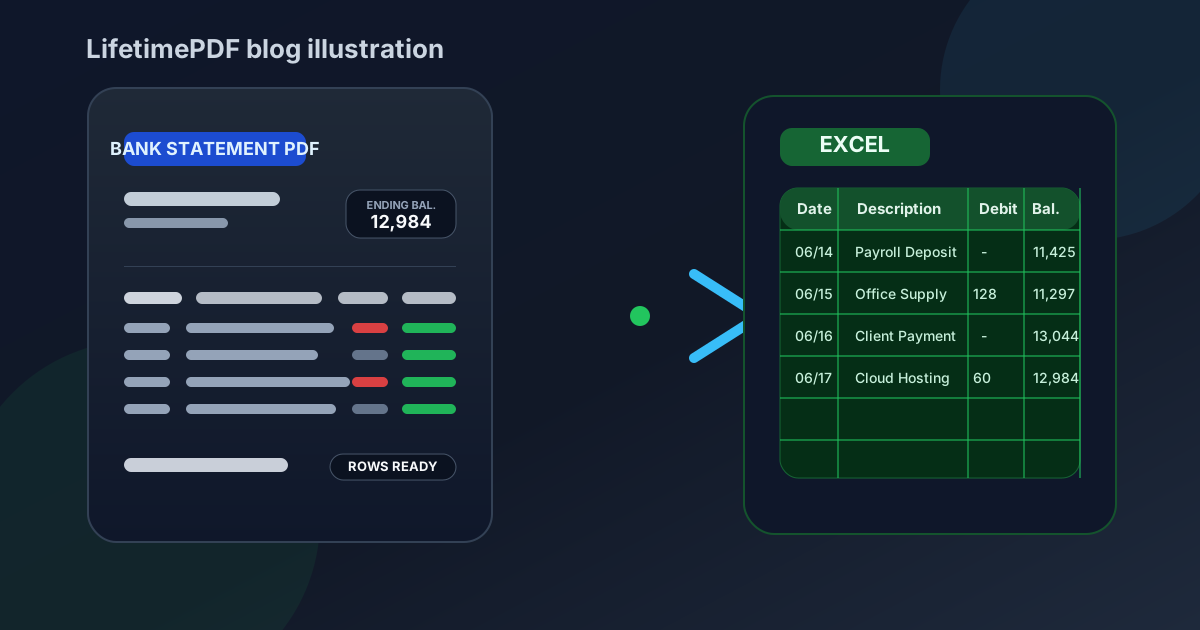
Table of contents
- Quick start: convert bank statement PDF to Excel in about 5 minutes
- Why people need bank statements in Excel
- What converts cleanly and what usually breaks
- Step-by-step: extract statement data with LifetimePDF
- Transaction review checklist before you trust the spreadsheet
- Excel vs CSV for statement work
- Privacy and financial document hygiene
- Related LifetimePDF tools and helpful companion guides
- FAQ (People Also Ask)
Quick start: convert bank statement PDF to Excel in about 5 minutes
If the statement already contains selectable text and the layout is reasonably clean, this workflow is usually enough:
- Open PDF to Excel.
- Upload the statement PDF you want to extract.
- If the file also includes notices, disclosure pages, or mixed account material, first isolate the statement pages with Extract Pages.
- If the statement is scanned or image-only, run OCR PDF before converting.
- Export the spreadsheet and review dates, merchant descriptions, debits, credits, and running balances.
Why people need bank statements in Excel
A bank statement PDF is fine when you only need to read it once. It becomes frustrating when you need to sort transactions, reconcile categories, trace cash movement, compare months, prepare tax support, or import clean rows into another workflow. That is where Excel becomes more useful than the original PDF.
- Bookkeeping and month-end reconciliation
- Expense categorization and budgeting
- Audit support and accountant handoff
- Cash-flow reviews across multiple months
- Historical cleanup when the bank only gives PDF exports
- Dates land in their own column
- Descriptions remain understandable
- Debits and credits do not merge
- Balances stay numeric and aligned
- Repeated page headers are easy to delete or never appear
The point is not to create a perfect spreadsheet on every statement without review. The point is to get close enough that the cleanup takes a minute or two instead of starting from zero with manual typing.
What converts cleanly and what usually breaks
Some statement PDFs behave beautifully in Excel. Others fight back because they were never designed for structured extraction. Knowing the difference helps you pick the right prep step before blaming the converter.
| Usually converts well | Usually needs extra cleanup |
|---|---|
| Digital statement exports from an online banking portal | Scanned or photographed paper statements |
| Statements with selectable text | Pages with skew, shadows, or faint print |
| Transaction tables with stable columns across pages | Wrapped merchant descriptions and split rows |
| Standalone statement PDFs | Long packets containing notices, inserts, and disclosures |
| Consistent monthly layouts from the same bank | Statements where headers, footers, and marketing blocks repeat awkwardly |
If your statement falls into the second column, that does not mean the workflow is doomed. It usually means the file needs one sensible prep step first: isolate the statement pages, OCR the scan, rotate crooked pages, or crop dead margins that confuse the layout.
Step-by-step: extract statement data with LifetimePDF
This is the workflow that usually gives the best balance between speed and accuracy.
1) Start with the actual statement pages
If the PDF also contains cover pages, account notices, messages from the bank, or appendices, separate those before converting. Smaller, focused input usually means a cleaner spreadsheet.
- Use Extract Pages if you only need certain statement pages.
- Use Split PDF when one packet needs to become smaller files.
2) OCR scanned statements before conversion
Image-only statements often look readable to humans but opaque to a spreadsheet engine. Running OCR PDF first gives the converter a better shot at recognizing dates, descriptions, debits, credits, and balances as actual text.
OCR will not fix every terrible scan. But it is usually the difference between “usable with a quick review” and “why is the merchant name in the balance column?”
3) Convert the statement to Excel
Open PDF to Excel, upload the bank statement PDF, and export the spreadsheet. For digital statements, this may be the only conversion step you need.
4) Review the fields that fail most often
A conversion is only as useful as the fields you trust. Bank statements tend to break in predictable places:
- Transaction date: easy to shift when the layout is crowded or repeated headers are present.
- Description: long merchant names or memo fields often wrap into extra rows.
- Debit and credit values: critical to verify because one shifted amount can create downstream accounting noise.
- Balance column: useful for reconciliation, but also one of the first fields to misalign in a poor extraction.
- Reference numbers and checks: these can lose formatting or split awkwardly when spacing is inconsistent.
5) Normalize before sharing or importing
If the spreadsheet is going into bookkeeping software, reporting, or a shared finance workflow, spend one extra minute standardizing the headers, checking blank rows, and confirming totals. The better habit is not “convert and trust automatically.” It is “convert, review, then use.”
Need the tool stack? Start with conversion, then fix the source if the spreadsheet comes out messy.
Transaction review checklist before you trust the spreadsheet
Before the Excel file gets sent to a coworker or imported into another system, verify the fields that matter most.
- Statement period
- Transaction date
- Description or merchant field
- Debit, credit, and balance values
- Currency and numeric formatting
- Any rows with checks, transfers, or reference numbers
- Descriptions split across multiple rows
- Credits merged into the wrong amount column
- Repeated header rows every page
- Balance values imported as text
- Blank rows inserted where the PDF had spacing only
- Non-statement pages mixed into the worksheet
If a single statement is still messy after conversion, sometimes the smarter move is to extract a narrower page range, rerun OCR, or use a cleaner source export from the bank portal rather than fighting the spreadsheet line by line.
Excel vs CSV for statement work
People often ask whether statement data should end up in Excel or CSV. The answer depends on what happens next.
Choose Excel when:
- You need to review and clean the data manually.
- You want filters, formulas, notes, or category columns.
- You plan to hand the file to a colleague or accountant who expects a worksheet.
- You need to compare months side by side before import.
Choose CSV when:
- You only need plain rows and columns for a downstream import.
- You do not care about worksheet formatting.
- You want the simplest structured file possible for another system.
Privacy and financial document hygiene
Bank statements often contain more than simple transaction data. They may include account numbers, addresses, salary deposits, payment references, transfer details, and internal notes. So conversion quality matters, but document hygiene matters too.
- Only upload the pages you actually need.
- Use Redact PDF when sensitive fields should not travel further.
- Use Delete Pages to remove extras before conversion.
- Use PDF Metadata Editor if the file carries unnecessary author or software metadata.
- Use PDF Protect if the final PDF or report needs an extra layer of control before sharing.
This is one of those workflows where being selective up front saves time twice: once during conversion and again when you do not have to clean or explain unnecessary data later.
Related LifetimePDF tools and helpful companion guides
If you are building a repeatable bank-statement workflow, these tools and pages fit naturally with this exact task:
- PDF to Excel for the core extraction step.
- OCR PDF for scanned statements.
- Extract Pages and Split PDF for statement-only page ranges.
- Crop PDF and Rotate PDF for awkward scans.
- Redact PDF for sensitive financial documents.
- Convert Bank Statement PDF to Excel Online Without Monthly Fees if you want the cost-model angle.
- Convert Scanned PDF to Excel Online if your source files are image-heavy.
- Convert Invoice PDF to Excel for adjacent document-extraction workflows.
- Redact Bank Statement PDF Online Without Monthly Fees if privacy is the bigger priority than extraction.
Bottom line: the best bank-statement-to-Excel workflow is boring in a good way — clean source pages, OCR when needed, one review pass, then use the spreadsheet.
FAQ (People Also Ask)
How do I convert a bank statement PDF to Excel?
Upload the bank statement PDF to a PDF to Excel converter, export the XLSX file, and review dates, descriptions, debits, credits, and balances before using the spreadsheet. If the statement is scanned, OCR first usually improves the result.
Can I convert a scanned bank statement PDF to Excel?
Yes, but the cleanest workflow is usually OCR first, then convert. Straight pages and readable scans make a big difference when the statement contains small labels or dense transaction tables.
Why do some bank statement PDFs create messy spreadsheets?
Because statements often combine headers, balances, notices, repeated page labels, and transaction tables on the same page. Mixed layouts, low-quality scans, and extra non-statement pages are common reasons columns shift or descriptions break.
Is Excel better than CSV for bank statement extraction?
Usually yes if a human still needs to review the output. Excel makes it easier to filter, correct columns, compare balances, add categories, and hand the file to another person before importing the data elsewhere.
What should I verify after converting statement data?
Check statement period, transaction dates, descriptions, debits, credits, balances, and any rows that look split or repeated. Those are the fields most likely to create downstream problems if one column shifts during extraction.