Convert Bank Statement PDF to Excel Online Free: Extract Transactions, Debits, Credits, and Balances Faster
Yes — you can convert bank statement PDF to Excel online free by exporting the statement into an editable spreadsheet, then reviewing the rows that matter most: dates, descriptions, debits, credits, and balances.
If the statement is scanned or image-only, run OCR first or expect more cleanup than the file deserved.
Most people searching this do not care about format conversion for its own sake. They are trying to stop retyping transactions, preparing month-end reconciliations, cleaning up expense records, checking cash flow, or handing a usable spreadsheet to an accountant. A free online workflow can save a lot of time, but it works best when the statement pages are clean, the source file is prepared properly, and the output gets one quick human review before anyone trusts it.
Fastest path: use LifetimePDF's PDF to Excel tool, and run OCR first if the bank statement came from a scan, copier, or phone photo.
In a hurry? Jump to Quick start: convert a bank statement PDF to Excel in about 5 minutes.
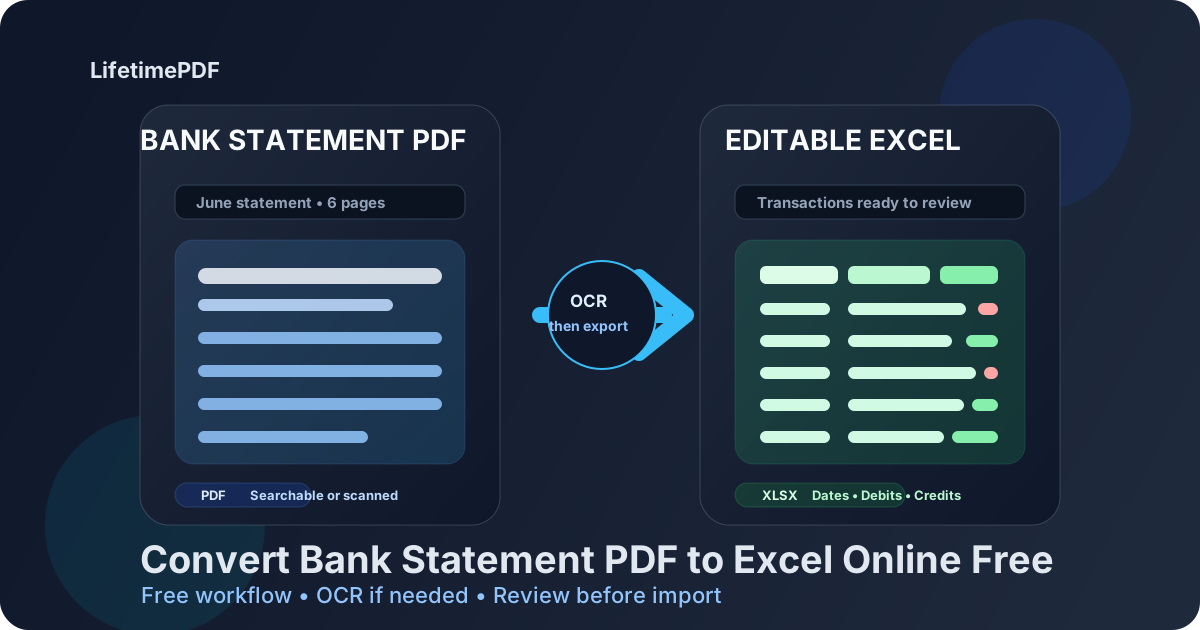
Table of contents
- Quick start: convert a bank statement PDF to Excel in about 5 minutes
- Why people convert bank statements to Excel
- What converts cleanly and what usually breaks
- Step-by-step: use a free online workflow with LifetimePDF
- Scanned statements and OCR: when the free workflow needs one extra step
- Statement review checklist: what to verify in Excel
- Excel vs CSV for statement data
- Privacy and safer handling of financial documents
- Related LifetimePDF tools and companion articles
- FAQ (People Also Ask)
Quick start: convert a bank statement PDF to Excel in about 5 minutes
If the statement already contains selectable text and the layout is reasonably clean, this is the fastest dependable workflow:
- Open PDF to Excel.
- Upload the bank statement PDF you want to extract.
- If the file includes extra pages, first isolate the statement pages with Extract Pages.
- If the file is scanned or image-only, run OCR PDF first.
- Export the spreadsheet and review transaction dates, descriptions, debits, credits, and balances before using it anywhere important.
Why people convert bank statements to Excel
A bank statement PDF is fine when you only need to read it. It becomes frustrating when you need to sort transactions, group merchants, reconcile balances, compare months, prepare tax support, or move the data into another workflow. That is where Excel becomes more useful than the original PDF.
- Bookkeeping and month-end reconciliation
- Expense categorization and budgeting
- Cash-flow reviews across multiple statements
- Audit support and accountant handoff
- Historical cleanup when the bank only gives PDF exports
- Dates land in their own column
- Descriptions remain readable
- Debit and credit values stay separate
- Balances remain numeric and aligned
- Repeated headers are easy to remove or never appear
The goal is not magical automation with zero review forever. The goal is to save yourself from manual retyping and end up with a spreadsheet that needs a light cleanup pass instead of a complete rebuild.
What converts cleanly and what usually breaks
Some bank statements convert into neat spreadsheets right away. Others look readable to humans but are awkward for extraction because the PDF was designed for display, not structured data export.
| Usually converts well | Usually needs extra cleanup |
|---|---|
| Digital statements exported from online banking | Scanned or photographed paper statements |
| Statements with selectable text | Skewed pages, shadows, or faint print |
| Transaction tables with consistent columns | Wrapped merchant descriptions and split rows |
| Standalone statement PDFs | Packets containing notices, cover pages, or mixed account material |
| Consistent monthly layouts from the same bank | Pages with repeated headers, footers, and promotional blocks |
If your file falls into the second column, that does not mean the free workflow is useless. It usually means the source needs one sensible prep step first: isolate the right pages, OCR the scan, crop dead margins, or rotate the statement before converting.
Step-by-step: use a free online workflow with LifetimePDF
This workflow usually gives the best balance between speed and accuracy when you want a free online result that is actually usable.
1) Start with the statement pages you actually need
If the PDF contains introductory letters, disclosures, account notices, or multiple account sections, trim the noise first. Smaller, focused input makes the spreadsheet easier to trust.
- Use Extract Pages when you only need certain pages.
- Use Split PDF if one packet needs to become smaller files.
2) Convert the statement into Excel
Open PDF to Excel, upload the statement, and export the editable spreadsheet. For a clean digital statement, this may be enough by itself.
3) Review the fields that matter most
A clean-looking XLSX is not the same thing as a trustworthy one. Statement extraction usually needs a fast human check, especially around wrapped descriptions, repeated headers, and amount columns.
| Statement field | Why it matters | What to verify |
|---|---|---|
| Transaction date | Drives sorting and reconciliation | Make sure it did not shift because of repeated headers or wrapped rows |
| Description | Needed for merchant review and categorization | Watch for split merchant names or notes turning into separate rows |
| Debit and credit values | Core financial values | Confirm the sign, column placement, and decimal formatting |
| Balance | Useful for validation and cash tracking | Check that running balances stayed numeric and aligned with the right rows |
| Reference or check numbers | Helpful for tracing specific items | Make sure punctuation, spacing, and leading zeros did not disappear |
4) Keep the spreadsheet in the format that fits the next job
If a human still needs to review, filter, and fix the data, keep the XLSX. If another system only wants plain rows and columns, you can always export a cleaned version later.
Need the full workflow? Start with conversion, then fix the source only if the spreadsheet still looks messy.
Scanned statements and OCR: when the free workflow needs one extra step
If the bank statement came from a scanner, copier, or phone camera, the PDF may be image-only. In that case, Excel conversion is trying to pull rows and columns out of a picture instead of real text. That is exactly when OCR helps.
How to tell if OCR is needed
- Selection test: try highlighting a word in the PDF. If you cannot, the file may be image-only.
- Search test: search for a visible merchant name or transaction amount. If the PDF cannot find it, OCR is probably required.
Better workflow for scanned statements
- Open OCR PDF.
- Upload the scanned statement and create a searchable text layer.
- Run PDF to Excel on the OCR-friendly result.
- Review dates, descriptions, debits, credits, and balances carefully.
If the scan is crooked or padded with huge borders, fix that first. Sideways pages and thick scanner margins make OCR and table detection work harder than they should.
- Rotate PDF for sideways pages.
- Crop PDF to remove wasted borders.
- Compress PDF if the scan is unnecessarily bulky.
Statement review checklist: what to verify in Excel
Free online conversion is useful because it saves time, not because it removes the need for review. Before you import or share the spreadsheet, check the parts that create the biggest downstream problems when they shift.
- Statement period
- Transaction dates
- Descriptions or merchant fields
- Debit, credit, and balance values
- Currency and numeric formatting
- Any rows that look split, repeated, or out of order
- Descriptions broken across multiple rows
- Credits merged into the wrong amount column
- Repeated page headers inside the transaction list
- Balances imported as text instead of numbers
- Blank rows created from spacing only
- Non-statement pages mixed into the worksheet
If one statement still looks messy after conversion, the smarter move is often to rerun OCR, extract a narrower page range, or use a cleaner source export from the bank portal instead of fighting the spreadsheet row by row.
Excel vs CSV for statement data
People often ask whether statement data should end up in Excel or CSV. The better answer depends on what happens next.
| If your goal is... | Better format | Why |
|---|---|---|
| Reviewing and correcting the output | Excel | Easier to filter, inspect, and fix broken columns |
| Sharing a readable worksheet with a teammate or accountant | Excel | Better for comments, sorting, and cleanup |
| Importing simple rows into another system | CSV | Lighter and simpler once the data has been validated |
| Handling multi-column cleanup first | Excel | Spreadsheet tools make statement review much easier |
For most statement workflows, Excel is the better first stop because a human still needs to review the output. Once the sheet is clean, you can decide whether another export format makes more sense.
Privacy and safer handling of financial documents
Bank statements often contain more than transaction rows. They may expose account numbers, addresses, salary deposits, payment references, transfer details, and other information that should not travel farther than necessary.
- Upload only the pages you actually need.
- Remove unrelated pages before conversion.
- Use Redact PDF if some fields should not be shared downstream.
- Use Delete Pages to remove extras before exporting data.
- Use PDF Metadata Editor if the file carries unnecessary metadata.
Convenience matters, but document hygiene matters too. A smaller, cleaner, statement-only PDF is usually better for privacy and better for conversion accuracy at the same time.
Related LifetimePDF tools and companion articles
Bank-statement extraction works best when you treat it as a small workflow instead of a single button press. These tools and pages fit naturally with this task:
- PDF to Excel for the core conversion step.
- OCR PDF for scanned statements.
- Extract Pages and Split PDF for statement-only page ranges.
- Crop PDF and Rotate PDF for awkward scans.
- Convert Bank Statement PDF to Excel for the broader workflow guide.
- Convert Invoice PDF to Excel Online Free for a closely related document-extraction use case.
- Redact Bank Statement PDF Online Without Monthly Fees if privacy is the bigger concern than extraction.
Ready to try it? Start with PDF to Excel, and if the bank statement is a scan, run OCR first for a cleaner result.
FAQ (People Also Ask)
How do I convert a bank statement PDF to Excel online free?
Upload the bank statement PDF to a PDF to Excel converter, export the XLSX file, and review dates, descriptions, debits, credits, and balances before using it. If the statement is scanned, OCR first usually improves the result.
Can I convert a scanned bank statement PDF to Excel for free?
Usually yes, but scanned statements work much better when you run OCR first. Straight pages and readable scans improve recognition of transaction rows and amount columns.
Why did my bank statement turn into messy Excel columns?
Because statement PDFs often mix headers, balances, notices, repeated page labels, and transaction tables on the same page. Mixed layouts, poor scans, and extra non-statement pages are common reasons columns shift.
Is Excel better than CSV for bank statement extraction?
Usually yes if a human still needs to review the output. Excel makes it easier to filter, correct columns, compare balances, and add cleanup notes before importing the data elsewhere.
What should I verify after converting statement data?
Check statement period, transaction dates, descriptions, debits, credits, balances, and any rows that look split or repeated. Those are the places where a small extraction error becomes a bigger downstream problem.