Compress PDF for Screaming Frog Online: Reduce Crawl Reports in Your Browser
To compress a PDF for Screaming Frog online, export the report as PDF, upload it to Compress PDF in your browser, start with Medium compression, and keep the smaller copy only if URL rows, charts, screenshots, and recommendations still look clear.
For most Screaming Frog PDFs, under 2MB works well for focused summaries, while full audits, migration reviews, and screenshot-heavy appendices usually land best around 2MB to 5MB.
In practice, this job is about the finishing step. The crawl is done. The issues are already found. The report is already built. Now you need a lighter PDF that opens faster, uploads more easily, and does not feel painful to send through email, chat, client portals, or task tickets. That is exactly where a browser-based workflow helps: fewer steps, less friction, and no need to overcomplicate a simple handoff.
Fastest path: export the Screaming Frog PDF, open LifetimePDF's Compress PDF tool in your browser, start with Medium compression, then check one long URL table and one screenshot-heavy page before you share it.
Need the short version? Jump to Quick start: compress a Screaming Frog PDF online in under 2 minutes.
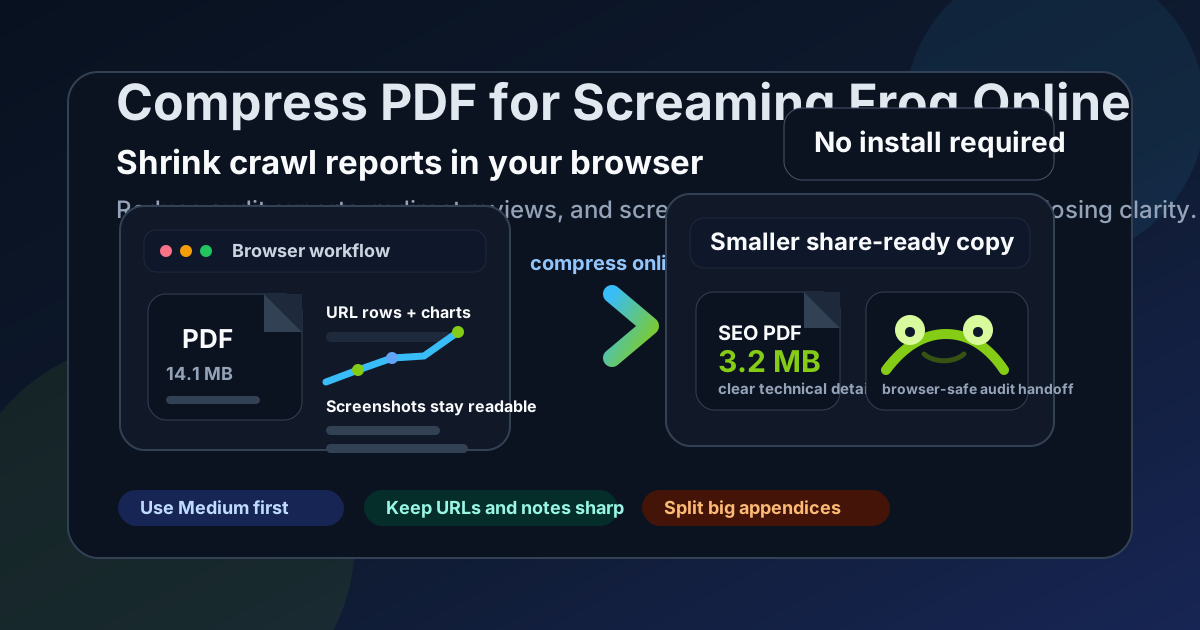
Table of contents
- Quick start: compress a Screaming Frog PDF online in under 2 minutes
- Why use an online workflow for Screaming Frog PDFs?
- What file size should you aim for?
- Which compression level should you choose?
- Step-by-step: compress a Screaming Frog PDF in your browser
- Best approach for common Screaming Frog export types
- When to split the PDF instead of compressing harder
- How to keep URLs, screenshots, and notes readable
- Workflow habits that reduce PDF bloat
- Related LifetimePDF tools and internal links
- FAQ (People Also Ask)
Quick start: compress a Screaming Frog PDF online in under 2 minutes
If your real goal is simply make this Screaming Frog PDF smaller in the browser so I can send it, this is the clean workflow:
- Export or save the finished Screaming Frog report as PDF.
- Open Compress PDF.
- Upload the file you actually plan to share, whether it is a crawl overview, redirect review, status code summary, migration QA report, screenshot-backed audit, or client-facing SEO deck.
- Choose Medium compression first.
- Download the smaller copy and compare the new size against the original.
- Preview one dense table and one screenshot-heavy page. Check long URLs, status codes, issue labels, chart legends, dates, and notes.
- If the PDF still feels too large, use Extract Pages or Split PDF instead of pushing stronger compression across the whole file.
Why use an online workflow for Screaming Frog PDFs?
Screaming Frog is already a specialist tool. Once the crawl is finished, most people do not want another specialist process just to make the PDF smaller. They want a quick final step that works in the browser and gets the file ready for handoff.
That is why the online angle matters. You might be working on a managed laptop, jumping between devices, sending a last-minute file before a call, or cleaning up a report after the main SEO work is already complete. In those moments, the right workflow is the one that removes friction without making the technical evidence harder to trust.
Why browser-based compression helps
- No extra install for the finishing step: useful when you already did the heavy SEO work and only need a smaller PDF.
- Easy across devices: handy when the export was created on one machine but the final handoff happens somewhere else.
- Faster uploads: lighter files move more easily into tickets, email attachments, Slack, and client portals.
- Lower review friction: clients and teammates are more likely to open a smaller audit quickly.
- Cleaner last-minute delivery: you can compress, split, and trim in one browser workflow instead of rebuilding the report from scratch.
What file size should you aim for?
There is no single perfect number for every Screaming Frog export, but these working ranges keep you from compressing harder than necessary:
| Document type | Practical target | What to protect |
|---|---|---|
| Crawl overview, issue summary, or quick SEO recap | Under 2MB | Issue counts, chart labels, short recommendations |
| Redirect review, status code audit, or canonical examples | 1MB to 3MB | Long URLs, status codes, notes, target paths |
| Screenshot-heavy technical audit or migration QA deck | 2MB to 5MB | Annotations, browser text, before-and-after examples |
| Executive summary plus full appendix | Keep the main file lean and split the appendix | Main findings, action pages, supporting proof |
These are practical targets, not rigid rules. If your PDF is mostly short commentary and a few charts, you can often aim smaller. If it contains dense URL tables, tiny screenshot notes, or technical evidence people still need to inspect, a somewhat larger file is usually the better tradeoff.
Which compression level should you choose?
For most Screaming Frog PDFs, Medium compression is the safest starting point. It usually removes enough weight to matter without immediately softening the details people still need.
| Compression level | Best for | Watch out for |
|---|---|---|
| Low | Dense URL tables, tiny note fields, and reports where small text matters more than maximum size reduction | May not shrink enough if the file is bloated by repeated screenshots or oversized appendices |
| Medium | Most crawl summaries, redirect reviews, recurring audit reports, and client-ready technical SEO packs | The best default, but still review long URLs, chart labels, screenshot callouts, dates, and recommendations before keeping it |
| High | Image-heavy appendices or disposable share copies where tiny text is not the main concern | Can blur URL rows, issue examples, screenshot labels, and short notes that still matter later |
Step-by-step: compress a Screaming Frog PDF in your browser
- Finish the report first. Export only after you know which pages actually need to go out.
- Open Compress PDF.
- Upload the file. Use the real handoff version, not a rough working copy full of pages nobody needs.
- Choose Medium compression. Start there unless you already know the PDF is especially delicate.
- Download the smaller copy. Compare the new size against the original so you know whether the first pass was enough.
- Review the weak spots. Check long URL rows, redirect targets, chart legends, date labels, screenshot callouts, and short recommendation text.
- Trim structure if needed. Use Delete Pages, Extract Pages, or Split PDF if the report is still bulkier than it should be.
The point is not to crush the file until it becomes as small as possible. The point is to create the lightest version that still lets the next person trust what they are seeing.
Good browser workflow: trim obvious excess first if the report is bloated, compress second, then do one fast readability check before you send the file.
Best approach for common Screaming Frog export types
1) Crawl overview and issue summary PDFs
These are usually the easiest to compress online. The main risk is not huge screenshots. It is making small labels and chart legends too soft to read. Medium compression is usually enough, and a quick check on issue counts and chart labels is often all you need.
2) Redirect, canonical, and status code reviews
Be more careful here. Long URLs, status codes, and short notes can become annoying fast if compression is too aggressive. If the report is mostly table-driven, Low or Medium is usually safer than chasing the smallest possible file.
3) Screenshot-backed technical audits
This is where file size usually jumps. Browser captures, annotations, arrows, and before-and-after examples add a lot of visual weight. Compression helps, but trimming repeated evidence pages often helps even more.
4) Image, alt text, or metadata handoff reports
These often mix dense tables with a few supporting examples. Medium usually works well if you still check the smallest text fields and any image examples once afterward.
5) Migration QA or client-ready technical decks
This is the classic oversized PDF: the main findings, the supporting screenshots, and the backup examples are all packed into one file. In many cases, the best move is to keep the summary deck lean and move the heavier appendix into a second PDF.
When to split the PDF instead of compressing harder
Compression is only one fix. Sometimes the better answer is to send less PDF.
- Split the executive summary away from the technical appendix.
- Extract only the proof pages a developer or client actually needs.
- Delete repeated screenshots that make the same point several times.
- Keep one lighter share copy and one fuller archive copy if both are useful.
- Crop oversized screenshot margins before trying stronger compression.
How to keep URLs, screenshots, and notes readable
Before you keep the compressed copy, check the parts most likely to degrade first:
- long URL rows, path segments, and parameters
- status codes, issue labels, and counts
- chart legends, date ranges, and comparison labels
- screenshot arrows, highlights, and tiny browser text
- short recommendation blocks and action notes
- section headings and appendix references
You do not need a long QA routine. Open the PDF once, zoom in on one dense table and one screenshot-heavy page, and ask a simple question: if someone reopened this file tomorrow, would the important evidence still be easy to trust? If yes, you are probably done.
Workflow habits that reduce PDF bloat
- Build audience-specific packs: not every stakeholder needs the same depth.
- Separate the summary from the appendix: the main decision file should usually stay lean.
- Trim repeated evidence: duplicate screenshots and stale examples add weight without adding meaning.
- Use focused screenshots: wide browser captures often carry more dead space than useful proof.
- Reuse a simple finishing workflow: export, trim, compress, review, send.
The best workflow is rarely the most elaborate one. It is the one that keeps the report useful while removing the friction that makes people hesitate to open it.
Related LifetimePDF tools and internal links
Compressing a Screaming Frog PDF online is often one step inside a broader reporting and handoff workflow. These tools pair naturally with it:
- Compress PDF - shrink Screaming Frog exports before sending them
- Split PDF - break one oversized audit pack into smaller, clearer files
- Extract Pages - send only the pages a teammate or client actually needs
- Delete Pages - remove blank, duplicate, or stale evidence pages before compression
- Crop PDF - trim wasted margins and oversized screenshot borders
- PDF Metadata Editor - clean document properties before final delivery
Suggested internal blog links
- Compress PDF for Screaming Frog
- Compress PDF for Screaming Frog Without Monthly Fees
- Compress PDF for Sitebulb Online
- Compress PDF for Semrush
- How to Reduce PDF File Size for Email
- Browse all LifetimePDF articles
FAQ (People Also Ask)
1) How do I compress a PDF for Screaming Frog online?
Export the Screaming Frog report as PDF, upload it to an online PDF compressor, start with medium compression, download the smaller result, and preview it before sharing. For most Screaming Frog exports, Medium compression is the best place to begin because it reduces size while keeping URL rows, issue labels, charts, and screenshots readable.
2) What file size should I aim for before sharing a Screaming Frog report?
A practical target is under 2MB for short crawl summaries, redirect reviews, and focused technical SEO updates. For full audit packs, screenshot-heavy appendices, or client-ready migration decks, somewhere in the 2MB to 5MB range is often still reasonable as long as the smallest important text stays clear.
3) Will online compression make Screaming Frog URL lists or screenshots blurry?
It can if you compress too aggressively. That is why Medium compression is usually the safest default. Always review long URL rows, status codes, chart labels, screenshot callouts, dates, and short notes before you keep the compressed copy.
4) Should I split a large Screaming Frog report instead of compressing it harder?
Often, yes. If one PDF includes the executive summary, technical appendix, screenshot evidence, and backup examples for different readers, splitting it usually works better than forcing strong compression across the entire document.
5) Why use an online workflow for Screaming Frog PDFs?
It is convenient when you want a quick browser-based finishing step, work across devices, or need to shrink a file without adding another tool to the process. The best online workflow is the one that makes the PDF easier to send while keeping the evidence readable.
Ready to shrink your Screaming Frog PDF online?
Best workflow: Export clean PDF → Trim obvious excess → Compress online → Review one dense table and one screenshot page → Share or archive.
Published by LifetimePDF - Pay once. Use forever.