Compress PDF for Sitebulb Online: Reduce Crawl Reports and Audit Exports in Your Browser
To compress a PDF for Sitebulb online, export the Sitebulb report as PDF, upload it to Compress PDF in your browser, start with Medium compression, and keep the smaller copy only if issue lists, charts, screenshots, and recommendations still look clear.
For most Sitebulb PDFs, under 2MB works well for short summaries and executive recaps, while full crawl reports, screenshot-heavy appendices, and client-ready SEO packs usually land best around 2MB to 5MB.
An online workflow is useful because Sitebulb reporting is often a finishing task, not a project in itself. You already ran the crawl, reviewed the issues, and built the narrative. Now you just need a smaller PDF that is easier to upload, email, archive, or hand to a client without sending them a sluggish attachment. Browser-based compression is a good fit when you want that last step to stay quick and low-friction.
Fastest path: export the Sitebulb PDF, open LifetimePDF's Compress PDF tool in your browser, start with Medium compression, then check one dense chart or screenshot before you share the file.
Short on time? Jump to Quick start: compress a Sitebulb PDF online in under 2 minutes.
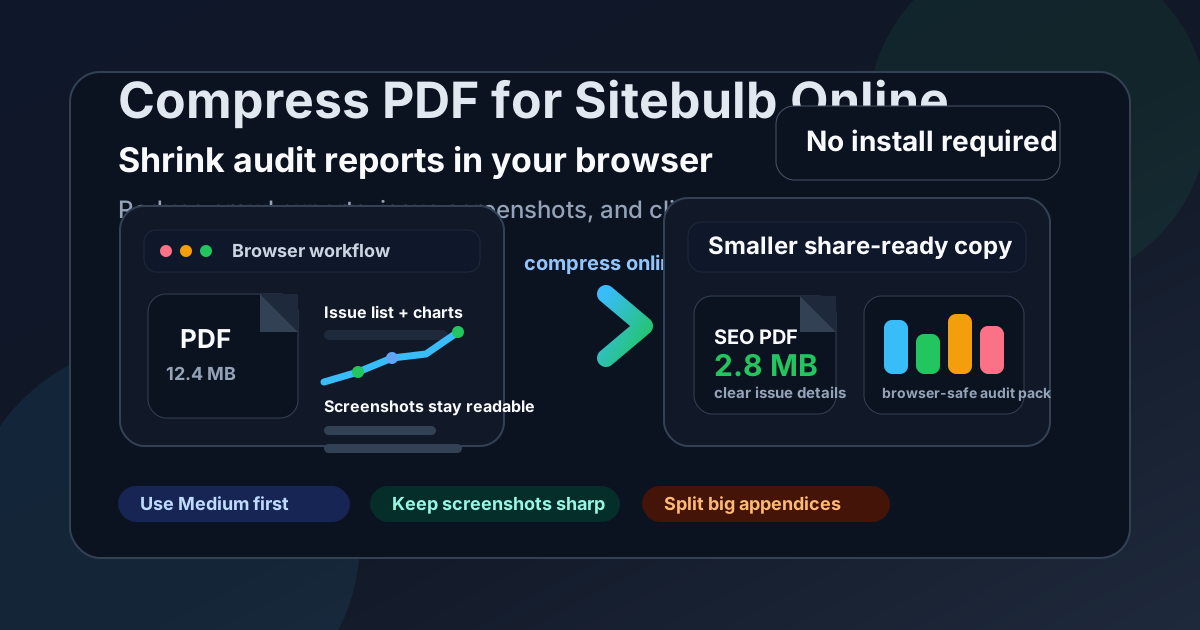
Table of contents
- Quick start: compress a Sitebulb PDF online in under 2 minutes
- Why use an online workflow for Sitebulb PDFs?
- What file size should you aim for?
- Which compression level should you choose?
- Step-by-step: compress a Sitebulb PDF in your browser
- Best approach for common Sitebulb export types
- When should you split the PDF instead of compressing harder?
- How to keep charts, issue lists, and screenshots readable
- Workflow habits that reduce PDF bloat
- Related LifetimePDF tools and internal links
- FAQ (People Also Ask)
Quick start: compress a Sitebulb PDF online in under 2 minutes
If your real goal is simply make this Sitebulb PDF smaller in the browser so I can send it, this workflow is usually enough:
- Export or save the Sitebulb report as PDF.
- Open Compress PDF.
- Upload the audit summary, crawl overview, hint appendix, screenshot-heavy issue report, or client-ready SEO PDF you want to shrink.
- Choose Medium compression first.
- Download the smaller copy and compare the new file size with the original.
- Preview one dense page and check issue rows, chart labels, screenshot callouts, dates, and recommendations.
- If the file still feels heavy, use Extract Pages or Split PDF instead of forcing stronger compression across the entire pack.
Why use an online workflow for Sitebulb PDFs?
Sitebulb exports are often the last step in a broader technical SEO workflow. The crawl is done. The issues are identified. The notes are written. What remains is turning that material into a PDF that moves smoothly between people. That is why an online workflow makes sense: it keeps the finishing step fast and accessible.
A browser-based option is especially useful when you work across devices, use managed machines where extra software installs are annoying, or need to clean up a file just before a meeting or handoff. The goal is not to romanticize doing everything online. It is simply to remove friction from a job that should be quick: shrink the PDF, verify the details still look trustworthy, and send it.
Why online compression helps
- No extra setup: useful when you want a quick browser workflow instead of another desktop tool.
- Easy on shared or managed machines: practical when installs are restricted or inconvenient.
- Faster handoffs: smaller files upload more smoothly to email, client portals, and project tools.
- Cleaner review flow: clients and teammates are more likely to open a lighter PDF promptly.
- Less last-minute scrambling: you can trim, split, and compress in one place before the file goes out.
What file size should you aim for?
There is no single perfect number for every Sitebulb export, but these working ranges keep you from compressing harder than necessary:
| Document type | Practical target | What to protect |
|---|---|---|
| Executive summaries and quick audit recaps | Under 2MB | Headline findings, issue counts, short notes, priority labels |
| Standard crawl reports and recurring client packs | 2MB to 4MB | Chart labels, section headings, screenshot callouts, date ranges |
| Screenshot-heavy appendices and evidence packs | 2MB to 5MB | Annotations, tiny labels inside screenshots, issue examples |
| Oversized multi-audience reports | Keep the core file smaller and split the appendix | Main story, action items, decision pages |
These are practical targets, not strict rules. If the report is mostly charts and short commentary, you can often aim smaller. If it contains dense issue tables or screenshots people still need to inspect closely, a somewhat larger file is usually the right tradeoff.
Which compression level should you choose?
For most Sitebulb PDFs, Medium compression is the safest starting point. It usually removes enough file weight to matter without immediately softening the details people still need.
| Compression level | Best for | Watch out for |
|---|---|---|
| Low | Dense issue rows, small screenshots, and exports where tiny text matters more than maximum size reduction | May not shrink enough if the PDF is bloated by repeated evidence pages or oversized appendix sections |
| Medium | Most audit summaries, crawl recaps, issue reports, and client-ready technical SEO packs | The best default, but still review issue rows, chart labels, dates, annotations, and recommendation blocks before keeping it |
| High | Image-heavy appendices or throwaway share copies where tiny text is not the main concern | Can blur chart labels, issue details, screenshot annotations, and small recommendation text that still matters later |
Step-by-step: compress a Sitebulb PDF in your browser
- Export the Sitebulb report as PDF.
- Open Compress PDF.
- Upload the file and choose Medium compression first.
- Download the compressed copy.
- Open it once before sending it anywhere.
- Check the smallest useful details: issue labels, chart legends, screenshot callouts, dates, notes, and summary recommendations.
- If the report is still bulky, use Delete Pages, Extract Pages, or Crop PDF before you try stronger compression.
That review step matters. Compression issues usually show up first in the smallest details: issue rows, chart labels, screenshot arrows, dates, notes, and the recommendations that explain what should happen next.
Good browser workflow: trim unnecessary pages first if the report is bloated, compress second, then do one quick readability check before you share the file.
Best approach for common Sitebulb export types
1) Executive audit summaries
These usually compress well online because they are shorter and more focused. Start with Medium compression and make sure issue counts, summary notes, and priorities still look clean.
2) Crawl overviews and technical recaps
These often mix charts, short tables, and commentary. Compression helps, but only if chart labels and section headings remain comfortable to read at normal zoom.
3) Screenshot-heavy issue appendices
This is where file size usually grows fastest. Screenshots, annotations, and evidence pages are useful, but they are also the first place where over-compression makes the file feel less trustworthy. If the appendix is mostly support material, consider splitting it out instead of forcing stronger compression across the whole pack.
4) Client-ready technical SEO reports
Most clients do not need every detail in one attachment. If one PDF includes the main summary, issue screenshots, notes, and backup evidence for several stakeholders, splitting the appendix away from the core report often works better than compressing everything harder.
When should you split the PDF instead of compressing harder?
If one pass of compression does not get the file where you need it, do not assume the next move is maximum compression. Often the smarter fix is a smaller, more focused PDF.
- Split the appendix away from the executive summary.
- Extract only the pages needed for a meeting or email handoff.
- Delete repeated cover pages, stale screenshots, or duplicate evidence sections.
- Crop wasted screenshot margins so the PDF carries less dead space.
- Keep one lighter client copy and one fuller archive copy if both are useful.
How to keep charts, issue lists, and screenshots readable
Before you keep the compressed copy, check the parts most likely to degrade:
- issue names, counts, and priority labels
- chart legends, axis labels, and comparison ranges
- screenshot arrows, callouts, and highlighted examples
- date ranges and short recommendation blocks
- section headings and appendix page references
- any small text a client, strategist, or developer would still need tomorrow
You do not need a long QA ritual. Open the file once, zoom in on one dense chart and one detailed screenshot, and confirm the report still feels usable. If it does, you are probably done.
Workflow habits that reduce PDF bloat
- Build audience-specific packs: do not force one giant report to serve every reader.
- Separate the summary from the appendix: the main decision document should usually stay lean.
- Trim before export when possible: optional pages are easier to remove early than later.
- Use clear filenames and clean metadata: better file hygiene makes archives easier to navigate later.
- Reuse a simple finishing workflow: export, trim, compress, review, send.
The best workflow is rarely the fanciest one. It is the one that makes the handoff easier without creating fresh overhead.
Related LifetimePDF tools and internal links
Compressing a Sitebulb PDF online is often one step in a broader reporting and handoff workflow. These tools pair naturally with it:
- Compress PDF - shrink Sitebulb exports before sharing them
- Split PDF - break one oversized audit pack into smaller, clearer files
- Extract Pages - send only the pages a teammate or client actually needs
- Delete Pages - remove blank or repeated evidence pages before compression
- Crop PDF - trim wasted screenshot borders and dead space
- PDF Metadata Editor - clean titles and document properties before client delivery
- Compare PDFs - useful when checking revisions between reporting rounds
Suggested internal blog links
- Compress PDF for Sitebulb
- Compress PDF for Sitebulb Without Monthly Fees
- Compress PDF for Screaming Frog
- Compress PDF for Ahrefs
- Compress PDF Online Free
- How to Reduce PDF File Size for Email
- Browse all LifetimePDF articles
FAQ (People Also Ask)
1) How do I compress a PDF for Sitebulb online?
Export the Sitebulb report as PDF, upload it to an online PDF compressor, start with medium compression, download the smaller result, and preview it before sending it. For most Sitebulb exports, Medium compression is the best place to begin because it reduces size while keeping issue lists, charts, screenshots, and recommendations readable.
2) What file size should I aim for before sharing a Sitebulb report?
A practical target is under 2MB for short audit summaries, executive recaps, and one-topic technical SEO updates. For multi-page crawl reports, screenshot-heavy appendices, or client-ready SEO packs, somewhere in the 2MB to 5MB range is often still reasonable as long as the smallest important text stays clear.
3) Will online compression make Sitebulb charts or issue screenshots blurry?
It can if you compress too aggressively. That is why Medium compression is usually the safest default. Always review chart labels, issue rows, screenshot callouts, dates, notes, and recommendation blocks before you keep the compressed copy.
4) Should I split a large Sitebulb report instead of compressing it harder?
Often, yes. If one PDF includes the executive summary, crawl findings, issue screenshots, appendix pages, and recommendations for different readers, splitting it usually works better than forcing strong compression across the entire document.
5) Why use an online workflow for Sitebulb PDFs?
It is convenient when you need a quick browser-based finishing step, work on machines where installs are inconvenient, or want a lighter report before a handoff. The best online workflow is the one that shrinks the file without making the evidence harder to trust.
Ready to shrink your Sitebulb PDF online?
Best workflow: Export clean PDF → Trim unnecessary pages → Compress online → Review one dense page → Share or archive.
Published by LifetimePDF - Pay once. Use forever.