Compress PDF for Screaming Frog Online Free: Shrink Crawl Reports in Your Browser Without Breaking the Details
To compress a PDF for Screaming Frog online free, export the finished report, upload it to Compress PDF in your browser, start with Medium compression, and keep the smaller copy only if long URLs, screenshots, issue labels, and chart notes still look clear.
For most Screaming Frog PDFs, under 2MB works well for short summaries, while broader technical audits and screenshot-heavy appendix packs usually land best around 2MB to 5MB.
This search usually happens late in the workflow. The crawl is already done, the problems are already found, and the report is already on its way to a client, teammate, or archive. What is left is the very practical last step: make the PDF smaller without making the evidence harder to trust.
Fastest path: export the Screaming Frog PDF, open LifetimePDF's Compress PDF tool in your browser, begin with Medium compression, then check one long URL page and one screenshot-heavy page before you send the file.
Need the short version? Jump to Quick start: compress a Screaming Frog PDF online free in under 2 minutes.
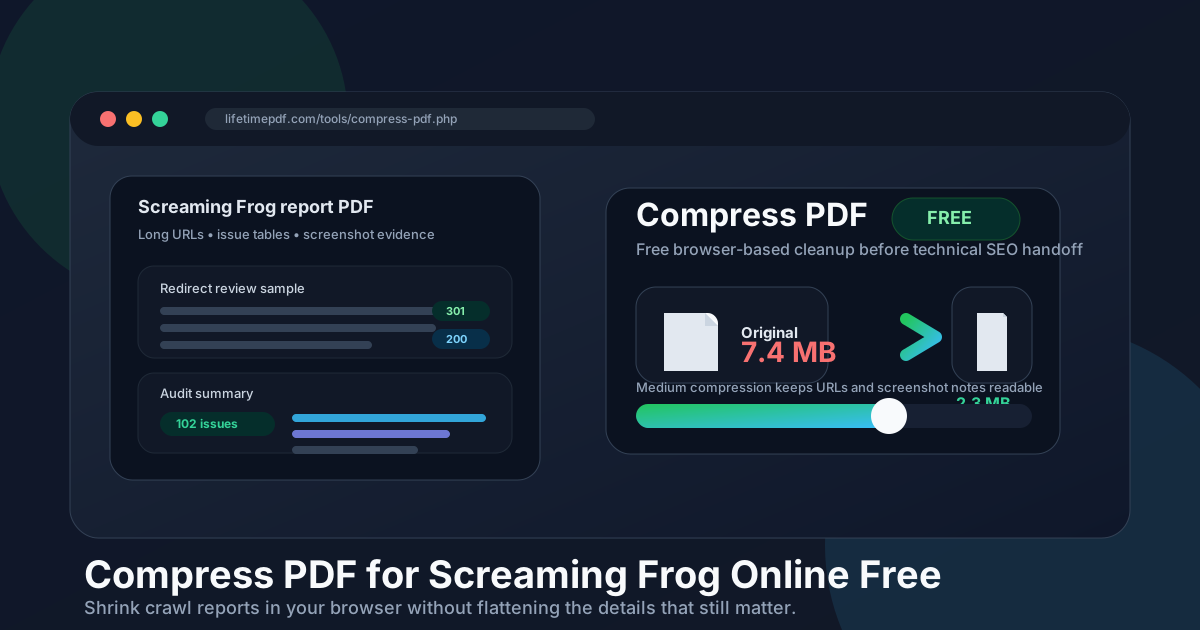
Table of contents
- Quick start: compress a Screaming Frog PDF online free in under 2 minutes
- Why this keyword makes practical sense
- Why a browser workflow fits Screaming Frog handoffs
- What file size should you aim for?
- Which compression level should you choose?
- Step-by-step: compress a Screaming Frog PDF online for free
- When to split pages instead of compressing harder
- A quick QA check before you share the file
- Related LifetimePDF tools and articles
- FAQ
Quick start: compress a Screaming Frog PDF online free in under 2 minutes
If your real goal is simply make this Screaming Frog PDF smaller in the browser so I can send it, this is the clean workflow:
- Export or save the finished Screaming Frog report as PDF.
- Open Compress PDF.
- Upload the file you actually plan to share, whether it is a crawl overview, redirect review, migration QA report, screenshot-backed technical audit, or client-facing SEO deck.
- Choose Medium compression first.
- Download the smaller copy and compare the new size with the original.
- Preview one dense table and one screenshot-heavy page. Check long URLs, redirect targets, issue labels, chart legends, notes, and dates.
- If the report still feels bulky, use Split PDF, Extract Pages, or Delete Pages before pushing stronger compression across the whole file.
Why this keyword makes practical sense
The phrase online free is not filler here. It matches the real situation behind the search. Most people are not trying to build a brand-new PDF workflow around Screaming Frog. They already finished the crawl, assembled the evidence, and exported the report. The only missing step is shrinking the file so it moves more easily through email, chat, tickets, or client portals.
That is why the keyword is clean rather than awkward. It bundles three very normal constraints into one search:
- Screaming Frog: the report often contains long URLs, issue tables, redirects, charts, or screenshot evidence.
- Online: the finishing step should happen quickly in the browser without another install.
- Free: people want a simple cleanup step, not another recurring cost for a task that takes a few minutes.
For agencies, consultants, freelancers, and in-house SEO teams, that combination is extremely normal. The report already exists. You just want a smaller file that still feels credible when the next person opens it.
Why a browser workflow fits Screaming Frog handoffs
Screaming Frog work rarely stays in one place. A crawl might be run on a desktop, reviewed in a browser, discussed in Slack, attached to a ticket, and then sent to a client or stakeholder. A free browser-based PDF step fits that reality because it keeps the final cleanup quick and portable.
| Need | Why it matters | Best response |
|---|---|---|
| Faster sharing | Heavy PDFs feel clumsy in email, chat, and project tools. | Compress the file so it uploads and opens more easily. |
| No extra install | Managed laptops and last-minute handoffs make desktop utilities annoying. | Use a browser workflow for the final cleanup step. |
| Readable evidence | Long URLs, status codes, and screenshot callouts are easy to damage. | Start with Medium compression and check the fragile pages once. |
| Low-friction cost | Compression is real work, but it usually is not worth a whole new subscription. | Use a free workflow now, then upgrade only if your broader PDF process truly needs it. |
Online does not automatically mean better. It only helps when it makes the last step simpler without making the report weaker. That is why the safest workflow is conservative: compress once, review once, and stop as soon as the file is small enough.
What file size should you aim for?
There is no perfect universal target because Screaming Frog PDFs vary wildly. A redirect review behaves differently from a screenshot-heavy technical audit or a migration QA pack. Still, these ranges are a useful starting point:
| Type of PDF | Practical target | What to protect |
|---|---|---|
| Short crawl summary or issue update | Under 2MB | Issue counts, chart labels, short recommendations |
| Redirect review or status-code check | 1MB to 3MB | Long URLs, target paths, status codes, notes |
| Screenshot-backed technical audit | 2MB to 5MB | Annotations, browser text, issue examples |
| Client deck plus appendix pages | 2MB to 5MB or split into parts | Fast-opening summary file plus readable evidence file |
The better rule is this: stop when the PDF feels small enough and still reads clearly at normal zoom. A slightly larger file that preserves the audit's credibility is usually better than a tiny file that turns the evidence fuzzy.
Which compression level should you choose?
For most Screaming Frog exports, Medium compression is the safest first move. It usually trims enough size to solve the sharing problem without immediately softening the details people actually reopen the report to inspect.
- Low compression is safer when the PDF is packed with thin URL columns, tiny screenshot text, or crowded examples.
- Medium compression is the best default for most crawl summaries, redirect reviews, audit decks, and recurring client handoffs.
- High compression is better reserved for visually forgiving files or copies where tiny details are not the point.
In Screaming Frog PDFs, the fragile parts are predictable: long path segments, redirect chains, issue tables, chart legends, screenshot annotations, and short recommendation blocks. Those are the first places to check before you decide the smaller file is ready.
Step-by-step: compress a Screaming Frog PDF online for free
- Export the final version first. Compress the PDF you actually plan to share, not a draft that is still changing.
- Open Compress PDF. Keep the finishing step in the browser so it stays simple.
- Upload the file. Use the real handoff version, whether that is a crawl summary, redirect audit, migration QA export, or screenshot-backed report.
- Choose Medium compression. Treat it as the default, not the compromise.
- Download the smaller copy. Compare the file sizes so you know whether the first pass actually solved the problem.
- Review the weakest pages. Check at least one long URL table and one screenshot-heavy page before you send it anywhere.
- Stop or refine. If the file is now easy to send and still looks trustworthy, you are done. If not, split the appendix or extract pages before pushing stronger compression.
Good free workflow: export the finished report, compress once, check two high-risk pages, then split or trim only if the file still feels awkwardly heavy.
When to split pages instead of compressing harder
A large Screaming Frog PDF is not always a compression problem. Sometimes it is a packaging problem. One file may be trying to serve different readers at once: executives, developers, account managers, and your own archive. In those situations, splitting is usually smarter than forcing every page through harsher compression.
- Split the executive summary away from the technical appendix.
- Extract only the redirect examples or migration QA pages a developer actually needs.
- Delete repeated screenshots that support the same point several times.
- Keep a light client copy and a fuller internal reference copy when both are useful.
LifetimePDF tools like Split PDF, Extract Pages, and Delete Pages are often more helpful than stronger compression when a report contains one lean summary section and one bulky evidence section.
A quick QA check before you share the file
You do not need a long review ritual after compression. You just need to look at the parts most likely to break first:
- Long URLs and path segments that wrap across narrow columns
- Status codes and redirect targets used for debugging or signoff
- Chart legends and small labels in overview pages
- Screenshot callouts and annotations that explain why a page matters
- Short recommendations placed inside a dense layout
- Dates and comparison notes in audits or migration reviews
If those details still look comfortable at normal zoom, the compressed copy is usually safe to send. If they already look fragile, do not chase a prettier file-size number. Keep the slightly larger version that remains useful.
FAQ
How do I compress a PDF for Screaming Frog online free?
Export the Screaming Frog report as PDF, upload it to a free browser-based compressor like LifetimePDF, start with Medium compression, and review the smaller copy before you send it. That keeps the workflow quick while protecting the pages that still need to be readable later.
What file size should I aim for before sharing a Screaming Frog report?
Short summaries often work well under 2MB. Larger technical audits, migration reviews, and screenshot-heavy appendix packs usually land better around 2MB to 5MB as long as the smallest important details still look clear.
Will free online compression make Screaming Frog URLs or screenshots blurry?
It can if you push compression too far. Start with Medium compression and review long URL tables, screenshot callouts, chart labels, and short notes before keeping the compressed version.
When should I split a Screaming Frog PDF instead of compressing harder?
Split the report when one file is trying to serve several audiences at once, such as a client summary plus a developer appendix. In many cases, better packaging works better than harsher compression.
Why does the online free angle matter for Screaming Frog PDFs?
Because PDF compression is usually the finishing step, not the main SEO task. People often just want a fast browser-based way to make the report smaller without adding another install or another monthly bill.
Published by LifetimePDF — Pay once. Use forever.