Compress PDF for PDF Expert: Open Large Manuals, Contracts, and Study PDFs Faster on iPad, iPhone, and Mac
To compress a PDF for PDF Expert, upload the final contract, manual, report, textbook chapter, scan, or marked-up file to LifetimePDF's Compress PDF tool, start with Medium compression, and keep the smaller copy only if text, page thumbnails, signatures, and annotations still look clean.
For most PDF Expert workflows, aim for under 5MB for ordinary text-heavy PDFs and roughly 5MB to 20MB for heavier manuals, scan-heavy documents, plan sets, or image-rich study files that still need smooth reading and markup.
PDF Expert is the kind of app people open when they want a PDF to behave like a working document instead of a dead attachment. That means oversized files become annoying fast. A bloated contract takes longer to open, a huge manual feels heavier to browse, thumbnails get more sluggish, and the file becomes one more thing you hesitate to annotate on an iPad or review on an iPhone. The goal is not to crush every PDF until it looks cheap. The goal is to make it lighter while preserving the pages you actually need to read, sign, search, review, and mark up.
Fastest path: run the PDF through LifetimePDF's Compress PDF tool on Medium, open the smaller copy in PDF Expert, then check one text-heavy page, one thumbnail view, and one page where you would realistically annotate or sign.
Need the short version? Jump to Quick start: compress a PDF for PDF Expert in under 2 minutes.
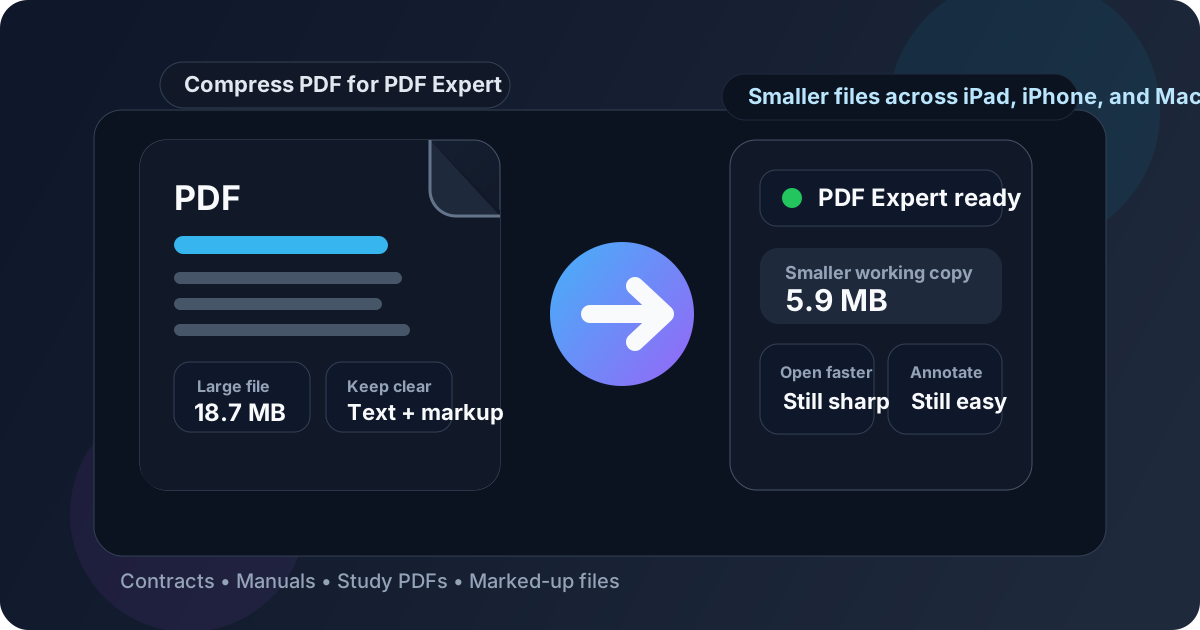
Table of contents
- Quick start: compress a PDF for PDF Expert in under 2 minutes
- Why smaller PDFs help in PDF Expert
- What file size should you aim for?
- Which compression level should you choose?
- Step-by-step: shrink a PDF Expert file with LifetimePDF
- Best strategy for common PDF Expert file types
- What if the PDF is still too large?
- How to keep reading, signing, and markup comfortable
- When to compress before or after annotation
- Related LifetimePDF tools and useful internal links
- FAQ (People Also Ask)
Quick start: compress a PDF for PDF Expert in under 2 minutes
If your real goal is simply make this file lighter so it opens and feels better in PDF Expert, this workflow is usually enough:
- Open Compress PDF.
- Upload the final contract, report, manual, textbook chapter, worksheet, plan set, or scan you actually plan to keep.
- Choose Medium compression first.
- Download the smaller PDF and compare the size with the original.
- Open it in PDF Expert and check the places that matter most: small text, page thumbnails, signatures, highlights, stamps, and one zoomed-in detail page.
- If the file is still too bulky, use Extract Pages, Delete Pages, or Crop PDF before trying a harsher compression level.
Why smaller PDFs help in PDF Expert
PDF Expert is often where people do real work: reading contracts, reviewing manuals, marking up project files, signing forms, or scanning long reports on the go. When the PDF is heavier than it needs to be, the friction shows up in ordinary moments rather than dramatic failures. The document may still open, but it feels clunkier to browse, slower to share, and more annoying to revisit on a phone or tablet.
Why lighter PDFs usually feel better in PDF Expert
- Faster opening: especially noticeable with scan-heavy files, long manuals, and image-rich reports.
- Calmer page thumbnails: browsing long documents feels better when the file is not dragging extra weight around.
- Smoother markup: highlights, comments, stamps, and signatures are less frustrating when the document feels responsive.
- Better mobile comfort: large PDFs are much more annoying on an iPhone than on a desktop screen.
- Less storage bloat: dozens of bulky PDFs quietly consume space across iPad, iPhone, Mac, and synced storage.
- Easier sharing later: a lighter working copy is easier to email, upload, archive, or move into another workflow.
In other words, compression is not only about saving space. It is about making the PDF behave like a useful document instead of a heavy attachment that keeps getting in the way.
What file size should you aim for?
There is no single magic number because a three-page contract behaves very differently from a 250-page manual, a floor plan set, or a scan-heavy packet. Still, practical targets help. The goal is to make the file light enough that it stops feeling wasteful while preserving the parts you actually care about in PDF Expert.
| PDF Expert file type | Comfortable target | Notes |
|---|---|---|
| Contracts, forms, invoices, and short reports | Under 5MB | Usually light enough for quick opening, signing, and sharing while keeping text sharp. |
| Manuals, textbooks, and image-mixed working files | 5MB to 15MB | Often realistic when diagrams, screenshots, or tables matter. |
| Scan-heavy packets, plan sets, and large review bundles | 10MB to 20MB | These often benefit more from cleanup, cropping, and splitting than from aggressive compression alone. |
| Huge archive bundles or multi-part source files | Split into smaller parts if possible | One giant PDF is rarely the cleanest working copy when you only need one section at a time. |
If a PDF stays slightly larger but remains comfortable to read, search, sign, and annotate, that is fine. The goal is not to win a file-size contest. The goal is to keep the document genuinely usable.
Which compression level should you choose?
Most people do not need a complicated decision tree. Start with Medium, then only go harder if the file is still much heavier than the real job requires.
Low compression
Use Low when the file contains fine print, engineering details, signatures, or diagrams you do not want to soften. You will save less space, but you give the document more room to stay visually trustworthy.
Medium compression
Use Medium as your default. It usually cuts enough size to matter while keeping ordinary reading, thumbnails, zooming, and annotation targets comfortable in PDF Expert.
High compression
Use High only when the file is still awkwardly large after smarter cleanup or when the PDF is mainly a convenience copy rather than a precision working copy. Small labels, weak scans, and screenshot text are usually the first things to suffer.
Step-by-step: shrink a PDF Expert file with LifetimePDF
- Start with the final file. Use the exact PDF you plan to open in PDF Expert, not an earlier draft.
- Open Compress PDF.
- Choose Medium compression first. This is usually the safest balance for working PDFs.
- Download the smaller copy. Compare the result with the original so you know whether the reduction was meaningful.
- Open the new PDF in PDF Expert. Do not stop at the download step. Check the file where it will actually be used.
- Review one real task. Open a thumbnail view, zoom into fine print, highlight a sentence, or inspect the page you would normally sign or comment on.
- Adjust only if necessary. If the file is still too heavy, extract the useful pages, delete dead pages, crop blank borders, or split the PDF before trying stronger compression.
- Keep the original until you are sure. Once the smaller copy passes a real reading or review test, use it as the working version and archive the heavier source if needed.
Most of the time, the best workflow is boring in a good way: Compress once, test once, keep moving. You do not need a ritual every time.
Best strategy for common PDF Expert file types
Contracts, forms, and signed documents
These usually compress well, but they deserve a close check afterward. You want crisp text, stable signature blocks, and clear initials or stamps. If the file already contains important signatures or annotations, keep the original and treat the smaller copy as a working version until you confirm everything still looks right.
Manuals, reports, and reference PDFs
These often carry screenshots, diagrams, and long sections of body text. Medium compression is usually enough. The real test is whether the pages still feel pleasant to browse, search, and revisit on the device you actually use.
Textbook chapters and study materials
If you only need one chapter or section, do not keep hauling the entire source file around. A shorter PDF often works better than a brutally compressed full-volume export. Extract the pages you really need, then compress the smaller copy.
Scan-heavy files and camera captures
These are usually the troublemakers. Compression helps, but the bigger win often comes from trimming blank edges, deleting duplicate pages, rotating crooked scans, or running OCR PDF so the document stays searchable after it becomes smaller.
Plan sets, drawings, and detail-heavy pages
These deserve caution. If fine labels, dimensions, or thin lines matter, use gentler compression and test the hardest page, not the prettiest one. A smaller file is not worth much if the critical detail becomes awkward to read.
What if the PDF is still too large?
If one compression pass was not enough, do not assume the next answer is simply harsher compression. Usually the real problem is too many pages, too much scan waste, or a giant bundle that should have been split into cleaner parts.
- Keep only the useful pages: use Extract Pages when you only need one chapter, section, appendix, or contract packet.
- Remove dead weight: use Delete Pages for blanks, duplicate scans, covers, or irrelevant attachments.
- Trim dead space: use Crop PDF for large margins and scanner borders.
- Split giant bundles: use Split PDF if one huge file would work better as smaller sections.
- Fix scan-heavy files: use OCR PDF when the file is image-based and you also want searchable text.
- Re-export from the source: sometimes the cleanest result comes from a better export rather than more post-processing.
In many workflows, a cleaner PDF beats a more aggressively compressed PDF. Removing noise usually helps more than squeezing every page harder.
How to keep reading, signing, and markup comfortable
PDF Expert users notice quality loss quickly because the app is often part of active work. If the PDF gets fuzzy, the pain shows up exactly where you care about it: small text, signatures, comments, stamps, thumbnails, and zoomed-in review.
Check these before you keep the smaller copy
- Fine print and small labels: zoom into the densest page, not just the cover.
- Page thumbnails: browse a few pages quickly and make sure the document feels calmer, not clumsier.
- Annotations and highlights: verify that the page still feels easy to mark up with normal precision.
- Signatures and initials: if the document involves signing, inspect the signed areas and any form fields you still care about.
- Screenshot text and diagrams: these usually reveal over-compression faster than ordinary body text.
- Phone reading: a file that looks fine on a Mac can still feel rough on an iPhone.
The simplest rule is this: test the smallest meaningful detail and one real task you would perform in PDF Expert. If both still feel good, the rest of the file is usually fine.
When to compress before or after annotation
If possible, compress the PDF before it becomes deeply annotated. That gives you a cleaner working copy from the start. But real life is messy, and sometimes the heavy file already carries comments, highlights, or signatures.
| Situation | Better move |
|---|---|
| Fresh file you have not touched yet | Compress first, then open and annotate the lighter working copy. |
| Document already contains meaningful comments or highlights | Keep the original, create a smaller copy, and test a few annotated pages before replacing anything. |
| Signed or legally important PDF | Archive the original untouched file and treat the compressed version as a convenience copy unless you have verified it carefully. |
| Huge scan you only need for reference | Trim, OCR, or split the file first, then compress the smaller working version. |
The best PDF Expert setup is usually simple: preserve the original when it matters, then create a lighter copy that is easier to open, browse, and work with every day.
Related LifetimePDF tools and useful internal links
Compressing the PDF is usually the main fix, but some PDF Expert files benefit from one or two supporting tools first. These are the most useful follow-up options:
- Compress PDF - shrink the final working copy.
- Extract Pages - keep only the relevant section.
- Delete Pages - remove blanks, duplicates, and dead matter.
- Crop PDF - trim scanner waste and oversized margins.
- Split PDF - break giant bundles into cleaner parts.
- OCR PDF - make scan-heavy documents more searchable.
- PDF Metadata Editor - clean document properties before archiving or sharing.
If you want related reading around the same workflow, these guides fit naturally next: Compress PDF for Notability, Compress PDF for GoodNotes, How to Compress a PDF on iPad, How to Annotate a PDF on iPad, and OCR PDF.
Best workflow for most PDF Expert files: start with a clean PDF, compress it once, test one real reading or markup task, and keep the smaller copy only if it still feels trustworthy.
FAQ (People Also Ask)
1) How do I compress a PDF for PDF Expert?
Upload the final PDF to a compressor, start with Medium compression, and keep the smaller copy only if text, thumbnails, signatures, highlights, and annotation targets still look clean when you open it in PDF Expert. For most everyday files, Medium is the safest first step because it reduces size without making the document rough to read or mark up.
2) What PDF size should I aim for in PDF Expert?
Under 5MB is a strong target for ordinary text-heavy PDFs like contracts, forms, and short reports. Larger manuals, plan sets, textbooks, and scan-heavy files often land around 5MB to 20MB and can still feel practical if small text, thumbnails, and markup remain comfortable.
3) Will compression ruin annotations or signatures in PDF Expert?
Usually not if you start with Medium compression and the source PDF is already clean, but you should keep the original if the file already contains important annotations, signatures, or comments. Test one signed page, one highlighted page, and one dense-text page before replacing a working copy you care about.
4) What if my PDF is still too large after compression?
If one pass is not enough, the better answer is often trimming the file rather than squeezing it harder. Extract the useful pages, delete blanks or duplicates, crop large margins, split giant bundles, or OCR scan-heavy documents before you try stronger compression.
5) Which LifetimePDF tools pair best with PDF Expert?
Compress PDF is the main starting point. Extract Pages, Delete Pages, Split PDF, Crop PDF, OCR PDF, Rotate PDF, and PDF Metadata Editor are the most useful companions when you want smaller, cleaner PDFs that still behave well in PDF Expert across iPad, iPhone, and Mac.
Ready to shrink a heavy PDF for PDF Expert?
Best workflow: Compress - Test once - Keep the lighter working copy.
Published by LifetimePDF - Pay once. Use forever.