Compress PDF for Otter.ai: Keep Transcript Exports, Meeting Notes, and Summary PDFs Easy to Open
To compress a PDF for Otter.ai, upload the final transcript export, meeting summary, interview shareout, or lecture notes PDF to LifetimePDF's Compress PDF tool, start with Medium compression, and keep the smaller copy only after speaker labels, timestamps, screenshots, transcript quotes, and action items still look clear in the real Otter.ai workflow, follow-up email, or team handoff where the file gets reopened.
For most Otter.ai PDFs, under 2MB is a strong target for short meeting summaries, interview recaps, and class handouts, while screenshot-heavy transcript packets, lecture note exports, and multi-page follow-up PDFs usually work best around 2MB to 5MB after light cleanup.
Otter.ai is supposed to make the useful parts of a conversation easier to reuse. The PDF should not become the awkward part of the handoff. When a transcript packet gets too heavy, people stop reopening it on mobile, miss the quote that explained the decision, or skip the screenshot and action item that made the recap useful in the first place. The goal is not the tiniest file. It is the lightest file that still keeps the summary trustworthy.
Fastest path: run the Otter.ai PDF through LifetimePDF's Compress PDF tool on Medium, then extract the pages that matter or split appendix material only if the file is still heavier than the real follow-up, research shareout, or class-notes workflow needs.
In a hurry? Jump to Quick start: compress an Otter.ai PDF in about 2 minutes.
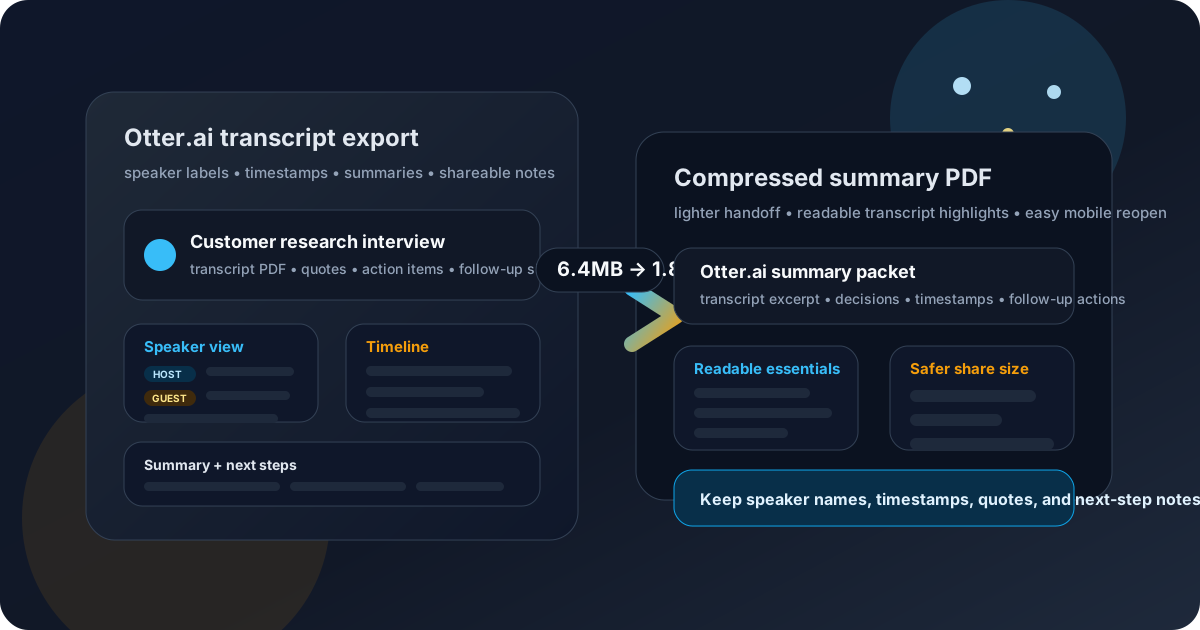
Table of contents
- Quick start: compress an Otter.ai PDF in about 2 minutes
- Why Otter.ai PDFs get heavy so quickly
- Where large PDFs create friction in Otter.ai workflows
- What file size should you aim for?
- Which compression level should you choose?
- Step-by-step: shrink an Otter.ai PDF with LifetimePDF
- Best strategy for common Otter.ai PDF types
- What if the file is still too big?
- How to keep speaker labels, timestamps, and transcript quotes readable
- Workflow habits that keep Otter.ai PDFs lighter
- Related LifetimePDF tools and useful internal reading
- FAQ (People Also Ask)
Quick start: compress an Otter.ai PDF in about 2 minutes
- Open Compress PDF.
- Upload the final Otter.ai transcript export, meeting summary, interview recap, or lecture notes PDF.
- Start with Medium compression.
- Download the smaller copy and reopen it from the real follow-up, team handoff, or class-sharing workflow where it will actually be used.
- If the file is still too big, extract the pages that matter or split appendix material instead of forcing the whole packet through stronger compression.
That solves most cases. Otter.ai PDFs usually do not need aggressive compression. They need a realistic size target, one honest readability check, and a cleaner packet structure when the file is carrying more backup than the next person actually needs.
Why Otter.ai PDFs get heavy so quickly
Otter.ai PDFs often become bulky because one useful export turns into a mixed packet. Teams combine meeting summaries, speaker-by-speaker transcript pages, screenshots, slide captures, interview notes, and follow-up tasks into one file. Students do something similar with lecture notes, timestamped excerpts, and extra screenshots. The archive may benefit from that, but the next reader usually does not.
Another common issue is that one PDF tries to do every job at once. It becomes the shareable recap, the full transcript archive, the research backup, and the manager handoff all in a single attachment. Compression helps, but the bigger win usually comes from separating the action-ready summary from the long reference material.
Where large PDFs create friction in Otter.ai workflows
Heavy PDFs create drag exactly where speed matters:
- Meeting follow-up: the next person should be able to reopen the recap fast and pull the useful summary without waiting on a bloated attachment.
- User research shareouts: lighter PDFs make it easier to scan the key quotes, decisions, and next actions without wading through a giant transcript bundle.
- Class or lecture notes: smaller files reopen more reliably on phones, tablets, and spotty campus Wi-Fi.
- Team handoffs: summary PDFs lose value when the attachment is slower than the insight it is trying to deliver.
Smaller files remove that friction without changing the meaning of the document. Done well, compression makes the PDF easier to reuse without making the transcript or summary feel weaker or less trustworthy.
What file size should you aim for?
There is no single perfect number, but these ranges work well for most Otter.ai workflows:
| Document type | Practical target | Why it works |
|---|---|---|
| Short meeting summaries, interview recaps, and class handouts | < 1MB to 2MB | Fast to open while keeping names, timestamps, and action items readable |
| Transcript packets and screenshot-heavy shareouts | 2MB to 3MB | Leaves room for callout screenshots and supporting context without making the PDF feel clumsy |
| Multi-page lecture exports or team handoff bundles | 3MB to 5MB | Usually enough space for screenshots, transcript excerpts, and notes if the packet is still structured well |
| Large bundles with appendix material | Split instead of chasing one target | Separate the shareable summary from the full transcript or backup pages instead of over-compressing everything |
If someone only needs the decision-ready pages, optimize for that file first. The archive version can stay larger. The shared version should feel quick, focused, and easy to reopen from a phone or laptop.
Which compression level should you choose?
| Compression level | Best use in Otter.ai | Main tradeoff |
|---|---|---|
| Low | Text-heavy summaries that are only slightly too large | Small size reduction with almost no readability risk |
| Medium | Default choice for most transcript exports, summary notes, and follow-up PDFs | Best balance of size reduction and readable speaker labels, quotes, screenshots, and timestamps |
| High | Only when image detail matters less than getting under a strict upload limit | Higher risk of blurry screenshots, softer labels, or harder-to-read transcript details |
In practice, Medium is the right starting point almost every time. If the file is still too large after that, structural cleanup usually beats jumping straight to aggressive compression.
Step-by-step: shrink an Otter.ai PDF with LifetimePDF
- Start with the final shareable PDF. Do not compress an older export if the live version now has different transcript excerpts, screenshots, notes, or action items.
- Run it through Compress PDF. Begin with Medium compression first.
- Check the busiest page. Open the page with the smallest speaker labels, densest quotes, or most detailed screenshot. If that page still looks good, the rest usually will too.
- Remove pages nobody needs. Use Delete Pages if the packet includes duplicate exports, stale screenshots, or backup pages that are not part of the real handoff.
- Split or extract when the packet has mixed jobs. Use Extract Pages or Split PDF to separate the shareable summary from full-transcript appendix material.
- Test the real workflow once. Reopen the smaller copy where it will actually be used: a follow-up email, class handout, research readout, or team recap.
That last step matters. A PDF can look fine in isolation and still fail in the real workflow because the quote that mattered is harder to read, the timestamps blur together, or the screenshot loses the detail that made the recap useful.
Best strategy for common Otter.ai PDF types
1. Meeting summary for follow-up
Keep these short. The goal is to preserve the key decision, the useful quote, the action items, and the next step. If the PDF includes the entire transcript plus screenshots, extract the one or two pages that actually support the follow-up and leave the rest behind.
2. User research or interview shareout
These packets can get heavy fast because teams often include long excerpts for proof. Medium compression is usually enough. If the file still feels bulky, trim repetition first. One sharp quote block and one screenshot usually beat three pages of nearly identical evidence.
3. Lecture notes or class recap PDF
Students and instructors need reliability more than archive perfection. If the file is headed to phones or tablets, keep the readable summary in one PDF and move the full transcript or extra screenshots into a second file. That makes the main handout easier to reopen during class, study sessions, or travel.
4. Sales or customer-call handoff packet
These packets should feel crisp, not stuffed. Keep the pages that explain the customer's goal, concern, or next action, crop dead screenshot space, and remove internal-only backup before compressing. The final file should help someone act, not merely prove that a longer conversation happened upstream.
What if the file is still too big?
If Medium compression does not get the file where you need it, work through this order:
- Delete duplicate or outdated pages.
- Shorten long transcript exports if older pages are only backup.
- Crop wasted white space or oversized screenshots with Crop PDF.
- Extract the shareable section and split the appendix.
- Only then try stronger compression if a hard upload limit still exists.
This approach usually produces a better result than forcing the whole document through High compression. Structural cleanup keeps the useful detail intact while reducing the amount of material the PDF has to carry.
How to keep speaker labels, timestamps, and transcript quotes readable
When you review the compressed copy, do not just glance at page one. Check the details people actually rely on:
- Speaker names and labels should stay crisp, especially in dense summary blocks.
- Timestamps should remain easy to scan when someone needs to jump back to the original moment.
- Transcript quotes should still read naturally without constant zooming.
- Screenshots and slide captures should keep the callout or highlight you wanted the next person to notice.
- Action items and next-step notes should remain quick to trust in email, chat, or CRM handoffs.
If one of those elements softens too much, back off the compression level or remove nonessential pages instead. The real win is a smaller PDF that still supports a confident next step.
Workflow habits that keep Otter.ai PDFs lighter
- Share the recap, not the whole archive. The archive can stay big. The live PDF should stay fast.
- Keep the full transcript separate. A short summary and a long appendix do not have to travel as one file.
- Avoid screenshot repetition. If two pages show the same moment, keep the clearer one.
- Use one purpose per file. Follow-up recap, research proof, and appendix packet do not have to be the same PDF.
- Trim hidden baggage. Metadata, duplicate exports, and backup pages quietly add weight without helping the next reader.
These habits reduce file size before compression even starts, which makes the final result cleaner and more predictable.
Related LifetimePDF tools and useful internal reading
If you work with Otter.ai PDFs often, these tools usually help more than compression alone:
- Compress PDF for the first pass.
- Extract Pages when only the shareable section matters.
- Split PDF for separating summaries from appendix material.
- Delete Pages to remove duplicate or stale exports.
- PDF Metadata Editor if you want cleaner file details before wider sharing.
Useful related reading on LifetimePDF:
- Compress PDF for Fireflies.ai
- Compress PDF for Chili Piper
- Compress PDF for Qualified
- How to Compress a PDF in Preview
- How to Split PDF in Preview
Want the shortest version? For most Otter.ai workflows, Medium compression plus one cleanup pass is enough. If the PDF is still bulky, split the appendix instead of blurring the useful pages.
FAQ (People Also Ask)
How do I compress a PDF for Otter.ai?
Upload the final PDF to a compressor, start with Medium compression, download the smaller copy, and test it in the real Otter.ai workflow before replacing the original. Medium is usually the safest first pass because it lowers file size without making speaker labels, timestamps, transcript quotes, screenshots, or action items harder to trust.
What file size should I aim for in Otter.ai?
For short meeting summaries, interview recaps, and class handouts, under 2MB is a strong target. Screenshot-heavy transcript packets, lecture note exports, and multi-page follow-up PDFs usually work best around 2MB to 5MB as long as the smallest useful detail still reads clearly.
Will PDF compression blur speaker labels, timestamps, or transcript excerpts in Otter.ai documents?
It can if you compress too aggressively. That is why Medium compression is the best place to start. Always check speaker names, timestamps, transcript quotes, screenshots, and the busiest page before you keep the smaller file.
Should I split a long transcript export instead of compressing it harder for Otter.ai?
Often, yes. If one PDF combines the shareable summary with a full transcript, screenshots, appendix notes, or older exports, splitting it usually creates a cleaner Otter.ai workflow than forcing the whole bundle through aggressive compression.
Which LifetimePDF tools pair best with Otter.ai?
Compress PDF is the main starting point. Extract Pages, Delete Pages, Split PDF, Crop PDF, PDF Metadata Editor, and OCR PDF are especially useful when you want smaller, cleaner Otter.ai documents without carrying extra pages, screenshot waste, hidden metadata, or image-only appendix material forward.
Published by LifetimePDF - Pay once. Use forever.