Compress PDF for Noteful: Import Smaller Planners, Study Packs, and Marked-Up Handouts Faster
To compress a PDF for Noteful, upload your final planner, lecture slides, worksheet, research article, or marked-up handout to LifetimePDF's Compress PDF tool, start with Medium compression, and keep the smaller copy only if text, planner links, page labels, and markup still look clean.
For most Noteful imports, aim for under 5MB for ordinary text-heavy files and roughly 5MB to 15MB for heavier planners, scanned notes, slide decks, or image-rich study packs.
Noteful feels great when the PDF behaves well. When the file is bloated, imports take longer, page browsing feels heavier, zooming gets clunkier, and the whole note-taking flow becomes more annoying than it should be. The goal is not to flatten every page into mush just to win a smaller number. The goal is to make the PDF lighter while preserving the details that matter when you read, annotate, jump through tabs, and revisit the same notebook later.
Fastest path: run the Noteful file through LifetimePDF's Compress PDF tool on Medium, then import the smaller copy and check text clarity plus any planner tabs or links once.
Need the short version? Jump to Quick start: compress a PDF for Noteful in under 2 minutes.
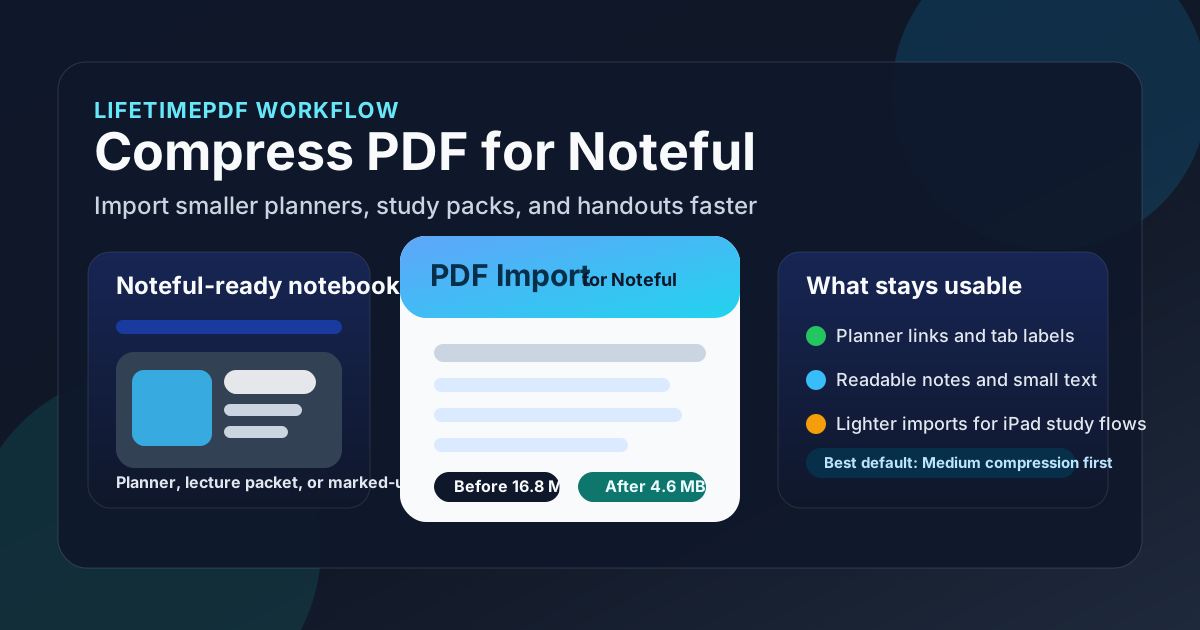
Table of contents
- Quick start: compress a PDF for Noteful in under 2 minutes
- Why smaller PDFs help in Noteful
- What file size should you aim for?
- Which compression level should you choose?
- Step-by-step: shrink a Noteful PDF with LifetimePDF
- Best strategy for common Noteful file types
- What if the PDF is still too large?
- How to keep planner links, text, and markup usable
- Organization habits before you import
- Related LifetimePDF tools and useful internal links
- FAQ (People Also Ask)
Quick start: compress a PDF for Noteful in under 2 minutes
If your real goal is simply make this PDF lighter so it imports and feels better in Noteful, this workflow is usually enough:
- Open Compress PDF.
- Upload the final planner, lecture packet, worksheet, article, workbook, or scan you actually plan to use.
- Choose Medium compression first.
- Download the smaller PDF and compare the size with the original.
- Import it into Noteful and check the details that matter most: text clarity, small labels, page browsing, zoomed-in notes, and any internal links or tabs.
- If the file is still bulkier than you want, use Extract Pages, Delete Pages, or Crop PDF before trying a stronger compression level.
Why smaller PDFs help in Noteful
Even when a PDF technically imports, that does not mean it is the version you actually want to live with inside Noteful. Oversized files create friction in the places people feel most: slower imports, clunkier page browsing, heavier notebook libraries, and less comfortable zooming when you are trying to read or annotate quickly. That matters whether the file is a hyperlinked planner, lecture slides, a marked-up handout, a client workbook, a research reading packet, or a scan of handwritten notes.
Why smaller PDFs work better in Noteful
- Faster imports: helpful when you are bringing in multiple class packets, planners, or review files.
- Smoother page browsing: lighter PDFs usually feel better when you jump around inside long notebooks.
- Cleaner zooming: smaller, cleaner files are easier to inspect during annotation sessions.
- Less storage bloat: oversized PDFs add up quickly once they become part of a real note-taking workflow.
- Easier reuse elsewhere: once the PDF is lighter, it is easier to email, archive, upload, or share outside Noteful too.
In short, compression is not just a numbers game. It is a way to make the PDF behave more like a note-taking asset and less like a heavy attachment that keeps slowing down the same routine.
What file size should you aim for?
There is no single magic number because a 12-page worksheet behaves very differently from a 400-page hyperlinked planner or a scan-heavy study binder. Still, practical targets help. The real goal is the smallest version that still feels comfortable when you read, zoom, annotate, and jump between pages inside Noteful.
| Use case | Recommended target | Why it works |
|---|---|---|
| Quick handouts, typed notes, short worksheets | < 5MB | Usually easy to import, annotate, and keep around without unnecessary weight |
| Lecture slides, study packets, planner sections | 5MB to 15MB | Often a realistic balance for files with diagrams, screenshots, page art, and some image content |
| Large digital planners | As small as possible while preserving links | Planner tabs and internal navigation matter more than chasing the tiniest number |
| Scanned notebooks or article packs | Varies widely | These files benefit most from cleanup, cropping, OCR, and page reduction before harder compression |
If you want one simple rule, aim for the smallest version that still feels good when you use it the way you actually use Noteful. Once the file starts looking muddy, fuzzy, or awkward to navigate, you have pushed too far.
Which compression level should you choose?
The best compression level depends on what the PDF contains. Noteful imports are not all alike. A text-heavy worksheet can handle more shrinking than a planner full of tabs, while a scan of handwriting behaves differently from a clean digital export.
Low compression
Best when the PDF already feels reasonably optimized and you only want to shave off a little weight. This is useful for polished planners, design-heavy workbooks, and documents where tiny labels or decorative elements matter.
Medium compression
This is the best first choice for most people. It usually reduces size enough to improve imports and everyday use without doing obvious damage to typed text, screenshots, diagrams, planner tabs, and marked-up pages.
High compression
Use this only when the PDF is still awkwardly heavy and you already know the less aggressive option did not go far enough. It can help with bulky scans or giant reference packs, but it deserves a careful review afterward.
Step-by-step: shrink a Noteful PDF with LifetimePDF
- Export or locate the final PDF. Do not compress an old draft if you are going to replace it later anyway.
- Open Compress PDF.
- Upload the file. This could be a planner, lecture slides, workbook, study packet, research reading, or marked-up handout you want inside Noteful.
- Choose Medium compression first. This is usually the safest starting point.
- Download the smaller result.
- Import it into Noteful.
- Review once, not endlessly. Check the cover, a text-heavy page, a page with small labels, a zoomed section, and a few internal links if the file uses them.
- Only escalate if there is still a real problem. If the PDF remains bulkier than it should be, trim extra pages, crop wasted margins, or split the file instead of immediately over-compressing the whole thing.
Most of the time, the best workflow is pleasantly boring: Export clean PDF - Compress - Import - Check once - Keep moving. You do not need a giant ritual for every file.
Best strategy for common Noteful file types
Digital planners
Planner PDFs often include tabs, internal links, decorative elements, and a lot of pages. Start gently. Medium compression is usually fine, but your real test is whether the planner still feels pleasant to navigate. Open a few monthly tabs, jump to a weekly page, and make sure small labels remain readable at normal zoom.
Lecture slides and study packets
These usually compress well. You mainly want smaller imports and easier browsing while preserving chart labels, formulas, and screenshot text. If the slides were exported as images instead of proper text, the better fix may be cleanup before harsher compression.
Scanned handwritten notes
These are often the biggest troublemakers because every page behaves like an image. Compression helps, but the bigger win often comes from cropping empty borders, rotating crooked pages, deleting duplicate sheets, or running OCR when you also want searchability.
Research readings and article excerpts
If you only need a chapter, excerpt, or selected article, do not keep hauling the whole bundle around. Extract the pages you actually plan to read and annotate. A shorter PDF usually feels better than a brutally compressed full pack.
Workbooks, forms, and marked-up handouts
These are usually straightforward. Compress them once, check text clarity, and make sure handwritten notes, checkboxes, or highlights still feel easy to read. If the pages have giant white borders, cropping can improve both size and viewing comfort.
What if the PDF is still too large?
If one compression pass does not solve the problem, the answer is not always more compression. Sometimes the smarter fix is changing the shape of the document.
- Keep only what you need: use Extract Pages for chapters, planner sections, or selected handouts.
- Remove waste: use Delete Pages for duplicates, blanks, and irrelevant appendices.
- Trim dead space: use Crop PDF for scanner borders and oversized margins.
- Split giant packets: use Split PDF if one monster file is making the whole workflow heavier than it needs to be.
- Fix scan-heavy files: use OCR PDF when you also want better searchability and cleaner scanned pages.
In many cases, a leaner and more focused PDF is better than a single giant file that has been squeezed so hard it stops being pleasant to use.
How to keep planner links, text, and markup usable
Noteful is not just a storage bin. People actually read these pages, zoom into corners, tap links, and revisit the same notebook again and again. That means your quality check should match real use, not just a quick glance at the first page.
What to review after compression
- Small text: zoom into the smallest labels, notes, or footers and confirm they still look clean.
- Planner tabs and hyperlinks: tap a few internal links if the PDF uses them.
- Highlights and markup: make sure annotations still feel distinct enough to be useful.
- Screenshot text: this is often the first thing to degrade when compression becomes too aggressive.
- Page browsing at normal speed: the file should feel better, not just smaller on paper.
If you are stuck between two versions, choose the one you would rather read from for an hour. That is the real test.
Organization habits before you import
Compression is also a good moment to clean the file before it becomes part of a long-lived note stack. A few small habits help:
- Remove extra pages: old title pages, duplicate scans, blank sheets, or answer keys create clutter and wasted size.
- Check for hidden metadata: document titles, authors, and other properties are sometimes worth cleaning before archiving or sharing.
- Think about searchability: if the PDF is scan-heavy, OCR can make it much easier to find later.
- Name the file clearly: lighter PDFs are more useful when the filename still makes sense a month from now.
- Split mixed-purpose bundles: class notes, admin forms, and reference material do not always belong in one giant file.
A good workflow is usually simple: Export clean PDF - Compress - Review - Import. Add cropping, splitting, OCR, or metadata cleanup only when the file actually needs it.
Related LifetimePDF tools and useful internal links
Compressing the PDF is often the main fix, but some Noteful imports benefit from one or two supporting tools first. These are the most useful follow-up options:
- Compress PDF - shrink the final file before importing.
- Extract Pages - keep only the chapters or sections that matter.
- Delete Pages - remove blanks, duplicates, and dead weight.
- Crop PDF - trim scanner borders and oversized margins.
- Split PDF - break giant notebooks into cleaner parts.
- OCR PDF - make scanned study material more searchable.
- PDF Metadata Editor - clean document properties before archiving or sharing.
If you want related reading around the same workflow, these guides fit naturally next: How to Compress a PDF on iPad, Compress PDF for GoodNotes, Compress PDF for Notability, Scan to PDF on iPad, How to Check If a PDF Is Searchable on iPad, and OCR PDF.
Best workflow for most Noteful files: export a clean PDF, compress it once, import it once, and confirm that links plus reading comfort still feel right.
FAQ (People Also Ask)
1) How do I compress a PDF for Noteful?
Upload the final PDF to a compressor, start with Medium compression, and keep the smaller copy only if text, planner links, highlights, diagrams, and handwritten marks still look clean. For most Noteful workflows, Medium is the safest first step because it reduces size without making the file feel rough or awkward to use.
2) What PDF size should I aim for in Noteful?
Under 5MB is a strong target for ordinary notes, short handouts, and text-heavy worksheets. Heavier planners, slide decks, or scan-heavy study packs often land around 5MB to 15MB and can still feel practical if imports stay smooth and the text remains readable.
3) Will compression ruin planner links or handwritten markup in Noteful?
Usually not if you start with Medium compression and the source PDF is already clean. The bigger risk is using an overly aggressive workflow or flattening the file in a way that strips useful structure. After compressing, test a few planner tabs, small-text areas, and any written-on pages before you commit to the smaller version.
4) What if my Noteful PDF is still too large after compression?
If one pass is not enough, keep only the pages you really need, crop blank margins, split giant notebooks into smaller sections, or clean scanner waste before compressing again. In many cases, a shorter and cleaner PDF works better than crushing the entire file harder.
5) Which LifetimePDF tools pair best with Noteful imports?
Compress PDF is the main starting point. Extract Pages, Delete Pages, Crop PDF, Split PDF, OCR PDF, Rotate PDF, and PDF Metadata Editor are all useful when you need smaller, cleaner PDFs that still behave well inside Noteful.
Ready to shrink your Noteful PDF?
Best workflow: Export clean PDF - Compress - Import - Review.
Published by LifetimePDF - Pay once. Use forever.