How to Check if a PDF Is Searchable on iPad: Quick Files, Mail, and Safari Tests Before You Run OCR
To check if a PDF is searchable on iPad, open the file in Files, Mail, or Safari, search for a visible word, then select and copy one short line into Notes.
If search fails, the page behaves like one big image, or the pasted text comes out broken, the PDF probably needs OCR before you rely on it.
That is the fast answer. The useful part is learning how to test the exact iPad copy you plan to keep, how to spot the difference between a native PDF and a scan, and how to avoid doing detailed review work on a file that only looks readable on screen. A PDF that looks crisp in Apple's viewer can still be a dead end for search, copy-paste, and text extraction.
Fastest path: save one copy in Files, test search, copy one line into Notes, then use PDF to Text or OCR only if the quick checks are weak.
In a hurry? Jump to Quick start: tell if an iPad PDF is searchable in under 2 minutes.
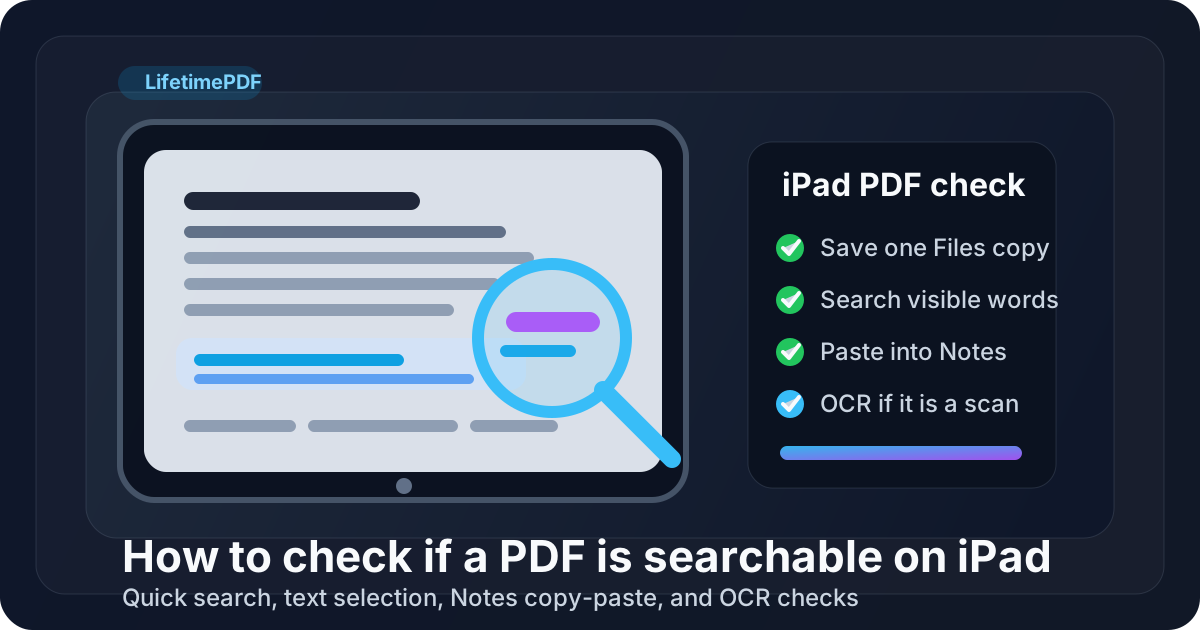
Table of contents
- Quick start: tell if an iPad PDF is searchable in under 2 minutes
- The easiest iPad workflow for checking searchable PDFs
- What “searchable” actually means on iPad
- Step-by-step: check a PDF from Files, Mail, Safari, Messages, or cloud storage
- Fast warning signs that the PDF is not fully searchable
- When to run OCR and when to export a cleaner source file
- iPad habits that lead to cleaner searchable PDFs
- Related LifetimePDF tools and guides
- FAQ (People Also Ask)
Quick start: tell if an iPad PDF is searchable in under 2 minutes
If you already have the file on your iPad and just need a fast answer, use this order:
- Save the exact file from Mail, Safari, Messages, Google Drive, or OneDrive into one obvious folder in Files.
- Open the PDF and use the viewer's Find or Search option to look for a word you can clearly see on the page.
- Select one short sentence and paste it into Notes.
- If you want a stronger check, run the file through PDF to Text and see whether the extracted content stays readable.
- If those tests fail or only work on some pages, run OCR PDF and repeat the same checks.
The easiest iPad workflow for checking searchable PDFs
On iPad, the biggest mistake is trusting a temporary preview. People open an attachment in Mail, then a preview in Safari, then another copy from Google Drive, and then decide the PDF must be fine because one viewer happened to search correctly. That creates false confidence fast.
A cleaner workflow is simple: save one copy in Files, run the quick search and selection tests first, and only move into OCR or deeper extraction testing when the easy checks raise doubts. That keeps the process fast for healthy PDFs and practical for messy ones.
| iPad situation | Best move | Why it helps |
|---|---|---|
| The PDF came from Mail, Messages, Safari, or a classroom portal | Save one Files copy first | You avoid testing one version and sharing another |
| The PDF came from Pages, Word, Google Docs, or another app export | Run the quick search and copy tests first | Native PDFs often already contain a good text layer |
| The PDF came from Notes scanning, a printer app, or phone photos | Expect OCR to be the likely next step | Scans often look readable but still behave like images |
| The file is a mixed packet with screenshots, signed pages, or inserts | Test more than one page | Search may work on some pages while failing on others |
In plain English: checking searchability on iPad is mostly about resisting convenience shortcuts. If the PDF is headed into contracts review, studying, quoting, AI extraction, translation, or compliance work, one minute of testing saves much more time later.
What “searchable” actually means on iPad
A searchable PDF contains a usable text layer behind the page image or layout. That text layer is what makes search, highlighting, copying, extraction, and follow-up workflows work properly. Without it, your iPad is mostly looking at a picture of text.
Most PDFs fall into one of three buckets:
- Native PDF: exported from Pages, Word, Google Docs, a browser, or another app with real text already built in.
- Scanned PDF: a picture of paper pages, usually with no usable text layer yet.
- Hybrid PDF: part native, part scanned, or OCR applied unevenly so some pages work and others do not.
The tricky part is that all three can look fine in Apple's PDF viewer. That is why quick behavior tests beat guesswork.
Step-by-step: check a PDF from Files, Mail, Safari, Messages, or cloud storage
Here is the practical iPad workflow that covers most real-world situations.
1) Start with the exact file you plan to keep or share
If the PDF is still sitting inside a Mail preview, browser tab, LMS portal, or cloud app, save it first if that makes the workflow clearer. One obvious copy in Files reduces version mistakes and makes retesting much easier.
2) Run the search test
Search for a word you can clearly see on the page. Pick something distinctive like a heading, total, date, invoice number, class term, or product name instead of a tiny common word. If search returns nothing on obvious text, the file may be image-only or partly broken.
3) Select one line and paste it into Notes
This is one of the best iPad reality checks. If the text highlights cleanly and pastes into Notes in readable order, the PDF probably has a usable text layer. If the whole page behaves like one image or the pasted result becomes blanks, symbols, or scrambled spacing, the file still needs work.
4) Use PDF to Text when you want a stronger answer
Send the file through PDF to Text when the basic tests are mixed. This shows whether the extracted content stays readable enough for real use instead of merely passing one lucky search query. It is especially helpful for reports, tables, lecture packets, and forms that may contain both native and scanned pages.
5) OCR and retest if the file is a scan or only partly searchable
If the PDF came from Notes scanning, a copier app, a photographed page, or an old archive, run OCR PDF next. After OCR, repeat the same tests. Do not assume the first pass solved everything. Retesting is what tells you whether the new text layer is actually useful.
Recommended iPad sequence: save the file, test search, test copy-paste in Notes, run PDF to Text if needed, then OCR and retest when the text layer is weak.
Fast warning signs that the PDF is not fully searchable
You do not need a long forensic session to spot a weak iPad PDF. A few signals show up quickly:
- Search fails on a word that is clearly visible on the page.
- Text selection grabs the whole page or behaves like dragging over a photo.
- Notes paste comes out broken with missing characters, strange spacing, or random symbols.
- Only some pages work, which usually means the PDF is a mix of native and scanned content.
- Sideways pages, dark borders, or skewed scans make OCR and extraction noticeably worse.
- Tables and forms fall apart even when ordinary body text seems searchable.
None of those warning signs automatically means the PDF is useless. They do mean you should slow down before trusting the file for studying, quoting, extraction, review, accessibility work, or automation.
When to run OCR and when to export a cleaner source file
OCR and source repair solve different problems. OCR is the right first move when the PDF is basically an image of text, such as a Notes scan, photographed handout, or archive file. It adds a text layer so your iPad can start searching and copying the content.
A cleaner export from the source file is often better when the PDF came from Pages, Word, Google Docs, or another editable document and still behaves badly. If the file was created through print menus, screenshots, or a rough share-sheet conversion, rebuilding from the source can outperform repeated after-the-fact fixes.
Run OCR when
- the text cannot be selected at all,
- search fails on obvious content,
- the file came from a scanner, camera, or paper original,
- some pages are clearly just images, or
- you need the document for extraction, summarizing, translation, or records review.
Re-export from the source when
- the PDF came from Pages, Word, Google Docs, or another app and should already have real text,
- copy-paste order is consistently messy even though the source still exists,
- fonts, tables, or slides were flattened through screenshots or print workflows, or
- you control the original document and can produce a cleaner PDF in a few minutes.
iPad habits that lead to cleaner searchable PDFs
The easiest way to get searchable PDFs on iPad is to reduce avoidable damage before the file becomes a PDF.
- Save one working copy in Files. This avoids confusion between a temporary preview, a cloud copy, and the version you actually send later.
- Export from the source app when possible. A direct export from Pages, Word, or a document platform usually preserves text better than screenshots or print-based workarounds.
- Fix orientation before OCR. If the page is sideways, use Rotate PDF first so recognition has cleaner input.
- Trim heavy scan borders. Dark edges, shadows, and extra margins can hurt recognition. Crop PDF helps clean those up.
- Retest after OCR instead of trusting it blindly. Search one key term, highlight one sentence, and paste one line into Notes again.
iPad cleanup stack: rotate if needed, crop ugly borders, run OCR, then test search and copy-paste again.
Related LifetimePDF tools and guides
Checking whether a PDF is searchable is usually the first step in a bigger iPad workflow. These tools and guides fit naturally around it:
- PDF to Text - test whether the text layer is good enough for extraction and reuse
- OCR PDF - add a searchable text layer to scanned or image-only PDFs
- Rotate PDF - fix sideways pages before OCR
- Crop PDF - remove dark borders and wasted scan edges
- How to Check If a PDF Is Searchable - generic cross-platform workflow
- How to OCR a PDF on iPad - a fuller iPad OCR workflow
- Scan to PDF on iPad - better capture habits before searchability becomes a problem
- How to Check if a PDF Is Tagged on iPad - the next step when search works but structure still matters
- Why Is My PDF Not Searchable? - common causes behind image-only PDFs
FAQ (People Also Ask)
How do I check if a PDF is searchable on iPad?
Open the file on your iPad, search for a visible word, select one short line, and paste it into Notes. If those tests fail, the PDF usually needs OCR before it becomes properly searchable.
Can a PDF open normally on iPad and still not be searchable?
Yes. A PDF can look perfectly readable on iPad while still behaving like a picture to software. Searchability depends on the text layer underneath, not just on how clean the page looks.
Why does search work on some iPad PDF pages but not others?
Mixed PDFs often combine native text pages with scanned inserts, signatures, screenshots, or photographed pages. Search works on the text pages but fails on the image-only pages until OCR is applied.
What is the fastest way to test a scanned PDF on iPad?
Try searching for a visible word, then select one sentence and paste it into Notes. If the text cannot be searched, selected, or copied cleanly, run OCR and repeat the same tests on the processed file.
Should I OCR the PDF or export a new one from Pages or Word?
If the file is a scan, OCR is usually the right first step. If the file came from Pages, Word, Google Docs, or another editable source and still behaves badly, a cleaner export from the source is often better than repeated patching.
Ready to test the file for real?
Good default workflow: save one copy → test search → test copy-paste → OCR only if needed → retest before you move on