Compress PDF for Freelancer: Keep Bids, Portfolios, and Client Files Small Without Looking Cheap
To compress a PDF for Freelancer, upload the bid, portfolio, quote, invoice, brief, or delivery file to LifetimePDF's Compress PDF tool, start with Medium compression, and keep the smaller copy only if text, screenshot labels, totals, and layout still look clean.
For most Freelancer workflows, under 2MB is a strong target for text-heavy PDFs, while image-led portfolios and case studies usually feel safer around 2MB to 5MB if you still want the work to look polished.
Freelancer can move fast and feel noisy at the same time. You may be attaching a short bid file, sending a sample pack in chat, sharing a clarified brief after a project award, uploading a milestone PDF, or delivering a final document while the client is actively reviewing your work. Smaller PDFs reduce friction in all of those moments. The goal is not to crush quality just to save a few extra megabytes. The goal is to make the file easier to send, easier to open, and easier to trust.
Fastest path: save the exact Freelancer-facing PDF you plan to send, run it through LifetimePDF's Compress PDF tool on Medium, then trim extra pages or redact private details only if the file still feels heavier than it should.
Need the short version? Jump to Quick start: compress a PDF for Freelancer in about 2 minutes.
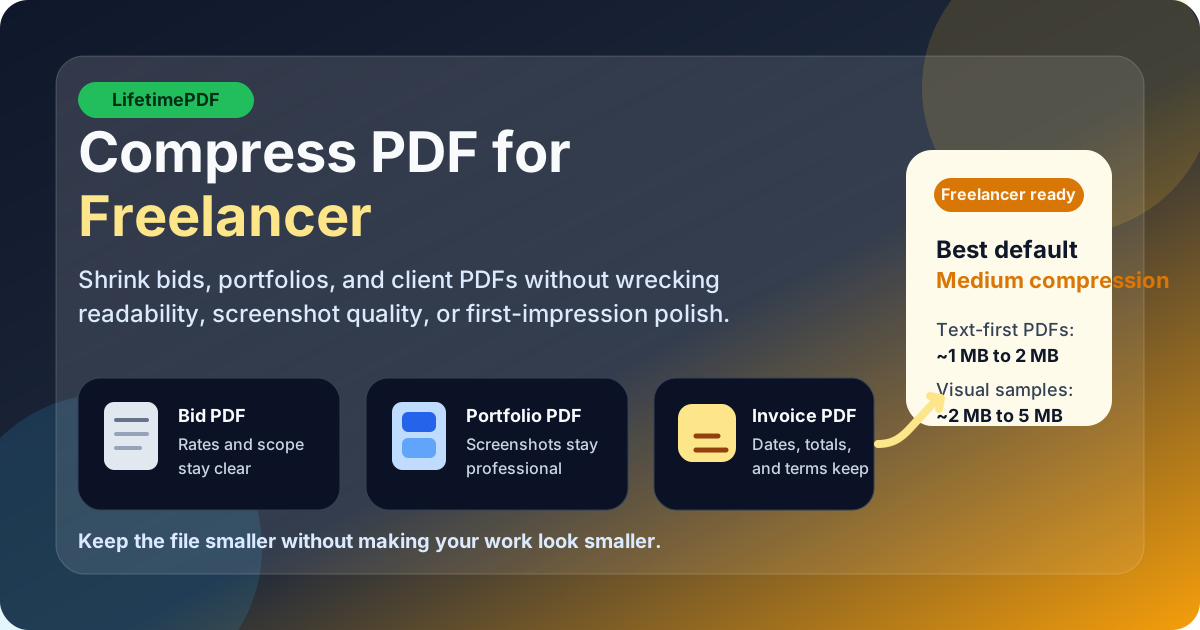
Table of contents
- Quick start: compress a PDF for Freelancer in about 2 minutes
- Why Freelancer PDFs get heavier than they need to be
- What file size should you aim for?
- Which compression level should you choose?
- Best approach by Freelancer file type
- Step-by-step: shrink a Freelancer PDF with LifetimePDF
- What to clean up before compressing harder
- How to keep your PDF professional after compression
- Privacy and client-safe document habits
- Related LifetimePDF tools and useful reading
- FAQ (People Also Ask)
Quick start: compress a PDF for Freelancer in about 2 minutes
If your real goal is simply make this file smaller so I can send it on Freelancer without drama, this workflow is usually enough:
- Start with the exact bid attachment, sample pack, invoice, quote, contract, resume, or delivery PDF you actually plan to send.
- Open Compress PDF.
- Choose Medium compression first.
- Download the smaller copy and compare the new size with the original.
- Open it once and check small text, screenshot labels, pricing tables, signature blocks, and totals.
- If the file is still bulky, remove extra pages, split one oversized packet, or crop wasted margins before trying a stronger setting.
Why Freelancer PDFs get heavier than they need to be
Many Freelancer PDFs are heavier than the actual message they need to carry. The bid may only be a few paragraphs, but the file drags along full-page screenshots, exported slide decks, repeated sample pages, phone-camera scans, blank separators, or old branding from another project. None of that makes it easier for the client to hire you.
Compression helps because it removes some of that weight, but the bigger win is smoother handling. A smaller PDF uploads faster, opens faster on mobile, and feels more intentional when a client skims it between other bids. On Freelancer, that matters. A file that feels tidy and easy to review creates less friction than a bloated one, even when both contain the same core information.
Why smaller PDFs work better in Freelancer workflows
- Faster uploads: useful when you are replying quickly to a fresh project or sending from a phone.
- Cleaner client experience: smaller files open faster and feel less annoying to download or preview.
- Less resend friction: if you revise a quote or swap in a new sample, leaner PDFs are easier to manage.
- Better skimming: compact, focused PDFs make it easier for the client to find the part that matters.
- Stronger presentation: a tight, readable PDF feels deliberate instead of stuffed with maybe-useful extras.
What file size should you aim for?
There is no single permanent file-size rule that covers every Freelancer attachment context, so practical targets matter more than chasing the smallest possible number. The right target depends on whether the file is mostly text, mostly screenshots, or a mixed document with samples and explanations.
| File type | Practical target | Why it works |
|---|---|---|
| Bid PDF, quote, invoice, one-pager | Under 2MB | Usually enough for text-first documents that should open quickly on any device. |
| Contract, requirements brief, milestone packet | About 1MB to 3MB | Keeps signatures, terms, and filled fields readable without feeling bulky. |
| Portfolio or case study PDF | About 2MB to 5MB | Leaves room for visuals while still feeling reasonable to send and review. |
| Large image-heavy sample pack | Over 5MB usually needs cleanup | At that point, splitting the file or cutting duplicate visuals often helps more than harsher compression. |
Which compression level should you choose?
The best setting depends on how visual the PDF is. A short quote behaves differently from a screenshot-heavy portfolio or a review deck full of annotated images.
Low compression
Good when you need to protect fine detail, typography, or design polish. Use it for premium visual portfolios, UI mockups, brand samples, or any document where the client may judge image sharpness fast.
Medium compression
This is the safest starting point for most Freelancer PDFs. It usually reduces file size enough to make the document easier to send while keeping text, screenshots, tables, captions, and signatures comfortably readable. If you do not want to overthink it, start here.
High compression
Use this only when the file still feels too heavy after sensible cleanup. High compression can be fine for plain text documents, but it is riskier for portfolios, annotated screenshots, contracts with tiny text, or sample work where detail affects trust.
Best approach by Freelancer file type
Different documents deserve different treatment. The right strategy depends on what the client actually needs from the file.
Bid PDF or proposal attachment
Keep it text-first and lean. Most bid documents should compress well without visible damage. If your proposal includes sample thumbnails, make sure those thumbnails still support the story instead of turning into decorative blur.
Portfolio or case study
This is where people over-compress and regret it. Use Medium compression first, then check screenshot legibility, small labels, before-and-after crops, and testimonial text. If the PDF is still too large, remove duplicate pages or split the file into narrower, role-specific samples.
Invoice, quote, or rate card
These are usually easy wins. The important parts are names, amounts, dates, payment terms, and line items. A smaller invoice PDF is fine as long as every number is still unmistakable.
Contract, brief, or milestone packet
Be careful with tiny text and signature areas. Compression is useful, but readability matters more than shaving off a few extra kilobytes. Review the smallest clauses once before sending the compressed version.
Delivery pack or revision summary
If one file is trying to be a final deliverable, a revision log, a screenshot gallery, and a project archive at the same time, it is usually better to split it. Smaller focused PDFs are easier for the client to digest and easier for you to update later.
Step-by-step: shrink a Freelancer PDF with LifetimePDF
- Choose the final client-facing file, not a bulky master draft.
- Open Compress PDF.
- Upload the bid, portfolio, invoice, quote, contract, brief, or support PDF.
- Start with Medium compression.
- Download the smaller copy and compare the size reduction.
- Open the new file and inspect the smallest meaningful details: screenshot text, totals, scope lines, signatures, captions, notes, and tables.
- If the file still feels heavy, use Delete Pages, Split PDF, or Crop PDF before trying stronger compression.
- If the document contains private notes or unwanted client information, run Redact PDF before sending it anywhere.
What to clean up before compressing harder
If the PDF still feels too big after a reasonable first pass, stronger compression is not always the smartest next move. Often the better fix is reducing unnecessary weight at the document level.
Remove extra pages
Portfolio duplicates, version-history pages, appendix clutter, blank separators, and irrelevant screenshots add size without adding value.
Split giant packets
If one file tries to be a bid, sample pack, milestone summary, invoice, and delivery archive all at once, split it. Smaller focused PDFs are easier for clients to review.
Crop wasted margins
Phone scans and slide exports often carry huge empty borders. Trimming those borders can reduce visual bulk and sometimes reduce file size too.
Replace weak screenshots
If a page contains giant screenshots just to prove a small point, recapture or recrop them more tightly instead of compressing the whole PDF into mush.
How to keep your PDF professional after compression
Freelancer is not only about getting the file through the pipe. The file still needs to make you look competent. A compressed PDF should feel efficient, not cheap.
- Check first-page impact: the first page should still feel sharp and easy to scan.
- Review small text: screenshot captions, quotes, totals, rates, and signatures matter more than decorative visuals.
- Protect screenshot clarity: if the sample relies on UI details, analytics labels, or diagrams, zoom in and confirm they still read cleanly.
- Prefer shorter sample packs: fewer excellent pages beat more mediocre pages almost every time.
- Keep naming clean: send files with obvious names instead of version-chaos filenames.
Privacy and client-safe document habits
Compression is also a good moment to check what you are about to send. Freelancers reuse old decks, old quotes, old case studies, and old templates all the time. That is efficient, but it also creates easy opportunities for accidental leaks.
Check for visible sensitive information
Old client names, emails, internal comments, confidential numbers, or irrelevant contract details should be removed or redacted before sending. If the information is visible on the page, only redaction solves the real problem.
Check metadata too
Some PDFs still carry old author names, company names, or workflow tags in metadata. That is not always harmful, but it can look sloppy or reveal unnecessary context.
Keep the packet role-specific
Do not send a general-purpose archive when the client only needs one relevant sample. Privacy gets easier when each PDF only contains the minimum useful material.
Related LifetimePDF tools and useful reading
Freelancer-ready PDFs usually improve fastest when you combine compression with one or two cleanup steps:
- Compress PDF for the first size reduction.
- Merge PDF if you want one clean quote-and-samples packet.
- Delete Pages to cut dead weight before compressing harder.
- Split PDF if one portfolio is trying to do too many jobs.
- Redact PDF for client-safe sharing.
- Compress PDF for Upwork if you also work across other freelance marketplaces.
- Compress PDF for Fiverr for a similar portfolio-and-brief workflow.
- Compress PDF for Toptal for premium case-study and sample-pack workflows.
Want the simplest workflow? compress the final file on Medium, review it once, then only merge, split, crop, or redact if the client-facing result still needs cleanup.
FAQ (People Also Ask)
How do I compress a PDF for Freelancer?
Upload the PDF to a compressor, start with Medium compression, download the smaller copy, and keep it only if text, screenshots, totals, signatures, and layout still look clear. Medium is usually the safest first pass because it reduces size without making the document feel cheap.
What file size should I aim for on Freelancer?
Text-heavy bids, invoices, quotes, and briefs usually feel comfortable under 2MB. Portfolio PDFs and case studies often work well around 2MB to 5MB if the visuals still read clearly and the document opens quickly.
Will compression ruin a Freelancer portfolio PDF?
It can if you compress too aggressively. Start with Medium, then review screenshots, fine text, captions, and testimonials. If the file is still large, shorten or split the portfolio before pushing harder compression.
Should I send one merged PDF or several separate PDFs on Freelancer?
Use one merged PDF when the client needs a single coherent packet, such as a quote plus one or two relevant samples. Use separate PDFs when each file serves a different role, such as a resume, invoice, contract, and final deliverable.
How do I remove private or outdated information before sending a PDF?
Use metadata cleanup if the PDF still shows an old author or company label, and use redaction if confidential names, comments, email addresses, rates, or numbers are visible on the page. Visible information needs redaction, not just metadata editing.