Compress PDF for Bitbucket: Keep Pull Request Attachments, Issue PDFs, and Wiki Exports Easy to Share
To compress a PDF for Bitbucket, upload it to LifetimePDF's Compress PDF tool, start with Medium compression, and keep the smaller copy only if pull request screenshots, issue evidence, wiki exports, and small text still read clearly.
If the PDF only partly matters to the review or ticket, extract the needed pages first so teammates download less and reach the useful context faster.
Bitbucket work moves better when attachments stop pretending they need to do every job at once. A pull request packet, issue evidence PDF, architecture handoff, security signoff, or wiki export should be easy to upload, easy to open, and easy for the next person to trust. The goal is not to crush the file into fuzzy mush. The goal is to remove enough weight that review stays smooth while screenshots, labels, comments, diagrams, and approval details still hold up.
Fastest path: compress the real attachment on Medium, review the critical details once, then extract or split pages only if the file is still bulkier than the pull request or issue actually needs.
Want the quick version? Jump to Quick start: compress a PDF for Bitbucket in under 2 minutes.
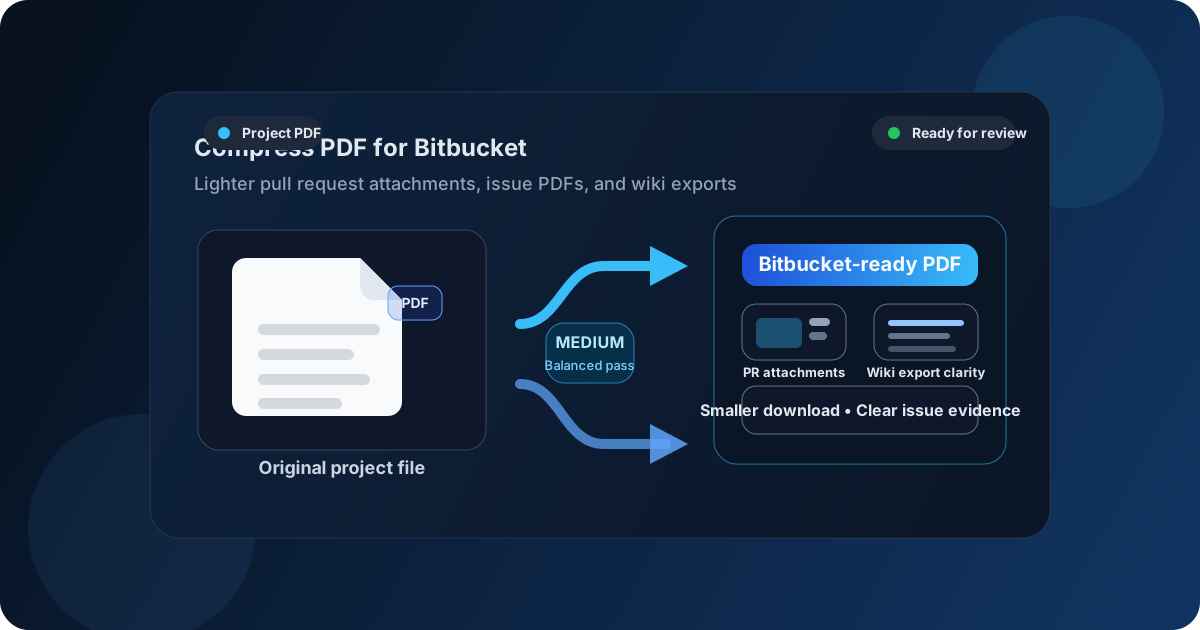
Table of contents
- Quick start: compress a PDF for Bitbucket in under 2 minutes
- Why smaller PDFs help in Bitbucket
- What file size should you aim for?
- Which compression level should you choose?
- Step-by-step: shrink a Bitbucket PDF with LifetimePDF
- Common Bitbucket PDFs that benefit from compression
- When splitting or extracting pages is smarter than more compression
- Readability checks before attaching the smaller file
- Workflow habits that keep project files cleaner
- Related LifetimePDF tools and internal links
- FAQ (People Also Ask)
Quick start: compress a PDF for Bitbucket in under 2 minutes
If your goal is simply make this PDF easier to attach and review in Bitbucket, this workflow is usually enough:
- Open Compress PDF.
- Upload the pull request review packet, issue evidence PDF, architecture document, wiki export, release checklist, or approval file you actually plan to share.
- Choose Medium compression first.
- Download the smaller copy and compare the new size with the original.
- Open it once and check screenshots, code-adjacent labels, comments, tables, signatures, and any note another person must trust.
- If only part of the file matters, use Extract Pages or Split PDF instead of forcing harsher compression on the whole document.
- If the file is a scan, use OCR PDF before you hand it off.
Why smaller PDFs help in Bitbucket
Bitbucket attachments usually support active work, not cold storage. They appear in pull request review, bug triage, incident follow-up, architecture discussion, release readiness, security approvals, and wiki exports people need offline. When the PDF is heavier than it needs to be, each of those moments becomes a little slower and a little more irritating.
Compression helps because it removes raw file weight, but the bigger benefit is collaboration. Smaller PDFs upload faster, feel lighter in review threads, and move more comfortably into Slack, email, docs, or another handoff later. That matters even more when a teammate opens the file on hotel Wi-Fi, through a VPN, from a laptop during a meeting, or from a phone while approving something quickly.
Why lighter PDFs usually work better
- Faster uploads: useful when you are attaching evidence in the middle of a review or incident discussion.
- Less review friction: people are more likely to open a practical 2MB to 4MB file right away than a bulky attachment they assume will be annoying.
- Cleaner project history: ordinary pull requests and issue threads stay easier to navigate when every attachment is not oversized.
- Better cross-tool reuse: smaller PDFs are easier to resend in chat, email, documentation, and release handoff workflows.
- Smarter context sharing: a focused PDF usually communicates better than a giant all-purpose packet full of backup pages nobody needs right now.
What file size should you aim for?
There is no universal perfect number because a one-page approval behaves differently from a 30-page evidence bundle, a screenshot-heavy review packet, or a scan-based vendor document. Still, practical targets keep you from compressing harder than the workflow really needs.
| PDF type | Good target | What you should protect |
|---|---|---|
| Short pull request note, approval, or summary | Under 5MB | Headings, comments, tables, page numbers, and small body text |
| Screenshot-heavy issue evidence or review packet | Often 2MB to 6MB | UI labels, timestamps, arrows, error text, and callouts |
| Long wiki export, architecture packet, or appendix bundle | Often better split than forced smaller | Section boundaries, diagrams, references, and key context pages |
| Scanned or image-heavy PDF | Depends on cleanup quality | Sharp text, searchable OCR output, signatures, stamps, and orientation |
Under 5MB is a strong default for many everyday Bitbucket attachments. Once the file includes multiple screenshots, long appendices, or scan-heavy pages, the smarter question becomes How small can this go while still being easy for another human to trust? That usually matters more than chasing an arbitrary tiny number.
Which compression level should you choose?
Most Bitbucket PDFs do best when you begin with Medium compression. It usually cuts enough weight to improve sharing while keeping screenshots, tables, comments, and labels readable.
Use Medium compression for most workflows
- pull request review docs with comments or diagrams
- issue evidence packs with screenshots and short notes
- wiki exports, runbooks, and architecture notes
- release signoffs, vendor approvals, and project handoff PDFs
Use Low compression when visual crispness matters most
Low compression makes sense when the file is already close to a comfortable size and you want especially sharp diagrams, signatures, dense tables, or screenshot labels to stay crisp.
Use stronger compression only after cleanup
High compression can help if the file still feels too heavy for the actual handoff path, but this is also where quality problems usually start. Small text softens first. Then screenshot labels, comments, timestamps, and fine diagram detail start to suffer. That is why stronger compression should usually come after you remove obvious waste.
Step-by-step: shrink a Bitbucket PDF with LifetimePDF
- Start with the exact attachment you plan to share. Avoid using a giant source packet if only part of it belongs in the pull request or issue.
- Open Compress PDF. Upload the evidence PDF, review doc, wiki export, or approval file.
- Choose Medium compression. That is the safest default for most Bitbucket workflows.
- Download the smaller copy. Compare the new size so you know whether the reduction was meaningful.
- Do a readability pass. Check screenshots, comments, page numbers, tables, diagrams, signatures, timestamps, and any text a teammate may quote later.
- Trim the structure if needed. Use Extract Pages, Delete Pages, or Crop PDF to remove bulk that does not help the review.
- Attach the version that fits the task. The archival copy can stay bigger if needed; the Bitbucket-facing copy should be focused and easy to review.
The common mistake is assuming the most complete file is automatically the best file. In active project work, that is often backward. A shorter, cleaner PDF with the right pages usually helps more than a giant everything-bundle that forces reviewers to hunt for the useful part.
Common Bitbucket PDFs that benefit from compression
The keyword is broad because the need is broad. People use Bitbucket for several overlapping collaboration patterns, and the PDF pain shows up in repeatable ways:
- Pull request review packets: architecture notes, annotated specs, security review docs, comparison exports, and signoff PDFs.
- Issue evidence bundles: screenshots, reproduced steps, logs converted to PDF, and annotated bug summaries.
- Wiki exports and runbooks: pages people need offline, in chat, or in release handoff threads.
- Release checklists and approvals: files several teammates may open quickly during a short coordination window.
- Scanned forms, vendor paperwork, and compliance attachments: bulky image-based PDFs that usually need cleanup before harder compression.
Each one benefits from the same mindset: smaller is helpful, but only if the document still feels trustworthy during a real review. A PDF that saves a few megabytes but hides the exact error message, review note, or approval signature is not an upgrade.
Attachment-heavy workflow? This companion guide goes deeper into the pull request and project-doc upload angle.
When splitting or extracting pages is smarter than more compression
If Medium compression does not bring the file down far enough, the answer is often not to keep crushing it. The better move is to remove weight more intelligently.
Try these fixes before pushing compression harder
- Extract only the relevant section: if the pull request only needs pages 4 to 9, isolate them.
- Split by purpose: a release signoff, evidence appendix, and architecture diagram do not always need to live in one file.
- Delete blank or duplicate pages: exports and scan packets often carry waste that nobody benefits from.
- Crop wasted borders: scanner edges and giant white margins make PDFs heavier without adding useful context.
- OCR scans: if the file is image-based, searchable text often helps more than extra compression.
If you still need a smaller result after that, then try a stronger compression pass. But do it on the cleaned-up version, not the original everything-bundle. That is where the better result usually appears.
Still too big? Remove waste before forcing more compression.
Readability checks before attaching the smaller file
A PDF can be technically smaller and still be worse for the people who need it. Before you attach the compressed version, do one realistic check instead of assuming success because the number went down.
What to check in under a minute
- Screenshots: can someone still read exact UI labels, timestamps, error text, and arrows?
- Tables: are row labels, approvals, totals, and narrow columns still clear?
- Comments and annotations: do review notes still stand out?
- Diagrams: can people still follow arrows, labels, and small boxes without zooming excessively?
- Signatures and approvals: do they still look legitimate and easy to verify?
- Scans: are sideways pages fixed, and does the text still feel readable instead of mushy?
Workflow habits that keep project files cleaner
Good Bitbucket hygiene is not just about one file. The habits around the file matter too.
Habits that usually help
- Attach task-specific PDFs: do not dump a whole evidence archive into a ticket if two pages are enough.
- Keep a working copy: the version you archive can stay full-size while the shared version is optimized for review.
- Use OCR on scan-heavy documents: searchable text makes future review easier.
- Trim before sharing elsewhere: a cleaned Bitbucket PDF is easier to reuse in Slack, email, or a release packet.
- Prefer focused context over giant bundles: smaller files often create better decisions because reviewers are not overwhelmed.
- Clean metadata when needed: use PDF Metadata Editor if author names or old properties should not follow the document forward.
Smaller PDFs are not just a storage trick. They are a collaboration habit. When the document is the right size and the right scope, teams move faster with less friction.
Related LifetimePDF tools and internal links
If you work with Bitbucket attachments regularly, these tools usually pair well with compression:
- Compress PDF for the first size-reduction pass
- Extract Pages for sharing only the relevant section
- Split PDF for long review packs or mixed evidence bundles
- Delete Pages for blank or irrelevant pages
- Crop PDF for scanner borders and wasted margins
- OCR PDF for searchable text in scanned attachments
- Redact PDF for sensitive project data before sharing
You may also find these related guides useful if you want broader companion coverage around project attachments and software-specific PDF workflows:
- Compress PDF for Bitbucket: Upload Smaller Pull Request Attachments and Project Docs Faster
- Compress PDF for GitHub
- Compress PDF for GitLab
- Compress PDF for Azure DevOps
- Compress PDF for Jira
Bottom line: for most Bitbucket PDFs, start with Medium compression, keep the screenshots and review notes readable, and remove irrelevant pages before you try harsher compression.
FAQ (People Also Ask)
How do I compress a PDF for Bitbucket?
Upload the PDF to a compressor, start with Medium compression, and keep the smaller copy only if screenshots, comments, tables, and small text still read clearly. If the file is still too large, extract only the relevant pages or split the document instead of crushing the whole PDF harder.
What file size should I aim for in Bitbucket?
There is no single perfect number, but under 5MB is a strong target for many everyday pull request attachments and project documents. For screenshot-heavy packs, scan bundles, or long wiki exports, cleanup and page trimming usually matter more than forcing every file under a tiny number.
Will compression make screenshots or diagrams blurry?
It can if you compress too aggressively. That is why Medium compression is usually the best first pass. Always review screenshots, callouts, chart labels, tables, comments, and small text before replacing the original file.
When should I split a PDF instead of compressing it harder?
Split or extract pages when only one section matters to the pull request, issue, or wiki handoff. A shorter, focused PDF usually works better than an over-compressed all-in-one attachment full of irrelevant pages.
Which LifetimePDF tools pair best with Bitbucket attachments?
Compress PDF is the main starting point. Extract Pages, Split PDF, Crop PDF, OCR PDF, Delete Pages, Redact PDF, and PDF Metadata Editor are especially useful when you want smaller, cleaner Bitbucket documents that reviewers can still trust.