Check PDF Permissions Online: See Whether Printing, Copying, or Editing Is Restricted Before You Share
To check PDF permissions online, open the exact file in a browser-based properties or metadata workflow and review whether printing, copying, comments, form filling, or editing are allowed.
If the restrictions do not match what the next person actually needs to do, fix them before you email, upload, sign, or archive the PDF.
That is the direct answer. The useful answer is that online previews are very good at making a document look ready when the real problem is hidden in the permission layer. A PDF may open fine in a browser tab and still frustrate a reviewer who cannot comment, a client who cannot print, or a signer who cannot complete the exact file you thought was ready to send.
Fastest practical path: inspect the permission summary online, test the one action that matters most, then protect, unlock, or leave the file alone based on the real workflow.
In a hurry? Jump to quick start: check PDF permissions online in about 5 minutes.
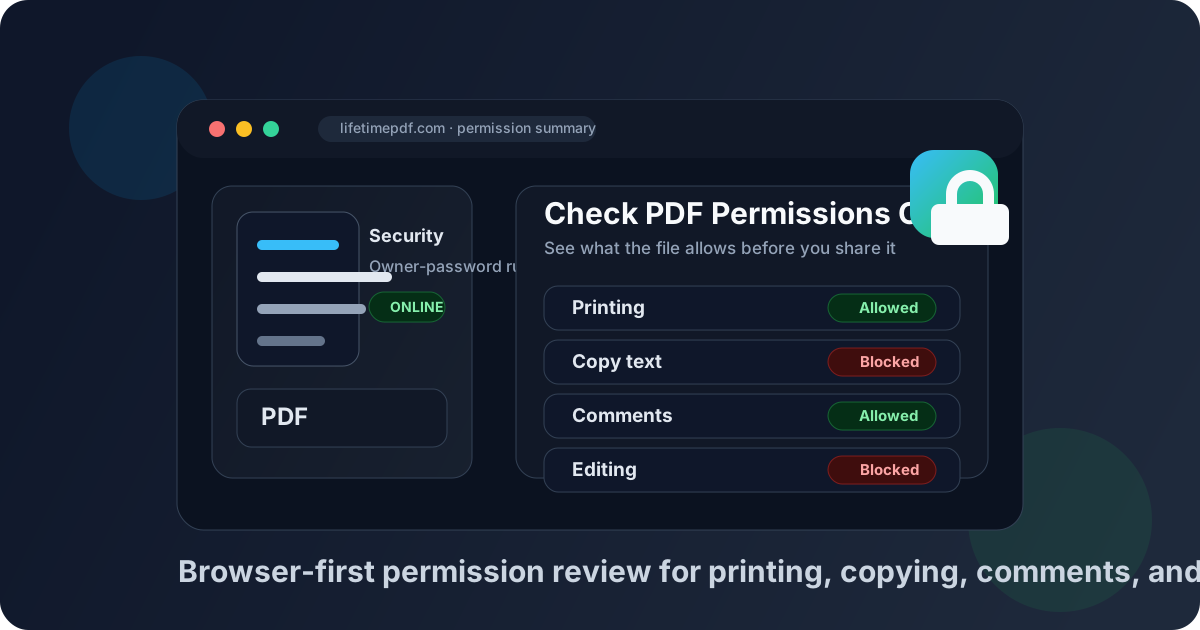
Table of contents
- Quick start: check PDF permissions online in about 5 minutes
- What an online permissions check can and cannot prove
- Why online previews hide permission problems
- Step-by-step: practical online workflow
- Which permissions matter most before you share the file
- When to protect, unlock, or leave the PDF alone
- Related LifetimePDF tools and guides
- FAQ
Quick start: check PDF permissions online in about 5 minutes
If your real question is will this PDF let the next person do what they need to do?, use this order:
- Open the exact PDF you plan to send, upload, archive, print, or route for signatures.
- Review the file through View PDF Properties or PDF Metadata Editor so you can read the permission summary directly.
- Check the practical restrictions first: printing, copy-paste, comments, editing, form filling, and signing.
- Test the one action that matters most for the next step in the workflow.
- If the rules are too tight or too loose, update them with Protect PDF or Unlock PDF.
- Reopen the final copy once so you know the outgoing file carries the permissions you intended.
What an online permissions check can and cannot prove
An online permissions check is not just a glance at whether the PDF loads in a tab. It is a deliberate review of the file's hidden restriction layer so you can tell the difference between a document that merely opens and one that truly behaves the way the workflow requires.
That distinction matters because a PDF can feel harmless online while still blocking the exact task waiting on the other side, such as printing at a meeting, copying one clause into an email, leaving review notes, or filling a field before signing.
| Online view | What it helps you confirm | What it cannot safely prove by itself |
|---|---|---|
| Browser preview | The file opens and the pages render normally. | That printing, copying, comments, form filling, or editing will still work when someone actually needs them. |
| Properties or metadata workflow | The current permission summary attached to the exact PDF. | Whether those rules are appropriate unless you compare them with the real job the file needs to do. |
| Unlock or protect tool | Whether the restrictions can be adjusted for the next workflow step. | Whether the current file should be changed at all unless you first understand the recipient's real need. |
| Quick real-world test | Whether the one important action, such as print, comment, sign, or copy, actually works. | Whether every other restriction is sensible unless you review the broader permission picture too. |
Why online previews hide permission problems
Online previews are built for convenience, not forensics. They help you see the document quickly, but they do not always make the hidden restriction layer obvious until somebody reaches the exact action the PDF quietly blocks.
A PDF can open normally and still be restricted
That is why people often confuse an ordinary preview with a real permission check. The file looks calm right up until printing, comments, or copy-paste suddenly fail.
The important restriction is often contextual
Blocked editing may be fine for a final handout but terrible for an internal draft. The viewer cannot know the business context for you.
Permission problems often show up late
A signer notices at the final step, a reviewer notices when comments are disabled, and a client notices when print is greyed out after the file already left your hands.
Open-password protection and usage restrictions get mixed together
A file that needs a password to open is different from a file that opens normally but limits what people can do after opening. Treating those as the same problem causes messy decisions.
The broad lesson is simple: a successful preview is not the same thing as a usable document. If the PDF matters, check the rules behind the screen-level reassurance.
Step-by-step: practical online workflow
The goal is not to overcomplicate a small task. It is to get from uncertainty to a dependable answer before the PDF reaches a client, reviewer, portal, or archive that notices the problem first.
1) Start with the exact outgoing PDF
Permissions can change during export, repair, signing, flattening, or portal download. If you inspect one copy and share another, the check becomes decorative.
2) Read the permission summary instead of guessing from a lock icon
Use View PDF Properties or PDF Metadata Editor to see what the PDF is really enforcing. If the file also seems protected at the access level, compare the result with Check PDF Encryption so you do not confuse opening restrictions with post-open permissions.
3) Start with the recipient action that matters most
The fastest useful check is practical, not theoretical. Ask what the next person must do:
- If the file is for review, test comments or annotations.
- If it is for printing, test whether print is allowed.
- If someone needs to quote text or move data, test copy-paste.
- If the PDF is interactive, test form filling or signing.
- If the document is still in revision, confirm editing is not blocked too early.
4) Compare the hidden rules with the visible purpose of the file
A final client deliverable, a review copy, an onboarding form, a contract packet, and a public handout do not need the same settings. The right permission profile is the one that helps the real workflow without creating pointless friction.
5) Protect or unlock only as much as needed
Use Protect PDF when the file should carry stronger control over downstream actions. Use Unlock PDF when legitimate users are stuck behind inherited or unnecessary restrictions. If the current rules already fit the job, leave the file alone.
6) Reopen the corrected copy once
This step is boring and worth it. It confirms that the saved PDF you are about to share is the one carrying the permission settings you actually want other people to experience.
Reliable sequence: inspect the current rules, test the one action that matters most, then protect or unlock the PDF only if the workflow gives you a reason.
Which permissions matter most before you share the file
A smart online permissions check is not just “is it locked?” but “does it behave the way this workflow needs?”
| Permission area | Why people notice it fast | Best question to ask |
|---|---|---|
| Printing | Meetings, contracts, handouts, and approval packets often still need paper or print-to-PDF workflows. | Will someone reasonably need to print this file in the next step? |
| Copying text or images | Recipients feel this immediately when they need to quote language, reuse data, or support accessibility workflows. | Is controlled reuse the goal, or is blocked copy-paste just causing avoidable friction? |
| Comments and markups | Review loops stall quickly when a document is protected like a final deliverable instead of a working draft. | Does the next person need to annotate, highlight, or redline the file? |
| Form filling and signing | This is one of the most expensive failures because the file can look fine until the completion step breaks. | Can the recipient still complete the exact task the PDF exists to support? |
| Editing | Editing restrictions are helpful for final files but irritating when the document is still moving through revisions. | Is this really the last stable copy, or is somebody still supposed to change it? |
Common mistake that backfires
People often lock a PDF according to habit instead of purpose. That is how review copies lose comments, forms lose usability, and ordinary recipients end up asking why the file opens but does not cooperate.
When to protect, unlock, or leave the PDF alone
Once you know the real restrictions, the right move usually becomes simpler. The decision depends on whether the file needs more control, less friction, or no change at all.
Protect it
The file is going to a wider audience, contains sensitive content, or should discourage casual edits, copying, or uncontrolled reuse.
Best move: use Protect PDF and keep only the restrictions that serve a real policy or workflow.
Unlock it
The current rules are blocking legitimate work such as print, comments, form completion, signatures, or internal revision.
Best move: use Unlock PDF or create a less restricted share copy for the next step.
Leave it alone
The restrictions already match the job, the right people can do the right things, and the file is not creating friction.
Best move: stop editing and send the PDF forward with confidence instead of fixing a problem that does not exist.
- Protect when control supports the purpose of the file.
- Unlock when the hidden rules are blocking legitimate work.
- Leave it alone when the current settings already fit the workflow.
FAQ
How do I check PDF permissions online?
Open the exact PDF in a browser-based properties or metadata workflow and review whether printing, copy-paste, comments, editing, form filling, or signing are allowed before you share the file.
Can I check PDF permissions online without installing software?
Yes. A browser-based PDF properties or metadata workflow is often the fastest way to inspect restrictions on the exact file you plan to send, upload, or archive.
Are PDF permissions the same as a password to open the file?
No. An open password controls access to the document itself. Permissions usually control what someone can do after the file is already open, such as print, copy, comment, edit, or fill fields.
Why does a PDF open online but still block printing or copy-paste?
Because many PDFs open normally while still carrying owner-password restrictions that limit actions after opening. The file can look fine in a preview and still create friction when someone tries to use it.
Should I remove PDF permissions before sharing a file?
Only if the restrictions no longer fit the task. Keep them when they support a real review, compliance, or final-deliverable workflow, and relax them when they are blocking legitimate printing, signing, form completion, or collaboration.
Check the hidden rules before the PDF surprises someone later.
The cleanest online workflow is simple: inspect the permission summary, test the real recipient action, change only what the job requires, and send the PDF forward with fewer support headaches.
Published by LifetimePDF — Pay once. Use forever.