Check PDF Orientation: Confirm Portrait, Landscape, or Mixed Pages Before You Print, Merge, or Submit
To check PDF orientation, open the exact file and confirm whether the pages are portrait, landscape, or intentionally mixed before you print, merge, upload, or send it.
If a page looks sideways, figure out whether it is a real wide-layout page or an accidental rotation that needs to be fixed.
That is the short answer. The useful answer is that orientation mistakes often hide in otherwise normal files. A report may contain one sideways scan, a contract packet may have one appendix turned the wrong way, or a landscape spreadsheet may get rotated into a portrait stack that suddenly feels broken. A quick orientation check helps you catch those problems before a reviewer scrolls awkwardly, a print run wastes paper, or a merged packet feels sloppy for no good reason.
Fastest practical path: review the page thumbnails, separate intentional wide pages from accidental sideways pages, then rotate only the pages that are truly wrong.
In a hurry? Jump to quick start: check PDF orientation in about 5 minutes.
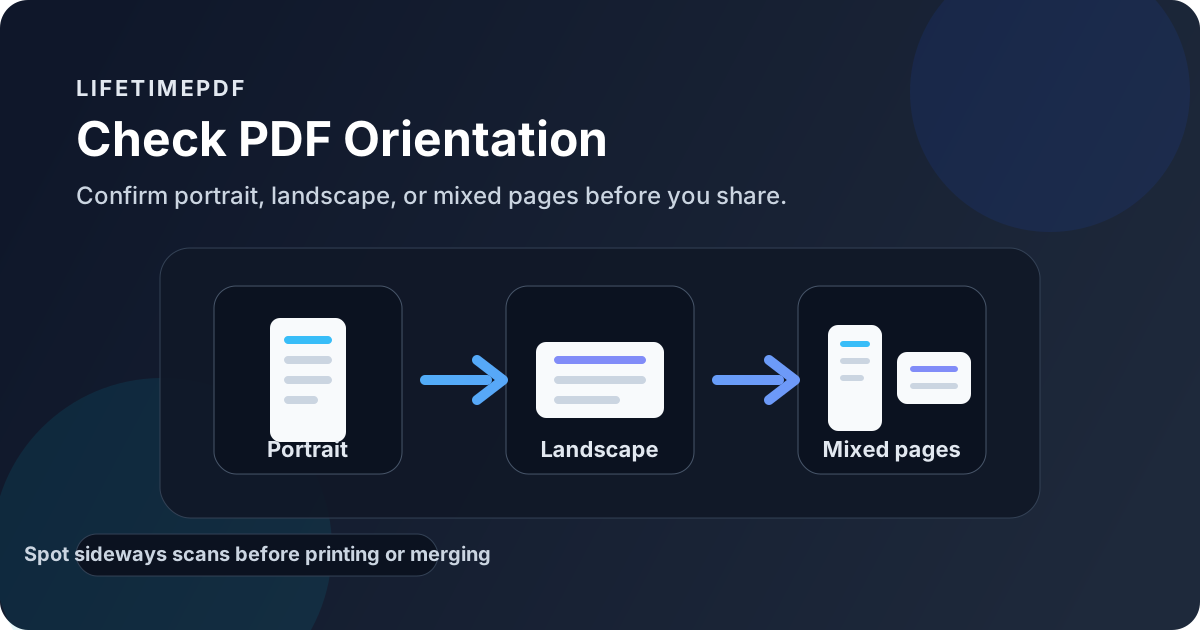
Table of contents
- Quick start: check PDF orientation in about 5 minutes
- What PDF orientation actually means
- Why orientation checks prevent avoidable viewing and print mistakes
- Step-by-step: practical PDF orientation workflow
- Common warning signs and what they usually mean
- When to rotate, review size, split pages, or re-export
- Final checklist before you share or print the file
- Related LifetimePDF tools and guides
- FAQ
Quick start: check PDF orientation in about 5 minutes
If your real goal is simply make sure the pages are facing the right way, use this order:
- Open the exact PDF you plan to print, merge, upload, sign, or share.
- Look at the page thumbnails or the full page frame instead of judging the file from one page alone.
- Mark each page mentally as portrait, landscape, or intentionally mixed within the set.
- If one page looks wrong, ask whether it is a wide spreadsheet or drawing that belongs in landscape, or a sideways scan that needs correction.
- If the page still feels off, compare the layout with Check PDF Page Size and Check PDF Margins.
- Rotate only the affected pages, save the final copy, and reopen it once more so you know the fix actually stuck.
What PDF orientation actually means
PDF orientation describes whether a page is intended to be viewed in portrait mode, landscape mode, or as part of a deliberately mixed set. Portrait pages are taller than they are wide. Landscape pages are wider than they are tall. Mixed orientation means some pages are supposed to be portrait and others are supposed to be landscape for a practical reason.
That is why orientation is not the same thing as “does this page look odd at first glance?” A quarterly report may contain one wide dashboard that belongs in landscape. A construction plan, spreadsheet export, or slide appendix may also be correct in landscape. The real mistake is when a normal letter page, form, receipt, or scan is sideways for no reason and forces everyone else to work around it.
| Thing you are checking | What it tells you | What it does not guarantee |
|---|---|---|
| Orientation | Whether the page should be read as portrait, landscape, or mixed within the document | That the page size and margins are also correct |
| Page size | Whether the page is Letter, A4, Legal, or another dimension | That the page is facing the right way |
| Margins | How much breathing room exists around the content | That the page direction is correct for reading or printing |
| Rotation edit | That the page has been turned for easier reading | That the underlying source layout was exported consistently |
Why orientation checks prevent avoidable viewing and print mistakes
Orientation problems are easy to shrug off until they reach another person. Then they become friction. Someone has to rotate their screen, scroll awkwardly through one bad appendix, or wonder whether the file was assembled carelessly.
Reading friction
Sideways forms, letters, or receipts slow down review immediately, even when the content itself is still present.
Print waste
Wrongly oriented pages can shrink awkwardly, print in the wrong direction, or look inconsistent inside a packet.
Merge confusion
One bad insert can make a polished report feel stitched together from mismatched exports and rushed scans.
Portal previews
Upload systems and browser previews often make orientation mistakes feel more obvious than they did on your own screen.
Orientation checks also help you avoid unnecessary editing. Not every landscape page is wrong. Sometimes the file is fine and only contains one wide chart or one intentionally horizontal appendix. A calm review prevents you from “fixing” a page that was already correct.
Common false assumption
If a page is wider than the others, people often assume it needs rotation. Sometimes it does not. A true landscape spreadsheet or slide is supposed to be wide. The real question is whether the page reads naturally in that orientation.
Step-by-step: practical PDF orientation workflow
1) Start with the outgoing copy, not an older draft
Orientation checks only matter on the file that will actually leave your hands. If you review one export and later send a different one, the page directions may no longer match what you inspected.
2) Review the full page set, not just the first page
A document can look normal on page 1 and still hide one sideways appendix near the end. Thumbnails make mixed orientation and stray pages much easier to spot than single-page viewing.
3) Separate intentional landscape pages from accidental sideways pages
Put your attention on the page type:
- wide spreadsheets, tables, and dashboards often belong in landscape,
- slide exports and design proofs may also be correct in landscape,
- ordinary letters, invoices, forms, and receipts usually should not be sideways,
- phone scans are common offenders because they are often saved with the wrong rotation metadata.
4) Check whether the real problem is size or margins instead
Some pages feel wrong because the dimension changed or the content is cramped, not because the page direction is wrong. That is why Check PDF Page Size and Check PDF Margins are smart follow-ups when orientation alone does not explain the issue.
5) Rotate only the pages that are truly incorrect
Use Rotate PDF when the content is fine but the page direction is wrong. If a whole landscape section needs to become portrait, the dedicated guides for rotating landscape PDF pages to portrait and rotating portrait PDF pages to landscape can help you stay deliberate.
6) Reopen the finished PDF and confirm the reading flow
After editing, reopen the saved file and flip through it again. The right outcome is not merely “the page turned.” The right outcome is that the document now reads naturally from start to finish without one section feeling broken or out of sequence.
Reliable sequence: inspect thumbnails → separate intentional wide pages from sideways mistakes → confirm size and margins if needed → rotate only the affected pages → reopen the final copy.
Common warning signs and what they usually mean
Most orientation problems repeat the same few patterns. Once you recognize them, the next move becomes much easier.
| What you notice | What it usually means | Best next move |
|---|---|---|
| One ordinary page is sideways in an otherwise normal packet | A scan or inserted page was saved with the wrong rotation | Rotate that page and recheck the sequence |
| A wide table looks sideways but reads naturally when turned | The page is probably a legitimate landscape layout | Leave it unless the workflow requires a different orientation |
| Several pages feel wrong in different ways | The PDF may have mixed size, mixed margins, and mixed orientation issues together | Check page size and margins before rotating everything |
| The PDF prints awkwardly even after rotation | The page dimensions or source export may still be inconsistent | Review the source layout or re-export the document |
| Only one appendix or insert is wide | The document probably uses intentional mixed orientation | Keep the mix if the reading flow stays clear |
Rotation problem
The page direction is wrong, but the content and size are otherwise fine.
Layout problem
The page looks wrong because margins, page size, or export settings are also contributing to the confusion.
Mixed-set problem
The document contains both portrait and landscape pages, and the real task is confirming that the mix is intentional.
When to rotate, review size, split pages, or re-export
Not every orientation issue deserves the same fix. The smartest move depends on where the trouble actually lives.
Rotate when the page direction is simply wrong
Use Rotate PDF when the content is correct but the page is facing the wrong way. This is the common fix for sideways scans, turned forms, and one-off inserts.
Review size and margins when the page still feels awkward after rotation
If the page still looks cramped, tiny, or visually off after you rotate it, the real issue may be page size or layout pressure. Confirm those pieces with Check PDF Page Size and Check PDF Margins.
Split or isolate pages when only one section behaves differently
Some document packets naturally mix portrait letters with landscape exhibits. In those cases, the best move may be to keep the orientations but isolate the section cleanly during assembly or review rather than forcing everything into one direction.
Re-export when the source document keeps producing inconsistent pages
Re-export from Word, Excel, Google Docs, a scanner app, or the original source when the same orientation mistake keeps recurring, when several pages are wrong at once, or when rotation alone cannot restore a natural reading flow.
Easy mistake to avoid
Do not rotate every landscape page just to make the thumbnails look uniform. If a page was designed to be wide, forcing it into portrait can make the file harder to read, not easier.
Final checklist before you share or print the file
Before the PDF leaves your hands, run this short orientation check:
- Did you inspect the final outgoing copy rather than an earlier draft?
- Did you review the whole page set instead of only the first page?
- Did you separate intentional landscape pages from accidental sideways pages?
- Did you confirm whether page size or margins are also contributing to the problem?
- If you rotated the file, did you reopen the saved version and check the reading flow again?
- If the same pages keep coming out wrong, did you stop and re-export from the source instead of stacking more edits on top?
You do not need prepress-level complexity to judge orientation well. You just need one honest pass through the final PDF so portrait pages stay upright, landscape pages stay intentional, and nobody downstream has to guess what you meant.
Ready to fix the page flow? Confirm which pages are truly wrong, rotate them cleanly, and send a PDF that reads naturally from beginning to end.
Best workflow for dependable orientation: review thumbnails → identify portrait, landscape, or mixed pages → rotate only the actual mistakes → verify size and margins if needed → reopen the final copy.
FAQ
How do I check PDF orientation?
Open the exact PDF, review the page thumbnails or page frame, and confirm whether the document uses portrait, landscape, or mixed pages. If a page looks sideways, decide whether it is an intentional wide layout or an accidental rotation that needs fixing.
What is the difference between PDF orientation and page size?
Orientation describes whether the page is portrait or landscape. Page size describes the actual dimensions of the page, such as Letter, A4, or Legal. A PDF can have the right size and still use the wrong orientation.
Why does my PDF open sideways?
A PDF often opens sideways because a scan was saved with the wrong rotation, a phone capture was exported incorrectly, or one page in a mixed document was never normalized before the final save.
Can a PDF have both portrait and landscape pages?
Yes. Mixed orientation is normal in many reports, slide decks, spreadsheets, appendices, and technical packets. The goal is to confirm that the mix is intentional rather than accidental.
Should I rotate the PDF or re-export it from the source file?
Rotate the PDF when the content is correct but the page is simply facing the wrong direction. Re-export when the source layout is inconsistent, pages were inserted in the wrong orientation repeatedly, or the file also has page-size and margin problems.
Published by LifetimePDF — Pay once. Use forever.