Check PDF Margins: Catch Tight Text, Uneven White Borders, and Print-Edge Problems Before You Share
To check PDF margins, open the exact file you plan to share and compare the white space around every edge so you can catch text, signatures, tables, or page numbers sitting too close to the trim before you print, upload, or send it.
If one side is tighter than the others, the PDF may need cropping, rotation, page-size correction, crop-mark cleanup, or a fresh export from the source document.
That is the short answer. The useful answer is that margin problems are not always obvious until a printer clips the footer, a portal preview crops the edge, or a reviewer notices that one page feels cramped compared with the rest. A quick margin check helps you spot uneven borders, scanner skew, oversized white padding, and content that is drifting too close to the cut line while you still have time to fix the file calmly.
Fastest practical path: compare all four edges first, then decide whether the file needs cropping, page-size review, crop-mark cleanup, or a full re-export.
In a hurry? Jump to quick start: check PDF margins in about 5 minutes.
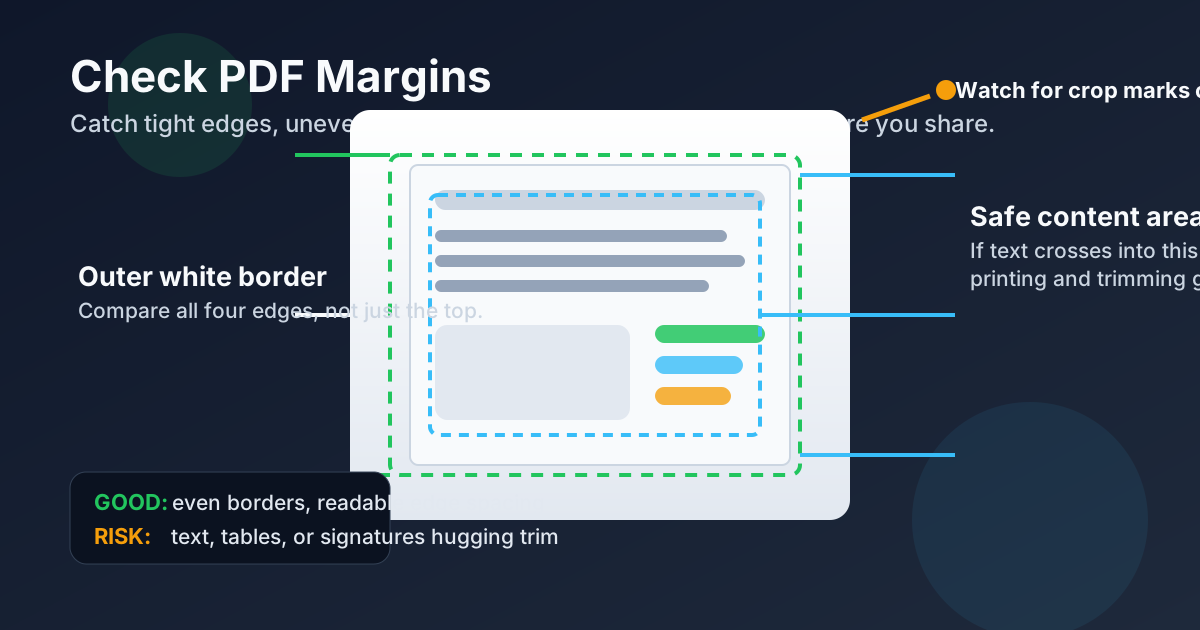
Table of contents
- Quick start: check PDF margins in about 5 minutes
- What PDF margins actually mean
- Why margin checks prevent avoidable print and layout mistakes
- Step-by-step: practical PDF margin workflow
- Common warning signs and what they usually mean
- When to crop, rotate, remove crop marks, or re-export
- Final checklist before you share or print the file
- Related LifetimePDF tools and guides
- FAQ
Quick start: check PDF margins in about 5 minutes
If your real goal is simply make sure nothing important gets clipped or feels cramped, use this order:
- Open the exact PDF you plan to print, upload, archive, or share.
- Compare the white border on the top, bottom, left, and right instead of glancing at only one edge.
- Look closely at signatures, page numbers, table columns, footers, and long lines of text near the outside edges.
- If the borders are visibly uneven, check whether the page size is wrong with Check PDF Page Size.
- If the content is fine but the outside clutter is not, trim extra white space or crop marks with Crop PDF or the Remove Crop Marks guide.
- If the actual text or graphics are already too close to the edge, stop editing the PDF blindly and re-export it from the source document with safer spacing.
What PDF margins actually mean
PDF margins are the empty borders that separate the page edge from the real content inside the document. They are what keep text, signatures, headers, footers, charts, and page numbers from hugging the trim so tightly that the file feels cramped or prints badly.
This is why a margin check matters even when the PDF technically opens fine. A page can be the correct size and still have layout trouble because the content was exported too close to the edge, the scan is skewed, or the crop box leaves one border much tighter than the others. Margin problems are layout problems first, not just aesthetic problems.
| Thing you are checking | What it tells you | What it does not guarantee |
|---|---|---|
| PDF margins | How much safe space exists between content and the page edge | That the file uses the right overall paper size |
| Page size | Whether the sheet is Letter, A4, Legal, or a custom dimension | That the content sits comfortably inside the page |
| Crop marks or trim clutter | Whether extra print-prep marks are making the outside edge look busy | That the true content margins are healthy once those marks are gone |
| Visual edge review | Whether text, signatures, or tables look too close to the trim | Why the problem happened in the original source file |
Why margin checks prevent avoidable print and layout mistakes
Margin issues tend to surface at the worst moment: when the file is already on its way to a printer, a portal, a reviewer, or a client. A thirty-second check can prevent several annoying downstream problems.
Printer clipping
Tight footers, signatures, or page numbers near the edge can disappear in print even when they still look visible on screen.
Messy scans
Skewed pages and oversized white borders make documents look unbalanced and waste space in archives or review packets.
Portal previews
A file that feels fine in one viewer can look cramped or partially clipped when another system adds its own preview frame.
Layout trust
Even if nothing is technically missing, uneven margins make contracts, packets, and reports feel less controlled and less polished.
Margin checks also reveal hidden workflow drift. If yesterday's report had comfortable spacing and today's export suddenly pushes the footer into the edge, something changed in the source document, the print settings, or the crop box. The margins are often the first visible clue.
Common false assumption
If the PDF opens and the words are visible, many people assume the layout is fine. That misses the real risk: content can still sit too close to the trim, print awkwardly, or become hard to trust when one side looks visibly tighter than the others.
Step-by-step: practical PDF margin workflow
1) Start with the outgoing copy, not a draft
Margin checks only matter on the version that will actually leave your hands. If you inspect one export and then print a newer one later, your careful review may not apply anymore.
2) Compare all four edges together
Look at the page as a whole. One tight bottom edge or one over-wide left border is easier to spot when you compare the full frame instead of zooming into a single corner. Uneven borders often point to skew, bad cropping, or a source layout that was pushed too far outward.
3) Inspect the risky elements first
Put your attention on the content that fails first when margins are weak:
- page numbers and footers,
- signature lines and initials,
- wide tables and spreadsheet-style columns,
- images that already touch the edge,
- long paragraphs that leave almost no side breathing room.
4) Separate margin problems from page-size problems
Sometimes the borders only look wrong because the file is using the wrong page dimension. That is why Check PDF Page Size is a smart follow-up whenever the spacing feels suspicious.
5) Decide whether the clutter is outside the content or inside it
If the real text block is fine but the page has scanner padding, visible crop marks, or unnecessary border noise, cropping can help. If the actual text, signatures, or tables are already too close to the edge, cropping will only make things worse and a fresh export is the safer fix.
6) Fix only the real issue you found
Use Crop PDF for extra border or trim clutter, use Rotate PDF if the page orientation is disguising the layout problem, and use the Remove Crop Marks guide when the outer marks are the real distraction. Re-export from the source document when the content itself was laid out too aggressively.
Reliable sequence: compare edges → inspect risky content → confirm page size → decide whether the problem is clutter, skew, or real layout pressure → fix that one issue deliberately.
Common warning signs and what they usually mean
Most bad margins repeat the same few patterns. Once you recognize them, the next move becomes much easier.
| What you notice | What it usually means | Best next move |
|---|---|---|
| One border is visibly tighter than the others | Skewed scan, bad crop box, or off-center export | Check the full frame and crop or re-export deliberately |
| Text or signatures sit very close to the bottom edge | The source layout may already be unsafe for print | Re-export instead of cropping blindly |
| The PDF has huge white padding all around | Scanner border, screenshot padding, or extra canvas area | Crop the extra border |
| Crop marks or trim indicators make the page feel crowded | Print-prep marks are adding outside clutter | Remove crop marks or trim the page carefully |
| The margins feel wrong on only some pages | Mixed page sizes, mixed orientations, or inconsistent exports | Check page size and rotate or normalize the affected pages |
Spacing problem
The content block itself is too close to the page edge and needs a better source export or layout adjustment.
Border problem
The content is fine, but extra white padding, skew, or crop clutter makes the page frame look wrong.
Dimension problem
The page size or orientation is inconsistent, so the margins look unstable even before anyone prints the file.
When to crop, rotate, remove crop marks, or re-export
Not every margin issue deserves the same fix. The smart move depends on where the trouble actually lives.
Crop when the page has extra border or scanner padding
Use Crop PDF when the content is positioned safely but the outside edge carries too much empty white space or leftover scan border.
Rotate when the page orientation is hiding the real problem
Use Rotate PDF when a sideways page makes the spacing look odd or when mixed portrait and landscape pages create inconsistent edge review.
Remove crop marks when print-prep clutter is the issue
Use the Remove Crop Marks workflow when the true content margins are acceptable but outer marks are making the page look busier and tighter than it really is.
Re-export when the content itself is already too close to the edge
Re-export the PDF from Word, InDesign, Excel, Google Docs, or the original source when the signatures, tables, footers, or body text were placed too aggressively in the first place. You cannot crop your way into safe margin space if the source layout never had it.
Easy mistake to avoid
Do not crop first just because the borders look odd. Cropping helps when the edge clutter is outside the useful content. It hurts when the useful content is already near the trim and needs more room, not less.
Final checklist before you share or print the file
Before the PDF leaves your hands, run this short margin check:
- Did you inspect the final outgoing copy rather than an earlier draft?
- Did you compare the white space on all four edges instead of checking just one corner?
- Did you review risky elements like signatures, page numbers, footers, and wide tables near the trim?
- Did you confirm whether the issue is margins, page size, crop marks, orientation, or the original export?
- If you edited the page, did you reopen the final version and check the borders again?
- If the content itself still feels too close to the edge, did you stop and re-export instead of forcing the PDF through more edits?
You do not need a complicated prepress ritual for ordinary PDFs. You just need one honest look at whether the content has enough room to survive printing, previewing, and sharing without feeling cramped or getting clipped.
Ready to clean up the layout? Confirm the borders, trim the noise, and send a PDF whose edges look intentional instead of accidental.
Best workflow for dependable margins: compare all four edges → inspect the risky content → confirm page size → crop or clean only when appropriate → re-export if the source layout is the real problem.
FAQ
How do I check PDF margins?
Open the exact PDF, compare the white space around all four edges, and inspect whether text, signatures, tables, or page numbers sit too close to the trim. If one side is much tighter than the others, the file may need cropping, rotation, page-size correction, or a fresh export.
Why do PDF margins look uneven?
Uneven margins usually come from skewed scans, content exported too close to the edge, crop-box mistakes, mixed page sizes, or crop marks that add clutter around the outside of the page.
Can I fix PDF margins by cropping?
Sometimes. Cropping helps when the problem is extra white border, scanner padding, or visible crop marks. It does not help if the actual content is already too close to the edge inside the source layout.
What is the difference between checking margins and checking page size?
Page size tells you the overall dimensions of the PDF page, such as Letter or A4. Margins tell you how much safe space remains between the content and the page edge. A file can have the right size and still have bad margins.
When should I re-export the PDF instead of editing the margins?
Re-export the PDF when tables, signatures, page numbers, or legal text are already pressed against the edge in the source layout. Cropping cannot create safe space that the original document never had.
Published by LifetimePDF — Pay once. Use forever.