Best Tools to Convert PDF to Word on Linux
The best tool to convert PDF to Word on Linux is usually a browser-based PDF-to-Word converter for normal text PDFs, OCR first for scans, and LibreOffice Writer or another Linux DOCX editor for cleanup after the conversion.
For most people, the fastest Linux workflow is check whether the text is selectable → convert clean files directly → use OCR for scans → tidy the DOCX only if formatting still needs help.
That answer sounds boring until you try the wrong path on a real file. A clean report, a copier scan, a contract with signatures, and a brochure full of columns do not behave the same way once you ask Linux to turn them into an editable DOCX. The winning move is not hunting for one magic app. It is choosing the right tool for the document you actually have.
Fastest practical path: start with PDF to Word in Firefox or Chrome for ordinary files, switch to OCR if text is not selectable, then use LibreOffice only for cleanup instead of forcing it to do every part of the job.
In a hurry? Jump to the best tool by situation or the step-by-step Linux workflow.
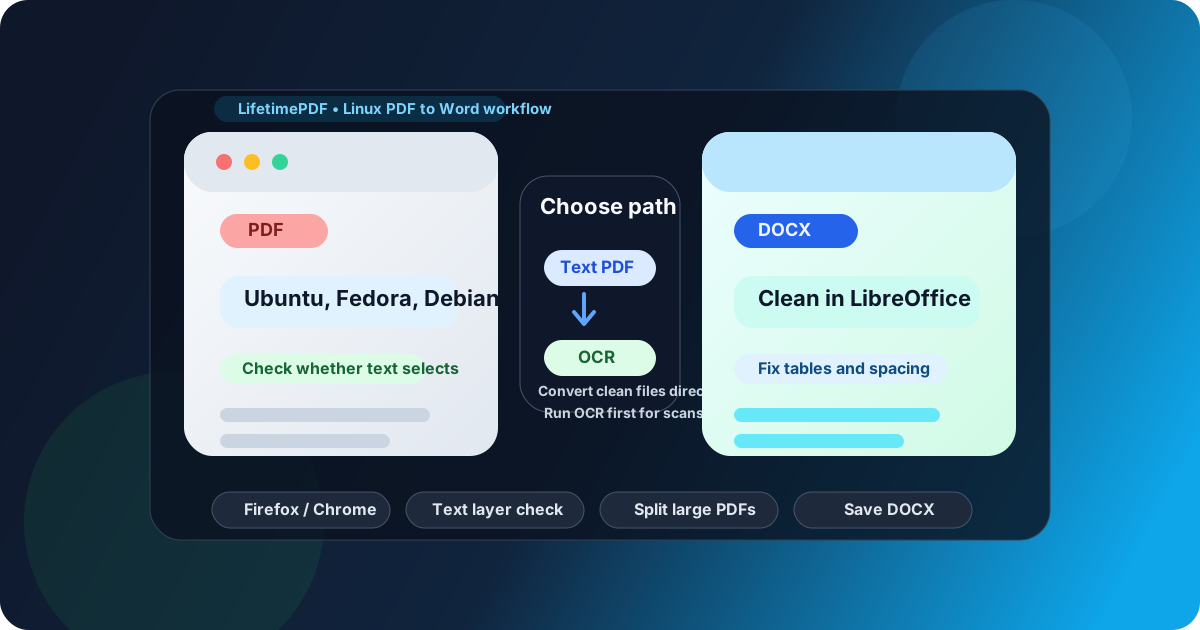
Table of contents
The short answer
If your PDF already has selectable text, the best tool on Linux is usually a dedicated browser-based PDF to Word converter. It works well in Firefox or Chrome across Ubuntu, Debian, Fedora, Mint, Pop!_OS, and basically every other Linux desktop people actually use.
If the file is a scan, photographed page, or image-only PDF, the best first tool is OCR. OCR is what turns a picture of text into real text, which is why it usually matters more than the converter itself for old paper files and copier output.
If the DOCX already exists but the spacing, tables, headers, or bullets look rough, the best finishing tool becomes LibreOffice Writer or another DOCX editor on Linux. Conversion, text recognition, and cleanup are related jobs, but they are not the same job.
Why Linux users get stuck with PDF to Word
Linux users usually get stuck for three reasons. First, they expect one desktop app to do everything from extraction to OCR to layout repair. Second, many PDFs are not normal digital documents at all. They may be scans, flattened forms, tables, invoices, or design-heavy exports. Third, Linux users are often more comfortable experimenting, which is great right up until a simple document conversion turns into a twenty-minute detour through previews, imports, and half-usable exports.
The operating system is rarely the real problem. Linux already gives you a solid browser, a file picker, and usually a DOCX editor. The friction comes from asking the wrong tool to solve the wrong stage of the workflow. A normal digital report wants direct conversion. A scan wants OCR. A nearly-good DOCX wants cleanup, not a fresh conversion attempt.
Once you think in those categories, Linux becomes a very practical place to handle PDF-to-Word work. You are not limited to one vendor app, and you do not need to care which distro you are on as long as your browser and files are accessible.
Best tools by situation
1) Best overall tool for most Linux users: browser-based PDF to Word
For normal text-based PDFs, the best tool is a dedicated browser workflow such as LifetimePDF PDF to Word. It handles the actual conversion directly and avoids the trial-and-error feeling of importing the PDF into a general editor too early.
- Best for: reports, contracts, proposals, manuals, invoices, resumes, and office documents with selectable text
- Why it works well on Linux: fast in Firefox or Chrome, distro-agnostic, no need to hunt for a desktop-specific converter first
- Less ideal for: scans, handwriting, noisy phone photos, or highly visual brochures
2) Best tool for scanned PDFs: OCR first
If the PDF came from a copier, scanner, archive box, or phone camera, a direct converter often produces a disappointing Word file because the page is really just an image. That is where OCR PDF becomes the real best tool in the workflow.
- Best for: scanned contracts, paper records, photographed forms, old manuals, and image-only PDFs
- Use it before: converting to Word, extracting text, searching, or summarizing
- Reality check: OCR quality still depends on scan clarity, rotation, contrast, and page damage
3) Best cleanup tool after conversion: LibreOffice Writer
On Linux, LibreOffice Writer is often the most practical place to clean the DOCX after the conversion is finished. It is useful for fixing headings, bullet lists, tables, page breaks, spacing, comments, and little formatting mistakes that are normal after PDF extraction.
- Best for: final editing, cleanup, annotation, and document polish
- Strong at: line-by-line review, heading styles, tables, and layout repair after conversion
- Weakest at: replacing OCR or magically preserving every complex visual layout from the source PDF
4) Best helper tools for awkward files: unlock, extract, and split
Some PDFs only become easy after one small prep step. That is especially true when the file is locked, far larger than necessary, or mixes clean digital pages with ugly scanned ones.
- Locked file? Use PDF Unlock first, if you are authorized.
- Only need a section? Use Extract Pages so you do not convert more than you need.
- Mixed clean and messy pages? Use Split PDF and handle each part properly.
Step-by-step: the best Linux workflow
If you want the most reliable result on Linux, this is the workflow that makes the most sense in real work.
Step 1: Check whether the PDF already contains real text
Open the file and try selecting a sentence. If text highlights cleanly or search works, the file is probably ready for direct conversion. If you want a quick sanity check, see how to check if a PDF has a text layer on Linux.
Step 2: If text is not selectable, run OCR first
Do not force an image-only PDF through a normal converter and hope it improves. OCR is the step that turns a picture of text into something Word can actually edit. If you need help, follow this Linux OCR guide.
Step 3: Reduce the problem before you convert
Huge appendices, sideways pages, locked files, or mixed-quality packets create extra cleanup later. Extract the section you need, split the messy pages away from the clean ones, or unlock the file if you are allowed to do so.
Step 4: Convert the prepared PDF to DOCX
Once the PDF is in the right condition, run it through PDF to Word in Firefox or Chrome. This is where Linux keeps things simple: you get an editable DOCX without depending on one specific desktop build.
Step 5: Clean up the DOCX in LibreOffice Writer
Review headings, bullet lists, tables, page breaks, spacing, footnotes, and fonts. Conversion gets you into editable form; Writer is where you make the file presentable.
Step 6: Save the finished Word file clearly
Keep both the original PDF and the cleaned DOCX. If you also need a final PDF later, export a fresh copy from the edited document rather than overwriting the source and losing your visual reference.
The biggest gain here is not raw speed. It is predictability. Once you stop expecting one tool to do conversion, OCR, cleanup, and rescue work all at once, the output becomes much more consistent.
How to choose when formatting matters
Not every PDF-to-Word job has the same goal. Sometimes you just need the text editable. Sometimes you need tables, footnotes, or headings to survive with minimal repair.
- Need editable text fast? Use direct PDF to Word for clean digital PDFs.
- Need to rescue a scan? OCR first, then convert or edit.
- Need tables to survive? Expect some cleanup in LibreOffice even after a good conversion.
- Need only part of a packet? Extract pages first so the converter handles less noise.
- Need perfect visual fidelity? Remember that Word formats are meant for editing, not for being a pixel-perfect clone of the original PDF.
This is why the best Linux tool changes with the document. A short report, a locked contract, a two-column brochure, and a scanned filing cabinet import should not all be treated as the same kind of file.
Common Linux PDF situations and the smartest move
A job application PDF from Downloads needs editing
If the resume or cover letter PDF already contains selectable text, direct conversion is usually enough. Convert it to DOCX, make the edits in Writer, and export a fresh final version only after proofreading the layout.
A scanned contract from a copier looks terrible
Start with OCR, not conversion. If the packet includes only a few relevant pages, split or extract them first so the recognized text stays cleaner and the DOCX is easier to review.
A shared-folder PDF from Nextcloud or a team drive needs revision
Save a clear working copy, convert that copy, and keep the original PDF intact. Linux makes version mix-ups easy when the original and edited files sit in the same synced folder with similar names.
A password-protected PDF blocks the whole workflow
If you are authorized, unlock it first. Trying to troubleshoot the conversion before solving the permission problem usually wastes time because the real issue is access, not DOCX formatting.
Helpful LifetimePDF tools for the full workflow
The best Linux setup usually combines one main converter with a few support tools. These are the most useful next steps when the file needs more than a plain conversion.
Useful tools
- PDF to Word for the main DOCX conversion
- OCR PDF for scans and photographed pages
- PDF Unlock for authorized access to protected files
- Extract Pages when you only need part of the document
- Split PDF for large or mixed-quality files
Ready to convert PDF to Word on Linux the easy way? Start with the file type, choose the right path, and only clean the DOCX after the content is actually editable.
Best Linux workflow for tough files: check the text layer → OCR scans if needed → convert to DOCX → clean the result in Writer → save a final reviewed copy.
FAQ
1) What is the best tool to convert PDF to Word on Linux?
For most people, the best starting point is a dedicated PDF-to-Word converter for ordinary text PDFs. If the file is scanned, OCR is the best first tool. If the DOCX already exists but needs repair, LibreOffice Writer becomes the best cleanup tool.
2) Can Linux convert a scanned PDF to Word cleanly?
Yes, but usually only after OCR. A scanned PDF is often just an image of text, so direct conversion tends to produce weak output until the text has been recognized properly.
3) Should I use LibreOffice to convert PDF to Word on Linux?
LibreOffice is usually more helpful after conversion than before it. It is a strong cleanup tool for DOCX files, but a dedicated converter is normally faster for extraction and OCR is still the right move for scans.
4) What should I do before converting a difficult PDF on Linux?
Check whether the text is selectable, unlock the file if you are authorized, extract only the pages you need, and split mixed-quality PDFs before conversion. Those prep steps often produce a cleaner Word file and save time.
5) Why does formatting still need cleanup after PDF to Word conversion on Linux?
Because PDF preserves fixed page appearance while Word formats are editable. Tables, columns, page breaks, footnotes, headers, and floating images often need a final pass even after a good conversion.
Published by LifetimePDF — Pay once. Use forever.