How to Split PDF on Linux: Separate Pages from Downloads, Thunderbird Attachments, and Shared Files Without Losing Track
To split a PDF on Linux, open a browser-based Split PDF tool in Firefox or Chrome, choose the file from your file manager, Downloads, a saved Thunderbird attachment, or a shared folder, select the page ranges or sections you want as separate outputs, and save the smaller PDFs back to your Linux machine.
If you only need one section rather than several output files, Extract Pages is usually the cleaner Linux workflow.
That is the short answer. The useful part is knowing how to split one document into practical sections instead of a pile of confusing fragments, how to avoid mix-ups between the original file and the smaller outputs, and when to split versus extract, delete, or organize pages first. Linux gives you plenty of freedom in where files live. A good split workflow makes that freedom feel helpful instead of chaotic.
Fastest path: save the source PDF somewhere obvious, open LifetimePDF's Split PDF tool in Firefox or Chrome, create only the few sections you actually need, then rename the outputs before you upload, email, or archive them.
In a hurry? Jump to Quick start: split PDF on Linux in a few minutes.
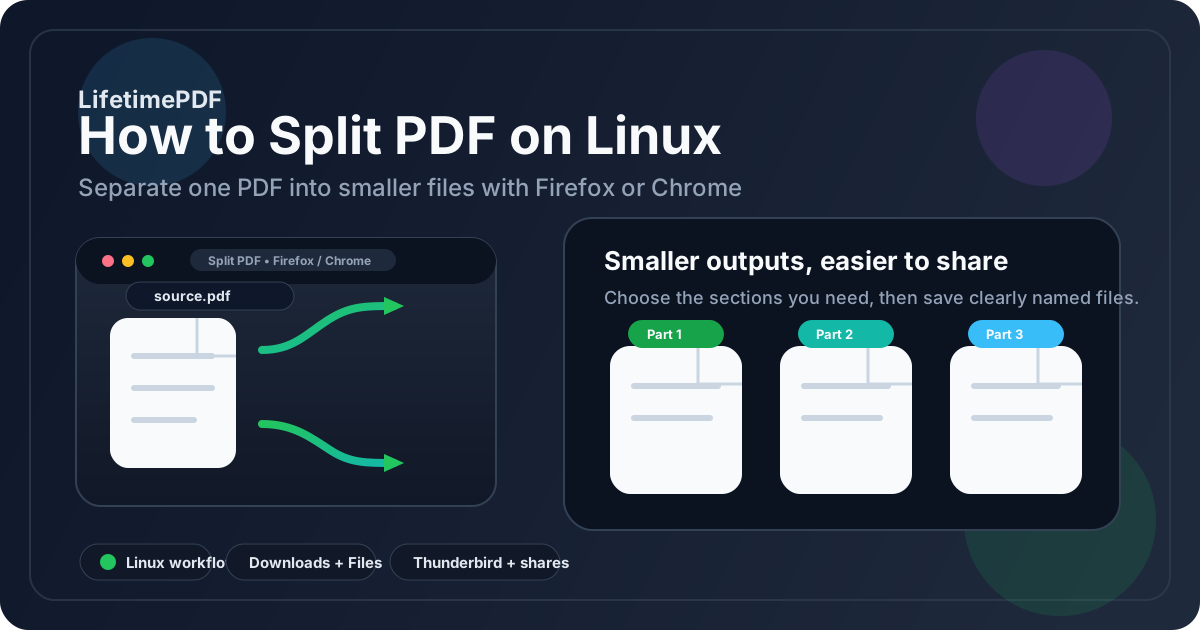
Table of contents
- Quick start: split PDF on Linux in a few minutes
- The easiest Linux workflow for splitting PDFs
- Step-by-step: create smaller PDF parts without confusion
- Split PDF vs extract pages vs delete pages on Linux
- Working with Downloads, Thunderbird, and shared folders
- Best Linux use cases for split PDFs
- Common Linux mistakes and how to avoid them
- Related LifetimePDF tools for smoother Linux workflows
- FAQ (People Also Ask)
Quick start: split PDF on Linux in a few minutes
If the file is already on your machine and you know roughly how it should be divided, this is the fastest practical workflow:
- Open Split PDF in Firefox or Chrome.
- Choose the source file from Downloads, Documents, your home folder, a saved Thunderbird attachment, or a shared project folder.
- Decide whether the PDF should become a few meaningful sections, several single-page files, or whether you really only need one extracted range.
- Create the smaller PDFs and save them with names that explain what each one contains.
- Open each output once before you upload, email, print, or archive it.
That last step matters more than people expect. On Linux, the most common failure is not the split itself. It is sending the wrong file because the original packet and the smaller outputs are sitting next to each other with similar names.
The easiest Linux workflow for splitting PDFs
The best Linux workflow is not just about clicking a split button. It is about handling the file cleanly before and after the split. Start by working from one reliable saved copy instead of a preview. Then decide what the finished set should look like before you create anything.
In practice, people usually split PDFs on Linux for one of four reasons: they want to separate a long packet into reviewable sections, send only part of a document to someone else, keep private pages out of a shared file, or break one large scan into smaller logical pieces. All four go more smoothly when you think in terms of the final outputs first.
| Method | Best for | Where it struggles |
|---|---|---|
| Split PDF | Turning one PDF into several smaller files | Overkill if you only need one selected section |
| Extract Pages | Keeping one range or one set of pages in a new PDF | Not ideal if you need several separate outputs |
| Delete Pages | Making one cleaned-up version of the original | Less convenient when multiple outputs are needed |
| Organize PDF | Previewing, reordering, and cleaning page flow first | Does not by itself create several separate files |
If your goal is several outputs, split. If your goal is one smaller output, extract. If your goal is one revised version of the original, delete pages. That one decision prevents a lot of avoidable cleanup.
Step-by-step: create smaller PDF parts without confusion
Here is a repeatable Linux routine that works well for contracts, invoice packets, exhibit bundles, onboarding files, scanned records, reimbursement documents, and long reports:
- Save the source PDF first. If the file came from Thunderbird, webmail, a client portal, Slack, or a synced folder, save or confirm the exact source copy before you split anything.
- Open the split workflow in Firefox or Chrome. Launch Split PDF.
- Choose meaningful sections. Think in terms of sections another person would understand, such as signed pages, exhibits, invoices, appendix pages, claim forms, or attachments.
- Create only the outputs you need. Avoid splitting every page individually unless there is a real business reason to do that.
- Rename the results immediately. Use names like lease-signature-pages.pdf, expense-receipts.pdf, or client-exhibits.pdf instead of vague names like part-1.pdf.
- Open each new file once. Check the beginning and end of every output before you send it anywhere.
Useful rule: name the outputs based on what they are for, not just the page numbers they contain. A filename like insurance-supporting-docs.pdf tells the next person far more than pages-8-14.pdf.
If you are not sure which pages belong together, use Organize PDF first. On Linux, that is often faster than doing a split, reopening every output, and realizing the natural section boundaries were wrong.
Split PDF vs extract pages vs delete pages on Linux
These tasks sound similar, but they solve different problems.
Split PDF is for when one document should become several files. Maybe you have a 50-page packet and want one file for signatures, one for exhibits, and one for supporting documents. That is a split workflow.
Extract Pages is better when you only want one result. If you need pages 5 through 8 from a longer report and nothing else, use Extract Pages. It gives you one smaller PDF instead of several parts you never asked for.
Delete Pages is right when the finished file should still mostly look like the original, just without some pages. That is common when a packet includes blank scans, duplicate pages, internal notes, or extra cover sheets that should not stay in the final copy.
- Need several outputs? Use Split PDF.
- Need one smaller output? Use Extract Pages.
- Need one edited version of the original? Use Delete Pages.
On Linux, remembering that difference saves time because it prevents you from creating too many files and then trying to clean up a mess you did not actually need.
Working with Downloads, Thunderbird, and shared folders
The split step itself is easy. Source confusion is the real Linux problem. One PDF is in Downloads. Another is still inside Thunderbird. A third is in a shared folder or a synced project directory. If you split the wrong source, the outputs will be wrong no matter how neat the tool is.
The safest habit is to work from one clearly identified source file, then save the outputs with names that make them impossible to confuse with the original.
- Thunderbird: save the attachment first if you are not sure which copy is current.
- Downloads: rename the source if the folder is full of duplicates like report.pdf, report (1).pdf, and report-final.pdf.
- Shared folders: confirm you are splitting the current version, not an older synced copy.
- File managers: use list view or sort by date modified when filenames are too similar.
A small naming habit does a lot of work here. Clear filenames make it far less likely that you send the full confidential packet when you meant to send only one smaller section.
Best Linux use cases for split PDFs
Splitting PDFs on Linux is especially useful when one file is technically complete but practically too broad.
- Contracts and legal packets: separate signature pages, exhibits, appendices, or supporting disclosures.
- Accounting and expense files: break one long scan into smaller reimbursement-ready sections.
- Insurance or claims paperwork: separate claim forms, photos, receipts, and ID pages into clearer groups.
- Shared team documents: send only the section another person actually needs instead of the whole packet.
- Scanned archives: break one large scan into client-by-client, case-by-case, or month-by-month chunks.
- Long reports: split the executive summary, appendices, and backup material before sharing.
In all of those cases, the benefit is not only file size. It is clarity. Smaller PDFs are easier to review, easier to upload, and less likely to overshare pages that do not belong in the next step.
Common Linux mistakes and how to avoid them
- Splitting the wrong copy: confirm the source before you start, especially with Thunderbird downloads and shared folders.
- Making too many tiny files: split by meaningful section, not by habit.
- Using vague filenames: rename outputs immediately so the next step is obvious.
- Skipping the final review: open each smaller PDF once before you send it.
- Compressing too early: split first, then compress only the outputs that still need it.
If one of the new files still feels clumsy, that usually means the first split plan was not quite right. Go back and create fewer, cleaner sections instead of patching a confusing set of outputs afterward.
Privacy reminder: splitting a PDF is often the safer Linux sharing workflow because it helps you avoid sending unrelated signatures, addresses, notes, totals, or supporting pages that do not need to leave your machine.
Related LifetimePDF tools for smoother Linux workflows
Splitting is often only one step in a larger Linux workflow. These tools pair well with it:
- Extract Pages if you only need one selected section.
- Delete Pages if you want one cleaned-up version instead of several outputs.
- Organize PDF if the page order is messy before you split.
- Compress PDF if one of the new files is still too large for upload limits.
- Protect PDF if a resulting file still contains sensitive material.
- How to Extract Pages from PDF on Linux if the job is really one smaller output, not several.
- How to Merge PDFs on Linux if you later need to recombine cleaned sections into one packet.
If you do this kind of task often, the real win is building a repeatable habit: save the source, split only into useful sections, name the outputs clearly, and review each file once before it goes anywhere. That is the Linux workflow that stays fast even when the documents get messy.
FAQ (People Also Ask)
How do I split a PDF on Linux without installing another app?
Open a browser-based Split PDF tool in Firefox or Chrome, choose the file from your file manager, Downloads, Thunderbird, or a shared folder, set the page ranges or sections you want as separate outputs, and save the smaller PDFs with clear names.
What is the difference between split PDF and extract pages on Linux?
Use Split PDF when one file needs to become several output files. Use Extract Pages when you only want one selected section as one new PDF. The actions are related, but the finished result is different.
Can I split a PDF that came from Thunderbird or a shared folder on Linux?
Yes. Save the attachment locally if needed or choose the file from the shared folder directly, split it in Firefox or Chrome, then rename the smaller files clearly so you do not confuse them with the original.
Will splitting a PDF reduce quality on Linux?
Usually no. Splitting normally preserves text clarity, layout, and page quality because the pages are reorganized into smaller PDF files rather than rebuilt from screenshots.
Should I split first or compress first on Linux?
Usually split first. Splitting decides document scope, while compression decides file size. Once you have the right smaller PDFs, compress only the outputs that are still too large to share comfortably.
Ready to break one long PDF into cleaner sections? Use LifetimePDF to split the file, keep the outputs understandable, and share only what actually matters.