How to Extract Pages from PDF on Linux: Use Firefox, Chrome & Save a Smaller Copy
To extract pages from PDF on Linux, open a browser-based Extract Pages tool in Firefox or Chrome, choose the file from your file manager, Downloads, or home folder, enter the pages you want to keep, and save the new smaller PDF.
If you only need a signature page, invoice range, appendix, contract exhibit, or a few slides from a longer packet, that is usually faster and cleaner than keeping the full file and trimming it later.
That is the short answer. The useful part is knowing which Linux workflow wastes the least time, how to avoid version mix-ups between your original file and the new subset, and when to use Extract Pages, Split PDF, or Delete Pages so you do not send the wrong document. On Linux, a little file-handling discipline matters just as much as the extraction step itself.
Fastest path: save the original PDF somewhere obvious, open LifetimePDF's Extract Pages tool in Firefox, keep only the pages you need, and rename the result clearly before you upload or share it.
In a hurry? Jump to Quick start: extract PDF pages on Linux in 3 minutes.
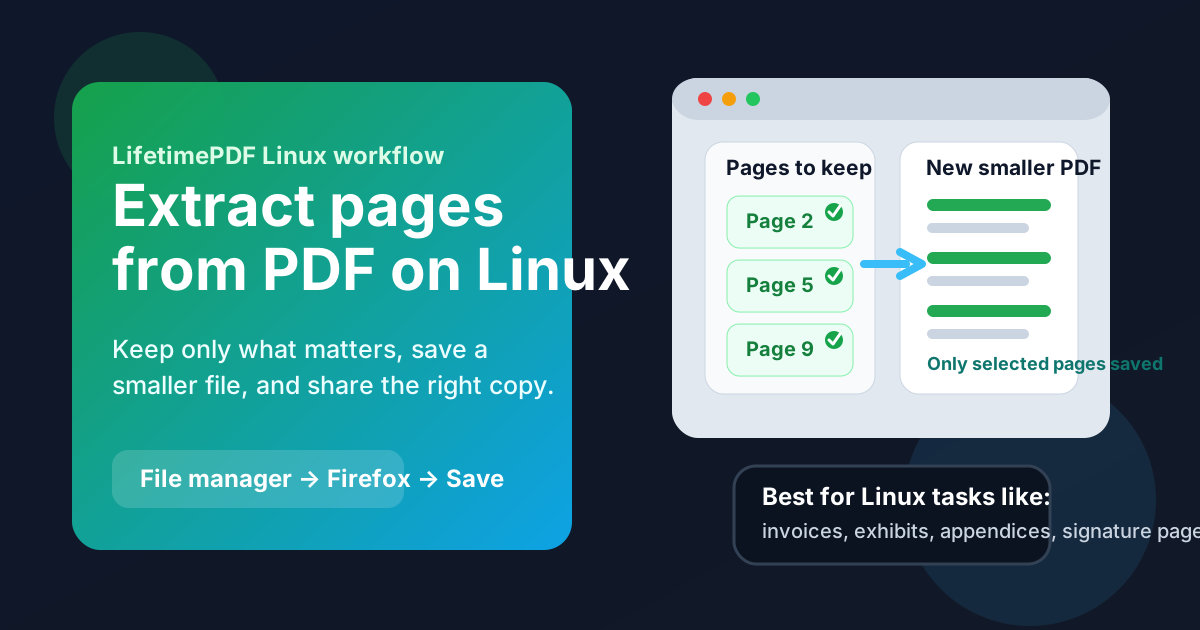
Table of contents
- Quick start: extract PDF pages on Linux in 3 minutes
- The easiest Linux workflow for extracting pages
- Step-by-step: keep only the pages you need
- Extract pages vs split PDF vs delete pages on Linux
- Working with PDFs from email, cloud storage, and Downloads
- Best Linux use cases for selected-page PDFs
- Common Linux problems and quick fixes
- Quality, privacy, and file-handling tips
- Related LifetimePDF tools and guides
- FAQ (People Also Ask)
Quick start: extract PDF pages on Linux in 3 minutes
If you already know which pages matter, this is the fastest dependable workflow:
- Open Extract Pages in Firefox or Chrome.
- Choose the PDF from Downloads, Documents, your home folder, a synced cloud folder, or a saved email attachment.
- Enter the page numbers or ranges you want to keep, such as 2-4 or 1,3,7-9.
- Download the new PDF and save it with a name that makes the result obvious, such as contract-signature-pages.pdf.
- Open the new file once and confirm the right pages were kept before you upload, print, or send it.
If you do not know the page numbers yet, open Split PDF first so you can work more visually. That is often easier than guessing page ranges from memory, especially with long scans or mixed document bundles.
The easiest Linux workflow for extracting pages
The best Linux workflow is usually uncomplicated:
- Save the source PDF locally first instead of working from a browser preview.
- Open the extraction step in Firefox or Chrome.
- Keep only the pages you need.
- Save the output with a new filename instead of overwriting the original.
- Open the new file once before sharing it.
Most Linux mistakes happen before or after extraction, not during it. People grab the wrong attachment from Downloads, save the finished subset with almost the same name as the source, or share the full packet by accident because both files sit next to each other in the same folder. A short naming habit fixes most of that.
Use a clear suffix such as -selected-pages, -signature-only, or -appendix. Whether you browse files through GNOME Files, Dolphin, Nemo, Thunar, or another file manager, a clearer filename makes the result much easier to trust later.
Step-by-step: keep only the pages you need
1) Save the original somewhere easy to find
If the PDF came from webmail, Thunderbird, Slack, a support portal, or cloud storage, save it first. Working from a locally saved file is safer than bouncing between temporary previews and downloads with similar names.
Good Linux locations for quick PDF work include:
- Downloads if this is a one-off task you will finish immediately
- Documents if you want the source and result to stay organized
- Your home folder if you prefer one easy place for active document work
- A synced folder if the smaller PDF needs to appear on another device afterward
2) Open Extract Pages in Firefox or Chrome
Open LifetimePDF Extract Pages in your browser. On Linux, Firefox is a natural fit, and Chrome works just as well. You do not need to print the PDF into a new file or turn pages into screenshots just to keep a subset.
3) Enter only the pages you want to keep
This is the key difference between extraction and trimming. You are not telling the tool what to remove. You are telling it what to preserve in the new document.
Common examples:
- 5 for one signature page
- 2-6 for a continuous section
- 1,4,8-10 for scattered pages from a longer report
If you are unsure about numbering because the file has a cover page, appendix tabs, or Roman numerals in the footer, keep the original open in another tab or viewer while you work. That quick check prevents most page-range mistakes.
4) Save the result with a clearer name than the original
Avoid names like document-final-new.pdf. Use names that tell you what changed, such as:
- invoice-pages-2-3.pdf
- proposal-appendix-only.pdf
- lease-signature-page.pdf
- report-exhibit-b.pdf
5) Open the new PDF once before sending it
This last check matters. Make sure the pages are correct, the order still makes sense, and you did not accidentally attach the original full file instead. That one verification step prevents a lot of avoidable sharing mistakes.
Extract pages vs split PDF vs delete pages on Linux
These tools sound similar, but they solve different problems:
- Extract Pages is best when you want one new smaller PDF made from selected pages.
- Split PDF is best when you want multiple output files or need a more visual page-selection workflow.
- Delete Pages is best when you want to keep most of the file and remove only a few unwanted pages.
On Linux, Extract Pages is usually the cleanest choice when the result should be a concise, shareable subset. Split PDF is better if you want to inspect thumbnails or break up a large packet. Delete Pages makes more sense when the original is mostly right and you only need to drop a cover sheet, blank page, or one confidential insert.
Rule of thumb: if you can describe the result as “keep these pages,” use Extract Pages. If you can describe it as “remove those pages,” use Delete Pages.
Working with PDFs from email, cloud storage, and Downloads
Email attachments
Save the attachment first instead of working from a mail preview. Whether the file came from Thunderbird, Gmail, Outlook Web, or another inbox, a locally saved copy is easier to manage than a temporary browser view.
Cloud folders
If the PDF lives in Dropbox, Google Drive, Nextcloud, or another synced folder, it is often fine to extract pages from that location. Just make sure the smaller result has a distinct name so it does not get confused with the original when sync finishes.
Downloads clutter
Downloads gets messy fast on Linux, especially when files arrive with names like document.pdf, download.pdf, or attachment (2).pdf. If you do several PDF tasks in a row, move the source into a temporary working folder before you start.
File-manager habits that save time
- Sort by Date modified when you just created a new PDF.
- Use a details or list view if filenames are similar.
- Add a short suffix like -kept-pages or -short-copy.
- Keep the source and result in the same folder only if the names are clearly different.
Best Linux use cases for selected-page PDFs
Extracting pages on Linux is especially useful when you need to create a lighter, more focused file without rebuilding the whole document.
Common examples include:
- Sending only the signature page from a long agreement
- Keeping just the invoice pages from a larger accounting packet
- Pulling one exhibit from a court filing bundle
- Sending only the appendix or summary pages from a report
- Creating a smaller client-facing excerpt from a longer internal PDF
- Separating selected slides or handout pages from a training packet
In all of those cases, the point is not only to reduce file size. It is to reduce confusion. A smaller targeted PDF is easier for the other person to understand, easier to upload, and less likely to expose pages that never needed to be shared.
Common Linux problems and quick fixes
I extracted the wrong pages
This usually happens because the visible page number in the footer does not match the PDF page count in the viewer. Reopen the original, verify the actual page positions, and run the extraction again.
I cannot find the new file
Check Downloads first, then sort by Date modified in your file manager. If this happens often, save the output into a dedicated working folder before you begin.
I shared the original full PDF instead of the smaller one
This is the most common mistake. Rename the extracted file immediately after saving it, then attach only the renamed copy. If possible, select the final file from your file manager instead of relying on a recent-files shortcut.
The document is too confusing to select by page number
Use Split PDF or preview the original first. Large scanned packets, research PDFs, and mixed records are often easier to handle visually than numerically.
I actually need to remove pages from a nearly finished file
Use Delete Pages instead. Extraction is for creating a new subset. Deletion is for trimming an almost-correct full document.
Quality, privacy, and file-handling tips
Extracting pages usually preserves the original page quality, which is one reason it is better than using screenshots. If the source PDF is sharp, the smaller extracted copy is usually sharp too.
On the privacy side, extracting selected pages is also a simple way to share less. If someone only needs three pages, do not send thirty. That reduces clutter and lowers the chance that extra names, addresses, pricing, notes, or attachments leave your machine unnecessarily.
If the pages you are keeping still contain sensitive information, extraction is not the same thing as redaction. In that case, redact first, then create the final smaller copy if needed.
Related secure workflow: if the finished PDF still contains confidential content but should be shared, protect the final version after extraction.
Related LifetimePDF tools and guides
If extracting pages is only one part of the job, these tools and guides usually pair well with the workflow:
- Extract Pages for keeping only the pages you need
- Split PDF for visual page selection or multiple output files
- Delete Pages for trimming a near-finished file
- Merge PDF if you later need to recombine selected pages with another file
- Scan to PDF on Linux if you are starting with paper pages rather than an existing PDF
- How to OCR a PDF on Linux if the file first needs to become searchable
- How to Password Protect a PDF on Linux if the final smaller PDF should be locked before sending
- Lifetime Access if you want a durable PDF toolkit without recurring subscription pressure
If you do this kind of task often, the real win is building a repeatable habit: save the source, extract only what matters, name the result clearly, and send the smaller copy instead of the full packet. That is the Linux workflow that stays fast even when the documents get messy.
FAQ (People Also Ask)
How do I extract pages from PDF on Linux without installing an app?
Open a browser-based Extract Pages tool in Firefox or Chrome, choose the PDF from your file manager or another saved location, enter the pages you want to keep, download the new PDF, and save it with a clear name. That is usually the fastest no-install workflow on Linux.
Can I extract non-consecutive PDF pages on Linux?
Yes. Most page-range workflows let you keep scattered pages such as 1,4,7-9 in one smaller PDF. That is useful when the important content is spread across a long report or packet.
What is the difference between extract pages and delete pages on Linux?
Extract pages creates a new PDF that contains only the pages you choose. Delete pages removes unwanted pages from a copy of the original and keeps everything else. If your goal is “keep these pages,” extraction is usually the cleaner choice.
Will extracting pages reduce PDF quality on Linux?
Usually no. Extraction generally preserves the original page quality because the selected pages are copied into a new PDF instead of being turned into screenshots or recreated manually.
Can I extract pages from a PDF that came from email or cloud storage on Linux?
Yes. Save the original file first, run the extraction in Firefox or Chrome, then save the finished smaller PDF with a name that clearly distinguishes it from the original attachment or synced file.
Ready to keep only the pages that matter? Use LifetimePDF to create a smaller, cleaner PDF before you upload, print, or send it.