How to Split PDF on iPad: Separate Pages from Files, Mail & Drive Without Losing Track
To split a PDF on iPad, open a browser-based Split PDF tool in Safari, choose the file from Files, Mail, Google Drive, or Downloads, select the page ranges or sections you want, and save the smaller PDFs back to Files.
If you only need one clean selected-page copy instead of several outputs, Extract Pages is usually the better iPad workflow.
That is the short answer. The part that actually saves time on iPad is avoiding the usual document sprawl: one PDF still living inside Mail preview, another in Files, another in Drive, and vague filenames that make it hard to tell which version is safe to send. Once the source file is in the right place and the goal is clear, splitting on iPad is straightforward.
Fastest path: save the PDF to Files first if it is still trapped inside Mail or another app, open LifetimePDF's Split PDF tool in Safari, create only the smaller sections you really need, then review each output once before you share it.
In a hurry? Jump to the quick start steps or go straight to Split PDF.
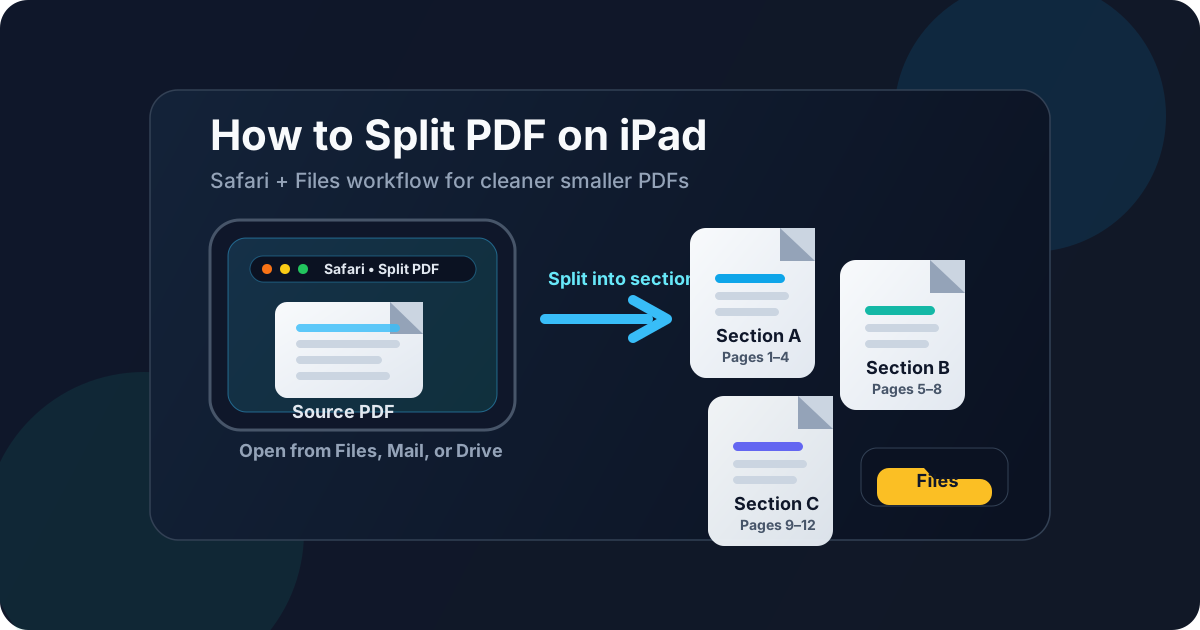
Table of contents
- Quick start: split PDF on iPad in a few minutes
- The easiest iPad workflow for splitting PDFs
- Step-by-step: split a PDF in Safari on iPad
- How to work with PDFs from Files, Mail, Drive, and Downloads
- Split PDF vs extract pages vs deleting pages on iPad
- When splitting a PDF on iPad is the smart move
- Common iPad mistakes and quick fixes
- Related LifetimePDF tools and guides
- FAQ (People Also Ask)
Quick start: split PDF on iPad in a few minutes
If the PDF is already on your iPad and you know roughly how it should be divided, this is the cleanest tablet workflow:
- Open Split PDF in Safari on your iPad.
- Choose the source file from Files, iCloud Drive, a saved Mail attachment, Google Drive, or Downloads.
- Decide whether the PDF should become a few logical sections, a set of single-page files, or whether you really need one extracted range instead.
- Create the smaller PDFs and save them with names that explain the result.
- Open each output once from Files before you upload, print, or message it anywhere.
The easiest iPad workflow for splitting PDFs
The easiest iPad method is usually not an elaborate share-sheet trick or a chain of app handoffs. It is a simple browser workflow that starts with the file in the right place. Put the PDF in Files if possible, open a dedicated split tool in Safari, choose the sections you need, and save the results back where you can find them again without guessing.
That matters because most iPad frustration comes from file handling, not from the split itself. One PDF is still sitting inside Mail preview. Another is attached to a classroom portal. A third lives in Drive with a generic name. If you split before you know which copy is the source of truth, you end up with several almost-identical files and no confidence about which one to send.
Safari works well here because it keeps the process focused: choose the file, set the split, download the result, save it, and verify it once. On iPad, the bigger screen is genuinely helpful because page ranges, filenames, and download choices are easier to read than they are on a phone. But the same rule still applies: keep the workflow calm and linear.
Need several deliverables? Use Split PDF. Need one kept section? Use Extract Pages. If the finished outputs are still bulky, clean them up with Compress PDF.
Step-by-step: split a PDF in Safari on iPad
Here is the practical version that works well for school packets, contract bundles, travel docs, onboarding files, and long reports.
1. Move the PDF somewhere stable first
If the document arrived through Mail, Messages, Slack, Drive, or a browser download, save it to Files before you do anything else. This reduces the chance of splitting the wrong temporary copy or losing track of the finished outputs.
2. Open Split PDF in Safari
Visit LifetimePDF Split PDF in Safari on your iPad. The tool is straightforward, touch-friendly, and easier to work with than trying to force a workaround inside the source app.
3. Choose the source PDF
Use the file picker to select the document from Files, iCloud Drive, Downloads, or another connected location. If the file came from Google Drive, OneDrive, or another cloud storage app, either pick it directly through the chooser or save it to Files first so you know exactly where the source lives.
4. Decide the actual split logic
This is where many people waste time. Do not start by thinking “how many pieces can I make?” Start by asking what the finished deliverables need to be. You might need pages 1-3 for one person, pages 4-8 for another, and the signed page as a separate file. Or you may only need to break a giant PDF into two manageable sections. The goal should drive the split.
5. Name the outputs clearly
Generic names like document(1).pdf or scan-copy-final-new.pdf are how good workflows turn into chaos. Rename the files based on meaning, such as lease-pages-1-4.pdf, invoice-section.pdf, or course-reading-week-3.pdf.
6. Open each result once before sending it
On iPad, it is easy to feel done as soon as the download finishes. Take ten extra seconds and open each output from Files. Check the first page, the last page, and one middle page if the section is long. That quick review catches wrong ranges, upside-down scans, or duplicate pages before you send the file to someone else.
How to work with PDFs from Files, Mail, Drive, and Downloads
The split itself is only half the job. On iPad, the other half is knowing where the source file came from and where the finished files should go.
Files and iCloud Drive
This is usually the cleanest source. If the PDF already lives in Files or iCloud Drive, you can choose it directly, split it, and save the outputs back into the same project folder or a clearly named subfolder.
Mail and Messages attachments
These are fine for receiving PDFs, but they are a bad long-term home for edited versions. Save the attachment to Files first, then split from there. That gives you one obvious source copy and makes the finished outputs easier to locate later.
Google Drive, OneDrive, and classroom portals
Cloud sources are convenient, but they can add one extra layer of uncertainty if you are not sure whether the downloaded copy or the cloud-hosted copy is the version you are editing. Either select the file directly from the picker or save a local copy to Files before splitting. The important thing is knowing which version is the real source.
Downloads from Safari
Downloads can work perfectly well, but they often collect vague filenames. Before sharing the finished outputs, move them into a folder that will still make sense tomorrow, not just to whatever location happened to be the default download target.
Scans, screenshots, and photos
If the pages are not already in PDF format, turn them into PDF first. Splitting works best when the input is already one organized PDF. If the underlying issue is “I only need one photo page” or “these scans should be combined before I divide them again,” it may be cleaner to use Images to PDF or Merge PDF before the split.
Split PDF vs extract pages vs deleting pages on iPad
These actions sound similar, but they solve different problems.
Use Split PDF when one source should become several files
This is the right choice when one big document needs to turn into two or more separate outputs, such as a contract packet split by signer, a course PDF split by week, or a travel bundle split into tickets, hotel confirmation, and itinerary.
Use Extract Pages when you only need one kept range
If you only want one specific section as one new PDF, Extract Pages is often the calmer workflow. Instead of deciding how to divide the entire document, you just keep the pages that matter and ignore the rest.
Use delete-page editing when you are fixing one working copy
If your goal is to clean one existing PDF by removing a stray cover sheet or deleting one bad scan page, a page-deletion editor may make more sense than a full split. That is less about creating deliverables and more about repairing a document.
When splitting a PDF on iPad is the smart move
Splitting is especially useful on iPad when you want to do quick document cleanup away from a laptop without losing control of the finished files.
- School and study packets: break one long reading into week-by-week or chapter-by-chapter PDFs.
- Contracts and forms: send only the signature section, only the rider, or only the pages a client actually needs to review.
- Travel and event bundles: separate tickets, hotel confirmations, schedules, and receipts into smaller shareable files.
- Work reports: pull out the pages relevant to one stakeholder instead of forwarding a whole bloated report.
- Scanned packets: turn one large scan into labeled sections so later filing is less painful.
In all of those cases, the iPad advantage is mobility. You can receive a file, clean it up, and return a smaller version quickly. The trick is making sure “quick” does not become “messy.”
Common iPad mistakes and quick fixes
Trying to split directly from a preview pane
If the PDF is still being previewed inside Mail or another app, save it to Files first. Temporary previews are convenient for reading, but poor for organizing edited outputs.
Using vague filenames
Rename outputs based on purpose, page range, or recipient. A clear name saves more time than people expect, especially when several similar PDFs are sitting in the same folder.
Creating too many tiny files
Splitting every page into its own PDF is rarely the real goal. Unless you genuinely need one-page outputs, keep sections together so the result stays usable.
Compressing before you know the final structure
Compression is about file size. Splitting is about scope. Do the scope decision first. Then compress only the smaller outputs that still feel too large to email or upload.
Skipping the final review
One quick check in Files catches most mistakes. Make sure the correct pages are present, the order still makes sense, and the output opens normally on the iPad itself before you assume it is ready.
Related LifetimePDF tools and guides
If you are working through a real iPad PDF workflow, these tools usually pair well with splitting:
- Split PDF for creating several smaller files from one source document.
- Extract Pages for keeping one selected section as a new PDF.
- Compress PDF if the finished outputs are still too large to send comfortably.
- Rotate PDF if one section came out sideways after scanning.
- How to Extract Pages from PDF on iPad if you only need one kept range.
- How to Merge PDFs on iPad if your next step is combining cleaned files back into one packet.
Doing this often? LifetimePDF works best when your whole workflow stays in one place: split, extract, merge, compress, rotate, and save finished PDFs without bouncing across a pile of unrelated tools.
FAQ
How do I split a PDF on iPad without installing another app?
Open a browser-based Split PDF tool in Safari on your iPad, choose the file from Files or a saved attachment, select the page ranges or sections you want, create the smaller PDFs, and save them back to Files.
Can I split a PDF from Mail, Files, or Google Drive on iPad?
Yes. Files is usually the easiest source, but PDFs from Mail or Google Drive work too after you save them locally or pick them through the iPad file chooser.
What is the difference between split PDF and extract pages on iPad?
Split PDF turns one source document into several smaller files. Extract Pages creates one new PDF that keeps only the selected pages.
Will splitting a PDF reduce quality on iPad?
Usually no. Splitting normally preserves the original page quality because the pages are being separated into smaller PDFs rather than rebuilt as screenshots.
Should I split first or compress first on iPad?
Usually split first. Splitting decides document scope, while compression decides file size. After you have the right smaller PDFs, compress only the outputs that still feel too large to share comfortably.