How to Split PDF in Arc: Separate Pages Without Losing Track of Tabs, Spaces, or Downloads
To split a PDF in Arc, open LifetimePDF's Split PDF tool in Arc, upload the real saved PDF from Downloads or a synced cloud folder, choose the page ranges or split points you want, and download the smaller PDFs.
Arc is excellent for previewing the document first, but the clean workflow is to split the actual file copy, not whichever pinned tab, sidebar preview, or duplicate download happens to be open.
That is the short answer. The part that actually saves time in Arc is keeping Spaces, pinned tabs, portal previews, and local downloads straight so you do not create perfect smaller PDFs from the wrong source document.
Fastest path: open Split PDF in Arc, split from the real saved file, and review each output once before sharing.
If you only need one clean section, use Extract Pages. If the page order is messy first, start with Organize PDF.
In a hurry? Jump to Quick start: split PDF in Arc in a few minutes.
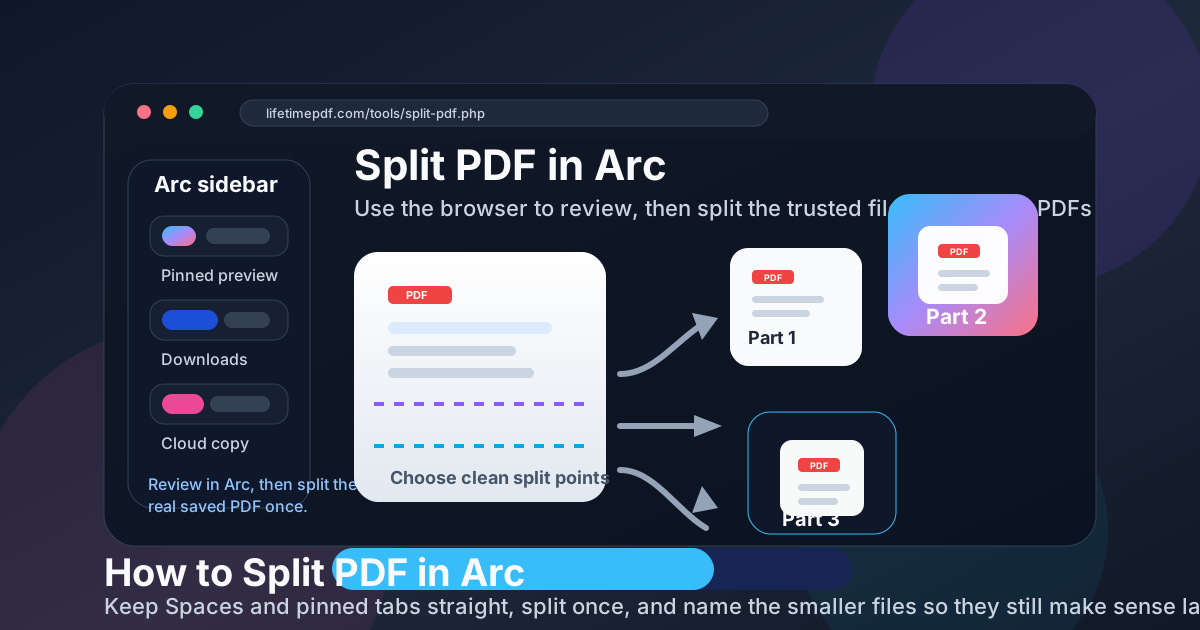
Table of contents
- Quick start: split PDF in Arc in a few minutes
- Why Arc is a good PDF workspace but not the split tool itself
- Step-by-step: split a PDF in Arc without version mix-ups
- Split PDF vs extract pages vs delete pages in Arc
- Working with PDFs from Downloads, sidebar tabs, portal previews, and cloud folders
- Common Arc mistakes and how to avoid them
- How to keep the new smaller PDFs organized
- Related LifetimePDF tools and guides
- FAQ
Quick start: split PDF in Arc in a few minutes
If you already know how the document should be divided, this is the cleanest Arc workflow for most people:
- Open Split PDF in Arc.
- Use Arc to confirm the source document, then upload the real saved copy from Downloads or a synced folder.
- Choose a few meaningful split points or page ranges instead of making more files than you actually need.
- Create the smaller PDFs and save them with names that describe the contents, not just page numbers.
- Open each output once in Arc before you upload it, email it, print it, or move on.
Why Arc is a good PDF workspace but not the split tool itself
Arc is unusually good at keeping PDF work visible. You may have a downloaded file in one Space, a portal export in another, a pinned reference copy in the sidebar, and a cloud folder open in a separate tab. That makes Arc a strong place to review a document before you do anything irreversible.
The limit is simple: Arc is still the workspace around the file, not the thing that turns one PDF into several new PDFs. The clean workflow is to use Arc for checking the document, page flow, and source version, then run the actual split in a browser-based tool using the correct saved file.
That distinction matters because most split mistakes are not technical failures. They are version failures. People split an older download, a temporary portal export, or a pinned preview that no longer matches the file they meant to send.
Step-by-step: split a PDF in Arc without version mix-ups
-
Review the document in Arc first.
Scroll through the PDF, note where the natural break points are, and decide whether you need two or three logical sections, a set of single-page exports, or just one extracted range. -
Find the real source file.
If the PDF came from email, a client portal, Notion, Google Drive, Dropbox, OneDrive, or another cloud app, make sure you know where the actual saved PDF lives. In Arc, a preview tab can be useful for checking content, but a real file in Downloads or a synced folder is easier to trust. -
Open Split PDF inside Arc.
Go to LifetimePDF Split PDF and upload the saved source file. If the pages also need rearranging first, use Organize PDF before you split. -
Set the split the way a real reader would expect it.
Split by document logic, not by panic. For example, keep the cover letter with the resume, keep an invoice with its attachment pages, or keep a contract and its signature page together if someone will review them side by side. -
Name outputs so future-you can recognize them instantly.
A name like proposal-section-1.pdf or client-packet-pages-1-8.pdf is far more useful than document-1.pdf and document-2.pdf. -
Review every new PDF once before sharing.
Open each output in Arc and check the first page, last page, page count, and filename. That quick review catches almost every avoidable split mistake.
Practical rule: if you only need one smaller file from a larger PDF, Extract Pages is often cleaner than a full split workflow.
Split PDF vs extract pages vs delete pages in Arc
These jobs sound similar, but choosing the right one saves time:
- Split PDF is best when one original PDF needs to become several smaller PDFs.
- Extract Pages is best when you only want one selected range as one new PDF.
- Delete Pages is best when you want to keep one cleaned-up copy and simply remove the pages you do not need.
In Arc, that choice matters because the browser already gives you plenty of tabs, previews, and copies to track. The simpler the job definition, the lower the chance of saving the wrong output or keeping too many near-identical files.
Working with PDFs from Downloads, sidebar tabs, portal previews, and cloud folders
Arc tends to gather documents from many places. A PDF might start as an attachment preview, a shared Drive file, a downloaded portal statement, or a report opened from a saved sidebar tab. The best split workflow depends less on where you first saw the document and more on whether you can confirm the source.
- Downloads: usually the safest source, especially if you just saved the file and can see the filename clearly.
- Sidebar tabs and pinned tabs: excellent for finding the document again, but not always proof that the tab points to the latest saved copy.
- Portal previews: helpful for reviewing content, but often temporary or easy to re-download under a slightly different filename.
- Cloud folders: safe when the sync status is clear and you know you are opening the current version, not a locally cached older copy.
A simple habit helps: use Arc to locate and verify the PDF, then upload the real file you trust. That one decision removes most of the friction from splitting.
Common Arc mistakes and how to avoid them
1. Splitting a preview instead of the real file
A preview may show the right pages while still pointing to a copy you would never want to archive or send back out. If the PDF came from a portal or web app, save the file first, then split that saved copy.
2. Confusing pinned tabs, Spaces, and current downloads
Arc makes it easy to keep reference material around, which is usually helpful. The downside is that a pinned tab can feel current even when the freshest file is sitting in Downloads under a newer filename. Before you split, match the visible document to the file you are uploading.
3. Creating too many small outputs
Not every PDF needs to become ten separate files. If two sections will always be sent together, keep them together. Smaller is useful; fragmented is not.
4. Forgetting the review pass
The split itself is fast. The mistake shows up later, when page 9 is missing from the client packet or the appendix ended up in the wrong export. Open each smaller PDF once in Arc and check it before you move on.
How to keep the new smaller PDFs organized
Once the split is correct, spend one extra minute on cleanup. Move the outputs into the right folder, rename them clearly, and keep the original large PDF until you are sure the smaller files are the ones you wanted.
If the new files are still too large for a portal, apply Compress PDF after the split is already correct. If one output still contains the wrong page order, fix that before you compress, upload, or send anything.
A tidy workflow in Arc usually looks like this: review in the browser, split from the trusted file, name the outputs well, review them once, then share only the final versions that a recipient can understand without asking you what changed.
Related LifetimePDF tools and guides
Splitting often overlaps with one or two other PDF jobs. These are the most useful companions in Arc workflows:
- Split PDF — turn one larger file into several smaller PDFs.
- Extract Pages — keep one selected range as one new PDF.
- Delete Pages — remove extra pages while keeping one clean master copy.
- Organize PDF — reorder pages before you split them into separate files.
- Compress PDF — shrink the finished outputs if upload limits still complain.
Related reading on LifetimePDF: How to Merge PDFs in Arc, How to Sign a PDF in Arc, How to Add Text to a PDF in Arc, How to OCR a PDF in Arc, and How to Compare PDFs in Arc.
FAQ: How to split PDF in Arc
Can Arc split PDF files by itself?
Arc can preview PDFs beautifully, but its built-in viewer does not create several separate PDF files by itself. Use a browser-based Split PDF tool inside Arc for the actual split.
Should I split a PDF from an Arc sidebar tab or from the downloaded file?
Reviewing the document in an Arc sidebar tab is fine, but the safest split starts from the real saved PDF in Downloads or the synced cloud folder. That avoids stale previews, duplicate downloads, and the wrong version.
When should I use Extract Pages instead of Split PDF in Arc?
Use Extract Pages when you only need one section or one page range as one new file. Use Split PDF when one original PDF needs to become several separate outputs.
Will splitting a PDF in Arc reduce quality?
Usually no. Splitting normally preserves the original text, layout, and page quality because you are reorganizing PDF pages, not turning them into screenshots.
What if my new smaller PDFs are still too large or the pages are out of order?
Fix the page order first with Organize PDF or by re-running the split with cleaner ranges. If the final files are still too large for upload limits, compress the finished outputs after the split is already correct.
Published by LifetimePDF — Pay once. Use forever.