How to Add Text to a PDF in Arc: Type on Forms, Scans, and Documents Without Leaving the Browser
To add text to a PDF in Arc, open the file in Arc, launch LifetimePDF's PDF Field Editor, place a text box exactly where you need it, then save a clearly named updated copy.
If the PDF is really a scan, a flattened page, or a structured form, run OCR first or switch to a form-filling workflow so the final text stays readable and aligned.
That is the short answer. The useful part is knowing when Arc is simply the front door, when a text box is the right move, when a form filler will save you time, and how to avoid the classic Arc mistake of typing on the wrong sidebar tab, pinned page, or duplicate download.
Fastest path: open PDF Field Editor in Arc, upload the exact file from Downloads, email, cloud storage, or a portal, add only the text the page needs, then save the final copy with a new filename.
In a hurry? Jump to Quick start: add text to a PDF in Arc in 3 minutes.
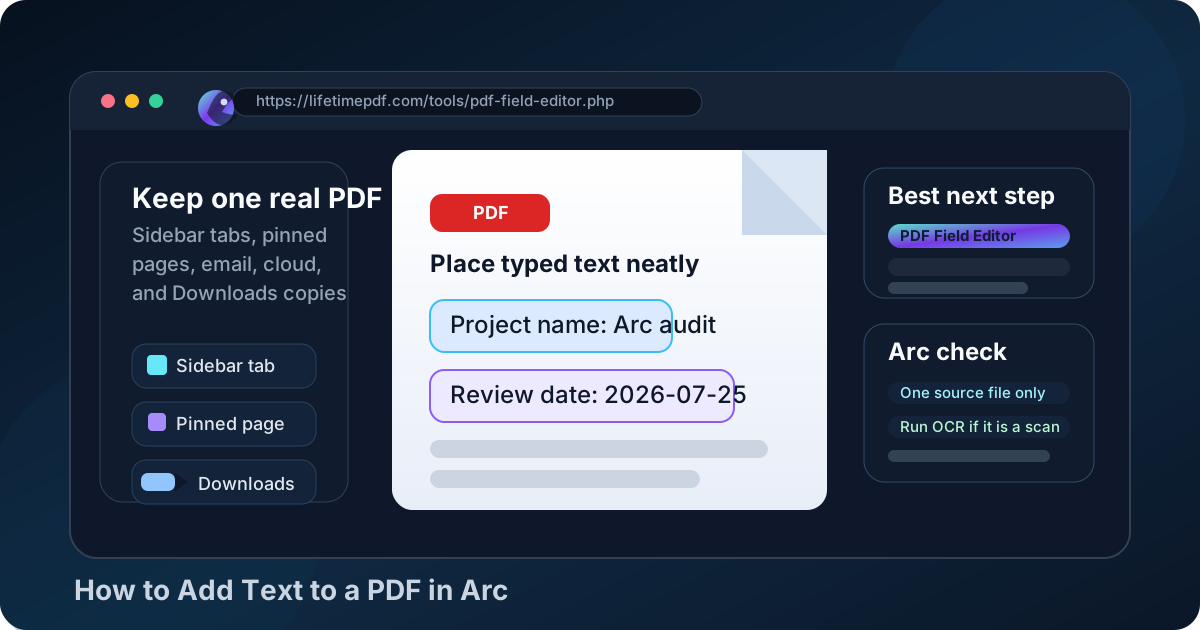
Table of contents
- Quick start: add text to a PDF in Arc in 3 minutes
- What Arc handles well and where text editing actually happens
- Text boxes vs form filling vs full editing
- Step-by-step: add text from Downloads, email, cloud storage, or a portal tab
- Arc's built-in PDF viewer vs a dedicated text workflow
- Scanned PDFs, OCR, and image-only pages in Arc
- How to save, share, and keep the final copy clean
- Common Arc text-placement problems and quick fixes
- Related LifetimePDF tools and guides
- FAQ
Quick start: add text to a PDF in Arc in 3 minutes
If the PDF is already open in Arc and you mostly need to type on it cleanly, this is the workflow most people actually want:
- Open PDF Field Editor in Arc.
- Choose the exact file from Downloads, a saved email attachment, cloud storage, or the folder where you intentionally saved it from a portal.
- Add a text box only where the wording should appear and zoom in before you finalize placement.
- If the document is really a form, use PDF Form Filler instead of stacking loose text boxes across every blank.
- If the page behaves like an image, run OCR PDF first.
- Download the updated PDF, reopen it once in Arc, and confirm the text lands where you intended before you upload or send it.
What Arc handles well and where text editing actually happens
Arc is an excellent front door for PDF work. A file opens from Gmail, Outlook, Google Drive, Dropbox, a school portal, or a client dashboard, and you are already looking at the document in seconds. That convenience is exactly why people try to do the whole job there.
The catch is that opening a PDF and truly placing polished text on it are two different tasks. Arc is very good at viewing, checking, downloading, and reopening PDFs. Clean text placement usually comes from a browser-based PDF tool running inside Arc, not from the built-in viewer alone.
The calmest workflow is to split the job clearly:
- Verify the right source file: use Arc.
- Add visible text cleanly: use PDF Field Editor in Arc.
- Fill a real form: use PDF Form Filler.
- Fix a scan first: run OCR PDF.
- Rewrite paragraphs or restructure content: move to PDF to Word instead of faking a deep edit with overlays.
Once you treat Arc as the browser workspace instead of the entire editing engine, the process gets faster and the final PDF looks much less improvised.
Text boxes vs form filling vs full editing
A lot of PDF frustration in Arc comes from choosing the wrong kind of change before you start typing.
| What you need | Best option | Why it works |
|---|---|---|
| Add a date, label, note, short answer, or initials | Text box | Fastest way to place visible text cleanly without rebuilding the whole document. |
| Complete boxes on a real form | PDF form filling | Keeps answers lined up and usually looks better than free-floating text overlays. |
| Rewrite sentences or larger blocks of content | Convert and edit properly | More reliable than pretending a browser overlay is a full document editor. |
| Type on a scan or flattened page | OCR first, then add text | Makes the file easier to inspect, search, and work with later. |
In plain English: a text box is perfect for visible additions, not for pretending you rewrote the whole document. If the file is a proper form, fill the form. If the file is a scan, OCR it first. If the job is really a rewrite, convert and edit the content properly.
Step-by-step: add text from Downloads, email, cloud storage, or a portal tab
1) Start with the exact PDF you intend to send back
Arc makes it easy to lose track of versions because the same PDF might exist in a sidebar tab, a pinned page, a portal preview, a cloud tab, and a downloaded file at the same time. Before you type anything, decide which copy is the source of truth.
If the file came from email or a portal, save it with an obvious name first. That small step is often the difference between a smooth workflow and a later "why did I edit the wrong one" moment.
2) Open PDF Field Editor in Arc
Open PDF Field Editor in Arc. It gives you a cleaner way to place visible text and avoids the usual chaos of bouncing between the built-in viewer, a portal preview, and a temporary browser download.
Upload the file from the folder you intentionally chose. If a trusted PDF tool cannot finish an upload or download, check Arc's popup handling, download permissions, or extension interference for that tab instead of restarting the whole workflow from scratch.
3) Add only the words the page really needs
Good PDF text placement is mostly restraint. Add the date, answer, name, label, or short note that belongs on the page, and make it look deliberate. The goal is a finished document that feels trustworthy when someone else opens it.
If you are trying to complete a full application, intake packet, or multi-page questionnaire, a form filler is usually calmer than dozens of hand-placed text boxes.
4) Use side-by-side checking only if it actually helps
Arc makes it tempting to keep several versions open at once. That can help when you want the original PDF visible in one place and the editing tool in another, but only if you stay disciplined about which file is the real source and which file is the finished copy.
What matters is how the saved PDF will look at normal size, not how it looked while you were moving a text box around between multiple browser panes.
5) Reopen the finished file once before you share it
After you download the updated PDF, open it again in Arc and read it the way the recipient will. That final check catches the most common problems: slightly off-center text, the wrong filename, or a newer copy saved somewhere other than you expected.
Shortest reliable sequence: choose the right file → add only the text you need → save as a new copy → reopen it in Arc → send the final version.
Arc's built-in PDF viewer vs a dedicated text workflow
Arc's built-in PDF viewer is convenient for reading, checking page order, confirming the file opened, and making sure you are starting from the right document. For simple review, it is perfectly fine.
The limits show up when the PDF has to look polished after you type on it. If the text needs precise placement, if the page is a scan, if the file came from a portal with version confusion, or if the finished PDF is going to a client, school, HR system, doctor, recruiter, or government office, a dedicated workflow is usually the better call.
- Use the viewer to inspect the source file.
- Use a dedicated PDF text workflow when the result has to look intentional and easy to trust.
Scanned PDFs, OCR, and image-only pages in Arc
If the page behaves like a picture, the PDF is probably scan-based. That is common with signed paperwork, phone photos turned into PDFs, copied receipts, classroom worksheets, and forms that were printed and scanned back in.
In that case, run the file through OCR PDF first. OCR makes the text searchable and usually makes the whole job feel less awkward because you are not placing text blindly onto one flat image.
Even when a scan technically allows you to drop a text box on top, OCR usually gives you a better final workflow because the document becomes easier to search, review, and reopen later.
How to save, share, and keep the final copy clean
Save the updated PDF with a new filename
Keep the original untouched whenever possible. A filename such as contract-notes-added.pdf, application-updated.pdf, or invoice-corrected.pdf makes it much easier to know which version should be sent onward.
Compress the file if it grew too large
If the PDF started life as a scan or a bulky export, use Compress PDF before attaching it to email or uploading it to a site with size limits.
Sign it after the wording is final
Some PDF jobs end with a signature. If that is your case, move to Sign PDF after the added text is complete so you do not end up redoing the signature later.
Protect sensitive copies when needed
If the file contains private information, add a password with PDF Protect before sending it onward. If the page contains information that should disappear entirely, redact it instead of assuming placed text will hide the original content.
Common Arc text-placement problems and quick fixes
The text looked fine while editing but awkward after download
Reopen the saved PDF at normal zoom. The exported file is what matters, not the temporary editing view you were looking at while positioning the text.
I keep adding text to the wrong version of the PDF
Save the source file intentionally before you start and rename the finished copy clearly. Arc's sidebar tabs, pinned pages, and downloaded duplicates make version mix-ups much more common than people expect.
The PDF is really a form and my text boxes look messy
Switch to PDF Form Filler. Proper form workflows usually look cleaner than loose text overlays across every blank.
I cannot get the text to sit neatly on a scanned page
Run OCR first. Scanned PDFs behave more like images than documents until text recognition makes them easier to inspect and position.
I actually need to rewrite paragraphs, not just place text
Do not fake a full edit with layers of replacement text. Use PDF to Word, make the real content changes, then export the final result back to PDF.
A trusted PDF tool will not open, upload, or finish the download
On a trusted site, check whether Arc is blocking the popup or download that finishes the job. Retry after clearing the specific interruption instead of rebuilding the whole workflow around the browser problem.
Related LifetimePDF tools and guides
Adding text to a PDF in Arc often turns into one or two cleanup steps. These are the most useful companions:
- PDF Field Editor — add visible text and handle light field-level changes.
- PDF Form Filler — better for structured forms and aligned answers.
- OCR PDF — make scanned PDFs searchable before you place text.
- PDF to Word — the right move when the job becomes a true rewrite.
- Compress PDF — shrink large final files for upload limits.
- PDF Protect — password-protect sensitive finished copies.
Related reading on LifetimePDF: How to Edit a PDF in Arc, How to Watermark a PDF in Arc, How to OCR a PDF in Arc, How to Compare PDFs in Arc, How to Add Text to a PDF on Mac, and Edit PDF Text Online Free.
Arc shortcut: if you only need a few words on the page, start with PDF Field Editor. If it is really a form, fill it properly. If it is really a scan, OCR it first.
FAQ: How to add text to a PDF in Arc
Can I add text to a PDF directly in Arc?
Arc can open and review PDFs very well, but clean text placement usually works best through a browser-based PDF text tool running in Arc rather than through the built-in viewer alone.
What is the best way to type on a PDF form in Arc?
If the document is a real form, use PDF Form Filler instead of scattering loose text boxes across the page. The final file usually looks cleaner and stays easier to read.
Can I add text to a scanned PDF in Arc?
Yes, but the result is usually better after OCR. Once the scan becomes searchable, your text placement is easier to judge and the file is easier to work with later.
Why do I keep editing the wrong PDF in Arc?
Because Arc makes it easy to juggle a sidebar tab, a pinned page, a portal preview, and a downloaded copy at the same time. Save the source file intentionally first and give the finished version a clear new name.
Should I add text in Arc or convert the PDF to Word?
Use Arc plus a PDF text workflow for short visible additions, labels, forms, and notes. Convert to Word when you need to rewrite sentences, move paragraphs, or make deeper document edits.
Published by LifetimePDF — Pay once. Use forever.