How to Sign a PDF in Vivaldi: Add Your Signature Without Losing Track of Tabs, Workspaces, or Downloads
To sign a PDF in Vivaldi, open LifetimePDF's Sign PDF tool in Vivaldi, upload the file from Downloads, email, cloud storage, or a portal export, place your signature on the correct page, then download the signed copy.
If the same document is still open in a Tab Stack, Workspace, or saved Session, confirm the exact source file first; Vivaldi is excellent for reviewing PDFs, but a dedicated signing tool gives cleaner placement for forms, scans, and final copies.
That is the short answer. The part that actually saves time in Vivaldi is avoiding the wrong-copy problem: a portal preview in one tab, a duplicate download in another folder, an older file still parked in a Workspace, and a signed export that deserves its own clear filename.
Fastest path: open Sign PDF in Vivaldi, upload the exact file you want from Downloads, email, cloud storage, or a portal, place the signature neatly, then reopen the exported PDF once before you send it.
In a hurry? Jump to Quick start: sign a PDF in Vivaldi in a few minutes.
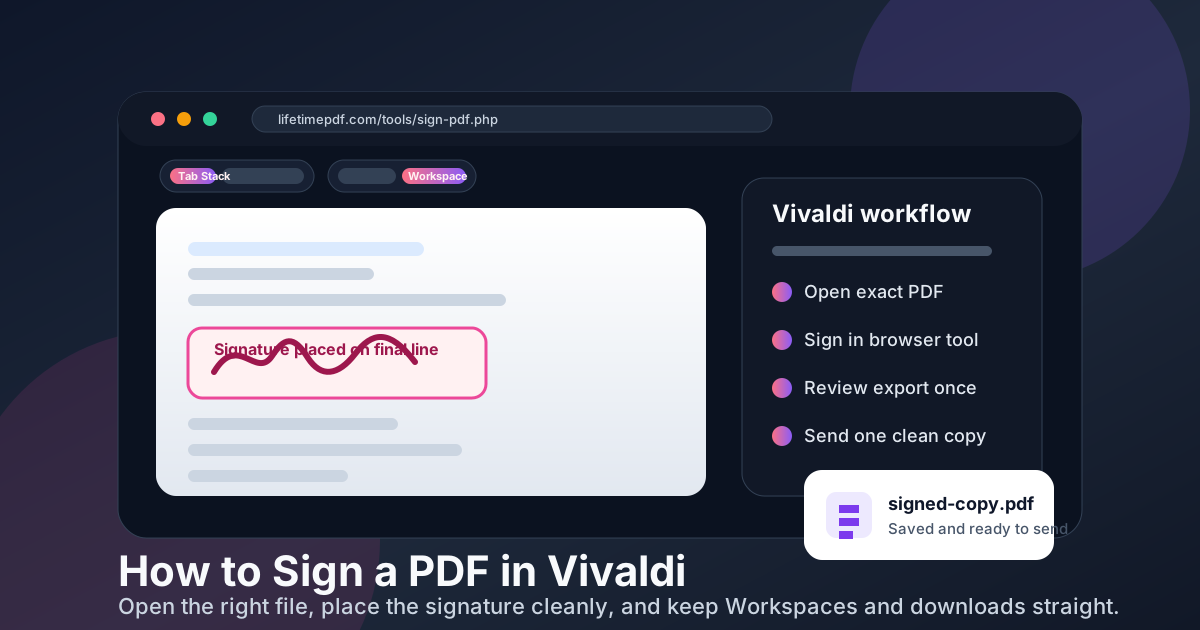
Table of contents
- Quick start: sign a PDF in Vivaldi in a few minutes
- What Vivaldi handles well and where signing actually happens
- Step-by-step: sign a PDF from tabs, Workspaces, email, and downloads
- Vivaldi PDF viewer vs a dedicated signing tool
- How to sign scanned or flattened PDFs in Vivaldi
- How to keep the signed copy clean and easy to send
- Common Vivaldi signing mistakes and quick fixes
- Related LifetimePDF tools and guides
- FAQ
Quick start: sign a PDF in Vivaldi in a few minutes
If you just need to sign a contract, approval form, school document, HR packet, intake PDF, or client file and send it back quickly, this is the Vivaldi workflow most people actually want:
- Open Sign PDF in Vivaldi.
- Choose the exact file from Downloads, a saved email attachment, cloud storage, or a folder where you intentionally exported it from a portal.
- Create the signature by drawing it, typing it, or uploading an existing signature image.
- Place the signature on the correct page and zoom in before you finalize it.
- Download the finished PDF, reopen it once in Vivaldi, and confirm the signature sits where you intended before you upload or email it.
What Vivaldi handles well and where signing actually happens
Vivaldi is a comfortable place to start PDF work because so many documents already pass through it. A form opens from email. A contract lives in shared storage. A school packet appears in a parent portal. A downloaded file stays nearby in the panel while related tabs remain open in the same Workspace.
The limit is the same one people hit in most browsers: opening a PDF is not the same as signing it cleanly. Vivaldi's built-in PDF viewer is useful for checking the file, scrolling through pages, and confirming whether you grabbed the right version. It is not the whole signing workflow.
The cleaner approach is simple:
- Use Vivaldi to open, review, and gather the right file.
- Use Sign PDF to place the signature cleanly and export one polished final copy.
- Use PDF Form Filler first if the document also needs typed answers.
- Use Compress PDF after signing only if the finished file is still too large to send comfortably.
- Use Unlock PDF if the document is permission-blocked and you are authorized to work with it.
| Method | Best for | Where it struggles |
|---|---|---|
| Vivaldi PDF viewer only | Opening the file, checking page order, and confirming you have the right document | Precise signature placement, scanned PDFs, and saving a cleaner final signed copy |
| Open previews in tabs, Workspaces, or Sessions | Fast visual checks before deciding which file is the real source | Easy to confuse with older downloads, stale previews, or unsigned originals |
| Vivaldi + Sign PDF | Clean signature placement, browser-based signing, and reliable export | You still need one quick final review before sending |
| Print and rescan | Almost never the best choice unless a physical signature is specifically required | Slower, messier, lower quality, and much easier to get wrong |
In other words, Vivaldi is the workspace. The actual signing should still happen in a tool built for finishing the document cleanly.
Step-by-step: sign a PDF from tabs, Workspaces, email, and downloads
If you want a repeatable Vivaldi routine for contracts, school forms, onboarding paperwork, approvals, client documents, and routine admin files, use this:
- Start from the exact PDF you intend to send back. Do not assume the open browser tab is the file you should sign. Confirm whether the real source is the email attachment, the cloud-storage file, the downloaded version, or the PDF you intentionally exported from a portal.
- Open the signing tool. Launch Sign PDF in Vivaldi.
- Upload the right file. If Vivaldi has kept several similar copies nearby, check the filename before you upload so you do not sign yesterday's version by accident.
- Create the signature. Draw it for a handwritten look, type it for something fast and tidy, or upload a signature image if you want consistency.
- Place it carefully. Position the signature on the correct line, resize it so it looks natural, and make sure it does not cover dates, checkboxes, or nearby text.
- Download and review the final PDF. Save it somewhere obvious, reopen it once in Vivaldi, and check the signature at normal zoom before you upload or attach it.
Shortest reliable sequence: pick the right file, sign it once, save one clear final copy, and review the exported PDF before you send it back.
If the document also needs typed fields, fill those first with PDF Form Filler, then return to signing afterward. That usually keeps the layout cleaner and prevents the signature from colliding with form content.
Vivaldi PDF viewer vs a dedicated signing tool
Vivaldi's built-in PDF viewer deserves credit. It is quick, familiar, and useful for opening a document from almost anywhere. If all you need is a read-through or a final check, it is perfectly fine.
The trouble starts when the document has to look polished after you sign it. If the PDF came from a portal, if the file is scanned, if you need better control over size and placement, or if you are juggling a cloud link, a tab preview, and a local download at the same time, the built-in viewer starts feeling too limited.
Use Vivaldi's viewer when:
- You want to confirm the document is the right one before signing.
- You need to check page count, order, or whether the file opened correctly.
- You are reviewing the final exported PDF before sending it onward.
Use a browser-based signing tool when:
- You need cleaner signature placement.
- The PDF came from email, cloud storage, a dashboard, or a portal with several almost identical copies.
- The file is scanned, flattened, or slightly awkward.
- You want one workflow that works across different computers without relying on a separate desktop app.
How to sign scanned or flattened PDFs in Vivaldi
A lot of PDFs are not truly interactive. They are scans, flattened exports, printed forms turned back into PDFs, or camera-made pages wrapped in a PDF file. That is why you click around and nothing responds.
For signing, that is usually not a disaster. You can still place the signature on top of the page. The main difference is that you should not expect a built-in field to accept it like a perfectly structured digital form would.
- If the document only needs a signature: place it directly on the correct page and review the alignment carefully.
- If the document also needs typed answers: fill those first, then sign after the answers are in place.
- If the PDF is blocked by permissions: use Unlock PDF first, as long as you are authorized to work with the file.
- If the scan is too large to send comfortably: use Compress PDF after the signature is already correct.
The common mistake is oversizing the signature because the scan already looks messy. That usually makes the file look worse, not better. Keep the signature proportional and review it at normal zoom.
How to keep the signed copy clean and easy to send
Once the signature is in place, the job is not quite done. A clean final PDF depends on a few small habits:
- Keep the signature realistic in size. Bigger rarely looks more official.
- Check the exact page. Multi-page PDFs are easy to sign on the wrong page if you are rushing.
- Review the exported PDF, not just the editor view. The saved file is what the other person actually sees.
- Name the final copy clearly. Something like contract-signed.pdf is much safer than leaving several almost identical filenames in Downloads.
- Compress only if needed. If the file uploads, emails, and opens comfortably, you are done.
| If this happens | What to do next |
|---|---|
| The signed PDF is too large for email or an upload portal | Use Compress PDF after signing |
| The document also needs typed answers or aligned entries | Go back and use PDF Form Filler before signing |
| The PDF is blocked by permissions and you are allowed to work with it | Try Unlock PDF first |
| You are not sure whether the final file is the one you meant to send | Reopen the export in Vivaldi and confirm the filename, page, and signature placement before sending |
Resist the urge to keep exporting new versions unless something is actually wrong. One clean final copy is much easier to trust than a pile of nearly identical signed files.
Common Vivaldi signing mistakes and quick fixes
I signed the wrong version of the PDF
This is the most common Vivaldi problem because a portal preview, a cloud file, a local download, and an older copy preserved in a Workspace or Session can all be available at once. Save the real source intentionally before you sign and give the output a clearly different filename.
The signature looked fine while editing but awkward after export
Reopen the saved PDF at normal zoom. The exported file is what matters, not the temporary editing view. If the signature looks oversized or slightly off-center, fix it before you send the document onward.
I cannot click into the fields
That usually means the PDF is flattened or scan-based. Use PDF Form Filler for structured answers or place the signature directly on the page if a signature is all the document needs.
Vivaldi keeps showing me previews, but I want the real file
Treat previews as review copies, not your source of truth. Download or save the exact file you want first, then upload that copy into the signing tool.
Related LifetimePDF tools and guides
Signing often overlaps with one or two other PDF tasks. These are the most useful companions in Vivaldi workflows:
- Sign PDF — place a signature cleanly and export one finished file.
- PDF Form Filler — enter typed answers before you sign.
- Compress PDF — shrink the final signed PDF if email or upload limits reject it.
- Unlock PDF — remove permission barriers when you are authorized to work with the file.
Related reading on LifetimePDF: How to Add Text to a PDF in Vivaldi, How to Edit a PDF in Vivaldi, How to OCR a PDF in Vivaldi, How to Sign a PDF in Chrome, How to Sign a PDF on Windows, and How to Sign a PDF on Mac.
Vivaldi shortcut: verify the real source file, sign it once, review the exported copy, and only then worry about size or extra cleanup if something still needs attention.
FAQ: How to sign a PDF in Vivaldi
Can I sign a PDF directly in Vivaldi?
Vivaldi can open and preview PDFs very well, but the cleanest signing workflow usually comes from a browser-based Sign PDF tool running inside Vivaldi rather than from the built-in viewer alone.
Why do I keep signing the wrong PDF in Vivaldi?
It usually happens because a portal preview, a download, and an older copy preserved in a tab stack, Workspace, or Session are all still around. Save the source intentionally first and give the signed copy a clearly different name.
Should I fill the form first or sign first in Vivaldi?
Usually fill the form first and sign last. That keeps the document cleaner and reduces the chance of covering fields, dates, or checkboxes with the signature.
What if the PDF is scanned or will not let me click into fields?
That usually means the PDF behaves more like an image than a true interactive form. You can still place the signature on top of the page, and if the file also needs typed answers, fill those first before signing.
Do I need a separate app to sign PDFs in Vivaldi?
Not for most everyday signing jobs. A browser-based signing workflow in Vivaldi is usually enough for contracts, forms, school paperwork, and routine admin documents, as long as you review the exported file once before sending it.
Published by LifetimePDF — Pay once. Use forever.