How to Sign a PDF on Windows: Add Your Signature and Send It Back Fast
To sign a PDF on Windows, open the document in Edge or Chrome with a browser-based Sign PDF tool, add your signature, place it on the correct page, then save the signed copy to File Explorer or attach it from Outlook.
If the file is simple, Edge may be enough; if it is scanned, flattened, or awkward, a dedicated signing tool is usually cleaner and faster.
That is the short answer. The useful part is knowing when Windows can handle the job with a quick browser workflow, when Microsoft Edge starts feeling limited, how to deal with files from Outlook or Downloads, and how to avoid the usual desktop mistakes: oversized signatures, messy placement, duplicate exports, and sending back the wrong version.
Fastest path: open LifetimePDF's Sign PDF tool in Edge or Chrome, upload the file from File Explorer or Outlook, place your signature neatly, then save the finished PDF back to your Windows PC.
In a hurry? Jump to Quick start: sign a PDF on Windows in 3 minutes.
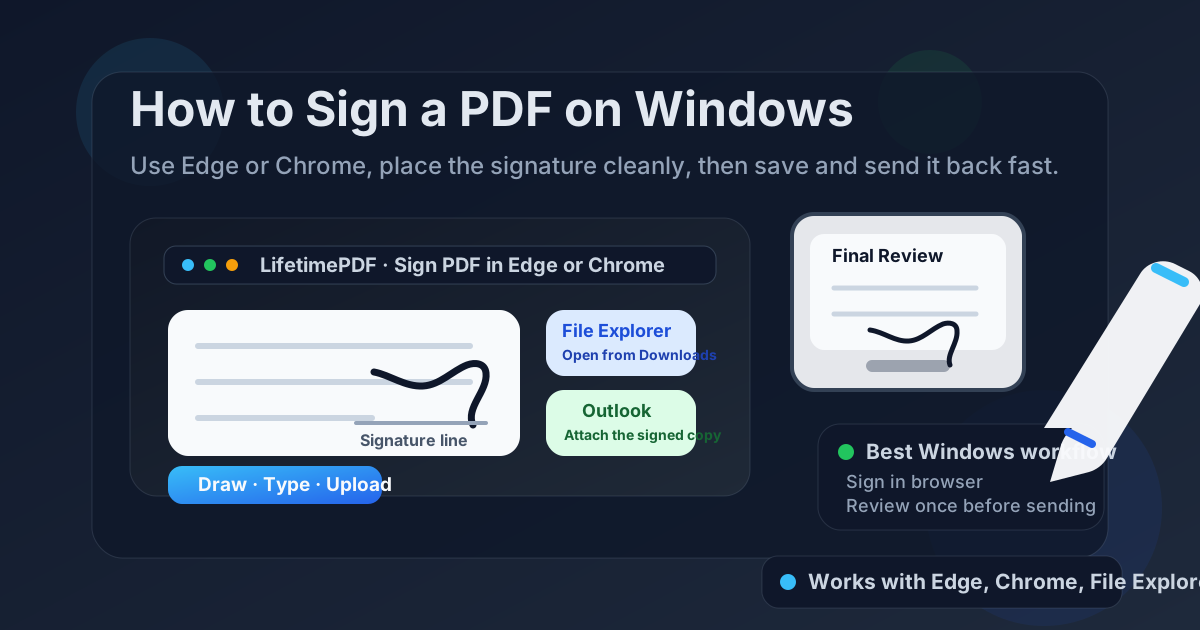
Table of contents
- Quick start: sign a PDF on Windows in 3 minutes
- The easiest Windows workflow for signing PDFs
- Step-by-step: sign a PDF in Edge or Chrome
- Microsoft Edge vs a dedicated signing tool
- How to sign scanned or flattened PDFs on Windows
- Working with PDFs from Outlook, File Explorer, and Downloads
- How to keep the signature clean on desktop
- How to save and send the final file
- Related LifetimePDF tools for smoother Windows workflows
- FAQ (People Also Ask)
Quick start: sign a PDF on Windows in 3 minutes
If you just need to sign a contract, consent form, job offer, onboarding packet, school document, or approval PDF and send it back quickly, use this workflow:
- Open Sign PDF in Edge or Chrome.
- Choose the file from Downloads, Desktop, Documents, OneDrive, or a saved Outlook attachment.
- Create your signature by drawing it, typing it, or uploading an existing signature image.
- Place the signature on the correct page and zoom in to check alignment.
- Download the signed PDF and open it once before you email or upload it.
The easiest Windows workflow for signing PDFs
Windows users usually try one of three routes first: Microsoft Edge, a browser-based signing tool, or the miserable print-sign-scan loop that somehow turns a clean digital file into a blurry mess.
For quick, dependable signing, the browser-based route is usually the least frustrating. It works well with PDFs that came from Outlook, File Explorer, Downloads, or a portal in Edge or Chrome. You keep the document digital, avoid rescanning quality loss, and get cleaner control over signature placement.
| Method | Best for | Where it struggles |
|---|---|---|
| Microsoft Edge | Simple review, occasional one-off signing, and quick checks | Scanned PDFs, precise placement, awkward forms, and smoother save-and-send workflows |
| Edge or Chrome with LifetimePDF | Clean signature placement, browser-based signing, and reliable export | You still need one quick final review before sending |
| Print and rescan | Almost never the best option unless a physical signature is specifically required | Slower, messier, lower quality, and harder to fix afterward |
The real win on Windows is not just placing the signature. It is finishing the job cleanly: right signature size, correct page, readable output, obvious filename, and a final PDF you can attach to Outlook or upload without second-guessing it.
Step-by-step: sign a PDF in Edge or Chrome
Here is the practical desktop workflow most Windows users actually need:
- Open the signing tool. Launch Sign PDF in Microsoft Edge or Google Chrome.
- Upload the document. Choose the file from File Explorer, Downloads, Desktop, Documents, or a saved Outlook attachment.
- Create the signature. Draw it if you want a hand-signed look, type it if you want something crisp and fast, or upload an existing signature image if you already use one consistently.
- Place the signature carefully. Move it onto the correct line, resize it so it looks natural, and make sure it does not cover a date field, checkbox, or nearby paragraph.
- Download the final PDF. Save it somewhere obvious, such as Downloads or a dedicated folder for signed documents.
- Review and send. Open it once more at normal zoom, then attach it in Outlook or upload it to the required portal.
Microsoft Edge vs a dedicated signing tool
Edge deserves some credit. It is built in, fast to open, and fine for reviewing PDFs or handling the occasional simple document.
But Edge is not always the easiest choice once the PDF becomes even slightly annoying. If the signature needs more precise placement, if the PDF came from a portal, if the file is scanned, or if you need a smoother sign-and-send flow from browser to download, a dedicated signing tool usually feels less brittle.
Use Edge when:
- You already have a clean PDF and only need a simple signature.
- You mainly want to review the final file before sending it.
- You are comfortable handling the full save-and-send process inside a basic Windows viewer workflow.
Use a browser-based signing tool when:
- The PDF came from Outlook, a portal, a shared folder, or OneDrive.
- You need clearer control over where the signature sits.
- The document also needs form filling, compression, or cleanup before you send it back.
- You want the same workflow to work across Windows, phone, and tablet without relearning it.
In plain English: Edge is fine for tidy situations. A browser-based tool is better when real life gets slightly messy.
How to sign scanned or flattened PDFs on Windows
Scanned PDFs confuse people because they look like normal forms but behave like pictures. You click around and nothing becomes editable. That does not always mean the file is broken. It usually means the PDF is just a flat image of the page.
For signing, that is usually not a disaster. You simply place the signature on top of the correct area instead of expecting the file to provide a built-in field.
- If the document only needs a signature, place it directly on the page and review the alignment closely.
- If it also needs typed text, use PDF Form Filler first, then sign afterward.
- If the scan is oversized, email-heavy, or slow to upload, run it through Compress PDF before sending it back.
Working with PDFs from Outlook, File Explorer, and Downloads
On Windows, the file source matters more than people expect. Most signing friction comes from small handoff mistakes rather than the signature itself.
From Outlook
If the PDF came as an attachment, save it to a clear File Explorer location first instead of opening it three different ways and losing track of which version is current. Downloads or a dedicated signed-documents folder is fine.
From File Explorer
If the file already sits in File Explorer, rename it before you start if the original name is vague. Something like lease-signed.pdf or offer-letter-signed.pdf saves you from attaching the wrong version later.
From Downloads
Downloads is convenient, but it also becomes a junk drawer fast. If the PDF matters, move the signed version into a folder where you can find it later. That matters even more for contracts, tax forms, HR documents, and approvals you may need again.
The smoothest Windows workflow is simple: one input file, one signed output file, one quick review, then send.
How to keep the signature clean on desktop
Bigger screens help, but they do not automatically make signatures look better. A clean Windows signature usually comes down to a few boring habits:
- Resize it realistically. It should look like a human signed the document, not like a logo got dropped onto the page.
- Check nearby fields. Dates, initials, checkbox labels, and signature lines are easy to cover by accident.
- Zoom in once. What looks aligned at normal size can still drift above the line when you inspect it more closely.
- Use one final export. Avoid repeatedly saving different versions unless you truly need them.
- Review the finished PDF, not just the editor state. The saved file is what the other person sees.
If you sign a lot of PDFs for work, consistency matters. A predictable signature size and clean naming habit make you look more organized than any fancy annotation trick ever will.
How to save and send the final file
After signing, save the PDF somewhere obvious and check three things before you send it:
- The signature is on the correct page.
- The signature does not block text, dates, or checkboxes.
- The exported filename is clear enough that you will not send the wrong version.
Then send it the way the recipient expects:
- Outlook attachment: attach the reviewed signed copy, not the original.
- Upload portal: upload the signed version directly from File Explorer.
- Shared drive or OneDrive: use a clearly named final file so nobody grabs the unsigned version by mistake.
Related LifetimePDF tools for smoother Windows workflows
Signing is often only one step in the real workflow. These tools help when the document needs cleanup before or after the signature:
- Sign PDF for placing the signature cleanly.
- PDF Form Filler when the file also needs typed answers.
- Compress PDF if the signed file is too large to email or upload comfortably.
- Unlock PDF if the document is permission-restricted and blocking normal edits.
- How to Fill Out a PDF Form on Windows if you need to complete fields before signing.
- How to Sign a PDF on Mac and How to Sign a PDF on iPhone if the same workflow needs to continue on another device.
Windows signing shortcut: if the document is ready, start with Sign PDF. If it also needs answers, use PDF Form Filler first. If the final file is bulky, compress it last.
FAQ (People Also Ask)
How do I sign a PDF on Windows without printing it?
Open the PDF in a browser-based signing tool on your Windows PC, add your signature, place it on the correct page, download the signed file, and send it back from Outlook or File Explorer. That keeps the whole workflow digital and avoids the print-scan mess.
Can I sign a scanned PDF on Windows?
Yes. Scanned PDFs usually work like images, so you place the signature on top of the page instead of expecting a built-in field to respond. If the file also needs typed answers, fill those first and sign afterward.
Is Microsoft Edge enough for signing PDFs on Windows?
Edge works for simple review and some quick signatures. But if the PDF is scanned, flattened, awkwardly built, or part of a larger browser-based workflow, a dedicated signing tool is usually easier to manage cleanly.
What if the PDF also needs text fields filled in?
Use PDF Form Filler first, then sign the document afterward. That keeps the layout cleaner and reduces the chance of covering a field with your signature.
How do I save and send the signed PDF from Windows?
Save the finished PDF to a clear folder, open it once to confirm the signature looks right, then attach it to Outlook or upload it to the required portal. If the file is large, compress it before sending.
Published by LifetimePDF - Pay once. Use forever.