How to Merge PDFs in Opera: Combine Downloads, Gmail Attachments, and Cloud Files Without Losing Order
To merge PDFs in Opera, open a browser-based Merge PDF tool in Opera, choose the files from Downloads, saved Gmail attachments, Google Drive, Dropbox, or local folders, arrange them in the right order, then save the combined PDF back to your computer.
If one source is still a scan, screenshot, or image instead of a proper PDF, convert it first so the final merged file stays clean, readable, and easier to share.
That is the short answer. The useful part is avoiding duplicate downloads, stale cloud versions, wrong attachment copies, and Opera-specific browser interruptions before you create the final packet someone else has to read, upload, sign, or approve.
Fastest path: open LifetimePDF's Merge PDF tool in Opera, pull in the right PDFs from Downloads, Gmail, Google Drive, Dropbox, or a local folder, set the reading order carefully, merge once, then compress or clean up the finished file only if the destination still complains.
In a hurry? Jump to Quick start: merge PDFs in Opera in a few minutes.
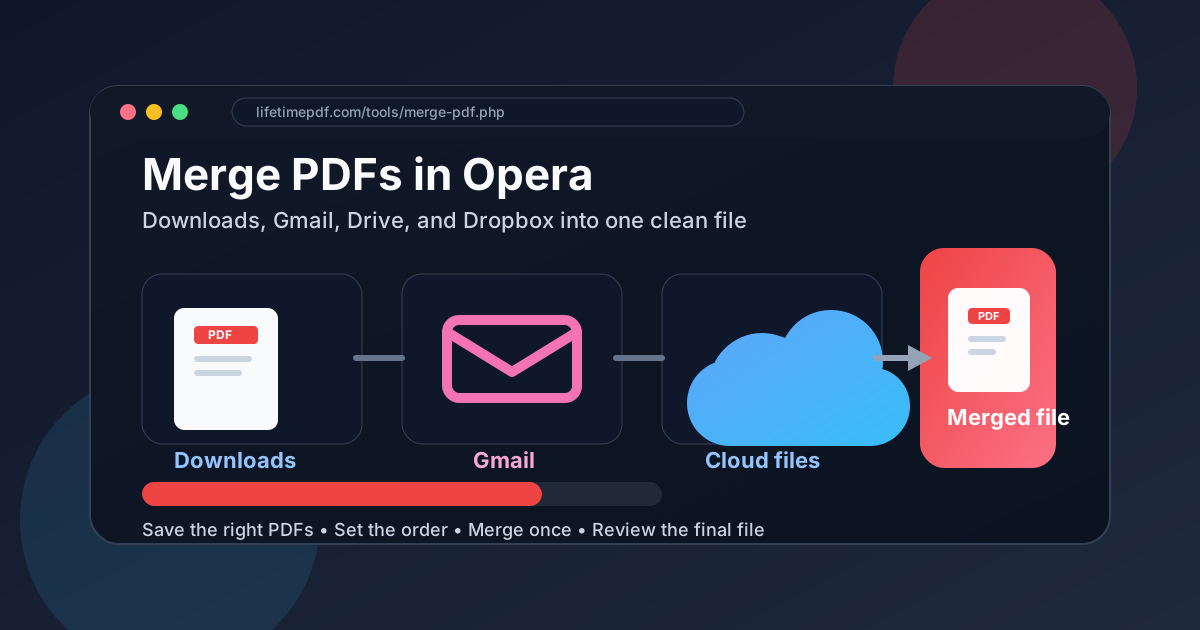
Table of contents
- Quick start: merge PDFs in Opera in a few minutes
- Why Opera works well as the starting point
- Step-by-step: merge PDFs in Opera
- How to pull files from Downloads, Gmail, Google Drive, Dropbox, and local folders
- What to do with scans, screenshots, and image-based sources
- How to avoid duplicate downloads and keep the file order sane
- What to do if Opera's privacy or ad blocking gets in the way
- What to do if the merged PDF is too large or still needs cleanup
- Related LifetimePDF tools and guides
- FAQ
Quick start: merge PDFs in Opera in a few minutes
If the files are already proper PDFs and you just need one clean final document, this is the Opera workflow most people actually want:
- Open Merge PDF in Opera.
- Choose the source files from Downloads, a local folder, or saved copies from Gmail, Google Drive, or Dropbox.
- Arrange the documents in the exact order another person should read them.
- Run the merge and download the combined PDF.
- Open the finished file once and check the first pages, one middle section, and the ending before you upload or send it anywhere.
Why Opera works well as the starting point
Opera is often where PDF work begins. A form comes through Gmail. A contract sits in Google Drive. A signed packet lives in Dropbox. Another file lands in Downloads after a portal export. Turning those scattered pieces into one final packet is exactly the kind of browser-heavy task Opera feels well suited for.
The catch is that Opera's built-in PDF viewer is still mainly a viewer. It is useful for opening, checking, printing, and saving PDFs, but it does not combine several separate files into one finished document by itself. The merge step still needs a proper tool inside the browser.
| Method | Best for | Where it struggles |
|---|---|---|
| Opera PDF viewer only | Opening one file quickly and checking whether it is the right document | It can preview PDFs, but it does not combine several files into one final packet |
| Gmail or cloud previews | Spot-checking one attachment or one shared file | Easy to confuse previews, older revisions, and duplicate downloads when you need a polished final packet |
| Opera + Merge PDF | Combining several PDFs from a browser-heavy workflow into one readable file | You still need to choose the correct source files and set the order deliberately |
| Merge first, compress after | Keeping the workflow fast and predictable | Only works if you review the finished packet before you send it |
For most people, the sweet spot is simple: identify the exact PDFs you want, open the merge tool in Opera, combine them in the right reading order, and only then decide whether the finished file needs compression, page cleanup, or one last small fix.
Step-by-step: merge PDFs in Opera
If you want a repeatable Opera routine for contracts, onboarding packets, client handoffs, invoices, school paperwork, travel documents, or signed forms, use this:
- Open the merge tool. Launch Merge PDF in Opera.
- Pick only the files that belong together. Do not throw every vaguely related download or attachment into the same packet just because it came through the same browser session.
- Set the reading order deliberately. Put the main document first, supporting pages after it, and receipts, appendices, or signatures where they make sense for a real reader.
- Run the merge once. Download the finished PDF somewhere obvious so it does not disappear among older Opera downloads with nearly identical names.
- Do one quick review. Open the finished file and check the start, middle, and end before you attach it to email or upload it to a form.
Useful rule: the final order should match how a stranger would read the packet, not the order the files happened to arrive in Gmail, cloud storage, or the downloads list.
If the result looks wrong, do not keep patching the finished file blindly. Go back to the source list, remove the stale download, replace the wrong Gmail attachment, export the correct Drive or Dropbox version, or fix the order and rerun the merge once. A clean rerun is usually faster than rescuing a messy packet afterward.
How to pull files from Downloads, Gmail, Google Drive, Dropbox, and local folders
The most common Opera merge problem is not the tool. It is source confusion. One file opened in Gmail. Another downloaded from a portal. A third came from Google Drive. A fourth came out of Dropbox and now has the same name plus a (1) or (2). If you merge the wrong combination, the final packet becomes confusing fast.
A cleaner approach is to identify the final version of each document before you merge:
- Downloads: useful for recent browser exports, but often full of stale copies and accidental duplicates.
- Gmail attachments: convenient for opening a file quickly, but save the attachment locally if you need a stable copy for final assembly.
- Google Drive and Dropbox: helpful when the file came from shared storage, but confirm you are exporting the right revision.
- Local folders: usually the calmest place to keep the final versions together before you merge.
If you are moving fast, create one temporary folder and place the exact PDFs you want there first. That small habit prevents a surprising number of bad merges because it stops previews, shared folders, downloads, and older attachments from all competing for attention at once.
What to do with scans, screenshots, and image-based sources
Not every file gathered in Opera starts as a proper PDF. Sometimes it is a phone screenshot, a printer scan, a photographed form, or an image exported from a portal. Those items can still belong in the final packet, but they should usually be normalized first.
The easy rule is this: if it is not already a PDF, convert it into PDF before the merge. That keeps the final output more predictable and prevents the combined document from feeling like a random stack of mismatched file types.
If a scanned page is crooked, oversized, or harder to read than the rest of the packet, fix that after you confirm the overall merge is correct. The goal is not perfection before step one. The goal is one coherent final document that you can improve in sensible stages.
If you need that conversion step, use Images to PDF before the merge. It is usually faster than dragging miscellaneous image files into the same workflow and hoping the final packet behaves like a normal document.
How to avoid duplicate downloads and keep the file order sane
The easiest way to ruin a merged PDF in Opera is to assume the newest-looking browser file must be correct. Downloads often create duplicates with slightly different filenames, and cloud exports can lag behind the version you thought you were using. The file that opened last is not always the file you actually want.
Before you merge, answer one question: What should page one of the final packet be? Once that is clear, the rest gets easier. Put the main document first, then supporting pages, then appendices, proofs, receipts, or signatures where they belong in the reading flow.
- Keep the main document first.
- Do not bury the most important file behind attachments just because that is how they arrived.
- Double-check filenames that look nearly identical, especially if Opera saved duplicate downloads with extra numbers.
- Open the finished file once and spot-check the beginning, one middle section, and the ending.
That last review matters. A merged PDF can technically succeed while still being wrong in a human sense. The order can be off, one file can be an older revision, or a duplicate can slip in. Catching that before the upload, signature request, or reply email saves a surprising amount of embarrassment.
What to do if Opera's privacy or ad blocking gets in the way
Opera sometimes protects you so aggressively that a legitimate PDF workflow feels broken. On a trusted site, privacy filters, popup blocking, or ad-blocking settings can occasionally interrupt the part of the process that handles uploads, generated downloads, or the final save step.
That does not mean you should turn protections off everywhere. It means you should treat the trusted PDF tool tab separately from the rest of your browsing. If the site is trustworthy and the workflow is clearly stalling, relax the blocking setting for that tab, retry the merge, then continue normally.
Keep this in perspective though: blocker issues are a troubleshooting step, not the default explanation for every problem. Wrong sources, duplicate downloads, and bad file order are still more common than true browser interference.
What to do if the merged PDF is too large or still needs cleanup
Once the combined PDF is correct, only then decide whether it needs more work. The two most common follow-up problems are size and extra pages.
| If this happens | What to do next |
|---|---|
| The merged PDF is too large for Gmail, a portal, or a client upload form | Use Compress PDF after the merge is already correct |
| The packet contains one blank or unnecessary page | Remove it with Delete Pages |
| One scanned page is sideways | Fix it with Rotate PDF |
| The packet includes an image file instead of a PDF | Convert it first with Images to PDF, then merge again if needed |
Resist the urge to do every cleanup step preemptively. A lot of files are perfectly fine once merged. If the finished PDF opens cleanly, reads in the right order, and uploads without complaint, you are done.
Related LifetimePDF tools and guides
Merge is usually the center of the job, but browser-based PDF work often touches one or two related tools too:
- Merge PDF when the job is one final packet.
- Images to PDF when one source is a screenshot, phone photo, or scan.
- Compress PDF when Gmail or an upload form rejects the file size.
- Delete Pages when the finished packet contains an extra sheet or a blank scanner page.
- Rotate PDF when one page is sideways after the merge.
Related reading on LifetimePDF: How to Merge PDFs in Chrome, How to Merge PDFs in Edge, How to Merge PDFs in Firefox, How to Watermark a PDF in Opera, and How to Edit a PDF in Opera.
Opera shortcut: gather the exact files first, merge once, review once, then use cleanup tools only when the final packet still needs help.
FAQ: How to merge PDFs in Opera
How do I merge PDFs in Opera?
Open a browser-based Merge PDF tool in Opera, choose the files from Downloads, saved Gmail attachments, Google Drive, Dropbox, or local folders, arrange them in the right order, merge them, and save the finished PDF.
Can Opera merge PDFs by itself?
Opera can open, preview, print, and save PDFs, but its built-in viewer does not combine several separate PDF files into one final document by itself. Use a merge tool inside Opera for the actual merge.
Can I merge Gmail attachments and local PDFs together?
Yes. Save the Gmail attachment if needed, then combine it with local PDFs from Downloads, desktop, Drive exports, Dropbox copies, or another folder in one merge workflow.
Why is the merge tool not finishing correctly in Opera?
On a trusted site, Opera's privacy or ad-blocking settings can sometimes interrupt uploads or downloads. If the site is trustworthy and the workflow is stalling, relax the blocking setting for that tab and retry.
What should I do if the merged PDF is too large to send?
Keep the merged document if the content and order are correct, then compress the finished PDF. That is usually cleaner than guessing which source file caused the size problem before you know whether the packet itself is right.
Published by LifetimePDF — Pay once. Use forever.