How to Extract Images from PDF on Android: Use Files, Chrome, and Save Original Graphics Cleanly
To extract images from PDF on Android, save the file into Files, open a browser-based Extract Images tool in Chrome, choose the PDF, and export the photos, logos, charts, or graphics you actually need.
If the PDF contains real embedded visuals, extraction is usually cleaner than taking screenshots because you are not limited by pinch-zoom, notification bars, or whatever happens to be visible on your phone screen.
That is the short answer. The useful Android answer is knowing when the PDF really contains reusable image assets, when it is smarter to trim the document first, and when to stop fighting a flattened scan and export the whole page instead. A good phone workflow keeps the result sharp, organized, and easy to send onward.
Fastest path: save the source PDF into Files, trim it first if only one page matters, open LifetimePDF's Extract Images tool in Chrome, export the embedded visuals, and switch to full-page export when the document is really one flat scan.
In a hurry? Jump to Quick start: extract PDF images on Android in a few minutes.
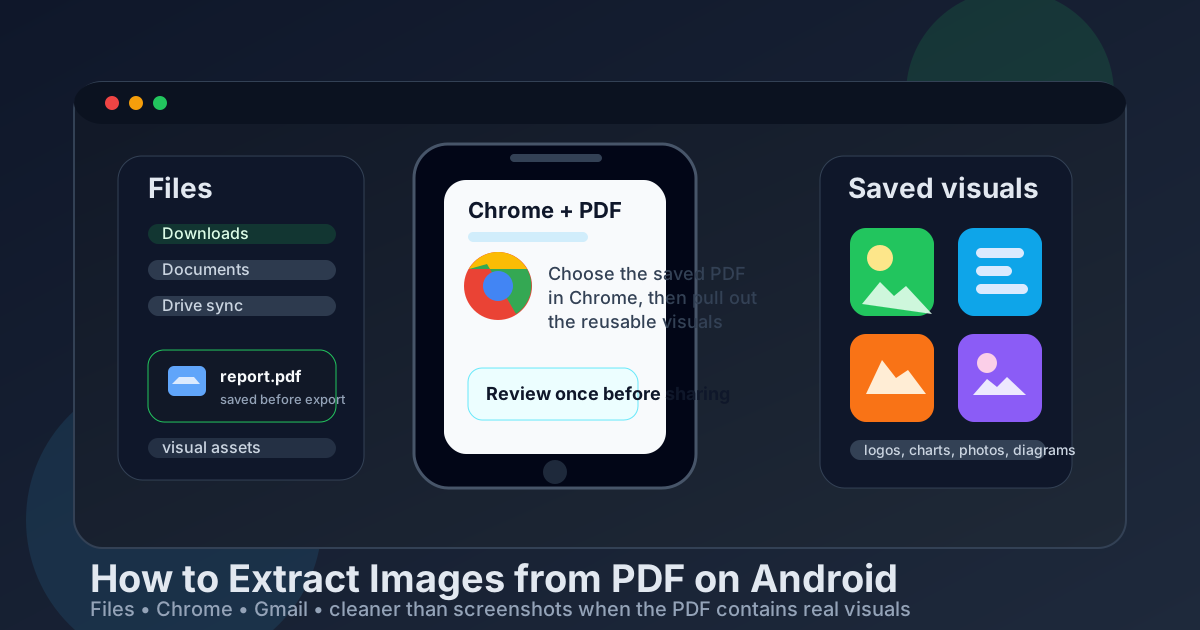
Table of contents
- Quick start: extract PDF images on Android in a few minutes
- The easiest Android workflow for extracting images
- Step-by-step: pull images out of a PDF on Android
- Extract Images vs PDF to Image vs screenshots on Android
- Working with PDFs from Gmail, Drive, WhatsApp, and Downloads
- Common Android problems and quick fixes
- Quality, naming, and reuse tips
- Related LifetimePDF tools and guides
- FAQ (People Also Ask)
Quick start: extract PDF images on Android in a few minutes
If you already know the PDF contains photos, logos, charts, diagrams, or screenshots you want to reuse, this is the fastest dependable Android workflow:
- Save the PDF from Gmail, Drive, WhatsApp, Slack, or your browser into a named folder in Files.
- If only one or two pages matter, use Extract Pages first so you are not pushing a huge PDF through a phone workflow.
- Open Extract Images in Chrome.
- Choose the PDF from Files, Downloads, or Drive, then export the visuals.
- Open one or two output files to confirm you recovered the real embedded graphics. If what you actually need is the whole page, switch to PDF to Image.
That last decision matters. A lot of Android PDFs are not full of separate reusable images. They are mostly text, vector artwork, or one flattened scanned page. In that case, page export is the honest answer and forcing an embedded-image workflow only wastes time.
The easiest Android workflow for extracting images
The best Android workflow is usually: save the source into Files, shrink the document first if necessary, run extraction in Chrome, review the result once, and then name the output clearly before you reuse it in Slides, Docs, Canva, Messages, or another app. That sounds simple because it is, but most messy mobile outcomes come from starting in a temporary preview, skipping page isolation, or assuming every PDF contains clean standalone assets.
- Save the source first. Work from the real file in Files, not a preview pane inside Gmail, Drive, or a chat app.
- Use Extract Images when the PDF really contains embedded visuals. That is when you often keep better quality than screenshots.
- Use Extract Pages when the file is long but only one page matters. Android feels much calmer when you trim a giant report before doing anything else.
- Switch to page export when the document is really one flat image. Scanned handouts, posters, and flattened brochures will not magically behave like a folder full of separate photos.
- Name the output clearly. Phone storage gets confusing fast when everything is called download, image, scan, or final.
Think of extraction as recovering the visual assets already inside the PDF, not as taking a nicer screenshot. If the original chart, logo, or product photo is truly stored in the file, a good Android workflow can keep that asset cleaner than a manual crop from your phone screen.
Practical rule: if you want the original embedded chart, logo, or photo, start with Extract Images. If you want the whole page exactly as it looks, export the page instead.
Step-by-step: pull images out of a PDF on Android
1) Save the PDF into Files somewhere obvious
If the PDF came from Gmail, Drive, Chrome, WhatsApp, Slack, or another app, save it into Files before you do anything else. That one habit prevents a lot of confusion on Android, especially when a preview inside an app is not the same thing as the actual file you want to work from.
Good folder choices include:
- Downloads for a quick one-off task
- Documents or a project folder when the PDF belongs to a presentation, report, or client handoff
- Drive-synced storage when the result also needs to show up on a tablet, Chromebook, or desktop later
2) Trim the PDF first if only one page matters
Large PDFs are annoying on phones. If the chart, photo, or diagram you need lives on only one or two pages, use Extract Pages first. It is easier to inspect a short focused document than to keep scrolling around a long deck or report on a smaller screen.
This is especially helpful for:
- sales decks where only one chart matters
- reports with a single figure you want to reuse
- product sheets where only one page contains the clean hero image
- class PDFs where one diagram matters more than the entire packet
3) Open Extract Images in Chrome
Once the source file is saved, open LifetimePDF Extract Images in Chrome. On Android, this is usually the cleanest no-install workflow when your goal is to recover graphics from a PDF without sending the file to a desktop app first.
Chrome is useful here because it handles the handoff from Files and Downloads smoothly. The result is less fiddly than bouncing between three separate apps and hoping one of them gives you the exact export you want.
4) Choose the PDF, export the visuals, and review once
Select the source PDF from the folder where it actually lives. If the document came from Gmail or Drive, make sure you are using the saved copy rather than a stale attachment preview. Then run the extraction and open one or two output files before you move on.
You are checking two things:
- Did you get the actual pictures, charts, or logos you wanted?
- Did the PDF contain reusable embedded assets, or did it mostly contain page-level visuals that call for a different workflow?
That quick review prevents the usual frustration where somebody assumes extraction failed, when the real issue is that the PDF never contained separate extractable images in the first place.
5) Switch to PDF to Image if you really need the whole page
If the PDF is a scanned worksheet, poster, brochure, certificate, or photographed form and you want the full page as a picture, extraction is not always the right tool. In that case, use PDF to Image so you get a page-level export instead of hoping separate image assets are hiding inside the file.
If the file is a scan and you also need readable text later, pair the workflow with OCR PDF rather than solving only half the problem.
Extract Images vs PDF to Image vs screenshots on Android
These methods sound similar on a phone, but they solve different problems.
| Method | Best for | What to expect on Android |
|---|---|---|
| Extract Images | Recovering logos, photos, charts, diagrams, or other embedded graphics from the PDF | Often cleaner than screenshots when the file contains real source visuals |
| PDF to Image | Turning a whole page into a JPG or PNG | Best when you want the page exactly as rendered, or when the PDF is basically one flat scan |
| Android screenshot | Fast casual captures when perfect quality does not matter | Easy, but limited by zoom, cropping precision, visible toolbars, and whatever is currently on screen |
If the goal is “I need the clean logo from this PDF,” extraction is usually the right first move. If the goal is “I need this whole page as an image,” page conversion is usually better. If the goal is “I just need a rough visual for chat,” a screenshot may be fine, but do not confuse convenient with clean.
Working with PDFs from Gmail, Drive, WhatsApp, and Downloads
Gmail attachments
Save the PDF first instead of relying on the attachment preview. That gives you a real file in Files and makes it much easier to tell the original message attachment apart from whatever result you save later.
Google Drive
Drive is convenient, but it is easy to lose track of whether you are working from the original document, a synced local copy, or a preview inside the app. Save the file deliberately, then label the output clearly so the source and result do not blur together.
WhatsApp, Slack, and other chat apps
Chat previews are convenient, but they are a terrible place to manage a real document workflow. Save the PDF into Files, then work from there so the source and output stay together and easy to find again.
Browser downloads
Downloads is fine for quick work, but it gets messy fast when several files share generic names. If you do more than one extraction job, create a small temporary folder first so the source PDF and exported visuals stay together.
Useful Files habits on Android
- Create a small project folder before you start if the job matters.
- Rename vague source files like scan, attachment, or download immediately.
- Keep the original PDF untouched if you expect follow-up edits or another export pass.
- Delete obviously wrong test exports so the final version is easy to identify later.
Common Android problems and quick fixes
The extracted results are tiny icons or fragments, not the big image I wanted
Some PDFs store decorative fragments, masks, or little UI assets instead of one clean full-size photo. If the real goal is the whole page, switch to PDF to Image instead of forcing extraction to do a job it was never meant to do.
No useful images came out at all
That often means the PDF is mostly text, vector drawings, or one flat scanned page. Extraction is not broken in that situation. The PDF simply does not contain separate embedded images worth pulling out.
The image still looks fuzzy
Sometimes the PDF itself only contains a low-resolution source image. Extraction cannot invent detail that was never there. It can preserve the asset more honestly than a screenshot, but it cannot turn a weak original into a sharp one.
I cannot find the exported files
Check your recent files and the folder where Chrome saved the result, then rename the output immediately once you find it. If this happens often, create a dedicated working folder in Files before you start.
I actually need the text too, not just the image
That is a sign to pair the workflow with OCR PDF. Visual cleanup and text recovery are different jobs, and scanned PDFs often need both.
Need the cleanest next step? Recover the embedded visuals when they are really there, trim the document first when only one page matters, and export the whole page when the PDF is really a scan.
Quality, naming, and reuse tips
The main quality advantage of extraction is that you are not photographing your phone screen. When a PDF contains real embedded visuals, recovering those assets can preserve a cleaner result than what you would get from a zoomed-in screenshot with Android interface clutter around it.
Good naming also matters more than people think. Android becomes chaotic quickly when every export is called image, final, or download. If you are reusing the result in Slides, Docs, social posts, or a design handoff, a folder structure like this is much easier to live with:
- source-pdf/ for the original file
- trimmed-pages/ if you used Extract Pages first
- extracted-images/ for the exported visuals you actually plan to reuse
If the PDF contains sensitive material, remember that extracting one image is not the same thing as sanitizing the original document. If you need to share a cleaned PDF afterward, treat the image workflow and the document-sharing workflow as separate decisions.
Related LifetimePDF tools and guides
If extracting images is only one step in the job, these tools and guides fit naturally around the workflow:
- Extract Images for recovering embedded graphics from the PDF.
- Extract Pages when only one or two pages contain the visual you need.
- PDF to Image when the real job is exporting the whole page as a JPG or PNG.
- OCR PDF if the source file is a scan and you also need searchable text.
- Extract Images from PDF for the broader non-device guide.
- How to Extract Pages from PDF on Android when you want to isolate the exact page before recovering visuals.
- How to Extract Images from PDF on iPhone for the parallel Apple phone workflow.
- How to Extract Images from PDF on Windows if the job becomes easier on desktop.
- Lifetime Access if you want a long-term PDF toolkit without recurring subscription pressure.
The real win is repeatability: save the source, choose deliberately between embedded-image recovery and full-page export, and label the result clearly before you move on.
FAQ (People Also Ask)
How do I extract images from PDF on Android without installing an app?
Save the PDF into Files, open a browser-based Extract Images tool in Chrome, choose the file from Files or Drive, export the visuals you need, and review one or two results before sharing them. That is usually the quickest no-app workflow on Android.
Will extracting images from a PDF on Android keep better quality than screenshots?
Often yes. If the PDF contains real embedded photos, charts, or logos, recovering those visuals can be cleaner than an Android screenshot, which depends on zoom level, cropping, and whatever interface elements are visible on screen.
Why does my Android PDF not give me useful separate images?
Some PDFs are mostly text, vector artwork, or one flattened scan rather than separate reusable images. In that case, exporting the whole page or running OCR is usually more useful than expecting standalone graphics to appear.
What is the difference between Extract Images and PDF to Image on Android?
Extract Images pulls out pictures already stored inside the PDF. PDF to Image creates a new image from the whole page. If you want the original embedded chart, logo, or photo, extraction is usually better. If you want the full page exactly as rendered, export the page instead.
Can I do this with PDFs from Gmail, Google Drive, or WhatsApp on Android?
Yes. Save the PDF into Files first, then work from that saved copy so the source and output stay organized. That avoids confusion when chat apps, downloads, and synced folders all hold similar-looking files.
Ready to pull reusable graphics out of a PDF? Use LifetimePDF to recover embedded images cleanly, isolate only the pages that matter, or export the whole page when that is the result you actually need.