How to Delete Pages from a PDF in Brave: Remove Extras from Downloads, Attachments, and Cloud Files Without Saving the Wrong Copy
To delete pages from a PDF in Brave, open LifetimePDF's Delete Pages tool in Brave, upload the PDF from Downloads, a saved email attachment, a portal export, or a synced cloud folder, remove the pages you do not want, and download the cleaned copy.
If you only need one part of a larger document, Extract Pages is usually faster than deleting most of the file page by page.
That is the short answer. The part that actually saves time in Brave is keeping the real source file straight when you have a preview tab, a downloaded copy, and a synced-folder version all sitting in the same browser session.
Fastest path: start from the exact PDF you plan to keep, open LifetimePDF's Delete Pages tool in Brave, remove the extra pages in one pass, then save the final file with a name that clearly marks it as the cleaned version.
In a hurry? Jump to Quick start: delete PDF pages in Brave in a few minutes.
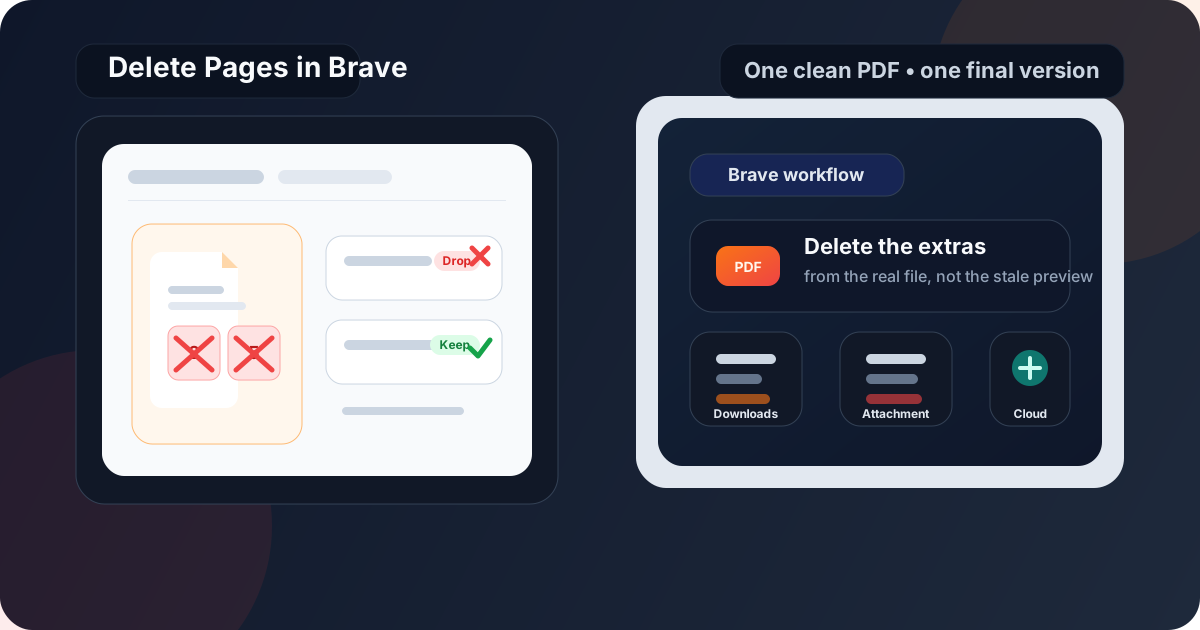
Table of contents
- Quick start: delete PDF pages in Brave in a few minutes
- Why Brave is a useful PDF staging area but not a page-removal tool by itself
- Step-by-step: how to delete pages from a PDF in Brave
- Delete Pages vs Extract Pages vs Split PDF in Brave
- How to handle Downloads, saved attachments, portal exports, and synced cloud folders without cleaning the wrong copy
- Best Brave use cases for deleting PDF pages
- Common Brave mistakes and quick fixes
- Quality, privacy, and final-file tips
- Related LifetimePDF tools and guides
- FAQ
Quick start: delete PDF pages in Brave in a few minutes
If you already know which pages should go, this is the cleanest Brave workflow for most people:
- Open Delete Pages in Brave.
- Choose the PDF from Downloads, a saved attachment, a portal export, or a synced cloud folder.
- Check the real PDF page order before removing anything.
- Delete the unwanted pages or page ranges in one pass.
- Download the cleaned PDF, rename it clearly, and open it once to confirm the result.
The click itself is easy. The part that prevents mistakes is making sure you edit the right file. In Brave, a live preview tab and a downloaded copy can look identical while still being different versions.
Why Brave is a useful PDF staging area but not a page-removal tool by itself
Brave is a practical place to review PDFs because it opens files quickly, keeps download history easy to reach, and usually already has the attachment, portal, or cloud tab you started from. That makes it a good browser for deciding what should stay and what should go.
The limit is simple: Brave's built-in PDF viewer can show the document, but it does not actually remove pages from the file. You still need a real page-removal workflow. The smoothest pattern is to keep Brave as your workspace and use a browser-based Delete Pages tool for the actual cleanup.
In practice, the safe sequence is short:
- identify the exact PDF you want to keep,
- remove the pages that do not belong,
- save the cleaned copy with a distinct name,
- open the result once before you upload, email, or forward it.
That routine prevents most of the avoidable mistakes people make when they are moving quickly between preview tabs, duplicate downloads, synced folders, and lookalike filenames.
| Starting point | Best move in Brave | Why it helps |
|---|---|---|
| Mail or webmail preview | Save the attachment first, then clean that saved file | You avoid editing one copy while accidentally sending another copy from the inbox tab later. |
| Portal export | Download the official PDF and rename the cleaned result | Portals often regenerate files, so a clear final filename prevents mix-ups. |
| Synced cloud folder | Wait for sync to finish, then edit the local PDF once | That reduces the chance of cleaning an older offline copy or overwriting the wrong version. |
| Downloads folder | Keep the original and cleaned file names obviously different | Brave often saves duplicates with small naming changes, which makes clear labels worth the extra second. |
Step-by-step: how to delete pages from a PDF in Brave
Here is the careful version when the document matters and you do not want to clean the wrong copy.
1. Start from the source you trust most
If the PDF came from email, a portal, or a cloud folder, decide which file is the real source before you upload anything. A browser preview is useful for checking the document, but the best editing starting point is usually the saved PDF you can clearly locate again after the job is done.
2. Open Delete Pages inside Brave
Go to LifetimePDF Delete Pages in Brave and upload the document. Keeping the whole flow inside one browser is convenient because you can compare the original, the tool, and the finished file without changing devices or jumping between apps.
3. Confirm the page order before removing anything
This matters more than people expect. Check the actual PDF page sequence, not just the printed page numbers inside the document. Appendices, cover sheets, and scanned inserts can shift the order, which is how people end up deleting the wrong section even when they knew what they wanted to remove.
4. Remove unwanted pages in one clean pass
Delete blank pages, duplicate scans, outdated terms, extra exhibits, or the exact range that should not stay in the final file. If most of the document needs to disappear and you are only keeping a short section, switch to Extract Pages instead. It is usually less error-prone than deleting page after page.
5. Save the result with a name that makes the final version obvious
Brave is excellent at surfacing your recent downloads, but that also makes near-duplicate filenames easy to overlook. Rename the cleaned PDF immediately with something that tells you what changed, such as contract-cleaned.pdf or proposal-no-appendix.pdf.
6. Reopen the finished PDF once before sharing
Open the cleaned file in Brave and verify three things: the unwanted pages are gone, the remaining pages are in the right order, and the final version is the one you are about to send or upload. That last review catches most mistakes while they are still easy to fix.
Need the fastest cleanup flow? Delete the extra pages first, then compress or protect the final file only if you actually need those steps.
Delete Pages vs Extract Pages vs Split PDF in Brave
These tools sound similar, but they solve slightly different problems:
| If you want to... | Best tool | Why |
|---|---|---|
| Remove a few pages from an otherwise correct PDF | Delete Pages | You keep the original structure and only remove what should not stay. |
| Keep only one section from a larger document | Extract Pages | It is usually faster and simpler when most pages are being discarded. |
| Turn one PDF into several smaller files | Split PDF | Best when each section needs to become its own separate file. |
A quick rule of thumb works well: Delete Pages when the file is mostly right, Extract Pages when you are keeping only a portion, and Split PDF when one document needs to become several clean deliverables.
How to handle Downloads, saved attachments, portal exports, and synced cloud folders without cleaning the wrong copy
Most Brave problems are really file-management problems. The browser is fine. The confusion comes from having several believable copies open at once.
Downloads
Downloads are the safest starting point when you know the file is current. The main risk is duplicate naming. If Brave saves a second copy with a small suffix, rename the cleaned result right away so you are never guessing which version is final.
Saved attachments
For Gmail, Outlook, and similar inbox workflows, save the PDF before you clean it. Mail previews are convenient for confirming the document, but the saved file is usually the better editing target because you can locate it, rename it, and attach the exact same copy later.
Portal exports
Portals for billing, HR, procurement, legal, or client sharing often regenerate PDFs on demand. Download the export you intend to keep, clean that file, and avoid relying on a tab that may refresh into a slightly different version later.
Synced cloud folders
If the file lives in Google Drive, Dropbox, OneDrive, or another synced folder, make sure the local version is fully synced before editing it. When the cleaned file is ready, give it a distinct name so the original and the final copy can coexist without confusion.
One practical rule covers almost everything: preview anywhere, edit one specific saved PDF, then share the clearly named final file.
Best Brave use cases for deleting PDF pages
Brave is especially handy for this workflow when you are doing one of the following:
- removing blank scan pages before sending a document onward,
- cutting outdated appendices, covers, or exhibits from a proposal or packet,
- cleaning a downloaded contract or statement before storing the final copy,
- reducing clutter before you compress the PDF,
- preparing a smaller, cleaner upload for a portal that only needs part of the original document.
In other words, Brave is a good fit whenever the document already reached you through the browser and you want the cleanup step to stay just as simple.
Common Brave mistakes and quick fixes
- Cleaning a preview instead of the saved file: save or locate the real PDF first, then edit that specific copy.
- Deleting by printed page number instead of PDF page order: confirm the page sequence inside the tool before removing anything.
- Keeping the original and final file names too similar: rename the cleaned PDF immediately so the final version is obvious.
- Deleting too much when you only need one section: use Extract Pages instead.
- Sending the file without reopening it: take ten seconds to open the result once and verify the right pages remain.
Those five checks prevent almost every avoidable page-removal mistake people make in browser-based workflows.
Quality, privacy, and final-file tips
Deleting pages should not hurt the readability of the pages that remain, but it is still smart to review the finished file once. Make sure forms, signatures, and page order still look right before you archive or share the document.
If the cleaned PDF is still too large, compress it after you finish the page cleanup so you are only shrinking the version you actually plan to keep. If the document still contains sensitive information, protect it before sending it onward.
- Compress PDF when the final file is still too large.
- Protect PDF when the cleaned copy still contains sensitive material.
- Keep the original file until you confirm the final version was uploaded, shared, or archived correctly.
Related LifetimePDF tools and guides
Deleting pages is usually one step inside a bigger Brave-based PDF workflow. These tools and articles pair well with it:
- Delete Pages — remove the pages that do not belong.
- Extract Pages — keep only the section that matters.
- Split PDF — turn one large PDF into several smaller files.
- Compress PDF — reduce size after cleanup if the final file is still too large.
- Protect PDF — secure the cleaned copy before sharing it onward.
- Delete Pages from PDF — broader guidance for the overall workflow.
- How to Split PDF in Brave — useful when one file needs to become several.
- How to Compress a PDF in Brave — helpful when the cleaned file still needs to get smaller.
Quick decision: remove a few pages with Delete Pages, keep only a few with Extract Pages, or turn one file into several with Split PDF.
FAQ: How to delete pages from a PDF in Brave
Can Brave delete pages from a PDF by itself?
Not by itself. Brave is great for previewing PDFs, but a browser-based Delete Pages tool is the part that actually removes pages from the file.
What is the easiest way to delete pages from a PDF in Brave?
Open a Delete Pages tool in Brave, upload the source PDF from Downloads, a saved attachment, a portal export, or a synced cloud folder, remove the pages you do not want, save the cleaned copy, and review it once before sharing.
When should I use Extract Pages instead of Delete Pages in Brave?
Use Extract Pages when you only want to keep a small section from a larger PDF. Use Delete Pages when the document is mostly correct and you only need to remove a few unwanted pages.
Can I delete pages from a Gmail attachment or cloud-sync folder in Brave?
Yes, but save or locate the exact PDF first. A mail preview, a downloaded copy, and a synced-folder version can all look similar while still being different files.
What if Brave keeps giving me duplicate downloads or an old preview tab?
Rename the cleaned PDF immediately, close stale preview tabs, and reopen the final file from its saved location. That makes it much harder to resend the original by mistake.
Published by LifetimePDF — Pay once. Use forever.