How to Check PDF Tables on iPhone: Files, Acrobat, and Column Order Before You Share
To check PDF tables on iPhone, save the final file into Files or open it in Acrobat, confirm the table has selectable text, and compare the visible layout with copied or extracted output so you can catch broken headers, merged-cell confusion, and column-order failures before you share it.
If the data only makes sense while you stare at the page design, or the file behaves like a scan, the safest fix is usually to run OCR first or repair the source document and export a cleaner PDF.
That is the short iPhone answer. The useful answer is that a table can look calm in Files, Mail preview, Safari preview, or Acrobat and still be structurally weak underneath. On iPhone, that usually shows up when a repeated header disappears in copied text, a merged label stops telling you which values it belongs to, or a statement that looked tidy on screen turns into scrambled columns the moment you extract it.
Fastest practical path: save the real iPhone copy, confirm the text layer, test one header row in extraction, inspect the densest table in the file, and fix the source if the relationships only work inside the visual grid.
In a hurry? Jump to quick start: check PDF tables on iPhone in about 7 minutes.
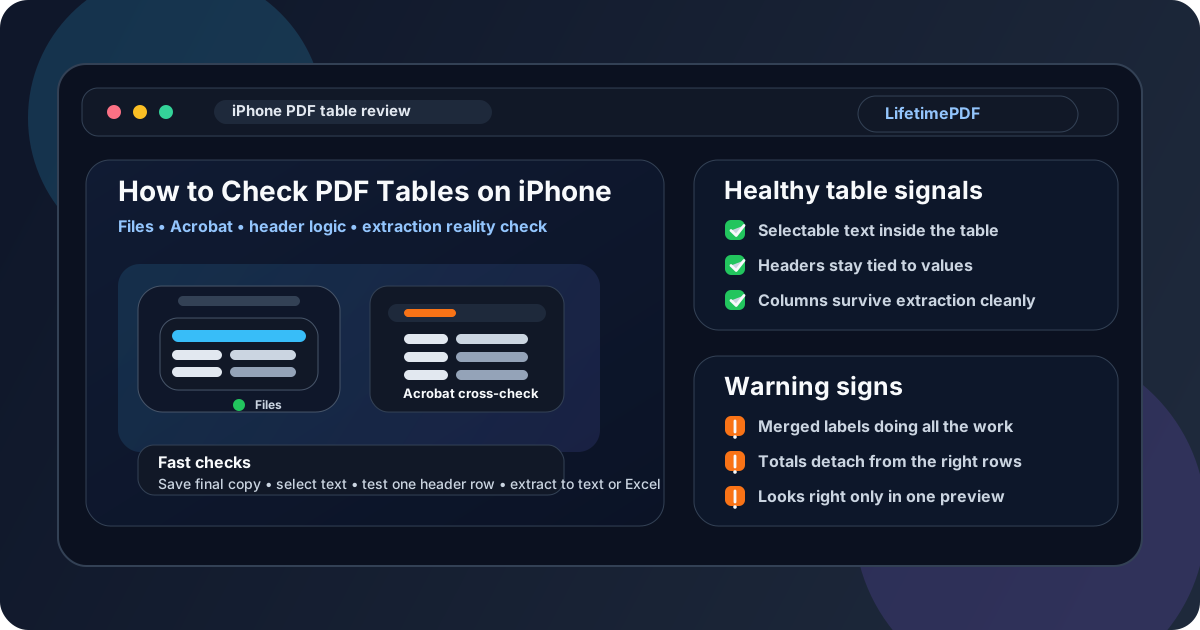
Table of contents
Quick start: check PDF tables on iPhone in about 7 minutes
If your real goal is simply tell me whether this iPhone PDF table is trustworthy before I send it, use this order:
- Open the exact PDF you plan to email, upload, archive, print, publish, or share, not only a temporary preview from Mail, Messages, Safari, or a cloud-drive tab.
- Try selecting text, searching for a visible value, and copying one header row. If that fails, the file may be image-only and should be OCRed before you judge the table.
- Compare the visual page with PDF to Text or PDF to Excel so you can see whether rows, columns, and labels stay connected.
- Check the places that fail first: repeated headers, merged cells, subtotal rows, notes below a table, and later pages in a long statement or report.
- If the table logic collapses outside the visual grid, repair the source file and export a cleaner PDF instead of trusting the current iPhone preview.
What you are really checking on iPhone
Checking PDF tables on iPhone is not only asking whether the grid lines look straight on a small screen. The more useful question is whether the table preserves relationships: which header belongs to which value, which total summarizes which group, and whether notes or qualifiers still stay attached to the right rows when the layout becomes secondary.
That matters for accessibility, but it also matters for ordinary work. People review statements on phones, paste values into messages, export PDFs into spreadsheets, feed documents into AI tools, and forward files from mobile devices all the time. If the table falls apart outside its original design, the PDF becomes less trustworthy even if it looked tidy in Files.
Good outcome
The table has selectable text, headers still explain the data, and copied or extracted output follows the same logic you saw on screen.
Warning outcome
The page looks neat in Files or Acrobat, but copied data loses the header context or jumps between columns once the grid disappears.
Typical root cause
The source relied too heavily on visual layout, decorative merges, or a scan-derived table that never became a healthy text-based structure.
Where iPhone users get misled
iPhone makes it easy to glance at a PDF quickly. That convenience is useful, but it also creates false confidence. A table can look finished in Files, Acrobat Reader, Mail preview, or a cloud-drive viewer and still be structurally weak underneath.
| iPhone viewing path | What it is good for | What it cannot safely prove |
|---|---|---|
| Files preview or a quick browser preview | Confirming the file opens, the pages broadly look right, and the table is readable at a glance. | That the headers, merged cells, totals, and columns still behave correctly once the data is copied or extracted. |
| Acrobat Reader on iPhone | A useful second opinion when you want to inspect a dense report, statement, or scan more carefully. | You still need extraction or accessibility-oriented review to prove the table structure is healthy beyond appearance. |
| Mail, Messages, or cloud-drive preview | Useful for a fast first pass and confirming you have the right file. | These previews can hide whether the final downloaded copy still has stable header logic and clean column order. |
| Copied or extracted text/data | Revealing whether the real table relationships survive when the page design stops protecting them. | It does not explain every structural cause, but it tells you quickly whether the table is trustworthy. |
Step-by-step: how to check PDF tables on iPhone
This workflow gives you a dependable answer without turning a quick iPhone review into a giant remediation project.
Step 1: Start with the final iPhone copy
Review the exact file you plan to send onward. If the PDF is still inside Mail preview, Messages preview, Safari, or a cloud-drive thumbnail, save the real copy into Files first. A table check only matters when you inspect the same PDF that will actually leave your phone.
Step 2: Confirm the text layer before you judge the table
A useful table check depends on real text. Try selecting values, searching for a visible label, or copying a header row. If the table behaves like a picture, run OCR PDF first. OCR is not a guarantee of perfect structure, but it turns a picture of a table into something you can actually inspect.
Step 3: Compare the visual layout with extracted output
This is the step that exposes most hidden trouble. Look at the table in Files or Acrobat, then compare it with copied or extracted output. If the visible grid suggests one clean sequence but the extracted output separates a header from its values or stitches unrelated cells together, the table is weak even if the page looked polished.
If you want the broader non-platform explanation too, the companion guide Check PDF Tables goes deeper into the underlying logic.
Step 4: Inspect the table features that usually fail first
On iPhone, these are the patterns that deserve your first attention:
- multi-page tables where the header repeats on later pages,
- merged cells used to group categories or date ranges,
- subtotals and grand totals near the bottom of a section,
- notes or qualifiers that sit below a table but belong to specific rows,
- scan-derived invoices, statements, schedules, or receipts,
- dashboard exports and financial summaries that look neat but are fragile in extraction.
Step 5: Use extraction and accessibility review together
Extraction tells you quickly whether the table still behaves like data. A broader check with PDF Accessibility Checker helps surface wider structure issues that often travel with weak tables. In real files, table problems often appear alongside reading-order, heading, or tagging trouble.
Step 6: Decide whether OCR or source repair is the next move
If the file is scan-based, OCR comes first. If the text exists but the table structure is still weak, the better answer is often to recover editable content, fix the spreadsheet, report, or source document, and export again instead of endlessly patching a damaged final PDF.
Reliable sequence: final iPhone copy → verify text → compare extracted output → inspect repeated headers and totals → OCR scans or rebuild the source → retest the finished PDF.
Fast signs that the table is weak
These are the patterns that matter in real iPhone workflows, not only in theory.
| What you notice | What it usually means | Best next move |
|---|---|---|
| Copied text loses the header context | The table looks neat visually, but the relationship between labels and values is not surviving extraction. | Review the header logic and fix the source layout or export settings. |
| Values jump between columns or combine strangely | The internal reading sequence is not following the visual order of the table. | Retest with extraction, then repair the source if the pattern repeats. |
| Merged labels float away from the rows they describe | Decorative merges are doing more work than the structure can support. | Reduce the dependence on merges and make grouping clearer upstream. |
| Totals or notes feel detached from the table | Subtotals, grand totals, or footnotes are no longer tied cleanly to the right section. | Rework placement and test the exported PDF again before sharing it. |
| The page looks fine, but extraction feels chaotic | The visual layout is hiding weak structure. | Treat the problem as real and stop trusting the preview alone. |
Healthy default
If the PDF table only feels coherent in the prettiest viewer and starts making less sense once the content leaves the page design, the structure is not healthy enough yet.
When to fix the source versus patch the PDF
Not every iPhone table problem deserves the same response. The useful question is whether the PDF is close enough to healthy that a light cleanup makes sense, or whether the structure is weak enough that the source file is the only sane place to fix it.
Patch lightly or leave the PDF alone when
- the extracted output is mostly logical and only one small section is noisy,
- the file is already near the end of a workflow and the source is unavailable,
- the issue is narrow enough that a full rebuild would be wasted effort.
Fix the source and re-export when
- multiple tables scramble headers, notes, totals, or columns,
- the PDF came from Excel, Numbers, Sheets, Word, Pages, or a report builder you still control,
- scans, tables, and reading-order issues all show up at once,
- the document will be published, reused, translated, summarized, archived, or reviewed for accessibility seriously.
My practical opinion: if the file matters to more than one person or more than one workflow, fixing the source once is usually cheaper than hoping every downstream tool guesses the intended relationships correctly.
FAQ
How do I check PDF tables on iPhone?
Save the final PDF on iPhone, confirm it has selectable text, then compare what you see in Files or Acrobat with copied or extracted output. If headers, rows, or totals lose context, the table needs work.
Can Files or Acrobat prove that the table structure is correct?
Not by themselves. They are useful for visual review, but the stronger test is whether the table still behaves correctly when you extract data or run an accessibility-oriented check.
What is the fastest sign of a weak PDF table on iPhone?
The fastest signs are copied text that loses the header context, values that jump between columns, merged labels that detach from the right rows, or one scan-heavy page that behaves like a picture instead of live text.
Should I OCR a scanned PDF before checking tables?
Usually yes. OCR gives the file a usable text layer, which makes a real table review possible instead of forcing you to judge a picture of a table.
Should I fix the PDF directly or repair the source file?
If the issue is broad or repeats across several pages, fix the source file first. A clean re-export from Excel, Numbers, Sheets, Word, Pages, or another editable source is usually more reliable than repeated patching of the final PDF.
Published by LifetimePDF — Pay once. Use forever.