How to Check PDF Page Labels on iPhone: Files, Mail, and Numbering Checks Before You Share
To check PDF page labels on iPhone, save the final PDF in Files, open it in a workflow that makes page jumps easy, and compare the numbering readers see with the file's real physical page order.
If a cover page, Roman-numeral front matter, merged insert, or appendix changes the visible numbering, catch that before you cite, print, upload, AirDrop, or share the file so everyone lands on the same page.
That is the fast answer. The useful iPhone answer is that page-label mistakes are easy to miss on a small screen because the PDF still looks calm in Files, Mail, Messages, Safari, or a cloud preview. The confusion shows up later when one person says “go to page 12,” another jumps to the twelfth physical sheet in an editor, and both people assume the other one is wrong. A short iPhone page-label review prevents that quiet mess before the file leaves your phone.
Fastest practical path: save the exact iPhone copy, identify the real page order, compare it with the labels shown in the viewer, then fix the structure or numbering only after you know where the mismatch starts.
In a hurry? Jump to quick start: check PDF page labels on iPhone in about 5 minutes.
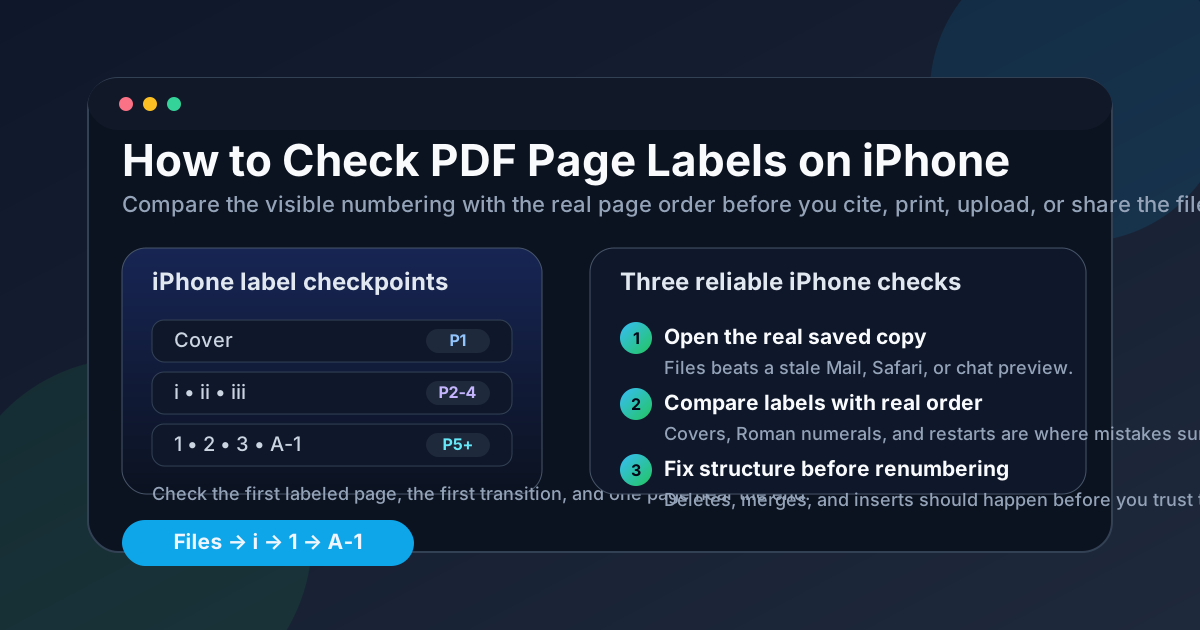
Table of contents
- Quick start: check PDF page labels on iPhone in about 5 minutes
- What PDF page labels actually mean on iPhone
- Where iPhone previews hide numbering problems
- A practical iPhone page-label workflow
- Common iPhone numbering mismatches and what they usually mean
- What to fix before you renumber anything
- Related LifetimePDF tools and guides
- FAQ
Quick start: check PDF page labels on iPhone in about 5 minutes
- Save the exact file locally. Do not trust only a Mail preview, Safari tab, Messages attachment, or cloud thumbnail if the final PDF might be different.
- Open it in an iPhone PDF workflow with clear page navigation so you can move between page jumps or thumbnails quickly enough to compare numbering.
- Find the physical page order first. Count the real opening sheets so you know where the file truly starts before you trust the reader-facing labels.
- Check the first visible label. If the PDF begins with a cover, the first label may be blank, i, or 1 depending on how the file was built.
- Check every numbering transition. Front matter often uses Roman numerals, the main body may restart at 1, and appendices can switch to A-1, A-2, or similar styles.
- Test one page deep in the last section. A PDF can look correct at the front and still break after a merge, delete, or inserted packet later in the file.
The shortest reliable iPhone test
Compare three checkpoints:
- the first labeled page
- the first numbering transition
- one page inside the last section
If those three points line up, your page labels are usually safe enough for citations, extraction, printing, uploads, and review workflows.
What PDF page labels actually mean on iPhone
iPhone does not change the underlying logic of a PDF. The file still has a physical internal page order, but the labels visible to the reader may tell a different story. That difference is normal when the structure is deliberate and a problem when it is accidental.
For example, a file may physically contain fifteen sheets, but the reader-facing numbering can look like this:
| Physical PDF page | Visible label on iPhone | Why it happens |
|---|---|---|
| 1 | Cover or no visible number | A title page or cover sits outside the main numbering. |
| 2-4 | i, ii, iii | Front matter uses Roman numerals. |
| 5 | 1 | The main body restarts with Arabic numbering. |
| 12 | A-1 | An appendix or exhibit section uses its own label style. |
That setup is fine if it is intentional. The real risk is assuming that page label 12 always means physical PDF page 12 on iPhone. Often it does not.
Where iPhone previews hide numbering problems
iPhone gives you several quick ways to open a PDF, but those paths do not prove the same thing. Some are good for confirming you saved the right file. Fewer are good for proving the numbering readers see still matches the true page order.
| iPhone path | What it is good for | What it cannot safely prove |
|---|---|---|
| Files or Downloads | Confirming you opened the real outgoing file instead of a temporary preview. | That the visible numbering and the physical page order are still in sync throughout the whole document. |
| Mail, Messages, Safari, or cloud preview | Quickly spotting whether the PDF opens and looks broadly normal. | Whether the label transitions make sense once covers, Roman numerals, restarts, or appendices are involved. |
| A fuller PDF workflow on iPhone | Comparing page jumps, thumbnails, and visible numbering more deliberately. | It will not fix the labels by itself, but it gives you a much better read on where the mismatch begins. |
| After a merge, delete, or insert | A good moment to re-check the numbering before sharing the new version. | That the old labels survived the structural changes automatically. |
The common false assumption
If the PDF looks fine on a phone screen, many people assume the numbering must also be fine. On iPhone, that is exactly how mismatched page labels survive into reports, court packets, manuals, school handouts, and client files.
A practical iPhone page-label workflow
This workflow is quick enough for everyday document QA and strong enough for the PDFs people argue about later.
1) Start with the exact outgoing iPhone copy
Do not inspect only a preview card if another saved file is the one actually headed to a client, portal, printer, archive, or teammate.
2) Open a page-navigation-friendly workflow
Use an iPhone PDF workflow that makes page jumps or thumbnails easy enough that you can compare visible labels with the real sheet order instead of guessing.
3) Count the opening sheets before trusting page 1
Covers, title pages, scanned inserts, and front matter are exactly where iPhone page-reference confusion usually starts.
4) Check the first transition carefully
The move from cover to Roman numerals, Roman numerals to digits, or digits to appendix labels is where most quiet numbering errors reveal themselves.
5) Jump into the last section once
Late merges, deleted pages, and inserted packets often leave the front of the PDF looking correct while the final section drifts out of sync.
6) Fix structure first, labels second
Delete, split, or merge pages before you renumber. Otherwise you may repair a numbering pattern that breaks again after the next edit.
Reliable sequence: save the real iPhone file → identify the physical page order → compare visible labels → check the first transition and last section → fix structure → then verify or repair numbering.
Common iPhone numbering mismatches and what they usually mean
| What you notice on iPhone | What it usually means | Best next move |
|---|---|---|
| Page 1 appears after several opening sheets | A cover page or front matter sits before the main body. | Check whether that shift is intentional before you cite or renumber anything. |
| The PDF jumps from iii to 1 | Roman numeral front matter ends and the main section begins. | Usually fine, but verify the exact transition page carefully. |
| The last section restarts with A-1 or B-1 | An appendix or exhibit section uses its own label style. | Make sure bookmarks, headings, and instructions use the same scheme. |
| A quoted page reference does not match the sheet someone else opens | Visible labels and physical page order are out of sync in practice. | Re-check the label transitions before you send feedback, extract pages, or share the file. |
| The numbering made sense before a merge but not after | Inserted or combined PDF sections broke the original numbering logic. | Rebuild the structure, then verify or reapply labels on the finished iPhone copy. |
Sharing from a phone
The biggest risk is sending a file that looks fine in preview but causes confusion the moment somebody references a page number in email, text, or chat.
Printing or uploading
Wrong numbering wastes time when someone needs the right sheet fast, especially for packets, forms, exhibits, or review workflows with page-specific instructions.
Merged packets
This is where page labels drift most often. The file still opens cleanly, but the numbering map now belongs to an older version.
What to fix before you renumber anything
Renumbering feels like the obvious fix, but on iPhone it is often the last fix, not the first one. If the file still has pages to delete, inserts to move, scans to split, or sections to merge, finish that structure work first.
- Delete obvious junk pages first. Blank scans, duplicate covers, and stray exports should not survive into the final numbering pass.
- Merge sections into their final order before checking labels again. Otherwise you may repair a numbering pattern that breaks the moment a new section is inserted.
- Keep bookmarks, table of contents, and page labels aligned. If one says Appendix A starts at A-1 and another says 47, readers stop trusting the file fast.
- Reopen the saved final PDF once. That last verification catches the classic mistake where the fix happened in one copy but not in the iPhone file you actually sent.
Good sequence for most iPhone workflows: clean the page order, merge or split as needed, verify labels, then apply page numbering if the finished file still needs it.
FAQ
How do I check PDF page labels on iPhone?
Save the PDF locally in Files, open it in a workflow that makes page jumps easy, and compare the numbering readers see with the file's real physical page order. Focus on covers, front matter, numbering restarts, and appendix sections.
Are PDF page labels the same as the real page count on iPhone?
No. The physical page count and the visible labels can diverge whenever the PDF uses covers, Roman numerals, numbering restarts, or appendix styles such as A-1.
Why does page 1 in an iPhone PDF sometimes start after several opening sheets?
Because the file may begin with a cover page, title page, or Roman-numeral front matter. The first main-content page can be labeled 1 even when it is not the first physical sheet in the PDF.
Can Files or Mail show PDF page labels clearly on iPhone?
They are useful for opening the exact saved file and spotting obvious issues, but many previews are too limited to judge numbering quality well. A fuller PDF workflow is better when you need to compare labels with the real page order.
Should I fix page labels before merging or deleting pages on iPhone?
Usually no. Finalize the page order first, then verify or repair the labels. If you renumber too early, later edits can break the label sequence again.
Trust the page reference only after you verify the label logic.
On iPhone, a PDF can look perfectly normal while still confusing reviewers, printers, or teammates with mismatched page labels. Check the transition points, fix the structure first, and only then lock in the final numbering.
Published by LifetimePDF — Pay once. Use forever.