How to Check PDF Page Count on Chromebook: Chrome, Files, and the Real Total Before You Share
To check PDF page count on Chromebook, save the final PDF into Files or Downloads, open the exact copy in Chrome or another thumbnail-aware viewer, and confirm the real total number of pages instead of trusting the last visible page number alone.
If Chrome shows page 9 but the file really has 10 pages, the PDF may be perfectly correct and simply include an unnumbered cover, divider page, or section restart.
That is the fast answer. The useful Chromebook answer is that neat browser previews make people trust the file too quickly. A PDF can look finished in Gmail, Drive, Classroom, Files, or Chrome while still hiding a blank scan, a duplicate insert, a missing merged page, or visible numbering that starts after a cover sheet. One calm page-count check before the file leaves your Chromebook prevents messy uploads, confused recipients, and avoidable back-and-forth later.
Fastest practical path: save the exact Chromebook copy, confirm the real page total first, compare that total with the visible numbering, and only then decide whether the next move is delete, extract, merge, renumber, or no change at all.
In a hurry? Jump to quick start: check PDF page count on Chromebook in about 5 minutes.
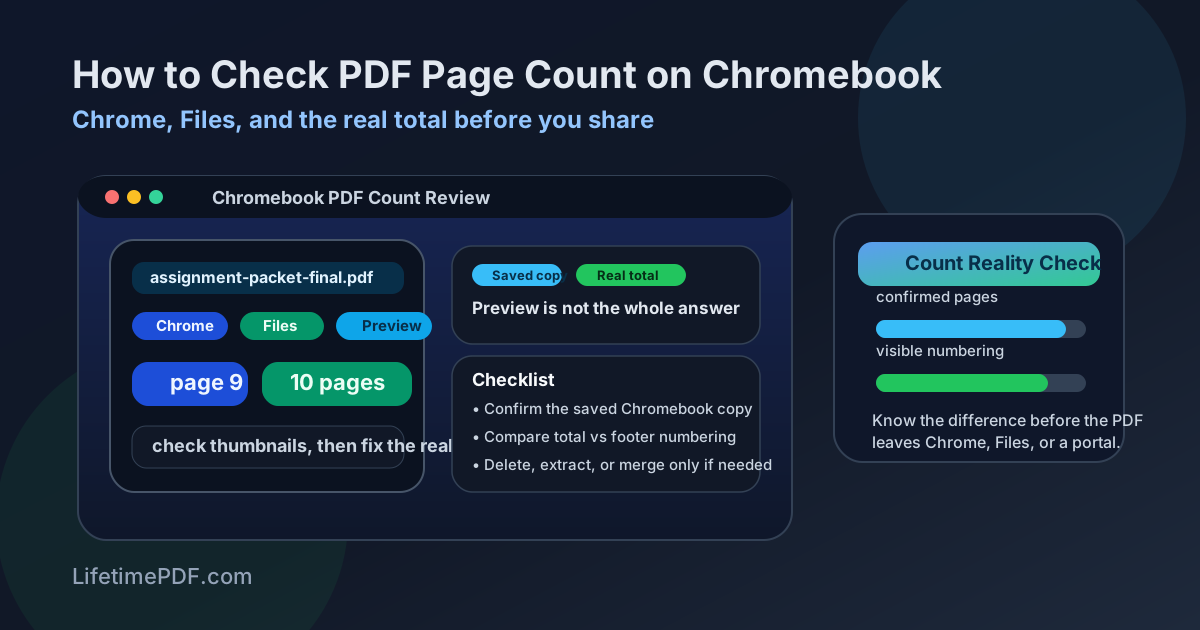
Table of contents
- Quick start: check PDF page count on Chromebook in about 5 minutes
- What Chromebook page count actually tells you
- Where Chromebook users get misled about page count
- Step-by-step: practical Chromebook page-count workflow
- Why Chrome and Files together work better than either one alone
- Common Chromebook page-count mismatches and what they usually mean
- When to delete, extract, merge, or renumber
- Final checklist before you share or submit the file
- Related LifetimePDF tools and guides
- FAQ
Quick start: check PDF page count on Chromebook in about 5 minutes
If your real goal is simply make sure this Chromebook PDF has the pages I think it has before something downstream breaks, use this order:
- Save the exact PDF you plan to email, upload, submit, print, merge, or archive into Files or Downloads.
- Open that saved copy, not just the Gmail, Drive, Classroom, or browser preview you glanced at first.
- Confirm the real total number of pages using View PDF Properties or a clear thumbnail-aware workflow in Chrome.
- Compare the real total with the visible footer numbering so you know whether the mismatch is intentional or suspicious.
- If the count feels wrong, inspect for blank pages, duplicate scans, or a missing insert before editing anything.
- Fix the exact problem with Delete Pages, Extract Pages, Merge PDF, or the Add Page Numbers to PDF workflow only when needed.
What Chromebook page count actually tells you
PDF page count on Chromebook is the true total number of pages inside the file you saved. It includes every real page the document contains, whether that page is visibly numbered, intentionally skipped in the footer, blank, duplicated, or tucked into an appendix.
This is why people get tripped up. They see page 9 in the footer and assume the file has 9 pages. But the PDF may also contain an unnumbered cover page, a title sheet, a scan separator, or a merged appendix that changed the total without changing the visible numbering. The reverse happens too: Chromebook shows 10 pages and someone worries a page was added by mistake, even though page 1 is simply a cover that was never meant to carry a visible number.
| Thing you are checking | What it tells you | What it does not guarantee |
|---|---|---|
| PDF page count | The real total number of pages stored in the Chromebook file | That every page uses visible numbering or reader-friendly labels |
| Visible page numbering | How the document labels pages for readers, reviewers, or submission references | That the file contains no cover pages, dividers, blanks, or duplicates outside that numbering |
| Thumbnail review | Whether the page set looks complete, duplicated, blank, or obviously out of order | Why the numbering was chosen or whether the total fits the next workflow |
| Edited output after merge or extract | Whether the section you kept has the right physical pages | That the numbering still makes sense for the next reader |
Where Chromebook users get misled about page count
Chromebook makes PDF review feel fast and lightweight. The trap is that fast previews feel like proof. Some views are good for confirming you opened the right attachment. Fewer are good for proving the page total is what you think it is.
Drive, Gmail, or Classroom preview
Fine for confirming you opened the right file quickly. Risky when the exact outgoing copy in Downloads or Files may differ from the preview you first clicked.
Chrome PDF viewer
Useful for opening the saved file and scanning thumbnails, but easy to misuse if you never separate visible numbering from the actual stored total.
Files app saved copy
Best starting point when you want confidence that the PDF you are checking is the same one you will actually upload, print, or share.
Chromebook users get tripped up most often after scanning paperwork, exporting from Docs, downloading from email, or assembling a packet from multiple sources. The file still opens normally, so nobody notices the count problem until a portal, teacher, client, or teammate points out that a page is missing, repeated, or numbered strangely.
Common false assumption
If the last visible footer says page 9, many people assume the PDF has 9 pages. On Chromebook, that is often wrong because covers, appendix dividers, front matter, and unnumbered insert pages all change the relationship between visible labels and the real stored total.
Step-by-step: practical Chromebook page-count workflow
This workflow gets you to a reliable answer quickly without turning a simple check into a full document audit.
1) Start with the exact outgoing Chromebook copy
Inspect the PDF you will actually send. A Drive preview, Gmail preview, and saved copy in Files are not automatically the same working copy for your next step.
2) Confirm the real total first
Use View PDF Properties or a reader that makes thumbnails obvious so the actual page total becomes your ground truth.
3) Compare that total with the visible numbering
Ask one practical question: is this difference intentional because of covers or sections, or does it feel like a mistake that needs inspection?
4) Review thumbnails for blank or duplicate pages
This is the fastest way to catch scan padding, repeated sheets, missing inserts, or a merged extra that changed the total.
5) Fix only the actual problem
Use Delete Pages for true extras, Extract Pages for one section, and Merge PDF when the packet is missing content.
6) Renumber only after the physical page set is right
If the total is already correct but the reader-facing labels are confusing, use Add Page Numbers to PDF as the finishing step, not the first fix.
Reliable sequence: save the final Chromebook copy → confirm the total → compare it with visible numbering → inspect thumbnails → fix one specific problem deliberately.
Why Chrome and Files together work better than either one alone
Chromebook has one practical advantage here: it is easy to combine a saved local copy with a clean browser view. That combination gives you a faster answer than trusting either one alone.
- Use Files to confirm you are checking the actual copy in Downloads or a synced folder.
- Open that saved file in Chrome so you can scan thumbnails and page flow quickly.
- Compare the visible footer numbering with what the page strip and total imply.
- Decide whether the difference points to an intentional cover page, a duplicate sheet, a missing page, or just numbering that starts later.
What a healthy file looks like
The total is consistent, the thumbnail flow makes sense, and any difference between page count and visible numbering is clearly intentional.
What a weak file looks like
The preview feels polished, but the thumbnails expose a blank page, repeated scan, or odd jump that explains why the count feels wrong.
Common Chromebook page-count mismatches and what they usually mean
Most page-count problems on Chromebook repeat the same few patterns. Once you recognize them, you can stop guessing and fix the right thing faster.
| What you notice | What it usually means | Best next move |
|---|---|---|
| The PDF has one more page than the footer suggests | An unnumbered cover, front-matter page, or divider sheet exists | Keep it if intentional, or renumber later if readers need clearer labels |
| The total suddenly jumped after scanning or merging | A blank scan, duplicate insert, or stray add-on page slipped into the packet | Review thumbnails and delete true extras |
| The file is shorter than expected | A page never got merged, was dropped during export, or disappeared during cleanup | Find the missing content and merge it back intentionally |
| The visible numbering restarts later in the file | The PDF uses section-based numbering for appendices or front matter | Decide whether the numbering restart is correct or confusing for the audience |
| The total is right, but the packet still confuses readers | The physical page set is fine, but the visible labels are weak or missing | Add or adjust numbering after you confirm the count is already correct |
The packet came from a scan
Expect blank separator pages, repeated backsides, or accidental extras. Scan-generated PDFs are one of the biggest sources of count drift on lightweight Chromebook workflows.
The packet came from a merge
Merged reports often hide a missing page or a duplicate insert. If the total changed unexpectedly, inspect the join points first.
The footer labels look odd
That may be a numbering issue rather than a page-count issue. Confirm the total before you assume anything is missing.
The submission portal has a page limit
That is when a one-page mistake matters most. Catch the extra page before the portal, reviewer, or client does it for you.
When to delete, extract, merge, or renumber
Once you know why the count feels wrong, the next move becomes simple. The key is to avoid editing blindly.
- Delete pages when the file contains true extras such as blank scanner sheets, duplicate signature pages, or a cover note that should not ship with the packet.
- Extract pages when the total is correct for the full document, but you only need one section or exhibit to send onward.
- Merge pages when the packet is missing a page, appendix, or signed insert that belongs in the final file.
- Renumber pages when the physical page set is already right but the visible labels are confusing, skipped, or inconsistent for readers.
- Do nothing when the count mismatch is intentional and harmless, such as an unnumbered cover that everyone expects.
Practical next tools: clean up the page set first, then polish the reading experience only if the audience needs it.
Final checklist before you share or submit the file
Before the PDF leaves your Chromebook, make sure these boxes are effectively checked:
- You inspected the exact outgoing file, not just a preview or stale cloud copy.
- You confirmed the real page total and did not confuse it with the visible footer labels.
- You checked thumbnails if the count felt even slightly suspicious.
- You removed true extras or merged missing pages back in deliberately.
- You renumbered only if the physical page set was already correct.
- You reopened the final Chromebook copy once so the edited file matches what you intend to send.
That last recheck matters more than people expect. A lot of page-count mistakes are really version mistakes. Someone fixes one copy, uploads another, and then spends the next hour arguing with a portal or recipient who was technically right.
FAQ
How do I check PDF page count on Chromebook?
Save the PDF into Files or Downloads on your Chromebook, open the exact copy you plan to send, and confirm the real total in Chrome or a thumbnail-aware workflow. Do not rely only on the last visible page number inside the document.
Can Chrome preview show the real number of pages in a PDF?
Yes, Chrome is useful for opening the saved file and scanning thumbnails quickly, but you still need to separate the real page total from the visible numbering and from any stale preview you clicked earlier.
Why does my Chromebook PDF say page 9 when the file really has 10 pages?
Because page numbering and page count are different things. The PDF may include an unnumbered cover, divider page, or appendix section that changes the visible labels without changing the real total.
Should I delete pages or renumber them on Chromebook?
Delete true extras. Renumber only when the page set is already correct but the reader-facing labels need to be clearer. Fix the physical pages before you fix the numbering.
What is the safest Chromebook workflow before sharing a PDF?
Check the final saved copy, confirm the real total, compare it with the visible numbering, inspect for blank or duplicate pages if anything feels off, then send only after one final recheck.
Confirm the real total before the PDF surprises you later.
On Chromebook, the cleanest page-count workflow is simple: inspect the saved copy, compare the actual total with the visible numbering, fix only the real problem, and reopen the final file once before you share it.
Published by LifetimePDF — Pay once. Use forever.