Check PDF Page Count: Confirm the Real Number of Pages Before You Print, Merge, Extract, or Submit
To check PDF page count, open the exact file you plan to share and confirm how many pages it really contains before you print, merge, extract, sign, or submit it.
If the total looks wrong, figure out whether the issue is blank pages, duplicate inserts, an extra appendix, or visible numbering that starts after a cover page.
That is the short answer. The useful answer is that page count and page numbering are not always the same thing. A PDF can have 24 real pages while the first visible footer says page 1 on the second sheet because the cover is intentionally unnumbered. It can also look tidy while still hiding blank scans, duplicate inserts, or a merged section that quietly changed the total. A fast count check saves bad print runs, incomplete extracts, wrong exhibits, messy review packets, and awkward "why is this one page longer than yesterday?" surprises.
Fastest practical path: confirm the total page count first, then decide whether you need to delete extra pages, extract just one section, merge a missing page back in, or add visible numbering for readers.
In a hurry? Jump to quick start: check PDF page count in about 4 minutes.
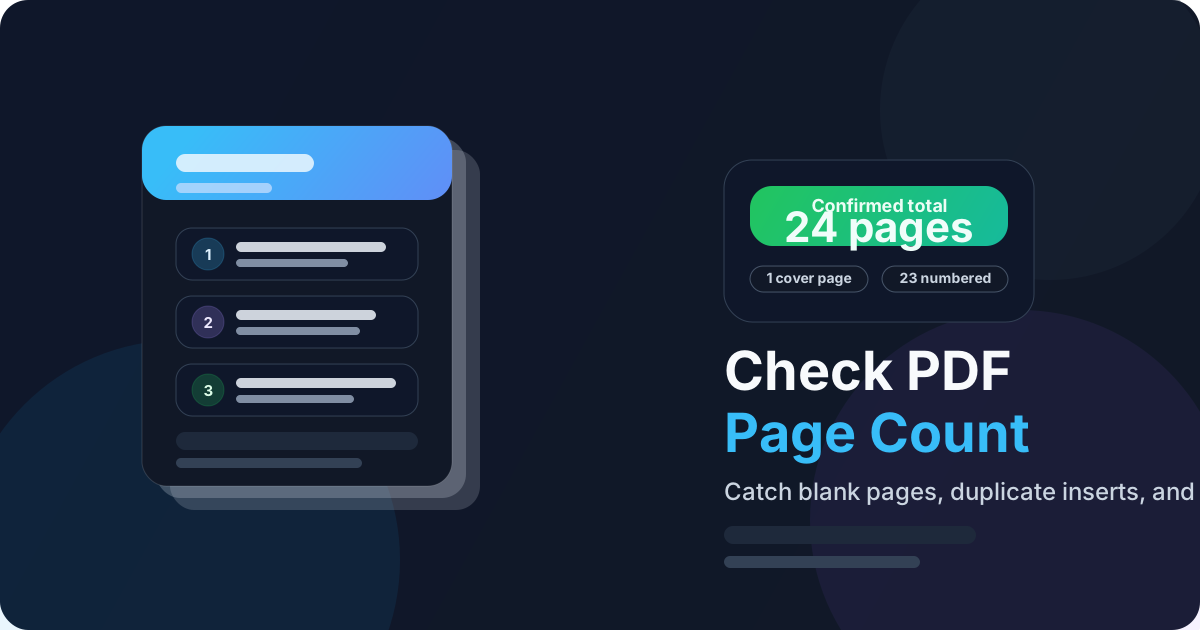
Table of contents
- Quick start: check PDF page count in about 4 minutes
- What PDF page count actually means
- Why page count matters more than people expect
- Step-by-step: practical PDF page-count workflow
- Common page-count mismatches and what they usually mean
- When to delete, extract, merge, or renumber
- Final checklist before you share or submit the file
- Related LifetimePDF tools and guides
- FAQ
Quick start: check PDF page count in about 4 minutes
If your real goal is simply make sure this file has the pages I think it has before something breaks, use this order:
- Open the exact PDF you plan to print, upload, merge, sign, archive, or email.
- Confirm the real total number of pages from the document properties or page thumbnails instead of trusting the visible footer numbers alone.
- Check whether the count includes an unnumbered cover page, appendix divider, scanned separator, or merged add-on section.
- If the total looks too high, inspect for blank pages or duplicates and remove them with Delete Pages.
- If the total looks too low or you need only one section, use Extract Pages or Merge PDF deliberately instead of guessing.
- If the total is correct but readers will be confused, add or fix visible numbering with the Add Page Numbers to PDF workflow.
What PDF page count actually means
PDF page count is the true total number of pages stored in the document. It includes every page the file carries, whether that page is numbered, blank, intentionally skipped in the footer, or part of an appendix that restarts numbering.
This is why page-count mistakes happen so easily. People glance at a footer that says page 18, assume the PDF has 18 pages, and miss the unnumbered cover, certification page, scan separator, or merged exhibit that changed the actual total. The reverse also happens: the PDF really has 18 pages, but the visible numbering starts on page 2, so someone thinks a page is missing when nothing is actually wrong.
| Thing you are checking | What it tells you | What it does not guarantee |
|---|---|---|
| PDF page count | The real number of pages in the file | That every page is numbered visibly or in the way readers expect |
| Visible page numbering | How the document labels pages for reading, citation, or print order | That the file contains no cover pages, inserts, blanks, or duplicates outside that numbering |
| Thumbnail review | Whether the pages look complete, duplicated, blank, or misplaced | Why the numbering was chosen or whether the total meets a portal limit |
| Merged or extracted result | Whether the section you kept has the right physical pages | That the numbering scheme still makes sense afterward |
Why page count matters more than people expect
A page-count check looks trivial until one wrong page changes a deadline, a filing, a signature packet, or a print run. Counting is not busywork when the document is leaving your control.
Portal limits
Some systems care about the document length, and one blank or duplicate page can push a PDF over the limit or confuse the reviewer.
Exhibits and appendices
Legal, compliance, and contract packets often need exact page totals so the recipient can confirm nothing is missing.
Print packets
Unexpected separators or doubled scans create waste, reorder pages oddly, and make physical sets look careless.
Extraction and merging
If the total is wrong before you split or combine the file, every downstream step gets noisier and easier to mess up.
Page count also matters because it exposes silent workflow drift. A report that used to be 17 pages and is suddenly 20 may have gained useful appendix pages, or it may have picked up two blank scans and a duplicate signature sheet. The count itself is the clue that tells you to look closer.
Common false assumption
If the footer says page 12, many people assume the PDF has 12 pages. That can be wrong whenever the file includes an unnumbered cover, Roman-numeral front matter, a restarted appendix, or invisible blank pages added during scanning or merging.
Step-by-step: practical PDF page-count workflow
1) Start with the outgoing copy, not a draft
Page count only matters on the version that will actually travel. If you inspect one draft but upload a freshly exported copy later, the count may already be different. Always check the exact file you are about to send.
2) Confirm the real total first
Use View PDF Properties or a page-thumbnail view and confirm the actual number of pages stored in the file. This is your ground truth. Do not let visible numbering or memory substitute for it.
3) Separate the total from the visible numbering scheme
Ask a practical question: does the document intentionally label pages differently than it counts them? Cover pages, title sheets, appendices, and prefaces often create perfectly normal differences between the total page count and the visible page numbers.
4) Review thumbnails for blank, duplicate, or misplaced pages
If the total feels suspicious, inspect the page thumbnails. This is the fastest way to spot common problems such as:
- a blank page inserted between scanned spreads,
- the same signed page duplicated twice,
- a cover letter merged into the packet by mistake,
- an appendix added at the end without anyone noticing,
- a missing page that was never merged back into the final copy.
5) Fix only the actual problem you found
Once you know why the total looks wrong, the next move becomes obvious. Remove true extras with Delete Pages, isolate the exact section you need with Extract Pages, or add missing pages back into the packet with Merge PDF.
6) Renumber only when the total is already correct
If the page total is right but the reader-facing labels are confusing, that is a numbering job, not a counting job. Use the Add Page Numbers to PDF workflow only after the physical page set is correct.
Reliable sequence: confirm the total → inspect thumbnails → decide whether the issue is extra pages, missing pages, or just numbering → fix that one problem deliberately.
Common page-count mismatches and what they usually mean
Most page-count problems repeat the same few patterns. Once you recognize them, you can stop guessing.
| What you notice | What it usually means | Best next move |
|---|---|---|
| The PDF has more pages than the footer suggests | An unnumbered cover, front matter, appendix, or separator page exists | Keep it if intentional, or renumber only if readers need clearer labels |
| The total suddenly jumped by one or two pages | A blank scan, duplicate insert, or added cover letter slipped into the final packet | Review thumbnails and delete true extras |
| The file is shorter than expected | A page was never merged, got excluded during export, or was deleted accidentally | Find the missing page and merge it back intentionally |
| The visible numbering restarts later in the file | An appendix or section restart is being used | Decide whether the restart is correct for the workflow or needs clarification |
| The total is right, but the reader still gets lost | The physical pages are fine but the visible numbering is weak or missing | Add or adjust visible page numbers instead of changing the page set |
Count problem
The file contains the wrong physical pages, such as a missing appendix, a duplicate signature page, or a blank scan.
Numbering problem
The file contains the right pages, but the visible labels begin after a cover page or restart in a section that confuses readers.
Workflow problem
The document changed during scanning, exporting, or merging, so yesterday's expected total no longer matches today's final PDF.
When to delete, extract, merge, or renumber
Not every count mismatch deserves the same fix. The smart response depends on whether the real issue lives in the page set or in the labels readers see.
Delete pages when they are truly unwanted extras
Use Delete Pages when the document contains accidental blanks, duplicate scans, draft cover sheets, or merged pages that should never have stayed in the final file.
Extract pages when you only need one clean section
Use Extract Pages when the total page count is correct for the master file, but you need to send only the invoice section, only the signed pages, or only the appendix to someone else.
Merge pages when something is missing
Use Merge PDF when the page total is too low because a form, exhibit, cover, or certification page was left out of the final packet.
Renumber when the pages are correct but the labels are not helpful
Read the count first, then use the Add Page Numbers to PDF workflow if the file needs visible numbering for reviewers, print packets, onboarding binders, course packs, or reference-heavy documents.
Easy mistake to avoid
Do not renumber a PDF just because the footer looks odd if the real issue is a duplicate or missing page. Counting answers how many physical pages are here? Renumbering answers how should readers label them? Fix those in the right order.
Final checklist before you share or submit the file
Before the PDF leaves your hands, run this short check:
- Did you confirm the real page total on the final outgoing copy?
- Did you separate page count from visible numbering instead of assuming they match?
- Did you inspect for blank pages, duplicate inserts, or missing sections if the total changed?
- Does the final page set fit the portal, printer, signer, reviewer, or archive workflow waiting on the other side?
- If the count is right but the labels are confusing, did you fix numbering rather than changing the physical page set?
- If you edited the packet, did you confirm the final count again after deleting, extracting, or merging?
You do not need a complicated document-control ritual for this. You just need one calm check that tells you whether the PDF in front of you is the same PDF you think you are sending.
Ready to clean up the packet? Confirm the total, remove the junk, keep the pages that matter, and send a PDF whose length makes sense to everyone who touches it next.
Best workflow for dependable page counts: confirm the total → inspect thumbnails → fix extras or gaps → renumber only if readers need it → verify once more.
FAQ
How do I check PDF page count?
Open the exact PDF and confirm the real total number of pages in the file, then compare that total with the visible numbering if the document uses a cover page, appendix, or skipped front matter.
Why does the page count not match the visible page numbers in my PDF?
Because page count measures every actual page in the file, while visible numbering may start later, skip a cover page, restart inside an appendix, or intentionally leave some pages unnumbered.
Can blank pages change PDF page count?
Yes. Blank separator pages, scanner padding, failed merge inserts, and accidental duplicates all increase the true page total even when they do not carry visible content or numbering.
Should I delete pages or just renumber them?
Delete pages when the file contains content you do not want to keep. Renumber only when the real page total is correct but the visible numbering needs to match your workflow or reader expectations.
Why check PDF page count before merging or submitting a file?
A quick count helps you catch missing pages, duplicate scans, unexpected appendices, and portal-limit surprises before the file reaches a printer, signer, court filing system, or client.
Published by LifetimePDF — Pay once. Use forever.