How to Check PDF Modification Date on Android: Files, Drive, and Last-Updated Clues Before You Share
To check PDF modification date on Android, save the real file from Files, Drive, Chrome, or Gmail, inspect the hidden Modification Date in a metadata-aware view, and compare it with what actually changed in the share-ready PDF.
If the timestamp only reflects a quick re-save, scan export, OCR pass, signature layer, merge, compression step, or cloud handoff instead of a meaningful revision, correct or remove it before the PDF leaves your Android device.
Android makes it easy to trust the nearest visible date. A PDF can look polished in Drive preview, open cleanly from Gmail, and sit in Files with a fresh download timestamp while the hidden modification date still points to an older or irrelevant workflow step. The useful goal is not collecting more dates. It is making sure the one stored inside the PDF still tells a believable last-updated story when another person downloads, reviews, uploads, archives, or forwards the file.
Fastest practical path: save the final Android copy, inspect the embedded modification date once, compare it with the real reason the PDF was last touched, then decide whether the timestamp should stay, be standardized, or disappear before you share the file.
In a hurry? Jump to quick start: check PDF modification date on Android in about 5 minutes.
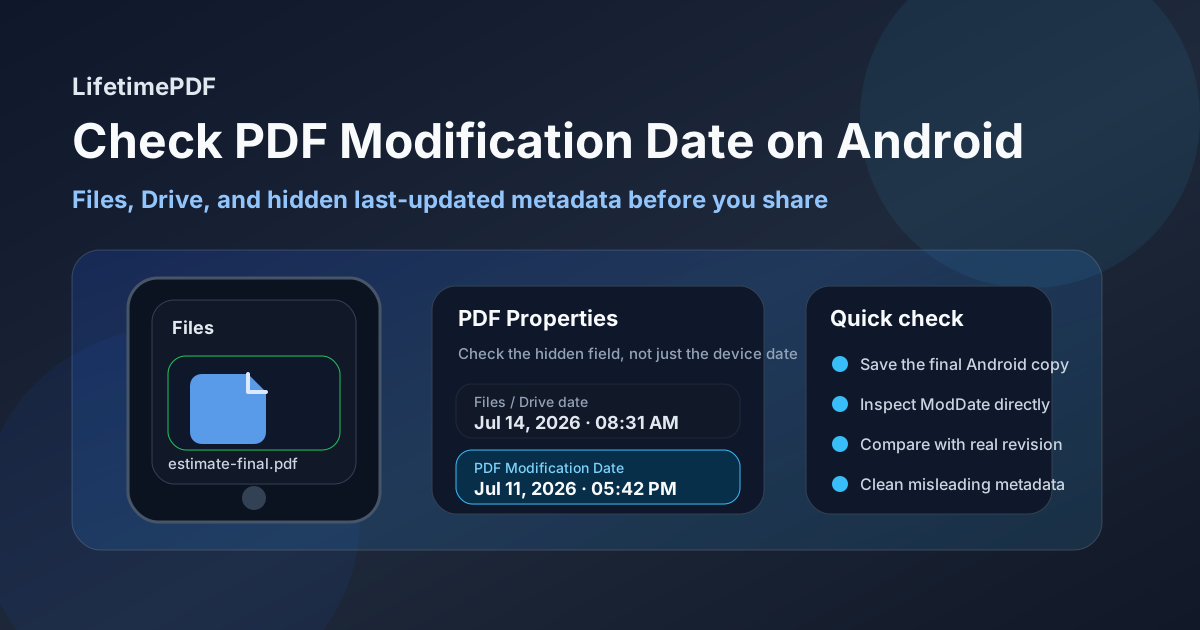
Table of contents
- Quick start: check PDF modification date on Android in about 5 minutes
- What you are really checking when you review PDF modification date on Android
- Where Android users misread last-updated signals
- Step-by-step: how to check PDF modification date on Android
- Warning signs the modification date needs a second look
- When to keep, correct, or remove the modification date
- Related LifetimePDF tools and guides
- FAQ
Quick start: check PDF modification date on Android in about 5 minutes
If your real question is does this Android PDF still carry a believable last-updated timestamp before I send, upload, archive, or submit it?, use this order:
- Save the exact PDF you plan to email, upload, message, archive, publish, submit, or forward from Files, Drive, Gmail, Chrome downloads, or your real working folder.
- Inspect the embedded Modification Date with a metadata-aware workflow like PDF Metadata Editor or View PDF Properties.
- Compare that value with what actually happened last: a meaningful content revision, a signature step, a scan cleanup, an OCR run, a merge, or only a routine save.
- Ask whether the timestamp reflects the kind of update a teammate, client, reviewer, or auditor would assume happened if they opened the PDF properties.
- Keep the date if it still makes sense, or fix / clear it if it would confuse a reader or expose workflow detail that should stay hidden.
- Save the cleaned file and reopen it once so you verify the embedded date really stuck to the Android copy you are about to share.
What you are really checking when you review PDF modification date on Android
The PDF modification date is hidden metadata stored inside the document. It is not automatically the same as the date shown in Android Files, the time a copy was downloaded from Drive, or the moment you received the attachment in Gmail, Messages, or another app. Think of it as a timeline clue inside the PDF itself. That clue can be accurate, stale, routine, or misleading depending on how the file was exported, signed, scanned, compressed, merged, or cleaned before it reached your phone or tablet.
On Android, the confusion usually starts because one PDF can collect several parallel histories. A document may begin in Word, Google Docs, a scanner app, a browser form, or a desktop export, then get uploaded to Drive, previewed in Gmail, saved into Files, opened in Chrome, and forwarded through a share sheet. Every one of those steps can create a visible date around the file. The embedded modification date only helps if you know which event it is actually describing.
| Date field | What it usually means | Typical Android mistake |
|---|---|---|
| Files app date | When that Android copy was downloaded, moved, or updated on the device. | People assume it proves when the PDF itself was meaningfully revised. |
| Drive or Gmail handoff date | When the file was uploaded, synced, or received in that service. | It gets confused with the actual last update stored inside the PDF. |
| PDF Modification Date | Hidden metadata inside the PDF that points to the last recorded update to the document package. | It may still reflect a signature layer, OCR pass, metadata cleanup, merge, or compression step instead of the revision readers assume. |
| PDF Creation Date | Hidden metadata about when the PDF says it was first created. | It gets confused with the modification date even though the two fields answer different questions. |
Where Android users misread last-updated signals
Android gives you several fast ways to glance at a PDF, but not every path proves the hidden revision story is clean. A quick preview answers whether the file opens. It does not always answer whether the embedded modification date is still accurate, useful, or safe to leave in place.
| Android path | What it is good for | What it cannot safely prove |
|---|---|---|
| Files app or Downloads folder | Confirming you saved the right file and checking the copy you are actually about to share. | That the embedded modification date still matches the true latest meaningful update to the PDF itself. |
| Drive preview, Gmail attachment view, or chat preview | Showing that the PDF opens and behaves normally in the real Android handoff flow. | Whether the stored last-updated timestamp is accurate, harmless, or stale once the file is downloaded and sent onward. |
| Chrome PDF viewer | Opening the real Android copy for a first visual review. | Whether the hidden timestamp still describes a meaningful content change instead of a technical save or transfer moment. |
| Metadata editor or full properties view | Giving you the clearest look at the embedded modification date itself. | You still have to decide whether the date describes a meaningful document revision or just workflow noise. |
That last point matters most. Tools can reveal the stored timestamp. They cannot decide for you whether the date reflects a meaningful update or only the moment another app happened to save, sign, compress, or repackage the PDF.
Step-by-step: how to check PDF modification date on Android
This workflow is quick enough for everyday Android use and detailed enough to catch the revision-history mistakes that most often survive into shared PDFs.
Step 1: Start with the exact Android copy you plan to share
Save or open the real file from the folder, Drive location, email draft, or project directory that actually matters. If the PDF has been downloaded again, signed, scanned, merged, or reopened through several apps, make sure you inspect the final share-ready copy rather than a nearby earlier draft with a similar name.
Step 2: Inspect the embedded Modification Date directly
Use PDF Metadata Editor, a full document-properties workflow like View PDF Properties, or the broader platform guide How to Check PDF Metadata on Android. Do not rely on Files or Drive dates alone. On Android, those values may only tell you when the current copy appeared in Downloads, offline storage, or a synced folder, not when the hidden PDF record last changed.
Step 3: Compare the timestamp with the real revision story
Ask one simple question: what event should this PDF's last-updated signal really point to? Maybe it is the moment a contract was revised. Maybe it is the signature layer that turned a draft into the final file. Maybe it is only a compression pass that did not change the visible pages at all. If the embedded modification date points to a different event than the one readers will assume, you have found the actual problem.
Step 4: Look for the usual Android workflow distortions
Modification dates often go sideways when a PDF is re-saved after markup, rescanned through OCR, compressed for upload, signed in another app, or cleaned during metadata editing. In those cases the timestamp may be technically real but practically misleading. The point of the review is not to chase perfect forensic certainty. It is to catch the dates that quietly tell the wrong story after the file leaves your Android device.
Step 5: Decide whether to keep, standardize, or remove the date
If the timestamp still reflects the document's real latest meaningful revision, keep it. If it clearly belongs to a technical save, transfer, or cleanup step, update it as part of a broader metadata cleanup. If the date adds more confusion than value, or if the PDF is privacy-sensitive, continue with Remove Metadata From PDF.
Step 6: Save and verify once
Reopen the saved PDF and confirm the embedded modification date now matches the final file you are about to share. This catches classic Android mistakes such as editing one copy while sharing another, trusting a preview instead of the saved file, or checking a local version while Drive or Gmail is about to use a different one.
Reliable sequence: inspect the embedded modification date, compare it with the real reason the file was last touched, clean up misleading timestamps, then verify the final Android copy once before the PDF travels anywhere else.
Warning signs the modification date needs a second look
These patterns show up constantly in Android workflows built around email attachments, shared Drive folders, scanner apps, portal uploads, and repeated mobile handoffs.
| What you notice | What it usually means | Best next move |
|---|---|---|
| The modification date is newer than the real content change | The PDF was probably re-saved, compressed, signed, merged, or cleaned after the meaningful revision was already finished. | Check the source workflow and decide whether the timestamp should be standardized or removed. |
| The date matches a scanner, OCR, or signature step rather than the document's real revision | The metadata points to a processing event instead of the milestone readers will care about. | Keep it only if that processing event is the right record; otherwise clean the metadata. |
| Files, Drive, and the embedded date tell different stories | The PDF has moved, synced, or been re-downloaded enough times that the timeline is split across systems. | Document which date actually matters for the handoff and strip any metadata that confuses the recipient. |
| The timestamp would create the wrong impression in an audit or client review | The date may be technically real but contextually misleading. | Preserve the true record elsewhere and make the share-ready PDF's metadata intentional. |
| The visible document date and hidden modification date feel out of sync | The page content and metadata are describing different “latest” events. | Bring the visible and hidden timeline story back into alignment before sharing. |
Healthy default
If the embedded modification date would make a reviewer misunderstand what really changed in the PDF, the file deserves one more Android metadata pass before you send it.
When to keep, correct, or remove the modification date
Not every Android PDF needs the same answer. The useful question is whether the timestamp helps the final file make sense or only drags workflow noise into a place where readers will over-trust it.
Keep it
Best when the embedded date still reflects the true latest meaningful revision of the final PDF and helps the file feel trustworthy.
Correct it
Useful when a technical save, sign, merge, or cleanup step wrote a timeline that is clearly tied to the wrong event.
Remove it
Smart when the date adds no value, causes privacy concerns, or creates the wrong impression once the PDF leaves your device.
Preserve the real record elsewhere
Important when legal, compliance, or project history depends on accurate documentation beyond what one hidden PDF field can safely prove.
In practice, the best choice is the one that leaves the fewest hidden surprises for the next person. A share-ready PDF often needs simpler metadata than an internal working file. If the modification date matters for a regulated process, preserve that timeline in the surrounding system of record rather than expecting one hidden PDF field to carry the whole burden.
- Keep the date when it cleanly matches the final PDF's true latest meaningful revision.
- Correct the date when it obviously belongs to the wrong processing step or routine save.
- Remove the date when it only creates confusion, churn, or privacy risk.
- Document critical history elsewhere when the timeline has legal or operational consequences beyond casual sharing.
FAQ
How do I check PDF modification date on Android quickly?
Save the final PDF on your Android device, inspect the embedded Modification Date or ModDate in a metadata-aware workflow, compare it with what really changed, and fix it if the value is stale or misleading.
Is PDF modification date the same as the date shown in Android Files?
No. Android file-manager dates describe the current device copy, while PDF modification date is hidden metadata stored inside the file itself. They can match, but they often reflect different events.
Can Drive or Chrome prove the PDF modification date is correct?
Not by themselves. Drive and Chrome are useful for opening the right file and reviewing it in a normal workflow, but you still need a metadata-aware view to confirm the embedded timestamp rather than just the surrounding handoff dates.
Should I change a wrong PDF modification date?
Only when the timestamp is clearly misleading, inherited from the wrong workflow, or creates a problem for the final share-ready file. If version history matters for compliance or evidence, preserve the real record elsewhere too.
Why does my PDF modification date look newer than the actual content change?
Because PDFs often update the field during signatures, OCR runs, merges, compression, metadata edits, and simple re-saves. The timestamp can be technically real while still describing the wrong moment for your reader.
Check the hidden last-updated signal before the PDF leaves your Android device.
A clean Android workflow is simple: inspect the embedded modification date, compare it with the document's real latest meaningful revision, keep only the timeline details that help the file make sense, and verify the final copy once before you share it.
Published by LifetimePDF — Pay once. Use forever.