How to Check PDF Metadata: Title, Author, Keywords, Dates, and Hidden Fields
To check PDF metadata, open the exact file you plan to share and review the title, author, subject, keywords, creator, producer, and date fields before the PDF leaves your hands.
If the hidden details are outdated, private, or simply wrong, clean them first so the invisible identity of the file matches the polished document people actually receive.
That is the short answer. The useful answer is that most metadata problems do not look dramatic. They look like an old draft title, a personal laptop username, a forgotten client keyword, or a timestamp that makes a supposedly final document look recycled. A quick metadata review fixes those quiet mistakes before they become a professionalism issue, a privacy leak, or a filing headache later.
Fastest practical path: check the high-signal metadata fields once, keep what helps, remove what leaks, then verify the saved copy before you send, upload, archive, or publish the PDF.
In a hurry? Jump to quick start: check PDF metadata in about 5 minutes.
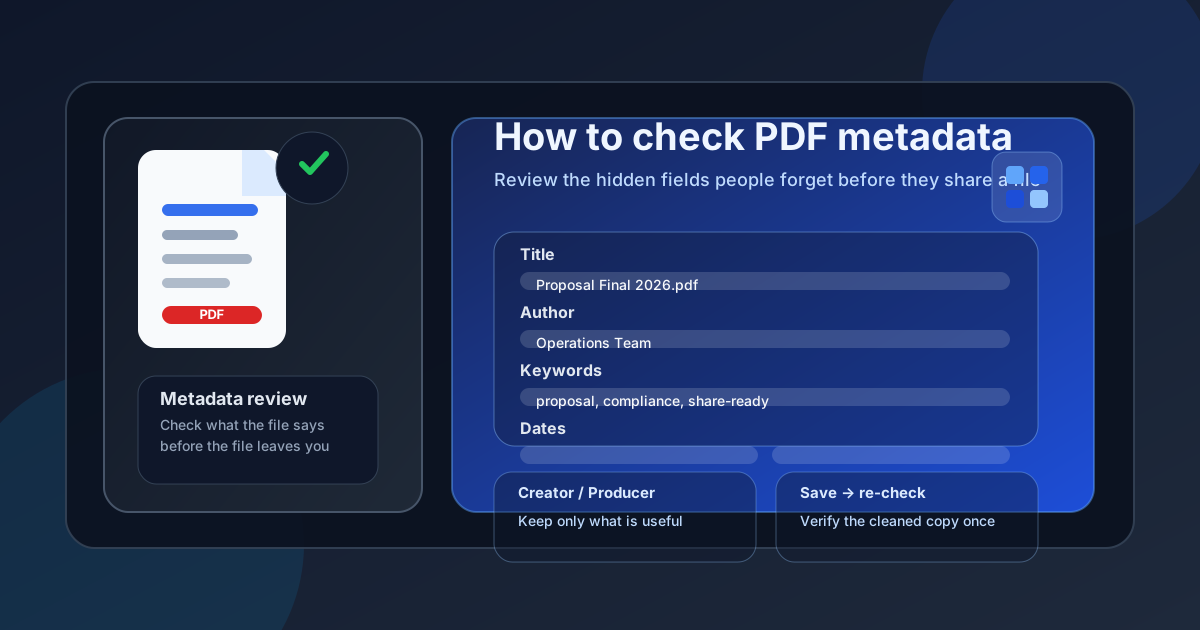
Table of contents
Quick start: check PDF metadata in about 5 minutes
If your real question is simply how do I make sure this PDF is not carrying the wrong hidden details before I share it, use this order:
- Save the exact PDF you plan to email, upload, archive, or publish.
- Open a metadata-friendly view instead of relying only on a quick preview.
- Check the big fields first: Title, Author, Subject, Keywords, Creator, Producer, Creation Date, and Modification Date.
- Compare those hidden fields with the visible document name, cover page, and real purpose of the file.
- Edit or remove anything that feels outdated, private, confusing, or inconsistent.
- Save the cleaned PDF and reopen it once to confirm the changes actually stuck.
What counts as PDF metadata
PDF metadata is the hidden document-property layer attached to the file itself. It is separate from the visible page text, signatures, comments, or layout. The fields most people should care about are not obscure developer-only values. They are ordinary fields that can still create ordinary real-world problems.
| Field | What it usually tells you | Why it matters |
|---|---|---|
| Title | The intended internal name of the document | Can appear in tabs, viewers, archives, and document libraries even when the filename looks fine |
| Author | The person, team, or organization attached to the PDF | Often where old employee names, personal usernames, or template leftovers remain |
| Subject and keywords | Short descriptions and search-oriented tags | Easy place for internal project names, client shorthand, or stale filing labels to leak |
| Creator and producer | The software or workflow that created the PDF | Sometimes useful, sometimes just technical clutter or more workflow detail than you want to reveal |
| Creation and modification dates | When the file was made or changed | Can reveal draft history, reused templates, or a timeline that no longer fits the final version |
The important idea is that a PDF can look perfectly clean on the page while the hidden fields still tell an older, messier, or more revealing story. That is why metadata review belongs near the end of the workflow, right before the file goes somewhere outside your immediate control.
Where to check PDF metadata
Not every place that opens a PDF gives you a trustworthy metadata check. A preview can tell you that the file opens. It cannot always tell you whether the hidden properties are complete, accurate, or safe to share.
| Where you look | What it is good for | What it cannot safely prove |
|---|---|---|
| Quick preview in email, chat, browser, or cloud storage | Confirming that the PDF opens and roughly looks right | That the title, author, keywords, creator, producer, and dates are accurate or appropriate for the final file |
| Document properties or info panel | A solid first-pass review of the core fields | Whether the visible document story and hidden metadata story actually match |
| Dedicated metadata workflow | Reviewing and cleaning the high-signal fields before sharing | It does not fix visible content problems like wrong text, comments, or unredacted on-page data |
Step-by-step: how to review PDF metadata
This workflow is simple enough for a one-off file and reliable enough for contracts, client packets, resumes, reports, invoices, and anything else that might get forwarded or archived.
Step 1: Save the exact file you plan to share
Start with the final PDF itself, not a preview, not a cached download, and not the version you think you exported earlier. Tiny version mix-ups are common. People often clean one copy and then accidentally send another.
Step 2: Review the high-signal fields first
Do not get lost in every technical value right away. The most useful pass starts with title, author, subject, keywords, creator, producer, and dates. Those are the fields most likely to create privacy problems, internal-confusion problems, or plain professionalism problems.
- Title that still looks like a draft export name or an old file version.
- Author that names the wrong person, device account, or department.
- Keywords that expose internal project names or client shorthand.
- Creator and producer fields that reveal more workflow detail than you expected.
- Dates that make a supposedly final file look recycled or suspiciously old.
Step 3: Compare the hidden story with the visible story
The best metadata review is not just field-by-field inspection. It is comparison. If the filename says one thing, the cover page says another, and the metadata title says something else entirely, the PDF still needs work even if nothing looks obviously broken.
Step 4: Decide what deserves to stay
Not every metadata field is bad. A clean title can help organization. A correct company author can help trust. Sensible keywords can help filing. The real question is whether each field earns its place in the version you are about to send.
Step 5: Save the cleaned copy and verify once
This is the step people skip when they are rushing. After cleanup, reopen the saved PDF one time and confirm the corrected metadata actually stuck. That single recheck catches a surprising number of avoidable mistakes.
Need a faster cleanup flow? Use the metadata editor for the full hidden-property review, then pair it with the related guides below if the author, title, or privacy layer still needs more attention.
Which fields to review first
If you only have a minute or two, these are the fields that matter most in everyday PDF workflows.
| Check this first | Why it is high priority | Common fix |
|---|---|---|
| Title | Often shows up publicly or in document libraries | Rename it to match the actual finished file |
| Author | Most likely to expose a personal account name or the wrong owner | Replace it with the correct team, company, or neutral value |
| Keywords and subject | Easy place for internal labels to leak | Clear or standardize them |
| Creation and modification dates | Can make a final PDF look stale, reused, or oddly timed | Review whether the dates are acceptable for the file's destination |
| Creator and producer | Can expose unnecessary software or workflow details | Keep only if the detail is genuinely useful |
Healthy default
If a metadata field would make the recipient ask why the hidden information does not match the document they are looking at, that field probably needs one more cleanup pass.
When to edit metadata vs remove it
People sometimes assume the safest move is to wipe every field. Sometimes that is right. Often the better answer is to keep only the metadata that still helps the file make sense.
Edit the metadata when
- the title should match a polished final document,
- the author should reflect the right team or organization,
- the subject or keywords genuinely help filing and retrieval,
- the PDF is headed into a structured archive or document library,
- the hidden fields improve clarity instead of adding noise.
Remove or minimize the metadata when
- the file contains sensitive HR, legal, financial, health, or client material,
- the author or keywords expose personal or internal identities,
- the creator or producer fields reveal more workflow context than you want to share,
- the PDF is a neutral public-facing copy that does not benefit from extra hidden detail.
The best default is not empty metadata for every PDF. It is intentional metadata. Keep what helps search, trust, and organization. Remove what only adds clutter, confusion, or privacy risk.
Platform-specific help
If you want a device-specific workflow instead of a general checklist, these guides cover the same metadata problem on specific platforms.
Windows
Best if your PDFs live in File Explorer, Outlook, or desktop folders and you want a practical Windows review path.
Open Windows GuideMac
Useful if your workflow starts in Finder, Preview, or a Mac-first document library and you want the cleanest Mac-specific steps.
Open Mac GuideiPhone
Helpful when the PDF is coming from Files, Mail, or a mobile share flow and you want a quick pre-send check.
Open iPhone GuideAndroid
Best when you need a practical metadata check from Android storage, downloads, or share-sheet workflows.
Open Android GuideFAQ
How do I check PDF metadata?
Open the exact PDF you plan to share, inspect the title, author, subject, keywords, creator, producer, and date fields in a metadata or document-properties workflow, then clean anything that no longer belongs there.
What PDF metadata should I check first?
Start with title, author, subject, keywords, creator, producer, creation date, and modification date. Those fields carry most of the practical search, filing, professionalism, and privacy risk.
Should I remove PDF metadata completely?
Not always. Keep metadata that helps the document make sense or archive cleanly. Remove metadata when it is misleading, outdated, noisy, or more revealing than useful.
Why check PDF metadata before sharing?
Because a PDF can look perfect on the page while still carrying old titles, personal names, client shorthand, software details, or draft history in its hidden fields.
Can PDF metadata create privacy problems?
Yes. Metadata can expose names, internal labels, timestamps, and workflow clues that do not belong in a file you are sending outside your team or publishing publicly.
Published by LifetimePDF — Pay once. Use forever.