How to Check PDF Lists on Mac: Preview, Acrobat, and Broken Bullets Before You Share
To check PDF lists on Mac, open the final file, confirm it has selectable text, and review whether bullets, numbering, and nested items still read in the right order instead of only looking tidy in Preview or Acrobat.
If numbers restart unexpectedly, sub-items lose their parent step, or bullets only survive visually, the cleanest fix is usually to repair the source file and export a better PDF before you share it.
That is the short answer. The useful Mac answer is that Quick Look, Preview, Mail previews, and even a quick open in Acrobat can make a checklist or procedure look more reliable than it really is. A document can seem perfectly organized on screen while still hiding typed dashes, broken numbering, flattened sub-steps, or OCR damage that falls apart the moment someone extracts the text, navigates with assistive tech, or reuses the content in another app.
Fastest practical path: open the real Mac copy, verify the text layer, inspect bullets and numbering, compare extracted output, and rebuild the source if the list depends too heavily on appearance instead of structure.
In a hurry? Jump to quick start: check PDF lists on Mac in about 7 minutes.
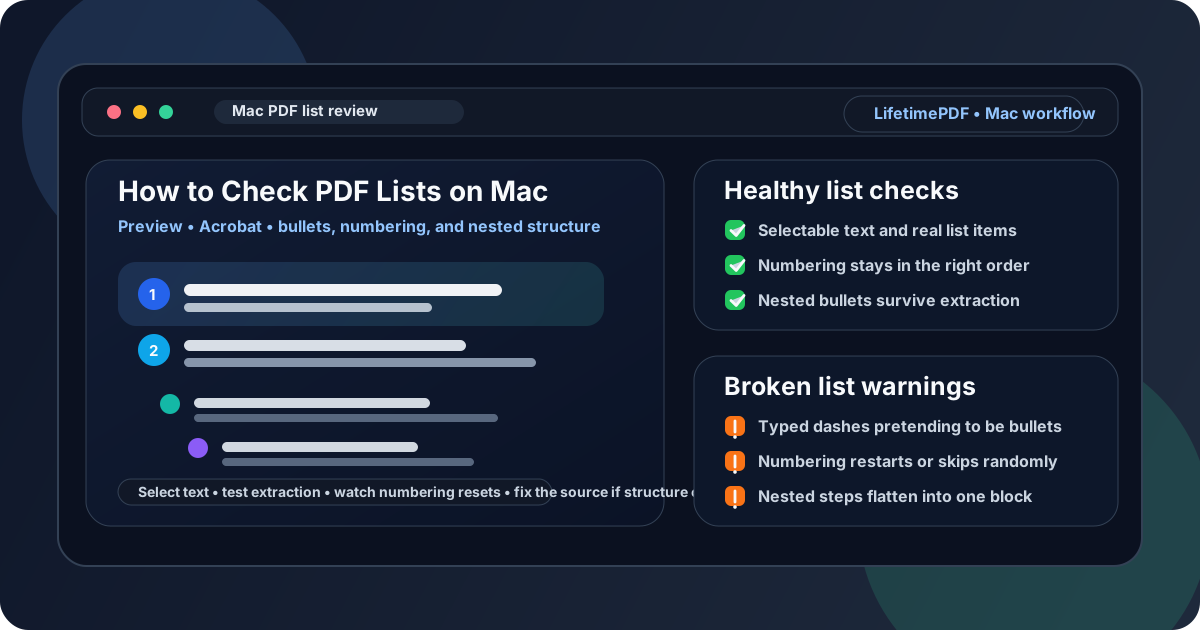
Table of contents
- Quick start: check PDF lists on Mac in about 7 minutes
- What you are really checking when you inspect PDF lists
- Where Mac users get misled
- Step-by-step: how to check PDF lists on Mac
- Warning signs that the PDF only looks organized
- When to fix the source versus patch the PDF
- Related LifetimePDF tools and guides
- FAQ
Quick start: check PDF lists on Mac in about 7 minutes
If your real goal is simply tell me whether this Mac PDF uses healthy list structure or just good-looking formatting, use this order:
- Open the exact PDF you plan to submit, email, upload, archive, or publish from Finder, Downloads, iCloud Drive, Mail, or an AirDrop transfer.
- Confirm you can select text from a bullet or numbered step. If not, the file may be a scan or weak OCR job and your list review is starting from a broken foundation.
- Check whether numbered steps follow a believable sequence and whether nested bullets still feel attached to the right parent item.
- Compare the visual impression with PDF to Text or PDF to Word. If the list becomes muddy outside the page layout, the structure is weaker than it looked.
- Run a broader PDF accessibility check and compare what it surfaces with what you noticed manually.
- If numbering, bullets, or nesting are clearly weak, repair the source document and export a cleaner PDF instead of trusting the current Mac preview.
What you are really checking when you inspect PDF lists
Checking PDF lists on Mac is not just asking whether the bullets line up or whether the numbers increase in a straight column. The more useful question is whether the document has a real list structure that helps people follow instructions, skim key points, and reuse the content without guessing.
In practice, that means looking for three things:
- Logical sequence: numbered steps stay in the right order and do not restart, skip, or merge for no good reason.
- Real list structure instead of decoration: bullets and numbers do more than look tidy. They actually separate items and preserve parent-child relationships.
- Consistency under reuse: when the text is extracted, converted, searched, or reviewed for accessibility, the list still makes sense.
Good outcome
Each item is distinct, numbering follows the real process, and nested bullets still sit under the right parent item when the layout is no longer protecting them.
Warning outcome
The PDF looks polished in Preview or Acrobat, but extracted text reveals typed dashes, random numbering, or sub-items that flatten into a confusing block.
Typical root cause
The source document relied on manual formatting, mixed content from several files, or came from a scan that never had a healthy text layer in the first place.
Where Mac users get misled
macOS gives you several fast ways to glance at a PDF. That speed is helpful, but it also creates false confidence. A list can look organized in Quick Look, Preview, Adobe Acrobat, Mail preview, or an iCloud Drive thumbnail and still have weak structure underneath.
| Mac view | What it is good for | What it cannot safely prove |
|---|---|---|
| Quick Look | Fast first look at the actual pages, alignment, and obvious numbering mistakes. | That bullets and numbers are functioning as real structure rather than visual decoration. |
| Preview or Acrobat | Better document controls and a stronger manual inspection workflow. | You still need to compare the visible list with extracted output instead of assuming a tidy page equals a healthy list. |
| Mail, Messages, or iCloud preview | Confirming you have the right file and that the broad layout survived a handoff. | That nested items, checklist states, and numbered procedures will remain clear to readers or assistive tools. |
| Text extraction or editable conversion | Revealing whether the list still reads in a logical order after the page design stops hiding weak formatting. | It will not show every tagging detail, but it quickly exposes whether the current list is fragile. |
Step-by-step: how to check PDF lists on Mac
This workflow gives you a dependable answer without turning a simple Mac review into a full remediation project.
Step 1: Start with the real Mac copy
Make sure you are reviewing the exact file that will leave your machine. If the PDF sits in Downloads, iCloud Drive, an email attachment, or a shared folder, save or open the final copy directly rather than relying on a temporary preview card.
Step 2: Confirm the text layer before you judge the list
A list review depends on usable text. Try selecting a bullet line, copying a numbered item, or running PDF to Text. If the file acts like a picture, list structure cannot be trusted until OCR PDF repairs the text layer.
Step 3: Inspect numbered flow and nested relationships
Look at the major list items, then the sub-items underneath them. Healthy documents usually reveal a pattern quickly: steps stay in sequence, bullet groups stay grouped, and sub-points clearly belong to a parent item. Weak documents tend to show one or more of these Mac-friendly warning patterns instead:
- numbers restart halfway through a process even though the procedure never actually resets,
- sub-bullets are aligned visually but lose their relationship to the parent step when copied,
- manual dashes or typed numbers are pretending to be real list formatting,
- one imported page or pasted section suddenly changes the list behavior for the rest of the file.
Step 4: Compare the visual document with extracted or editable output
This is where many fake list systems reveal themselves. Use PDF to Word or text extraction to see whether the steps still feel organized once the page design is stripped away. If the sequence becomes muddy, nested items flatten, or bullets collapse into plain paragraphs, the Mac preview was doing more of the organizational work than the PDF itself.
If you want the broader non-platform explanation too, the companion guide Check PDF Lists goes deeper into the underlying logic.
Step 5: Use adjacent accessibility checks when the answer is still fuzzy
Lists do not live alone. If the document also has trouble with tags, headings, reading order, or tables, that usually confirms the list problems are part of a broader structure issue. On Mac, these related checks are usually the most helpful companions:
- PDF Accessibility Checker for the broad structural picture,
- How to Check if a PDF Is Tagged on Mac when the file feels visually polished but structurally hollow,
- How to Check PDF Reading Order on Mac when lists appear in multiple columns or complex layouts.
Step 6: Decide whether the fix belongs in the PDF or the source
If the structure is weak across the document, the best Mac move is usually not heroic patchwork inside the final PDF. It is repairing bullets, numbering, and list levels in Pages, Word, Docs, PowerPoint, HTML, or another editable source, then exporting a cleaner final file.
Reliable sequence: open the real Mac copy, verify the text layer, review numbering and nesting, compare extracted output, then rebuild the source if the list depends on styling instead of structure.
Warning signs that the PDF only looks organized
These are the patterns that matter most in real Mac workflows, especially when documents are moving through Mail, Messages, cloud storage, portals, or compliance review.
| What you notice | What it usually means | Best next move |
|---|---|---|
| Bullets look neat but copy as plain paragraphs | The file may be relying on spacing or manual symbols instead of meaningful list structure. | Compare extracted text and rebuild the list in the source if needed. |
| Numbering restarts or skips for no clear reason | The source list may have been broken by pasted content, mixed templates, or manual numbering. | Repair the sequence upstream instead of trusting the finished PDF. |
| Nested items flatten into one block | The visual indentation is doing more work than the underlying structure. | Review sub-list levels in the source and export again. |
| The preview looks fine, but extracted text feels messy | The layout is masking weak structure. | Treat the problem as real and stop trusting the visual preview alone. |
| The file is scanned and list items cannot be selected | The PDF lacks a healthy text layer or the OCR is too weak to support list checks. | Run OCR first, then reassess bullets, numbering, and nested steps. |
Healthy default
If the PDF only feels well-organized inside one Mac preview path and starts making less sense anywhere else, the list structure probably is not healthy enough yet.
When to fix the source versus patch the PDF
Not every list problem deserves the same response. The practical question is whether the PDF is close enough to healthy that a light repair makes sense, or whether the source file is the only sane place to fix it.
Patch lightly or leave the PDF alone when
- the structure is broadly logical and you only need a minor cleanup,
- the list still reads clearly in extracted or editable output,
- the file is already near the end of a workflow and the source is unavailable,
- you are fixing one small inconsistency rather than rescuing a broken sequence.
Fix the source and re-export when
- manual dashes, tabs, or spaces are doing all the bullet work,
- numbering is skipped, repeated randomly, or reset after pasted sections,
- multiple pages came from different source documents or templates,
- the PDF is scanned or badly OCRed,
- the document will be reused, published, archived, or reviewed for accessibility seriously.
My practical opinion: if the document matters to more than one reader, more than one device, or more than one workflow, fixing the source once is usually cheaper than pretending a fragile export will somehow age gracefully.
FAQ
How do I check PDF lists on Mac quickly?
Open the final PDF on your Mac, confirm the list items are selectable, then compare the visible bullets and numbering with extracted text. If the structure only works visually, the list needs more work.
Can a PDF list look fine in Preview or Acrobat but still be weak?
Yes. A PDF can look clean in a viewer while still using fake bullets, broken numbering, or weak nesting that becomes confusing as soon as the content is copied, extracted, or reviewed for accessibility.
Do checklists count as lists when reviewing a PDF?
Yes. Step lists, bulleted summaries, action lists, and checklists all deserve the same kind of review because readers depend on order, grouping, and parent-child relationships in each of them.
Should I OCR a scanned procedure or checklist before testing it?
Usually yes. If the PDF is image-only, you are mostly judging artwork, not text structure. OCR makes it possible to evaluate whether the list actually behaves like a list.
What is usually the fastest real fix for broken PDF lists?
If you still have the source, rebuild the bullets or numbering there and export again. That is usually faster and more reliable than trying to rescue a structurally weak final PDF.