How to Check PDF File Size on iPad: Files, Split View, and Upload Limits Before You Share
To check PDF file size on iPad, save the PDF into Files, open its info view, and read the real size in KB or MB.
If the file is close to a Mail, Gmail, Messages, school, or portal limit, compress it or split it before the send fails.
That is the short iPad answer. The practical answer is that iPad makes PDF handling feel deceptively safe. The document can open instantly, look tidy in Split View, and still be large enough to fail at the exact moment you try to submit it. The calm move is to check the stored number first, then decide whether you need a fix at all.
Fastest practical path: check the real PDF size in Files, compare it with the actual destination limit, then compress, split, or leave the file alone based on the number instead of guesswork.
In a hurry? Jump to quick start: check PDF file size on iPad in about 5 minutes.
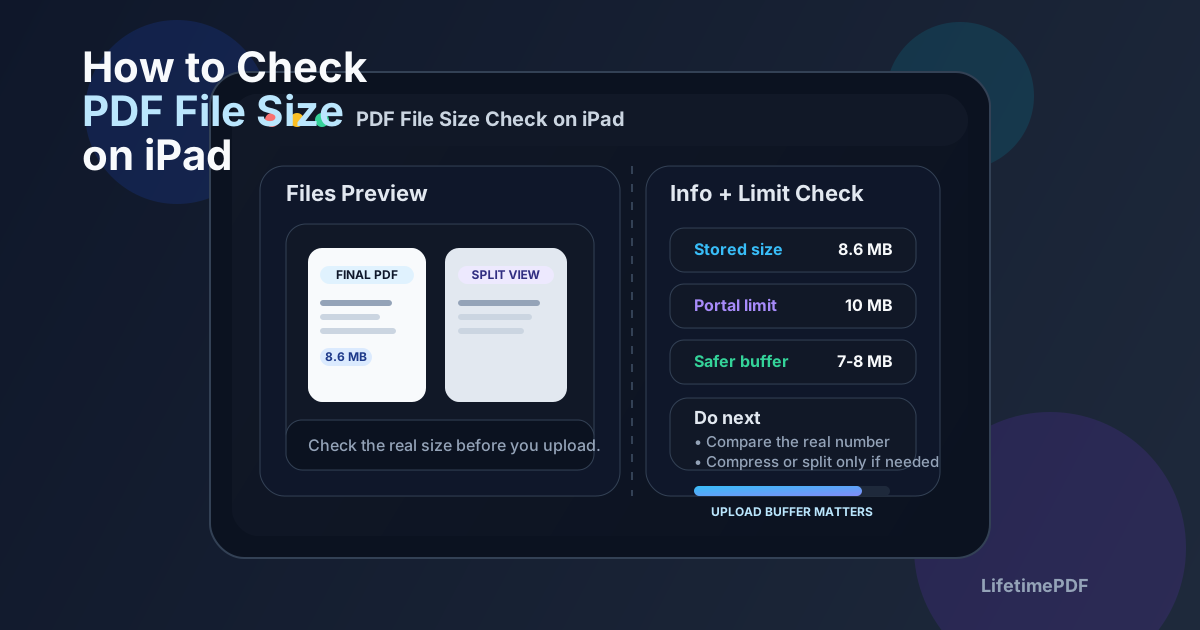
Table of contents
- Quick start: check PDF file size on iPad in about 5 minutes
- What you are really checking on iPad
- Where iPad users get misled
- Step-by-step: how to check PDF file size on iPad
- Common iPad PDF size problems and what to do next
- When to compress, split, rebuild, or leave the PDF alone
- Related LifetimePDF tools and guides
- FAQ
Quick start: check PDF file size on iPad in about 5 minutes
If your real question is will this iPad PDF actually make it through the next step?, use this order:
- Save the exact PDF you plan to send into Files so you are checking the real outgoing copy.
- Open the file details or info view and read the stored size in KB or MB.
- If you want a second check, open View PDF Properties.
- Compare the number with the actual limit for Mail, Gmail, Messages, a school portal, a client upload form, or whatever destination matters next.
- If the file is too close to the ceiling, use Compress PDF. If one appendix or image-heavy packet is the real issue, use Split PDF.
- Test one final share or upload so you know the corrected file really clears the limit.
What you are really checking on iPad
Checking PDF file size on iPad is not just asking whether the document feels small enough. You are confirming whether the exact file sitting in Files, iCloud Drive, Downloads, Mail, or another app fits the exact workflow it has to pass through next.
In practice, that means answering three blunt questions:
- How big is the final PDF right now?
- What limit does the next iPad workflow actually enforce?
- Is the better fix compression, splitting, a cleaner source export, or no change at all?
Good outcome
The PDF is comfortably under the real limit, still looks clean, and does not need extra processing just because the next share step feels risky.
Warning outcome
The file is technically under the limit but sits close enough that one portal, email provider, or wrapper can still reject it.
Typical root cause
Scans, screenshots, inserted photos, or a bloated export from another app that kept far more detail than the destination actually needs.
My practical opinion: if an iPad send fails because the PDF is too large, the mistake was rarely the final retry. It was usually not checking the size early enough.
Where iPad users get misled
iPad is great at making documents feel manageable. Split View lets you keep Files beside Mail or a portal, thumbnails make the PDF feel lightweight, and the larger screen can make you assume the file is already ready. None of that changes the stored size.
Preview speed is not file size
A PDF can open smoothly on iPad because the device is fast, not because the file is small. A short scan packet can still be massive once you actually inspect the stored size.
Split View can hide the real risk
Seeing the PDF beside the upload screen helps comparison, but it does not create buffer. A file that is already close to the limit is still risky, even when the side-by-side workflow feels organized.
Another iPad trap is checking an earlier version in one app while a newer export sits somewhere else. If you compressed a draft yesterday, annotated it today, then saved it again, you need to inspect the final copy that is actually leaving your iPad.
Step-by-step: how to check PDF file size on iPad
1) Save the exact iPad copy first
Start with the actual PDF you plan to upload, email, or message. If the file is still trapped inside a share sheet, another app, or a temporary preview, save it into Files so you are measuring the real outgoing document instead of a maybe-final version.
Why this matters: one duplicated export, markup pass, or cloud re-save can change the file size enough to make your earlier check useless.
2) Read the stored size directly in Files
Open the file details or info panel in Files and read the stored number in KB or MB. If you want a second source of truth, run the same document through View PDF Properties. The goal is not complexity. The goal is making sure you are looking at a real number instead of guessing from the page count.
3) Compare the number with the actual limit
Compare the PDF size with the specific limit that matters next. Mail, Gmail, Messages, school LMS portals, legal intake forms, job boards, and client upload systems do not all behave the same way. A PDF that clears one service can still fail in another.
- Use the stated limit when the destination shows one.
- When no limit is visible, assume less comfort and give yourself more buffer.
- If a helper app wraps the upload, do not assume it uses the same ceiling as the browser version.
4) Give yourself some buffer
A PDF that barely sneaks under the published limit is not always safe. Headers, wrappers, odd portal behavior, or multiple attachments can turn a technical pass into a practical failure. If the limit is 10 MB, treating 7 to 8 MB as a calmer target is often smarter than trusting 9.9 MB.
5) Figure out what is making the PDF heavy
On iPad, heavy PDFs usually come from camera scans, large screenshots, repeated exhibits, inserted photos, or exports from apps that preserved more detail than the destination requires. The fix depends on the cause. A single oversized appendix wants a different solution than a whole document full of oversized images.
6) Choose the right fix for the real problem
If the whole document is slightly too large, use Compress PDF. If one section is causing most of the weight, use Split PDF. If the export itself is wasteful, rebuild it from the source at saner settings. And if the file is already comfortably below the real limit, leave it alone.
Common iPad PDF size problems and what to do next
The PDF looks fine in Split View, but the portal still rejects it
Split View is useful for comparing the file with the destination rules, but it does not protect you from edge cases. Re-check the actual size, make sure you are using the final file, and create more buffer if the number is uncomfortably close to the limit.
The PDF has only a few pages, but it is still huge
Short PDFs can be heavy when each page is a full-resolution scan or screenshot. Page count is not the same thing as storage weight. If the pages are image-heavy, compression usually helps faster than manual guesswork.
The upload worked yesterday, but today the file is too large
Something probably changed in the export path. New annotations, merged exhibits, repeated scans, or a different save method can all increase size. Check the final copy again instead of assuming the old number still applies.
You need the PDF to stay as one file
That is a compression problem, not a splitting problem. If the destination requires one attachment, shrink the document while preserving enough readability for the task. Do not break it apart unless the receiving workflow allows separate files.
When to compress, split, rebuild, or leave the PDF alone
Compress when the document should stay together
Compression is the right move when the PDF needs to remain one file for a submission, signature workflow, client packet, or school portal and it only needs a smaller footprint.
Split when one section is causing the problem
If the real weight lives in one appendix, image packet, or supporting exhibit and the destination allows multiple files, splitting is often cleaner than over-compressing every page.
Rebuild when the source workflow is bloated
If the PDF became heavy because it was exported with wasteful settings or stitched together from screenshots, a cleaner source export can beat repeated compression passes.
Leave it alone when the file is already safe
If the PDF is comfortably below the real limit and still looks good, do not damage quality just because a large file once burned you on another job.
Related LifetimePDF tools and guides
FAQ
How do I check PDF file size on iPad quickly?
Save the PDF into Files, open its info view, and read the stored size in KB or MB. That is the number you need before you upload, email, or share it.
Can a PDF look small on iPad but still be too large for a portal?
Yes. A PDF can appear simple on your screen and still carry a large file size because of scans, screenshots, photos, or bloated export settings. Screen appearance is not the same thing as stored size.
What is the fastest iPad warning sign that a PDF is risky to send?
If the file is already very close to the stated limit, treat it as risky. A little buffer is safer than trusting a PDF that is hovering right under the ceiling.
Should I compress or split the PDF?
Compress when the document needs to remain one file. Split when one heavy appendix or exhibit is the reason the whole PDF is too large and the destination can accept multiple files.
Does page count tell me PDF file size on iPad?
No. Page count tells you how many pages are in the document, but the real file size depends much more on scans, images, fonts, and export choices inside the PDF.
Check the real size before the PDF surprises you later.
On iPad, the calmest workflow is simple: inspect the stored size, compare it with the real limit, fix only the actual problem, and test the final file once before it leaves your device.
Published by LifetimePDF — Pay once. Use forever.