Check PDF File Size: Confirm MB Limits Before You Upload, Email, or Share
To check PDF file size, read the real size in MB or KB from the file listing or PDF properties before you upload, email, or share the document.
If the PDF is close to the destination limit, compress it or split it before the portal, inbox, or app rejects the file.
That is the short answer. The practical answer is that file-size problems waste time because people often notice them late. The PDF looks fine, the content is correct, and then the upload fails at 98%, the email bounces, or a client says the attachment never arrived. A fast size check tells you whether the file is safely under the limit, barely under it, or obviously headed for trouble.
Fastest practical path: confirm the real MB count, compare it with the actual destination limit, then compress, split, or leave the file alone based on the number instead of guessing.
In a hurry? Jump to quick start: check PDF file size in about 5 minutes.
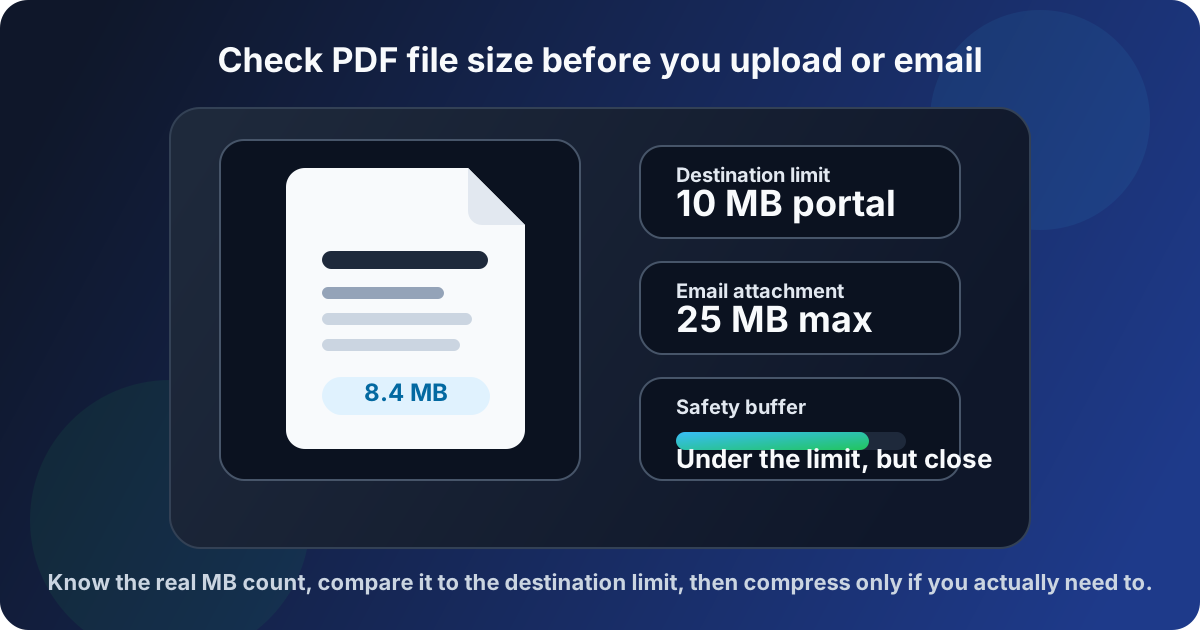
Table of contents
- Quick start: check PDF file size in about 5 minutes
- What PDF file size actually means
- Common file-size limits you are likely to hit
- Why PDFs become larger than expected
- Step-by-step: practical PDF file-size review workflow
- When to compress, split, rebuild, or leave the PDF alone
- Final checklist before you upload, email, or share
- Related LifetimePDF tools and guides
- FAQ
Quick start: check PDF file size in about 5 minutes
If your goal is simply make sure this PDF will go through the destination without drama, this is the shortest sensible workflow:
- Open the exact PDF you plan to send, not an older draft.
- Read the real size in MB or KB from the file listing or PDF properties.
- Compare that number with the real destination limit: email, portal, LMS, chat app, or cloud upload.
- If the PDF is already under the limit with healthy margin, do not over-fix it.
- If it is too close or too large, use Compress PDF first. If only part of the document needs to move, consider Split PDF.
- Test one final upload or send so you know the corrected file actually clears the limit.
What PDF file size actually means
PDF file size is the amount of storage the document uses as a file. It is usually shown in KB, MB, or sometimes GB for unusually large documents. This is different from page size, page count, zoom level, or how complex the PDF looks at first glance.
In practice, checking file size means answering a few blunt questions: How big is the outgoing PDF right now? What is the real destination limit? Is the document already safe to send? If not, is the better fix compression, splitting, or rebuilding the source?
| Thing you are looking at | What it tells you | What it does not tell you |
|---|---|---|
| PDF file size | The real amount of storage or upload weight the file carries | Whether the page dimensions or layout are correct |
| Page count | How many pages the document contains | How heavy the PDF is on disk |
| Page size | The physical dimensions of the pages such as A4 or Letter | Whether the file will fit under an attachment limit |
| Image quality or resolution | One clue about why the PDF may be large | The final file size by itself |
Common file-size limits you are likely to hit
Most file-size problems are not about abstract storage theory. They are about one destination saying yes and another saying no. The same PDF may be fine for Drive, too large for email, and wildly too large for a strict application portal.
| Destination | Typical limit | What usually goes wrong |
|---|---|---|
| Email attachments | Often around 20 to 25 MB total | A PDF that feels reasonable still bounces because several attachments push the message over the line |
| Job or school portals | Often 2 to 10 MB per file | Scanned resumes, portfolios, transcripts, or assignments exceed tighter single-file limits |
| Chat and messaging apps | Varies widely by platform and plan | The file uploads in one app but not another, or gets auto-compressed in an ugly way |
| Client portals and e-sign flows | Often strict and inconsistent | Large exhibits, image-heavy contracts, or combined packets fail at the final step |
| Cloud storage and internal systems | Usually higher, but not always | Uploads work, but previews lag, syncing slows down, or downstream users still need smaller files |
The everyday trap
A PDF that is technically under the limit can still be risky when it sits right on the edge. If a portal allows 10 MB and your file is 9.9 MB, give yourself some buffer instead of trusting a best-case upload.
Why PDFs become larger than expected
File-size problems are usually workflow problems, not mysteries. Most oversized PDFs can be traced back to a few familiar causes.
High-resolution scans
Scanned pages, receipts, photos, and evidence packets become heavy fast when every page is stored as a large image instead of efficient text and vector content.
Oversized embedded images
A few screenshots, product photos, floor plans, or design exports can dominate the whole file even when the page count stays low.
Combined documents and repeated assets
Merged packets often carry duplicate logos, repeated exhibits, or unnecessary appendices that make the final PDF heavier than anyone expected.
Inefficient export choices
A PDF can be visually fine but far larger than necessary because the export preserved more image detail, color depth, or hidden content than the destination actually needs.
Step-by-step: practical PDF file-size review workflow
1) Start with the exact outgoing PDF
File-size checks only matter on the copy that is actually headed to the destination. If you measure an earlier draft and then send a newer export, the number you relied on is already stale. Always inspect the final version that will leave your workflow.
2) Read the size directly instead of guessing
Use the file listing or View PDF Properties to confirm the real MB or KB count. This sounds obvious, but many people still estimate file size from page count, scan quality, or how long the PDF takes to open. Guessing is how avoidable failures happen.
3) Compare the size with the real destination limit
The useful question is not whether the PDF feels large. The useful question is whether it fits where it needs to go. A 12 MB file may be trivial for cloud storage, fine for one client portal, and impossible for another. Match the number against the exact workflow in front of you.
4) Figure out what is making the PDF heavy
If the PDF is too large, the next question is why. A scan-heavy file may benefit from compression. A giant combined packet may be better split into sections. A bloated export from the source app may need a cleaner rebuild rather than repeated random compression passes.
5) Choose the right fix for the real problem
Start with Compress PDF when you want to keep the document together. If only one section needs to travel, Split PDF may be the cleaner option. If the file is huge because the scan or export was inefficient from the start, rebuilding the source workflow can produce a better long-term fix than squeezing the final PDF harder.
6) Test one real upload or send
After the change, confirm two things: the file now clears the limit and the content still looks right. The best fix is not just smaller. It is smaller without turning the PDF into a blurry, awkward, or incomplete version of what you meant to share.
Reliable sequence: inspect the real size, compare it with the destination limit, identify what is making the file heavy, then compress, split, or rebuild only for the specific problem you found.
When to compress, split, rebuild, or leave the PDF alone
Not every oversized PDF needs the same treatment. The right move depends on whether the problem is a strict size limit, one bloated section, or an inefficient source file.
Compress when the document should stay together
Compression is usually the first choice when the PDF is only somewhat too large and the whole document needs to remain one file. This is common for resumes, proposals, signed packets, scanned forms, and client-ready deliverables.
Split when only part of the file needs to move
If a large appendix, image-heavy exhibit, or extra section is the real problem, splitting can be cleaner than squeezing the entire PDF harder than necessary. That is especially useful when the destination accepts multiple files or when only one section is time-sensitive.
Rebuild when the source workflow is the real issue
Some PDFs are large because the scan settings were wasteful, the images were oversized before export, or the source application produced a heavy file for no good reason. In those cases, rebuilding can preserve better quality than repeated compression passes on the finished PDF.
Leave it alone when the file is already safe
If the PDF is comfortably under the limit and opens quickly enough for the real audience, smaller is not automatically better. Compression is a tool, not a ritual.
| Situation | Best move | Why |
|---|---|---|
| The whole PDF needs to stay together and is only moderately too large | Compress | You reduce the total size without changing the document structure |
| One appendix or section is causing the problem | Split | You keep the main file lighter without over-processing every page |
| The source scan or export is obviously inefficient | Rebuild or re-export | A cleaner source often produces a better result than squeezing the final PDF harder |
| The PDF is already well under the real limit | Leave it alone | You avoid unnecessary quality loss and extra workflow steps |
Easy mistake to avoid
Do not judge success only by the new number. A smaller PDF that becomes blurry, unreadable, or awkward to review is not a real improvement unless the destination truly forced that trade-off.
Final checklist before you upload, email, or share
Before the PDF leaves your hands, run this quick check:
- Did you check the real MB or KB count on the final outgoing file?
- Did you compare that number with the actual destination limit instead of a vague assumption?
- If the file is close to the ceiling, did you give yourself a little safety buffer?
- Did you choose the right fix: compress, split, rebuild, or no change?
- If you changed the file, did you test one real upload, send, or preview afterward?
- Does the corrected PDF still look clean enough for the real audience and use case?
You do not need an elaborate preflight process to get this right. You just need the real number, the real destination limit, and the discipline to fix only what the workflow actually requires.
Ready to clean up the file? Confirm the real size, reduce the PDF only if the destination demands it, and send a file that clears the limit without unpleasant surprises.
Best workflow for dependable sharing: measure the real file size → compare it to the destination limit → choose the lightest useful fix → verify the final upload or send.
Related LifetimePDF tools and guides
File-size checks work best when you pair them with one or two practical follow-up tools. These are the most useful next steps:
Confirm the size and reduce it when needed
- View PDF Properties to confirm the real file details before you change anything
- Compress PDF Tool when the file needs to fit through tighter upload or attachment limits
- Compress PDF Guide for a fuller size-reduction workflow
Handle edge cases and strict destinations
- How to Reduce PDF File Size for Email when attachment ceilings are the real bottleneck
- Split PDF Tool when one large section makes the whole document too heavy
- Reduce PDF Size for Mobile when the audience mostly downloads or shares PDFs on phones
FAQ
1) How do I check PDF file size?
Check the real MB or KB count in the file listing or PDF properties. Then compare that number with the actual upload, email, or portal limit that matters for the file.
2) Why does a short PDF sometimes have a huge file size?
Because file size depends more on the assets inside the document than on page count alone. A short PDF with high-resolution scans or oversized images can outweigh a much longer text-heavy PDF.
3) Should I compress the PDF if it is already under the limit?
Not automatically. If the file is already comfortably under the limit and looks good, leaving it alone is often the cleaner choice.
4) When is splitting better than compressing?
Splitting is better when only one section is causing the size problem or when the destination accepts several files. It lets you keep quality in the main document instead of squeezing every page harder.
5) What is the safest way to handle a PDF that sits right at the limit?
Give yourself some buffer. If the limit is 10 MB and the file is extremely close, reduce it a bit before sending so the upload or attachment process is less likely to fail for avoidable reasons.
Published by LifetimePDF — Pay once. Use forever.