How to Check PDF File Size on Chromebook: Files, Downloads, and Upload Limits Before You Share
To check PDF file size on Chromebook, open the final PDF in Files, read the stored size in the file details or a properties workflow, and confirm the real KB or MB count before you upload or email it.
If the file is close to a Gmail, Classroom, Forms, or portal limit, compress it or split it before the send fails.
That is the short Chromebook answer. The practical answer is that ChromeOS makes PDFs feel deceptively safe. A document can open instantly in Chrome, look tidy in Drive preview, and still be large enough to fail the moment you try to attach it, upload it, or submit it. The least annoying workflow is simple: check the stored number first, then decide whether you actually need a fix.
Fastest practical path: check the real PDF size in Files, compare it with the actual destination limit, then compress, split, or leave the file alone based on the number instead of guesswork.
In a hurry? Jump to quick start: check PDF file size on Chromebook in about 5 minutes.
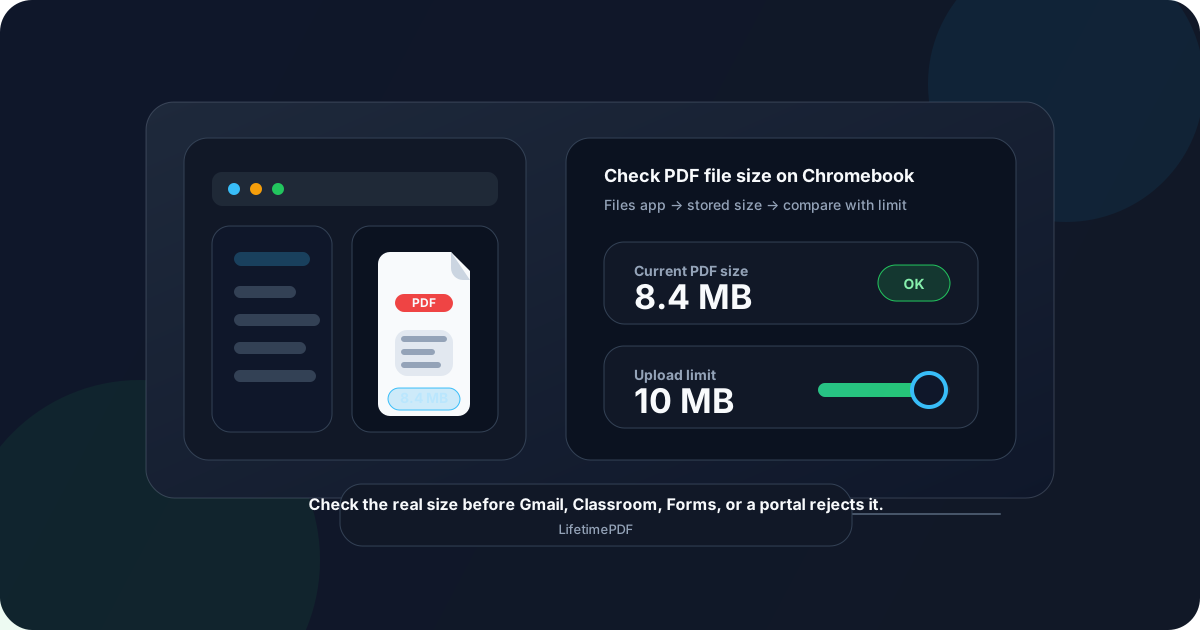
Table of contents
- Quick start: check PDF file size on Chromebook in about 5 minutes
- What you are really checking on Chromebook
- Where Chromebook users get misled
- Step-by-step: how to check PDF file size on Chromebook
- Common Chromebook PDF size problems and what to do next
- When to compress, split, rebuild, or leave the PDF alone
- Related LifetimePDF tools and guides
- FAQ
Quick start: check PDF file size on Chromebook in about 5 minutes
If your real question is will this Chromebook PDF actually make it through the next step?, use this order:
- Open the exact PDF you plan to send from Downloads, Files, Google Drive, or the folder you really plan to use.
- Read the size in the file details or by using a PDF properties workflow.
- If you want a second check, open View PDF Properties.
- Compare the number with the actual limit for Gmail, Google Classroom, Google Forms, a school portal, a client upload form, or whatever destination matters next.
- If the file is too close to the ceiling, use Compress PDF. If one appendix or image-heavy packet is the real issue, use Split PDF.
- Test one final upload, attachment, or share so you know the corrected file really clears the limit.
What you are really checking on Chromebook
Checking PDF file size on Chromebook is not just asking whether the document feels small enough. You are confirming whether the exact file sitting in Files, Downloads, Google Drive, Gmail, or Classroom fits the exact workflow it has to pass through next.
In practice, that means answering three blunt questions:
- How big is the final PDF right now?
- What limit does the next Chromebook workflow actually enforce?
- Is the better fix compression, splitting, a cleaner source export, or no change at all?
Good outcome
The PDF is comfortably under the real limit, still looks clean, and does not need extra processing just because Chromebook previews make uploads feel risky.
Warning outcome
The file is technically under the limit but sits close enough that one portal wrapper, email system, or school tool can still reject it.
Typical root cause
Heavy scans, inserted screenshots, repeated exhibits, or a bloated export that preserved far more detail than the destination actually needs.
My practical opinion: if a Chromebook send fails because the PDF is too large, the mistake was rarely the final retry. It was usually not checking the real size early enough.
Where Chromebook users get misled
ChromeOS is excellent at making documents feel manageable. Chrome preview, Drive preview, and the Files app all make it easy to open a PDF fast. The problem is that they answer does this open? better than they answer is this safe to upload, attach, or submit through the next system?
| Chromebook path | What it is good for | What it cannot safely prove |
|---|---|---|
| Chrome or Drive preview | Confirming you opened the right PDF and that it generally looks intact. | Whether the stored file size is light enough for the next Gmail, Classroom, Forms, or portal step. |
| Files app details | A fast first answer about the real size in KB or MB. | Why the PDF is heavy or which fix will preserve the best quality. |
| Shared Drive link or cloud thumbnail | Checking that the document exists and appears to load normally. | That the exact copy you will send matches the size you think it has. |
| PDF properties workflow | Confirming the stored size of the exact PDF you plan to use. | Whether the destination limit is stricter than you assumed. |
| Real upload or share test | Proving that the corrected file truly passes the workflow. | Why it failed if you never checked the size first. |
Step-by-step: how to check PDF file size on Chromebook
This workflow gives you a dependable answer without turning a basic Chromebook check into a giant cleanup project.
Step 1: Start with the final Chromebook copy
Measure the exact PDF that will actually leave your device. If you are still looking at a preview tab while the real outgoing copy lives in Downloads or Drive, the number you trust may already be wrong.
Step 2: Read the size directly in Files
Open the folder that contains the PDF and read the file details, or use a PDF properties workflow if you want a second source of truth. The goal is simple: get the stored file size in KB or MB. That is far more reliable than guessing from page count, visual complexity, or how quickly the file opens in Chrome.
Step 3: Compare the number with the actual limit
A PDF that feels fine in a Chromebook workflow can still fail in Gmail, Google Classroom, Google Forms, a learning management system, a legal portal, or a client upload tool. Match the number against the exact limit that matters for this use case, not a vague memory of what similar systems usually allow.
Step 4: Give yourself some buffer
If a portal allows 10 MB and your PDF is 9.8 MB, do not assume you are safe. File transfers go more smoothly when the document is clearly under the line instead of balanced right on it. A little safety margin saves a surprising amount of pointless retrying.
Step 5: Figure out what is making the PDF heavy
File-size problems on Chromebook are usually not mysterious. They often come from camera scans, inserted screenshots, exported slides, repeated attachments, or a source export that preserved more detail than the destination really needs. Knowing the cause helps you choose a cleaner fix.
Step 6: Choose the right fix for the real problem
Use Compress PDF when the full file needs to stay together. Use Split PDF when one appendix, exhibit, or scan block is making the whole package too large. If the source export is obviously bloated, rebuilding the file can produce a cleaner result than repeatedly squeezing the finished PDF harder.
Reliable sequence: final Chromebook copy → Files or properties → real MB count → actual destination limit → compress, split, rebuild, or no change → final test upload.
Common Chromebook PDF size problems and what to do next
| What you notice | What it usually means | Best next move |
|---|---|---|
| The PDF has only a few pages but is still huge | The weight is probably coming from scans, screenshots, or photos rather than page count. | Compress first, then check whether one or two images are doing most of the damage. |
| Gmail or a portal resists the upload | The file is near or over the practical sharing limit for that workflow. | Reduce the size or split the PDF before retrying the send. |
| The PDF looked normal in Chrome or Drive preview but still failed | The visual preview was never the issue. The stored file size was. | Read the exact MB count and compare it with the real limit, then create buffer. |
| One appendix makes the whole packet too large | The main document may be fine, but one heavy section is pushing it over the line. | Split the heavy section out instead of compressing every page harder than necessary. |
| The file keeps growing after every export or scan pass | The source workflow is preserving more image detail or duplicate assets than the destination needs. | Rebuild from a cleaner source if repeated compression is starting to damage quality. |
Healthy default
If the PDF is already comfortably under the real limit and still looks good, do not keep shrinking it just because you can. Smaller is only better when the workflow actually benefits.
When to compress, split, rebuild, or leave the PDF alone
Not every Chromebook file-size problem needs the same response. The useful question is whether the issue is the whole document, one section, or the source workflow upstream.
Compress when the document should stay together
Compression is the cleanest first move when the full PDF needs to remain one file and only needs to become smaller. This is common for forms, assignments, proposals, signed packets, scanned paperwork, and client deliverables that still have to travel as one upload or attachment.
Split when one section is causing the problem
Splitting makes sense when a large exhibit, appendix, photo section, or scan bundle is the real reason the PDF is too heavy. That is often better than squeezing the entire file harder than necessary.
Rebuild when the source workflow is bloated
If the PDF keeps coming out heavy because of wasteful scan settings or oversized exports, a cleaner source rebuild is often better than repeated compression on the finished file. Rebuilding is especially worth it when the document will be reused many times.
Leave it alone when the file is already safe
If the PDF is already well under the limit, opens cleanly, and looks right for the audience, you may already be done. Extra processing is not a virtue by itself.
FAQ
How do I check PDF file size on Chromebook quickly?
Find the PDF in Files, read the size in the file details, or use a PDF properties workflow for a second check. That shows the stored file size in KB or MB, which is the number you need before you upload, email, or share it.
Can a PDF look small on Chromebook but still be too large for a portal?
Yes. A PDF can appear simple on screen and still carry a large file size because of scans, screenshots, photos, or bloated export settings. Screen appearance is not the same thing as stored size.
What is the fastest Chromebook warning sign that a PDF is risky to send?
If the file is already very close to the stated limit, treat it as risky. A little buffer is safer than trusting a PDF that is hovering right under the ceiling.
Should I compress or split the PDF?
Compress when the document needs to remain one file. Split when one heavy appendix or exhibit is the reason the whole PDF is too large and the destination can accept multiple files.
Does page count tell me whether a PDF is safe to upload?
No. Page count can be misleading. A three-page scanned PDF with huge images can outweigh a forty-page text-only PDF by a wide margin.
Check the real size before the PDF surprises you later.
On Chromebook, the calmest workflow is simple: inspect the stored size, compare it with the real limit, fix only the actual problem, and test the final file once before it leaves your device.
Published by LifetimePDF — Pay once. Use forever.