How to Check PDF Creation Date on Mac: Preview, Finder, and Timeline Clues Before You Share
To check PDF creation date on Mac, save the real file from Mail, Safari, Finder, or iCloud Drive, inspect the hidden Creation Date in Preview, Acrobat Reader, or a metadata editor, and compare it with when the share-ready PDF was actually created.
If the timestamp still reflects an old template, scan batch, OCR pass, print-to-PDF export, or sync event instead of the file's true timeline, correct or remove it before the PDF leaves your Mac.
Mac previews make PDFs feel finished fast. A file can look perfect in Quick Look, open cleanly in Preview, and be ready to drag into Mail or AirDrop while the hidden creation date still points to a draft version, a scanner run, or a stale export step. The useful goal is not collecting more dates. It is making sure the one stored inside the PDF still supports the story your final file should tell when somebody else opens it.
Fastest practical path: save the final Mac copy, inspect the embedded creation date once, compare it with the real document timeline, then decide whether the timestamp should stay, be corrected, or disappear before you share the file.
In a hurry? Jump to quick start: check PDF creation date on Mac in about 5 minutes.
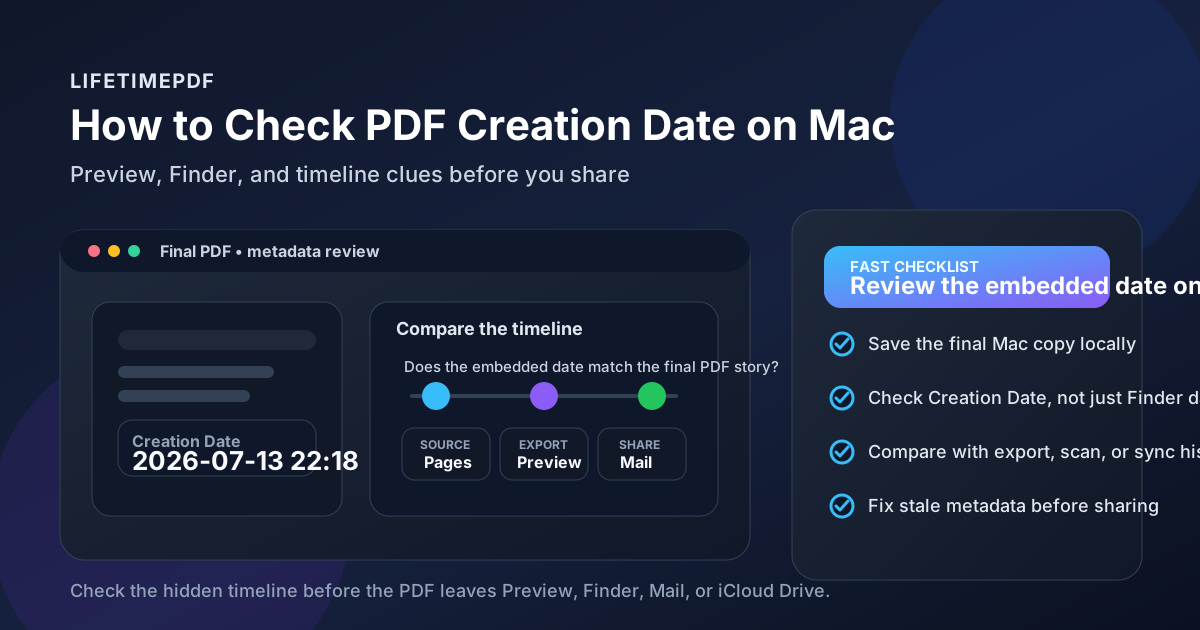
Table of contents
- Quick start: check PDF creation date on Mac in about 5 minutes
- What you are really checking when you review PDF creation date on Mac
- Where Mac users misread timestamps
- Step-by-step: how to check PDF creation date on Mac
- Warning signs the creation date needs a second look
- When to keep, correct, or remove the creation date
- Related LifetimePDF tools and guides
- FAQ
Quick start: check PDF creation date on Mac in about 5 minutes
If your real question is does this Mac PDF still carry a believable creation timestamp before I send or archive it?, use this order:
- Save the exact PDF you plan to email, upload, AirDrop, archive, or publish from Finder, Mail, iCloud Drive, or your actual project folder.
- Inspect the embedded Creation Date with a metadata-aware workflow like PDF Metadata Editor or View PDF Properties.
- Compare that value with when the final PDF was actually created, not just when the current copy was downloaded, synced, or moved into a Finder folder.
- Ask whether the timestamp reflects the true PDF timeline or a noisy event like a template export, scan batch, OCR run, merge, or print-to-PDF pass.
- Keep the date if it still makes sense, or fix / clear it if it would confuse a reviewer, client, auditor, or future teammate.
- Save the cleaned file and reopen it once so you verify the embedded date really stuck to the Mac copy you are about to share.
What you are really checking when you review PDF creation date on Mac
The PDF creation date is hidden metadata stored inside the document. It is not automatically the same thing as the Date Created or Date Modified values you see in Finder, and it is definitely not the same thing as the date printed on page one. Think of it as a timeline clue carried by the PDF itself. That clue can be accurate, inherited, stale, or misleading depending on how the file was exported.
That difference matters on Mac because PDFs often move through quick handoff stages. A document may start in Pages, Word, Numbers, Google Docs, or a scanner app, get exported to PDF, previewed in Quick Look, reopened in Preview, synced through iCloud Drive, and then shared through Mail or AirDrop. Every step can leave a date trail around the file. The embedded creation date only helps if you know which event it is really describing.
| Date field | What it usually means | Typical Mac mistake |
|---|---|---|
| Finder Date Created | When that Mac copy was created in the current folder, drive, or cloud location. | People assume it proves when the PDF itself was first generated. |
| Finder Date Modified | When the file content last changed on the current copy. | It gets treated like the same thing as embedded PDF metadata. |
| PDF Creation Date | Hidden metadata inside the PDF that points to when the document says it was created. | It may still reflect a template export, print pass, scan batch, or automation step instead of the timeline you expected. |
| PDF Modification Date | Hidden metadata about a later edit or save event inside the PDF. | It gets ignored even when it explains the file better than the creation date does. |
Where Mac users misread timestamps
macOS makes PDFs feel trustworthy quickly. Finder previews, Quick Look, Preview tabs, and Mail attachment windows all make it easy to believe you already understand the file. The trap is that a smooth viewing experience is not proof that the hidden timeline still tells the right story.
| Mac path | What it is good for | What it cannot safely prove |
|---|---|---|
| Finder list or Get Info | Confirming which copy you are about to send and seeing the folder-level dates on that copy. | That the embedded creation date still matches the true origin of the PDF itself. |
| Quick Look or Preview | Opening the real Mac copy and doing a first document review. | Whether the stored creation timestamp is accurate, useful, or stale unless you inspect the metadata directly. |
| iCloud Drive sync history | Showing when the current Mac copy was uploaded, synced, replaced, or downloaded again. | When the embedded PDF was truly created, finalized, or intentionally cleaned. |
| Mail, Messages, or AirDrop handoff | Showing how the file actually leaves your Mac in day-to-day work. | Whether the hidden timestamp still describes the right milestone for the final PDF. |
| Metadata editor or full properties view | Giving you the clearest look at the embedded creation date itself. | You still have to decide whether the date is accurate, harmless, or misleading for the audience. |
That last point matters most. Tools can reveal the stored timestamp. They cannot decide for you whether the date reflects a meaningful document milestone or just a technical step that would confuse the next person.
Step-by-step: how to check PDF creation date on Mac
This workflow is quick enough for everyday Mac use and detailed enough to catch the timeline mistakes that most often survive into shared PDFs.
Step 1: Start with the exact Mac copy you plan to share
Open the real file from the folder, email draft, iCloud Drive location, or project directory that actually matters. If the PDF has been downloaded again, re-exported, merged, scanned, or reopened through several apps, make sure you inspect the final share-ready copy rather than a nearby earlier draft with a similar name.
Step 2: Inspect the embedded Creation Date directly
Use PDF Metadata Editor, Acrobat document info, or another metadata-friendly path like View PDF Properties. Do not rely on Finder dates alone. On Mac, those values may only tell you when the current copy appeared in Downloads, Desktop, or iCloud Drive, not when the hidden PDF record was set.
Step 3: Compare the timestamp with the real document origin
Ask one simple question: what event should this PDF's origin really point to? Maybe it is the moment the final agreement was exported from Pages. Maybe it is the scan that produced the first digital archive. Maybe it is the OCR pass that made the PDF searchable. If the embedded creation date points to a different event than the one readers will assume, you have found the real problem.
Step 4: Look for the usual Mac workflow distortions
Creation dates often go sideways when a PDF inherits metadata from a template, gets regenerated through print-to-PDF, passes through scanner software, or is merged with other files. In those cases the timestamp may be technically real but practically misleading. The point of the review is not to chase perfect historical purity. It is to catch the dates that quietly tell the wrong story after the file leaves your Mac.
Step 5: Decide whether to keep, correct, or remove the date
If the timestamp still reflects the document's real origin, keep it. If it clearly belongs to a template, test run, or unrelated processing event, update it as part of a broader metadata cleanup. If the date adds more confusion than value, or if the PDF is privacy-sensitive, continue with Remove Metadata From PDF.
Step 6: Save and verify once
Reopen the saved PDF and confirm the embedded creation date now matches the final file you are about to send. This catches classic Mac mistakes such as cleaning one copy while sharing another, trusting a preview cache, or checking a local file while Mail or AirDrop is about to use a different version.
Reliable sequence: inspect the embedded creation date, compare it with the real origin of the file, clean up misleading timestamps, then verify the final Mac copy once before the PDF travels anywhere else.
Warning signs the creation date needs a second look
These patterns show up constantly in Mac workflows built around templates, exports, scanned files, shared iCloud folders, and quick handoffs through Mail or AirDrop.
| What you notice | What it usually means | Best next move |
|---|---|---|
| The creation date is much older than the actual project | The PDF probably inherited metadata from an old template or recycled source file. | Check the source workflow and decide whether the timestamp should be standardized or removed. |
| The date matches a scan or OCR batch, not the document's real origin | The metadata points to a processing step instead of the milestone readers will care about. | Keep it only if that processing event is the right record; otherwise clean the metadata. |
| Every supposedly different PDF shows the same creation timestamp | A shared template or automation path is stamping the same origin onto new files. | Fix the template or cleanup step so future exports stop carrying the wrong history. |
| Finder dates and the embedded date tell different stories | The PDF has moved, synced, or been re-exported enough times that the timeline is split across systems. | Document which date actually matters for the handoff and strip any metadata that confuses the recipient. |
| The timestamp would create the wrong impression in an audit or client review | The date may be technically real but contextually misleading. | Preserve the true record elsewhere and make the share-ready PDF's metadata intentional. |
Healthy default
If the embedded creation date would make a reviewer misunderstand when the PDF really came into existence, the file deserves one more Mac metadata pass before you send it.
When to keep, correct, or remove the creation date
Not every Mac PDF needs the same answer. The useful question is whether the timestamp helps the final file make sense or only drags workflow noise into a place where readers will over-trust it.
Keep it
Best when the embedded date still reflects the true origin of the final PDF and helps the file feel trustworthy.
Correct it
Useful when a template, export tool, or scanner wrote a timeline that is clearly tied to the wrong event.
Remove it
Smart when the date adds no value, causes privacy concerns, or creates the wrong impression once the PDF leaves your machine.
Preserve the real record elsewhere
Important when legal, compliance, or project history depends on accurate documentation beyond what one hidden PDF field can safely prove.
In practice, the best choice is the one that leaves the fewest hidden surprises for the next person. A share-ready PDF often needs simpler metadata than an internal working file. If the creation date matters for a regulated process, preserve that timeline in the surrounding system of record rather than expecting one hidden PDF field to carry the whole burden.
- Keep the date when it cleanly matches the final PDF's true origin.
- Correct the date when it obviously belongs to the wrong export, template, scan, or processing step.
- Remove the date when it only creates confusion, churn, or privacy risk.
- Document critical history elsewhere when the timeline has legal or operational consequences beyond casual sharing.
FAQ
How do I check PDF creation date on Mac quickly?
Save the final PDF on your Mac, inspect the embedded Creation Date in Preview, Acrobat Reader, or a metadata editor, compare it with the document's real timeline, and fix it if the value is stale or misleading.
Is PDF creation date the same as the Date Created field in Finder?
No. Finder dates describe the current Mac copy in the folder or cloud location, while PDF creation date is hidden metadata inside the file itself. They can match, but they often reflect different events.
Can Preview show PDF creation date on Mac?
Preview can help you open the right file and inspect document information, but a fuller metadata workflow is more dependable when you need to confirm the embedded creation timestamp rather than just the surrounding Finder dates.
Should I change a wrong PDF creation date?
Only when the timestamp is clearly misleading, inherited from the wrong workflow, or creates a problem for the final share-ready file. If the timeline matters for compliance or evidence, preserve the real record elsewhere too.
Why does my PDF creation date look older or newer than expected?
Because PDFs often inherit metadata from templates, scan software, OCR passes, print-to-PDF workflows, merges, and repeated exports. The timestamp can be technically real while still describing the wrong moment for your reader.
Check the hidden timeline before the PDF leaves your Mac.
A clean Mac workflow is simple: inspect the embedded creation date, compare it with the document's real origin, keep only the timeline details that help the file make sense, and verify the final copy once before you send it.
Published by LifetimePDF — Pay once. Use forever.