How to Check if a PDF Is Linearized on Mac: Fast Web View, Safari, and Acrobat Checks
To check if a PDF is linearized on Mac, open the file in Acrobat or Reader and look for Fast Web View, or test the real PDF URL in a fresh Safari window and see whether page 1 starts rendering before the full file finishes downloading.
If Fast Web View is off or the live Safari version still waits too long before showing page 1, the PDF is not properly optimized for web delivery and should be linearized before you publish or replace it.
That is the short answer. The useful Mac answer is a little more specific: you need to test the exact file you plan to publish, separate a smooth local Preview experience from real browser delivery, and make sure you are checking the live copy rather than a cached or outdated version.
Fastest path: check Fast Web View in Acrobat first, then open the live URL in Safari once. If the file still behaves like a full download, linearize the final copy and retest the published URL.
In a hurry? Jump to Quick start: the fastest Mac linearization check.
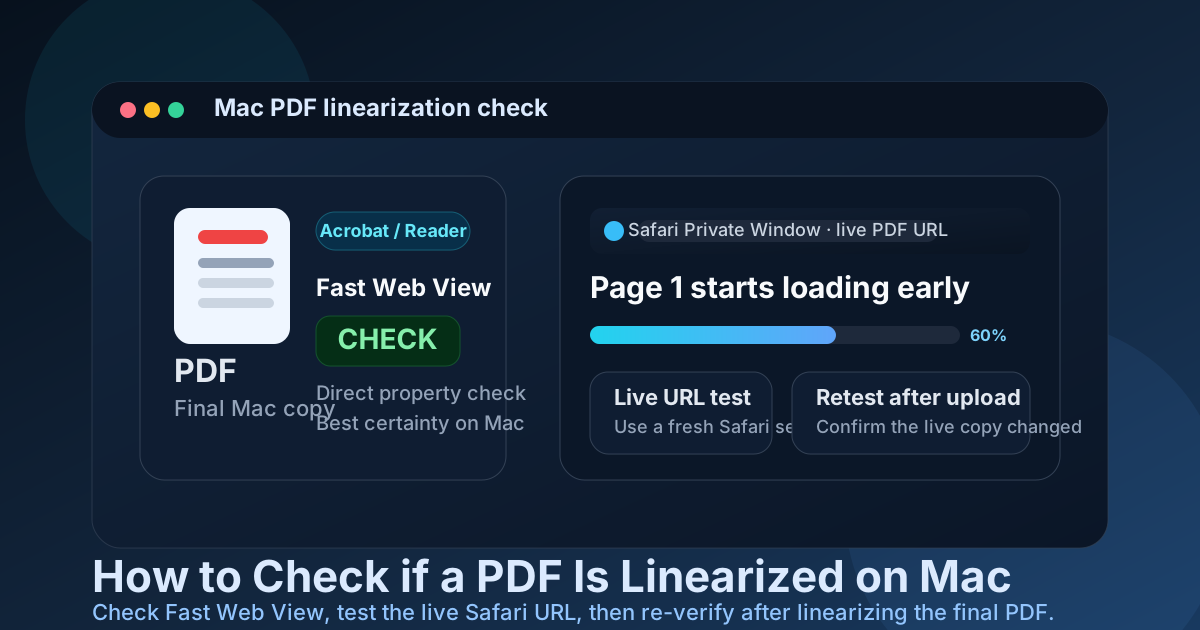
Table of contents
- Quick start: the fastest Mac linearization check
- What a linearized PDF means on Mac
- The best order to test it on Mac
- Method 1: check Fast Web View in Acrobat or Reader
- Method 2: test the live URL in Safari
- Why Preview alone is not enough
- Compression vs linearization on Mac
- What to do if the PDF is not linearized
- Common Mac mistakes that create false confidence
- Related LifetimePDF tools and guides
- FAQ (People Also Ask)
Quick start: the fastest Mac linearization check
If your real goal is simply tell me whether this PDF is web-optimized, use this order:
- Save the exact PDF you plan to publish or test to one clear folder on your Mac.
- Open it in Acrobat or Reader and look for Fast Web View in the document properties.
- If Fast Web View says Yes, the PDF is linearized.
- If your current Mac app does not expose that field, open the real published PDF URL in a fresh Safari window.
- Watch whether page 1 begins rendering while the rest of the file continues loading.
- If Safari waits too long before showing anything useful, run the final approved file through Linearize PDF and test the live URL again.
What a linearized PDF means on Mac
A linearized PDF is structured so the pieces needed to show page 1 arrive early. That lets Safari or another browser begin rendering the first page before the entire file has finished downloading. In many PDF tools, that status is labeled Fast Web View.
This matters because web readers judge speed by what appears first. If the first page becomes readable quickly, the document feels responsive. If Safari keeps waiting while the whole file downloads, the PDF feels heavier, slower, and more awkward than it needed to be.
| File state | What usually happens in a browser | Best use case |
|---|---|---|
| Linearized PDF | Page 1 can start appearing sooner while later content continues loading | Websites, portals, help centers, LMS platforms, live browser links |
| Non-linearized PDF | The browser may wait much longer before showing useful content | Offline reading, downloads, small internal files where first-page speed matters less |
| Compressed PDF | The file may be smaller, but the page order is not automatically optimized for web delivery | Reducing weight when the PDF is too large, often alongside linearization |
The best order to test it on Mac
The safest workflow is not to jump straight into one method and call it done. On Mac, you get the strongest answer by combining a direct property check with a real live-delivery check.
1. Acrobat or Reader
Check Fast Web View first when you want the most direct yes-or-no answer on Mac.
2. Safari live URL test
Confirm how the published file behaves for real visitors instead of trusting only a local open.
3. Re-test after optimization
Make sure the live file changed after you linearize or replace it.
That sequence protects you from the two most common Mac mistakes: treating Preview as proof of web optimization and assuming the published file changed just because the local export changed.
Method 1: check Fast Web View in Acrobat or Reader
This is the cleanest direct method when it is available to you. Open the PDF in Acrobat or Reader on Mac, then open the document properties and look for the Fast Web View field.
- If it says Yes, the PDF is linearized.
- If it says No, the file is not linearized.
- If your current app does not show the field, switch to the live Safari test instead of guessing.
Why this works well
It answers the exact structural question directly. You are not inferring from feel, download speed, or memory of how the file behaved yesterday. When Fast Web View is visible, it is the fastest high-confidence answer you can get on Mac.
This is also the best moment to confirm that you are testing the final PDF. Mac workflows often involve versions from Mail, Finder, Preview exports, cloud-sync folders, and browser downloads. If you optimize the wrong copy, the whole check becomes meaningless.
Method 2: test the live URL in Safari
If Mac users will open the PDF from the web, this is the behavior that matters. Open the actual published PDF URL in a fresh Safari window, not a tab that already cached the file earlier.
- Copy the real PDF URL, not a local file path.
- Open a fresh Safari window or a clearly uncached session.
- Paste the URL and load the PDF.
- Watch whether page 1 becomes readable while later pages are still loading.
- Compare the result again after you linearize and re-upload the file.
You are not trying to stage a perfect synthetic benchmark. You are looking for a practical difference in first-page behavior. If the PDF is large enough for linearization to matter, the contrast is usually obvious.
| What you see in Safari | What it usually means | Next move |
|---|---|---|
| Page 1 appears quickly and the rest keeps loading | Good sign the PDF is linearized or at least browser-friendly | Confirm with Acrobat if you want a direct property check |
| Safari waits too long before showing anything useful | The PDF may not be linearized or the published version may still be the old file | Linearize the final copy, replace the published file, and retest |
| The result seems inconsistent across repeated tests | Cache, CDN delay, or mixed versions may be confusing the test | Use a fresh Safari session and verify the replacement file really propagated |
A common Mac trap
If you keep reopening the same browser session, Safari can make a slow file look faster than it really is. A fresh window and the real live URL are much closer to what a new visitor sees.
Why Preview alone is not enough
Preview is excellent for opening a PDF, skimming pages, confirming page count, and checking whether you are holding the right local file. It is not the best proof that the published browser version is linearized.
A PDF can feel smooth in Preview because it is already fully local on your Mac. That tells you the file opens; it does not tell you how efficiently page 1 arrives over the web. Linearization is about delivery order during loading, not just whether the document looks fine once it is already on disk.
Use Preview for
- Confirming you saved the final export
- Comparing before-and-after local copies
- Spot-checking page order and page count
Do not use Preview as proof of
- Fast Web View status
- First-page behavior from the live URL
- Whether the published file was really replaced
Compression vs linearization on Mac
These are not the same fix, and Mac users mix them up all the time. A smaller file can still be poorly arranged for browser delivery. A linearized file can still be too heavy because of giant images, embedded media, or oversized scans.
If your PDF is both large and slow, treat the two problems separately:
- Compression reduces how much data has to travel.
- Linearization changes the order of the data so page 1 can show up sooner.
In real Mac workflows, both may be worth doing. If you are publishing reports, portfolios, brochures, pitch decks, policy packets, or scanned manuals, the best result often comes from compressing first when needed, then linearizing the final finished copy.
What to do if the PDF is not linearized
Once you confirm the issue, do not optimize a random draft and hope it matches what goes live. Work from the final approved PDF.
That last recheck matters. Teams often do the optimization step correctly, then accidentally keep serving the old published file. The final browser re-test is what protects you from a false finish.
Common Mac mistakes that create false confidence
- Testing only the local copy: the Mac file on disk may be optimized while the website still serves the old version.
- Trusting Preview alone: a smooth local open is not the same thing as fast first-page delivery from the web.
- Trusting small size alone: a lighter PDF is not automatically linearized.
- Reusing the same browser state: Safari cache can make a slow file look faster after the first open.
- Linearizing the wrong export: if the final approved PDF changed afterward, you optimized an outdated version.
- Ignoring the real use case: if users download the file and read it offline, browser-first speed matters less than when they open it directly from a link.
None of these are obscure technical failures. They are normal workflow mistakes, which is why a short repeatable Mac process is more useful than a vague definition of linearization.
Related LifetimePDF tools and guides
FAQ (People Also Ask)
How do I check if a PDF is linearized on Mac?
Open the PDF in Acrobat or Reader and check whether Fast Web View is set to Yes. If that field is not available, load the real published PDF URL in a fresh Safari window and see whether page 1 begins rendering before the full file finishes downloading.
Can Preview tell me if a PDF is linearized?
Not reliably. Preview is helpful for opening the file, confirming the exact copy, and comparing local versions, but it does not give the clearest direct Fast Web View status or prove how the published browser version behaves.
Does Safari show Fast Web View directly?
Usually no, at least not as a simple on-screen label. Safari is still useful because it shows the real user experience. If page 1 appears quickly from the live URL while the rest continues loading, that is a practical sign the PDF is browser-friendly.
Is a compressed PDF automatically linearized?
No. Compression reduces file size; linearization changes internal page-delivery order. Many PDFs need one of those fixes, and some benefit from both.
Do I need Adobe Acrobat to check this on Mac?
No. Acrobat or Reader gives the clearest direct Fast Web View check, but a careful Safari live-URL test against the real published PDF is still useful when that property is not visible in your current Mac app.