How to Check if a PDF Is Linearized: Fast Web View Signs, Tests, and Fixes
To check if a PDF is linearized, open the file properties and look for Fast Web View, or test whether page 1 begins loading before the entire file finishes downloading in a browser.
If Fast Web View is off or the first page stalls until the full PDF arrives, the file probably needs linearization before you publish or replace it online.
This is one of those technical checks that matters most when people are already impatient. A web-hosted PDF can be perfectly readable and still feel slow, clumsy, or broken because the browser has to wait too long before showing the first page. Checking linearization is really about checking whether the file behaves well in the environment where real people open it.
Fastest path: check for Fast Web View first, then test the real browser URL once. If the PDF is not optimized, linearize the final file and re-test the published version.
In a hurry? Jump to Quick start: check a PDF for Fast Web View in a few minutes.
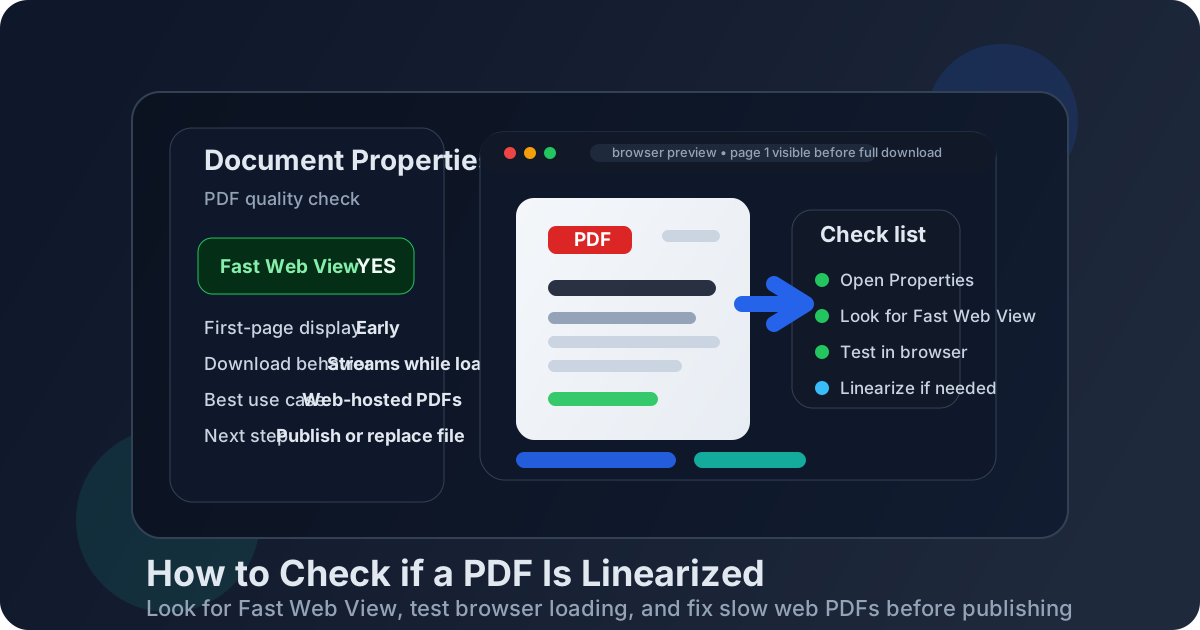
Table of contents
- Quick start: check a PDF for Fast Web View in a few minutes
- What a linearized PDF actually means
- The fastest reliable ways to check
- How to test the live browser version without fooling yourself
- Compression vs linearization: why people mix them up
- When linearization matters most
- What to do if the PDF is not linearized
- Common mistakes and false signals
- Related LifetimePDF tools and guides
- FAQ (People Also Ask)
Quick start: check a PDF for Fast Web View in a few minutes
If your goal is simply tell me whether this web PDF is properly optimized, use this order:
- Open the PDF in a viewer that shows document properties.
- Look for a field labeled Fast Web View or an equivalent status.
- If that field says Yes, the file is linearized.
- If the viewer does not expose the field, open the real URL in a private or uncached browser window.
- Watch whether page 1 begins rendering while the rest of the file continues loading.
- If the browser waits too long before showing anything useful, linearize the final copy with Linearize PDF and test again.
What a linearized PDF actually means
A linearized PDF is organized so the information needed for page 1 appears early in the file. That lets a browser or web viewer start rendering the beginning of the document before the entire download is finished. Many viewers call this Fast Web View.
This matters because web readers judge speed by what appears first. If the first page shows up quickly, the document feels responsive even while later pages continue to stream in the background. If nothing appears until the full file lands, the PDF feels heavier and more annoying than it really needed to be.
| File state | What usually happens in a browser | Best use case |
|---|---|---|
| Linearized PDF | Page 1 can start appearing sooner while later content continues loading | Websites, portals, help centers, LMS platforms, browser previews |
| Non-linearized PDF | The viewer may wait longer before showing meaningful content | Less noticeable for download-only or internal storage workflows |
| Compressed but not linearized | The file may be smaller but still not deliver page 1 efficiently | Useful when bandwidth matters, but not a full Fast Web View fix |
The fastest reliable ways to check
There are two checks that matter most in real life: the document properties check and the live browser check. Together, they tell you both what the file claims to be and how it actually behaves after publication.
1. Check the document properties
If your PDF viewer exposes file properties, this is the cleanest answer. Open the PDF properties and look for Fast Web View. If it says Yes, the PDF is linearized. If it says No, it is not.
2. Test the published PDF in a browser
Open the actual web URL in a private browsing session and watch the first few seconds. The question is simple: does page 1 start appearing before the full file is done loading? If yes, that is a good sign. If the viewer sits there blank or feels delayed until the whole file lands, the PDF may not be optimized for Fast Web View.
3. Compare two copies if needed
If you are troubleshooting a before-and-after optimization, compare the old file and the newly linearized file under the same conditions. That makes it much easier to see whether the change actually improved first-page delivery instead of just shrinking the overall file size.
Need the repair step too? If the check fails, optimize the published copy instead of just assuming the browser will figure it out.
How to test the live browser version without fooling yourself
Browser testing is useful, but it is easy to get a false sense of confidence if you test the wrong way. Caching, local copies, or already-opened files can make a PDF seem faster than the published experience a real visitor will get.
Use the real URL
Do not test only from your desktop download folder. Open the exact live web link, because the point of linearization is web delivery behavior.
Use a private or uncached session
An incognito or private window helps you avoid accidental reuse of a cached copy. If the file was already fetched earlier in the day, the browser may make the PDF look faster than it really is for first-time visitors.
Watch for first-page timing, not just total download time
A PDF can still take a while to fully finish if it is large. That alone does not mean linearization failed. The key is whether the browser can start showing page 1 earlier in the process.
Test on the kind of connection your audience actually uses
Fast office fiber hides problems. Mobile data, hotel Wi-Fi, VPN sessions, and corporate browser environments expose them much faster. If the PDF matters to outside users, test in something closer to real conditions.
Compression vs linearization: why people mix them up
These two ideas get blended together constantly, but they solve different problems.
| Optimization | What it changes | What it does not guarantee |
|---|---|---|
| Compression | Reduces file size by shrinking images or cleaning structure | Fast Web View or early first-page rendering |
| Linearization | Reorders the PDF so page 1 can be delivered earlier | A dramatic reduction in total file size |
| Compression + linearization | Gives you a lighter file and a better loading order | Perfect performance if the PDF is still excessively heavy |
In many workflows, the best sequence is to compress the heavy final PDF first if image bloat is the problem, then linearize the finished copy before upload.
When linearization matters most
You do not need to obsess over Fast Web View for every single PDF. It matters most when the document is opened directly inside a browser or embedded viewer.
- Product brochures and sales sheets: people click and expect the first page immediately.
- Manuals and knowledge-base PDFs: browser-based reading is common, especially on laptops and phones.
- Investor, legal, and compliance downloads: long documents benefit when page 1 appears quickly.
- LMS or portal documents: users often preview in-browser rather than downloading first.
- Support centers and customer dashboards: faster previews reduce frustration and abandonment.
If the file is mainly an email attachment or a private archive that users download before opening, linearization is less critical. It still can help, but the benefit is smaller.
What to do if the PDF is not linearized
If the check shows that Fast Web View is off, the fix is straightforward: optimize the final published copy rather than keeping the old version online.
- Start with the final PDF you actually plan to publish.
- If the file is unnecessarily heavy, reduce the weight with Compress PDF.
- Run the finished version through Linearize PDF.
- Upload or replace the web-hosted file.
- Test the live URL again in a private window.
Best workflow for public PDFs: finalize content → compress if needed → linearize → upload → test the real live link once.
Common mistakes and false signals
- Assuming a small PDF is automatically linearized: it is not.
- Testing a local file instead of the web URL: that does not prove the published experience.
- Trusting a cached browser session: cached files can make a slow PDF look fine.
- Confusing total file size with first-page responsiveness: both matter, but they are not the same job.
- Optimizing a draft and publishing a different copy later: always linearize the final version that actually goes live.
Most Fast Web View mistakes are workflow mistakes, not mysterious technical failures. The file that gets published is often not the same file that got tested.
Related LifetimePDF tools and guides
Checking linearization usually fits into a broader web-PDF workflow. These tools and guides pair naturally with it:
- Linearize PDF - optimize the file structure for faster browser delivery.
- Compress PDF - reduce oversized image-heavy files before you publish them.
- Split PDF - break very large documents into smaller sections when one huge file is overkill.
- Crop PDF - remove wasted margins before publication when page real estate is sloppy.
- Linearize PDF Online for Fast Web View - full guide to optimizing a published PDF.
- Linearize PDF Online - direct overview of the online workflow.
- Optimize PDF for Fast Web View Without Monthly Fees - related reading for subscription-free workflows.
Ready to stop guessing? Check the published PDF once, fix Fast Web View if needed, and give readers a better first-page experience.
Practical default: check Fast Web View → linearize the final copy → re-test the live URL once.
Published by LifetimePDF - Pay once. Use forever.
FAQ (People Also Ask)
How do I know if a PDF is linearized?
Check the PDF properties for Fast Web View if your viewer exposes that field. You can also test the live browser link and see whether page 1 starts appearing before the whole file finishes downloading.
Where do I find Fast Web View in a PDF?
Open the document properties in a viewer that exposes PDF status fields and look for Fast Web View. If that field is missing in your current viewer, rely on a private browser test of the live published file.
Is a compressed PDF automatically linearized?
No. Compression reduces file size. Linearization changes the order of the file so the first page can be delivered sooner in a browser or embedded viewer.
Do I need to linearize every PDF?
No. It matters most for PDFs opened directly from websites, portals, LMS platforms, help centers, and browser tabs. It matters less for download-only or internal archive workflows.
What should I do if Fast Web View is off?
Linearize the final copy with a dedicated tool, re-upload it, and test the live URL again. If the file is also very heavy, compress it first so you improve both weight and delivery behavior.